3 Ways to Recover Lost Data on iPhone 7
Summary
Don't worry about losing contacts, messages, photos, music, or videos from your iPhone anymore. You can recover lost data from iCloud backups, iTunes backups, or directly from your iPhone 7 using three simple methods. Follow the solution that suits your situation to restore your lost iPhone data.
The new iPhone 7 is out, available on September 7th, 2016, and Apple fans can get their hands on it this month. As you enjoy the new features and changes, remember to be cautious when using it to avoid losing important data such as contacts, photos, messages, music, or videos.
To avoid data loss trouble with your new iPhone 7, it's essential to be cautious and regularly create backups. If data loss does occur, don't worry - there are 3 easy ways to recover lost data on your iPhone 7. You can try any one of these methods to restore your iPhone 7 data.
- Restore lost data for free in iPhone 7 from iCloud backup
- Restore lost iPhone 7 data from iTunes backup
- Restore lost data on iPhone 7 with iOS data recovery software (recommended)
Method 1. Restore lost data for free in iPhone 7 from iCloud backup
If you have created iCloud backups for your new iPhone 7 data, you can simply restore or extract the iCloud backups to iPhone 7 with ease, as the device is compatible with the backup format. The process is straightforward, and you can restore your data, settings, and apps directly from the iCloud backup.
- Turn on your iOS device.
- Proceed to the Setup Assistant, tap "Set up your device", then tap "Restore from a Backup" and sign in to iCloud.
- To choose a backup, go to "Settings", then tap on "Your Name" at the top of the screen, followed by "iCloud", then "iCloud Backup" and finally "Choose Backup". A list of available backups will then appear, from which you can select the one you want to restore from.
Method 2. Restore lost iPhone 7 data from iTunes backup
If you've backed up your iPhone 7 data using iTunes, you can also recover lost data by restoring from the iTunes backup. To do this, you'll need to connect your iPhone 7 to the computer that the backup was created on, open iTunes, and follow the prompts to restore your data.
1. Open iTunes on PC or Mac that you used to back up iPhone 7 data;
2. Connect iPhone 7 to the computer with a USB cable.
Follow the on-screen steps to enter your iPhone 7 passcode or trust This Computer.
3. Select iPhone 7 when it appears in iTunes.
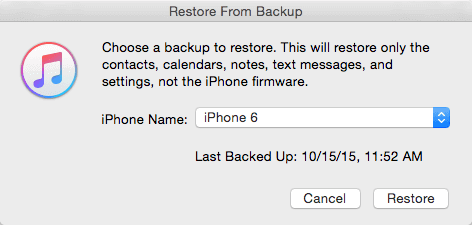
4. To restore a backup in iTunes, select "Restore Backup" and review the available backups, noting the date and size of each. Choose the most relevant backup based on the date and size.
5. Click Restore and wait for the restore to be finished.
Method 3. Restore lost data on iPhone 7 with iOS data recovery software
If you've lost data from your iPhone 7 and don't have an iCloud or iTunes backup, don't panic. Professional iOS data recovery software can help recover your lost data.
You can try a professional iOS data recovery software like Qiling MobiSaver to recover lost iPhone 7 data, including photos, contacts, messages, and more, with just a few clicks.
To recover data on an iPhone 7, download and install Qiling MobiSaver, a reliable and user-friendly data recovery software. Follow these steps: connect your iPhone 7 to your computer, launch Qiling MobiSaver, and select the data type you want to recover, such as contacts, messages, or photos.
Step 1. Connect iPhone to Your PC
Launch Qiling MobiSaver, click "Recover from iOS device" on the left, and click "Start".
Step 2.Scan for Lost iPhone Data
Qiling MobiSaver will automatically scan iPhone/iPad/iPod, finding both existing and lost data, and completing the scan once finished.
Step 3.Click the "Recover" Button
You can select the lost data you want to recover, such as photos, videos, contacts, SMS, notes, voice mails, and other files, and save them to a new location.
After restoring your iPhone 7 data from a backup, you can then import the restored data back into your iPhone 7 and reuse them again.
Related Articles
- WhatsApp Not Receiving Messages: 8 Solutions
- Top 9 Best iPhone Photo Recovery Software
- How to Recover Kik Photos on iPhone and Android
- VSCO Recovery | How to Retrieve VSCO Deleted Photos
- Avast Deleted My Files, How to Recover?
Does Avast delete your important files, and you're clueless on how to recover them? This guide is for you. You can recover Avast deleted files with Qiling data recovery software easily. Download and run this software to restore lost data now. - .Bak File Recovery Software Free Download
Download the best .bak file recovery software to recover accidentally deleted or corrupted .bak files as soon as possible. It's the best way to recover your backup files (.bak file extension) from any device.
Products
Articles & Tutorials
- Data Recovery
- Data Backup
- File Recovery
- File Backup
- System Backup and Restore
- Disk and Partition Clone
- Technical articles
- Mobile articles
- Disk Master Help
- Windows Data Recovery Tutorials
- Windows Secure Delete Tutorials
- Windows Partition Management Tutorials
- Windows File Backup and Restore Tutorials
- Windows System Backup and Restore Tutorials
- Windows Disk Backup and Restore Tutorials
- Windows Clone Tutorials