WhatsApp Not Receiving Messages: 8 Solutions
Summary
WhatsApp, a popular social media platform, has its own set of limitations. One common issue users face is not receiving messages, which can be frustrating, especially if it's an important message. To resolve this problem, several solutions can be tried.
| Workable Solutions | Step-by-step Troubleshooting |
|---|---|
| Check WhatsApp Servers | Open your browser (Chrome or Safari). Then go to "Downdetector" and search for "WhatsApp"...Full steps |
| Check Blocked Contacts | Open WhatsApp on your iPhone and open "Settings" from the top-right menu. Then tap on the privacy...Full steps |
| Restart Your System |
Press and hold the power button until the menu appears, then tap "Restart/Reboot"...Full steps |
| Check Your Network Connection |
Open your phone's browser, go to Fast.com, and check whether the internet connection is working...Full steps |
| More solutions... |
Update the WhatsApp. Enable the Background Refresh. Disable the Power Saving Mode...Full steps |
There could be several reasons why you're unable to receive messages on WhatsApp. Your internet connection might be slow or unstable, which could prevent messages from being delivered. Additionally, if you've recently changed your phone number or SIM card, you might need to update your WhatsApp account information to receive messages from contacts who have your new number.
WhatsApp is a leading mobile app that enables people to connect and communicate with each other through various means, including sending images, videos, and voice notes. This has become a primary mode of communication in today's digital age.
Many people face the issue of WhatsApp not receiving messages, with some experiencing this problem on both Android and iPhone. The issue can manifest in two ways: either the messages are not received by the recipient, or the sender's WhatsApp is unable to send messages to others. Let's explore the possible reasons behind this common problem.
Why WhatsApp Is Not Receiving Messages
WhatsApp not showing or receiving messages could be due to various reasons, including internet connection issues, internal WhatsApp problems, or other technical difficulties. To troubleshoot, you can check your internet connection, restart the app, or try clearing the app's cache. If the issue persists, you can consider contacting WhatsApp support or checking for any known issues on their official website.
A few common issues include:
- Poor Internet Connection: The most common reason behind WhatsApp messages not being received is often due to poor connectivity or internet issues.
- Disabled Mobile Data: If you're not using Wi-Fi, your data might be disabled, which could prevent WhatsApp from receiving messages.
- WhatsApp App Issues: WhatsApp not receiving messages might be caused by issues with the application itself, such as a corrupted cache or outdated version, which can be resolved by clearing the app's cache, updating the app, or reinstalling it.
- Device Configuration: If your device isn't configured properly, it's common for WhatsApp not to receive messages on Android or iPhone, which can be frustrating.
If your WhatsApp app is not receiving messages, it's likely due to common issues such as a poor internet connection, incorrect phone number, or an outdated app version. These problems can also cause the app to not send messages, making it essential to address them.
Solutions to Fix WhatsApp Not Receiving Messages
The causes of WhatsApp not receiving messages are numerous, which means the solutions are just as varied. As a result, each user may face a unique problem that requires a tailored solution.
To address the most common problems associated with the App, we've identified eight plausible solutions that cater to both Android and iPhone users. While most of these solutions are related to the App itself, some may require additional steps due to the differences in interfaces between Android and iPhones.
So, let's get started:
Solution 1. Check WhatsApp Servers
To determine if the issue is on your end or not, consider whether others are experiencing the same problem. For example, if you're having trouble receiving WhatsApp messages, it's likely that millions of other users are facing the same issue, making it a problem on their end rather than yours.
If you're experiencing issues with WhatsApp, you can check if the servers are down by trying the following steps on either an iPhone or Android device: check for app updates, restart your phone, check your internet connection, and look for alternative messaging apps. If you're still having trouble, you can also check online resources such as Downdetector or IsItDownRightNow to see if other users are experiencing the same issue. Additionally, you can also check WhatsApp's official social media accounts or their status page for any updates on the status of their servers. If you're still unable to access WhatsApp, you can try contacting their support team for further assistance.
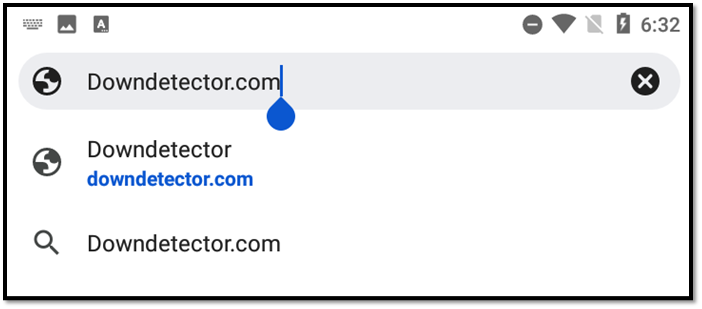
Step 1. Open your browser (Chrome or Safari). Then head to "Downdetector".
Step 2.Search for "WhatsApp".
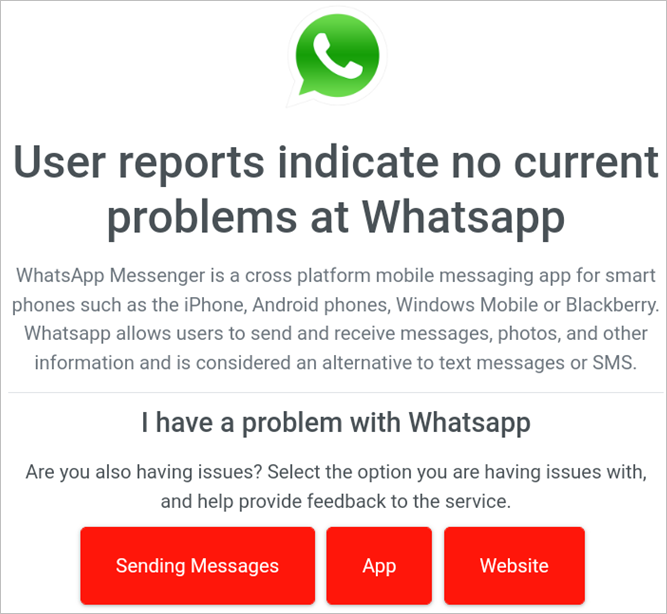
Step 3.Check current WhatsApp status.
Step 4.Look for updates from the last 24 hours.
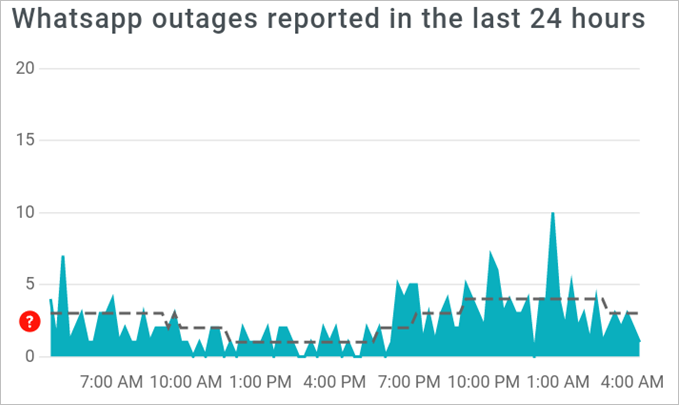
This will show you whether or not there was an outage in the last 24 hours or so. If the servers are up and running, it means the problem is likely from your end, so try other solutions.
Solution 2. Check Blocked Contacts
Here's how to check if a contact is blocked on WhatsApp:
Step 1. Open WhatsApp and open "Settings" from the top-right menu.
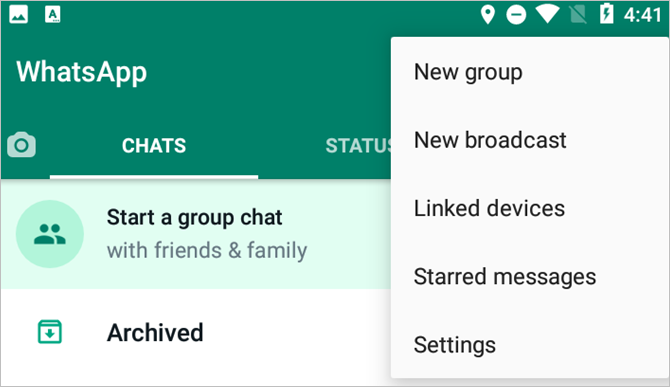
Step 2. Head to "Account".
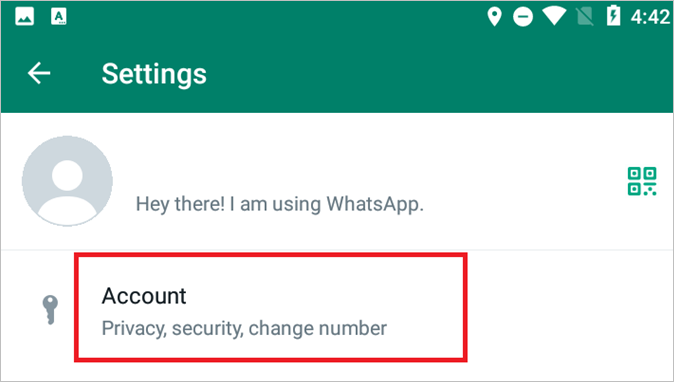
Step 3. Tap on "Privacy".
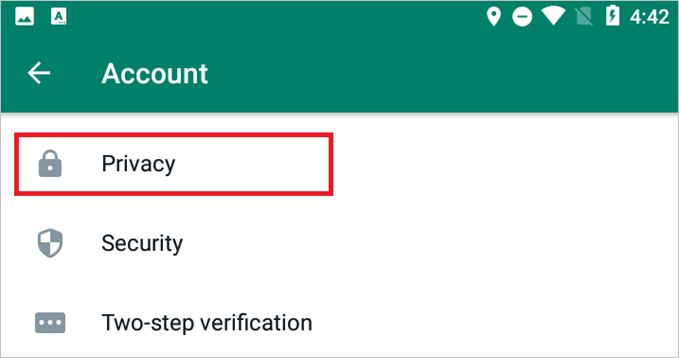
Step 4. Scroll all the way down until you see blocked contacts.
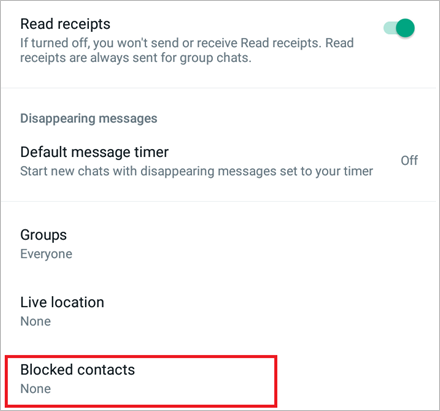
Step 5. Remove any unwanted blocked contacts.
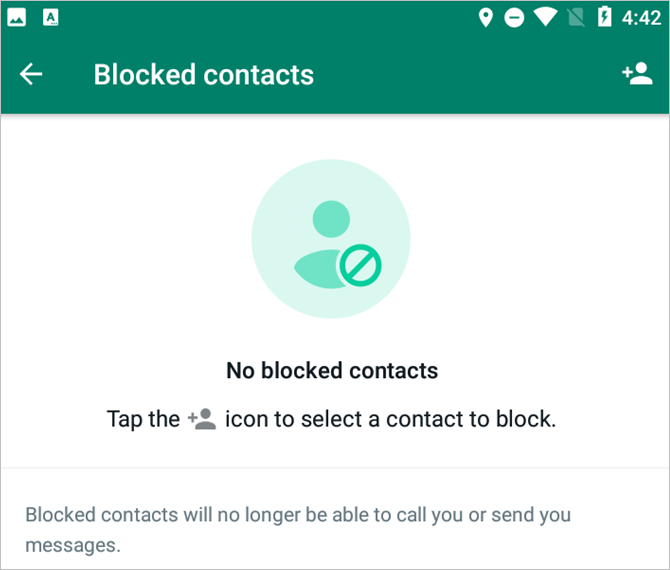
You can remove a user from the list of blocked contacts by going to their profile, tapping the three dots, and selecting "Block" then "Unblock". This will allow you to receive messages from them again. If you're still not receiving messages, it may be due to other factors such as network issues or the user's settings.
Solution 3. Restart Your System
Sometimes, a complicated fix isn't needed to solve the issue, as it may simply be a matter of the system (Android or iOS) struggling to handle a specific task. In these cases, a simple restart or reboot can often resolve the problem.
For Android:
To restart an Android phone, press and hold the power button until the power menu appears. Tap on "Restart" or "Reboot" to restart the phone. Alternatively, you can also press and hold the power button for 10-15 seconds to force the phone to restart.
Step 1. Press and hold the power button.
Step 2. Wait for the menu to show.
Step 3. Tap "Restart/Reboot".
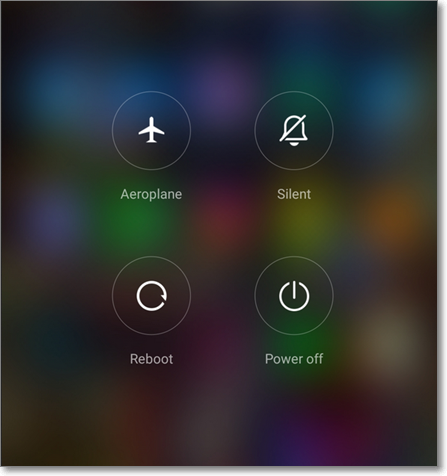
Step 4.Confirm "Restart/Reboot".
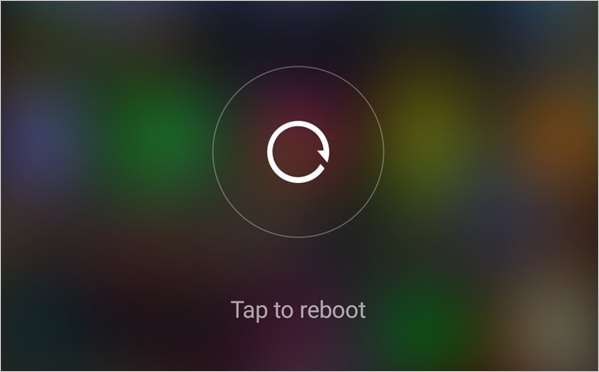
If your WhatsApp is not working, try restarting your phone. This should resolve the issue in most cases. If you're still having trouble, you can try reinstalling the app or checking your internet connection.
For iPhones:
To restart your iPhone, press and hold the Sleep/Wake button and the Volume Down button at the same time for at least 10 seconds, until the Apple logo appears. This method applies to iPhone models released since the iPhone X. If you're using an older iPhone model, refer to Apple's support page for specific instructions.
Step 1. To put an iPhone in silent mode, press and hold the lower volume button and the power button at the same time. This will quickly turn off the iPhone and put it into silent mode.
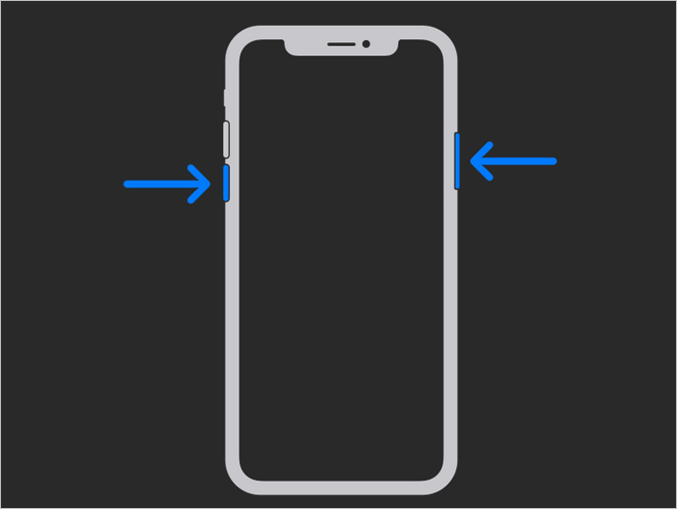
Step 2. Wait for the menu to show.
Step 3. To turn off your iPhone, tap on the power off slide and slide it all the way to the right. This will shut down your iPhone completely.
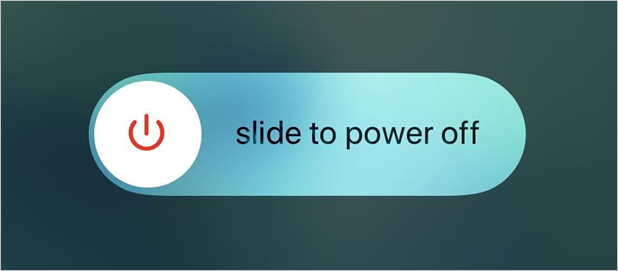
Step 4. Wait until the device is off completely.
Step 5. Hold the power button on your iPhone for about 10 seconds, or until the Apple logo appears. This will restart your iPhone.
This will allow your iPhone to reboot and reset any casual phone settings, stopping problems caused by the system cache, and allowing WhatsApp to receive messages again.
Solution 4. Check Your Network Connection
The usual culprit is the internet, which might be causing issues, preventing your phone from connecting to servers and receiving WhatsApp messages.
So, how do you check your internet connection?
Step 1. Go to Fast.com.
Step 2. See if your internet is working.
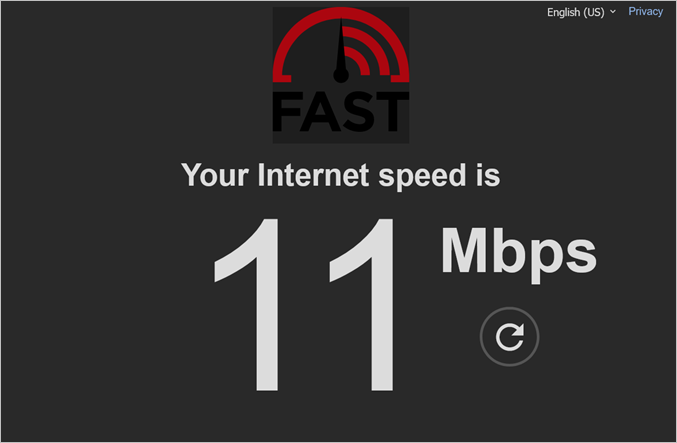
If your WhatsApp is not receiving messages, a connection speed of over 1 MBPS should be sufficient. If the issue persists, try restarting your router or contacting your internet service provider if you're experiencing internet connectivity issues.
Solution 5. Update the WhatsApp
To check for WhatsApp updates, Android users can go to the Google Play Store, search for WhatsApp, and tap the "Update" button if available. iPhone users can go to the App Store, search for WhatsApp, and tap the "Update" button if available. If your WhatsApp is already up to date, the "Update" button will not be available. Checking for updates regularly can help prevent issues and ensure smooth functionality.
For Android:
Android devices from different vendors have varying interfaces, but they all have Google's Play Store. To check WhatsApp's upgradability status, you can check the Play Store for any available updates. Simply open the Play Store, go to the "My apps & games" section, and look for WhatsApp. If an update is available, you'll see an "Update" button next to it. Tap the button to update WhatsApp to the latest version. If there's no update available, WhatsApp is already running on the latest version.
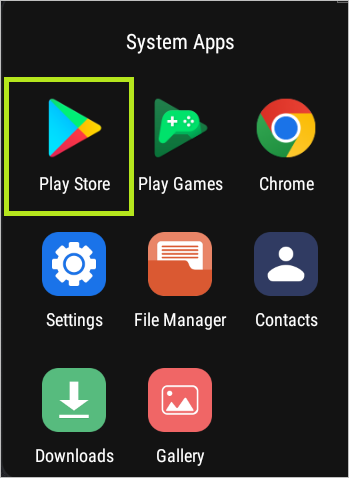
Step 1. Launch "Google Play Store".
Step 2. Search WhatsApp.
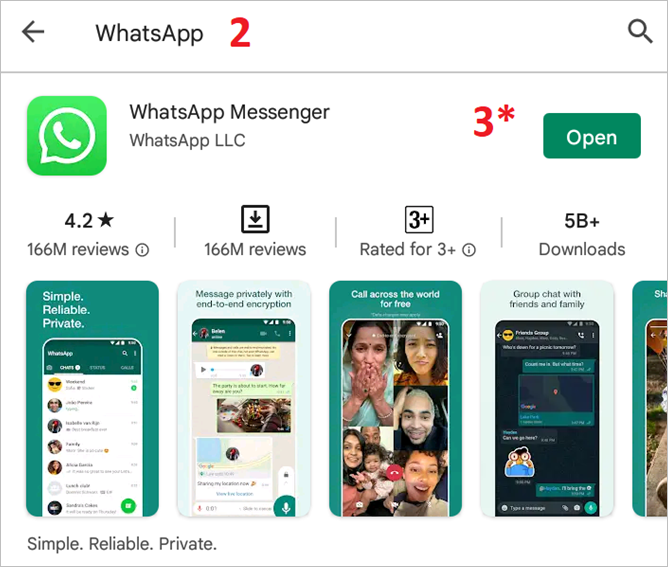
Step 4. Tap "Update".
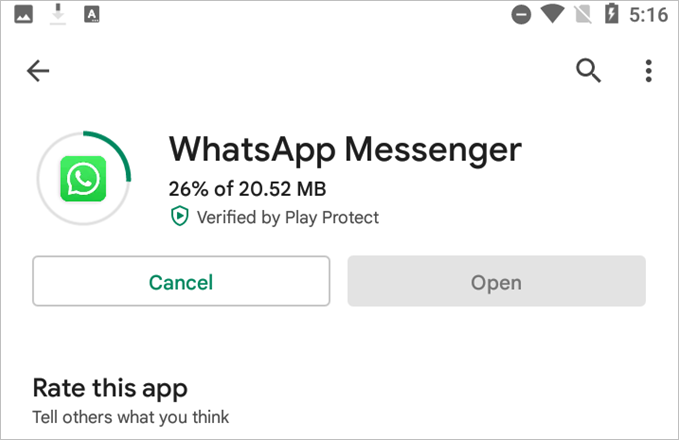
Note: The Open icon will only appear as "Update" on your WhatsApp if your app is outdated, prompting you to update to the latest version.
For iPhones:
Step 1. Tap on App Store from the home screen.
Step 2. Search WhatsApp on the App Store.
Step 3. Tap on "Updates".
Step 4. Find and update "WhatsApp Messenger".
Note:If your WhatsApp is outdated, the Update button will appear next to your WhatsApp messenger. If it's not, you need to try other solutions on this list.
Solution 6. Enable Background Refresh
Here is how to turn on background refresh for your iPhone or Android phone:
For Android:
The option to change the default app for a specific action may not be available on older Android versions. This is a common limitation, and users on such versions may not have the flexibility to choose their preferred app for a particular task.
Step 1. Tap on the WhatsApp icon.
Step 2. Tap on App Info once it pops up.
Step 3. To check your data usage, find and tap on either "Data Usage" or "Mobile data & Wi-Fi" depending on the specific phone model and user interface you have.
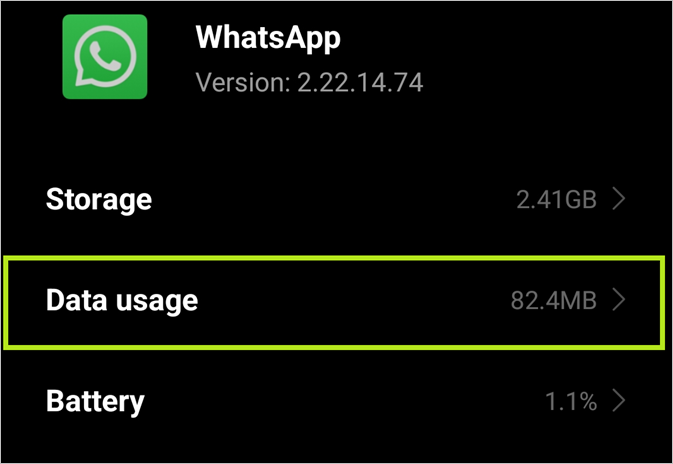
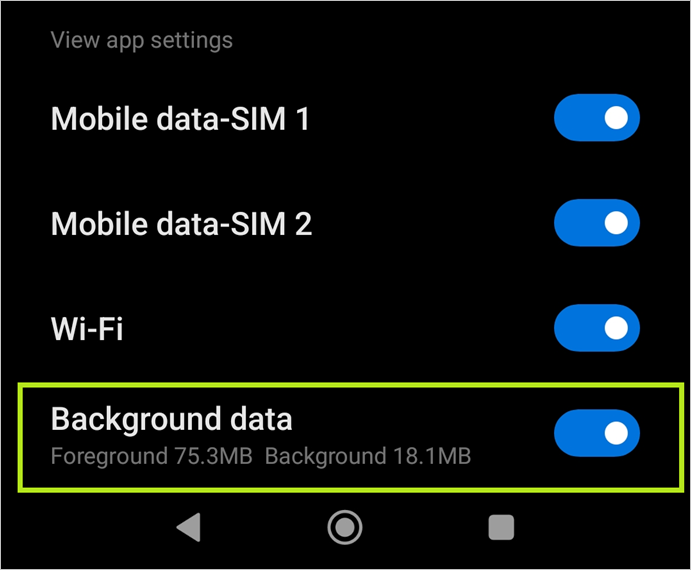
Step 4. Turn on "Background Refresh", or ensure it's on already
For iPhones:
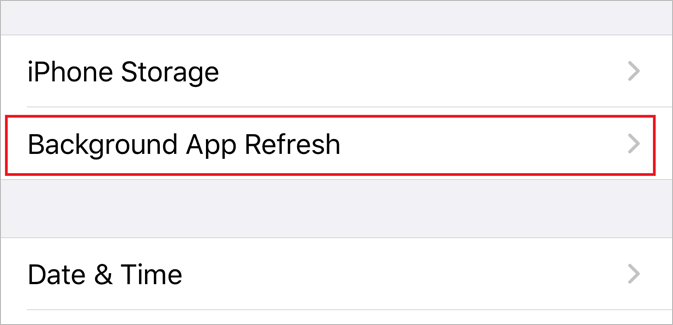
To access the background app refresh on iOS, go to Settings, then tap on "General", followed by "Background App Refresh". This will show you a list of all installed apps that are allowed to refresh in the background, and you can toggle them on or off as needed. Note that some apps may not be able to refresh in the background even if you toggle it on, as this feature is not supported by all apps.
Step 1. Tap on "Settings" from the home screen.
Step 2. Tap on"General".
Step 3. Find and Tap "Background App Refresh".
Step 4.Navigate & locate WhatsApp, and toggle it on.
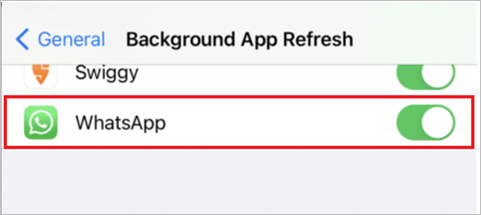
This feature allows WhatsApp to refresh its settings and messages in the background using data or Wi-Fi, enabling it to receive messages again.
Solution 7. Reinstall WhatsApp
To fix WhatsApp, you can try reinstalling the app. First, uninstall WhatsApp from your device. Then, go to the Google Play Store (for Android devices) or the App Store (for iOS devices), search for WhatsApp, and reinstall it. Before uninstalling, make sure to back up your messages and data to prevent losing any important information. This should resolve any issues with the app.
For Android:
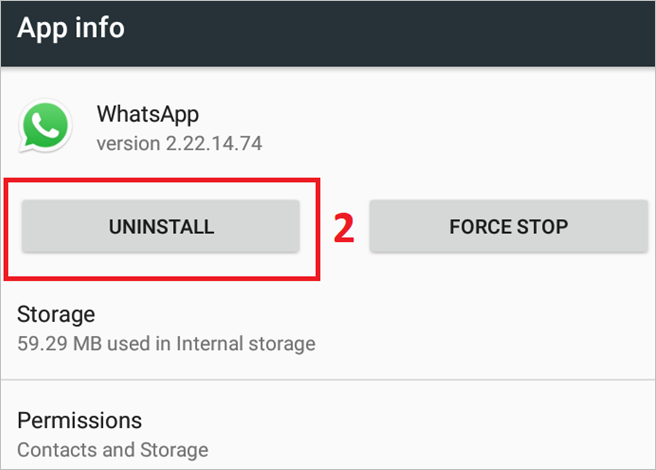
Step 1. To open the "App info" page for WhatsApp, simply tap and hold on the WhatsApp icon.
Step 2. Tap "Uninstall & Confirm".
Step 3. To install WhatsApp, go to the play store, search for WhatsApp, and install it.
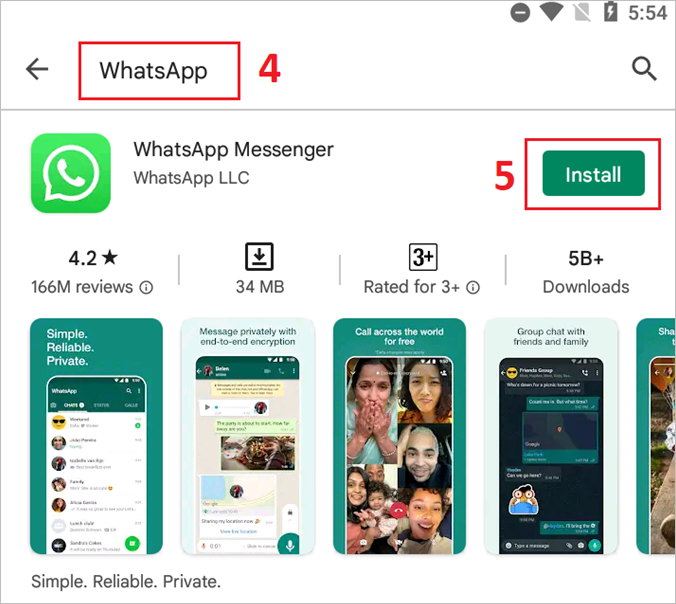
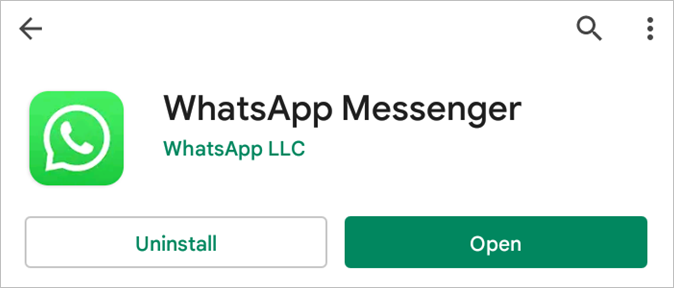
Step 4. Wait for the installation to finish.
Step 5. Open App & set up your account once more.
For iPhones:
To transfer WhatsApp data from an Android to an iPhone, follow these steps: the process is similar, except for the App Store's differences. Before proceeding, make sure to back up your WhatsApp data, as the transfer process will erase your existing data. Then, follow the same process as described above, and your WhatsApp data will be transferred to your new iPhone.
Step 1. Tap on the WhatsApp icon on the home screen.
Step 2. Tap remove app & confirm the action.
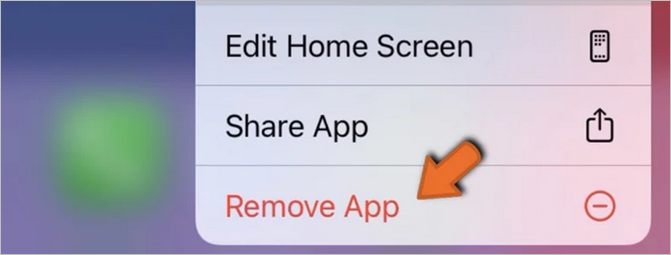
Step 3. Open the app drawer on your device, locate the App Store icon, and tap on it to initiate the download process.
Step 4. Search WhatsApp and install it (Get WhatsApp).
Step 5. Finish downloading and finish setting it up.
A clean installation of WhatsApp will not only resolve your messaging issues but also address any underlying problems, and improve the app's performance. This will give you a fresh start with WhatsApp.
Solution 8. Disable Power Saving Mode
The final solution we have for your troubles is to disable power-saving modes. Once again, since iPhones and Androids are so different, users of these phones will have to follow separate steps to disable this mode. Here's how:
For Android:
Step 1. Head to "Settings".
Step 2. Navigate and find "Battery settings".
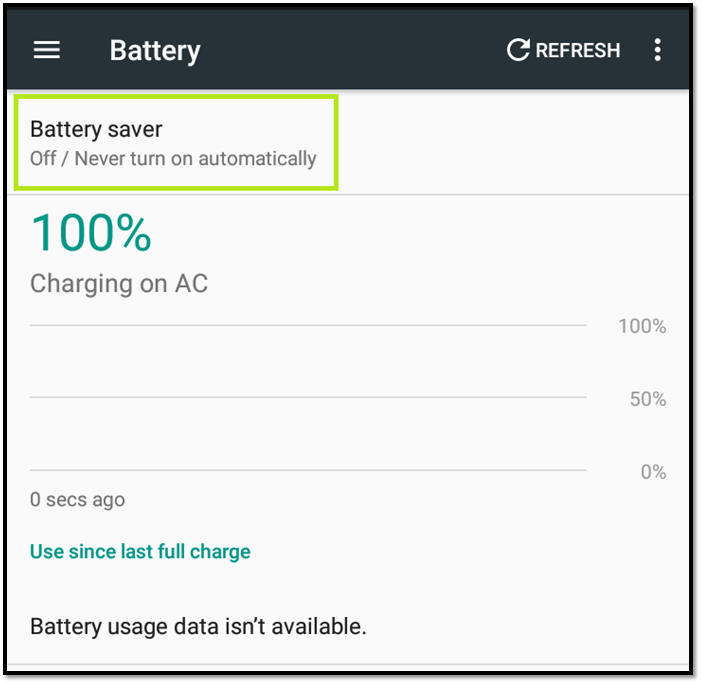
Step 3. Head into battery saver options.
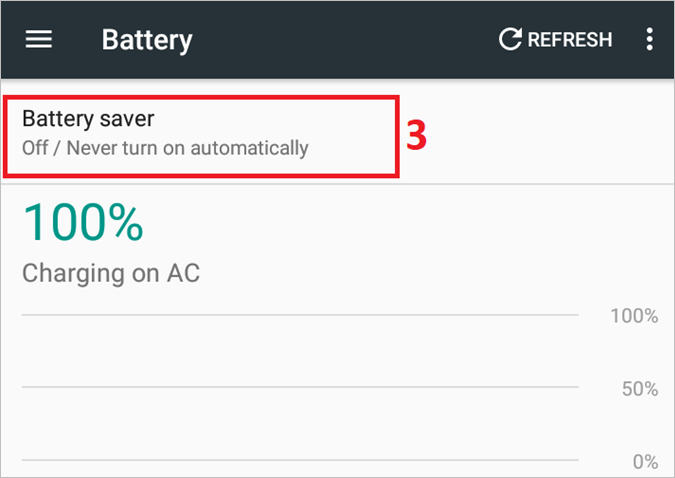
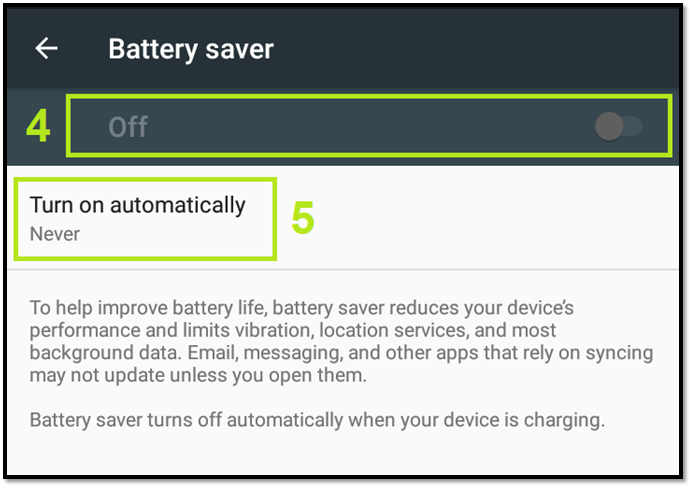
Step 4. Toggle it off.
Step 5. Set turn on automatically to never.
For iPhones:
Once again, older iOS had different ways of portraying the power/battery settings. However, iPhone X and later iOS devices have the same interface, and their users can follow this process:
Step 1. Head to "Settings" and tap "Battery" options.
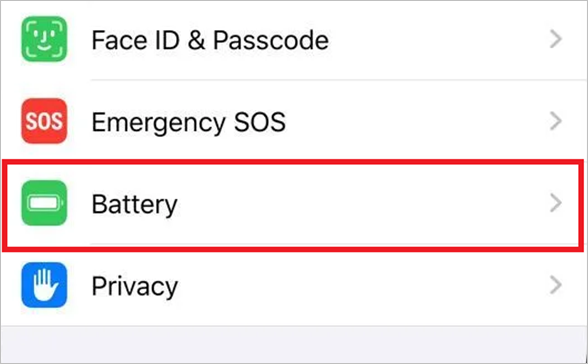
Step 2. Toggle"Low Power Mode"off.
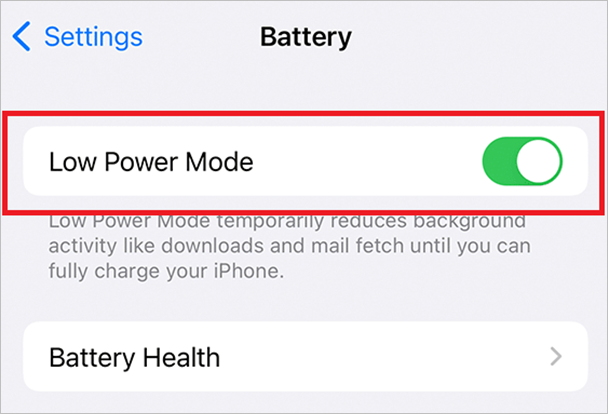
Turning off low power mode on Android and iOS may resolve the issue of WhatsApp not receiving messages, as it can often cause apps to malfunction. This could be a viable solution for many users experiencing this problem.
Pro Tip: Recover Lost Messages on WhatsApp for Free (Recommend)
Using all the solutions mentioned puts you at risk of losing your messages and important data, but after fixing WhatsApp issues, you can recover lost messages on WhatsApp for free.
You can recover lost messages using a professional tool called Qiling MobiSaver. This tool offers many options that other recovery tools don't, such as comprehensive recovery, and is a reliable choice for retrieving lost messages.
- If you've lost data on your iPhone, don't worry - there are ways to recover it on both Windows and Mac computers. With the right tools and expertise, you can get back your deleted contacts, photos, messages, and more.
- Recover deletedmessages, contacts, photos, videos, or other media
- Recover directly from iCloud backup
- Recovery directly from iTunes backup
- Additional support for apps like LINE, Kik
The iPhone is a popular smartphone that offers a range of features and capabilities, making it a desirable device for many users. Its sleek design, high-quality camera, and seamless user experience have contributed to its widespread adoption.
Steps to Restore WhatsApp Messages Using Qiling MobiSaver
To recover deleted messages on Messenger, you can use the "Message Requests" feature. This allows you to view messages from people you don't have in your friends list.
Step 1. Connect iPhone to PC
Launch Qiling MobiSaver, choose the "WhatsApp" button, and select "Device Storage" to recover deleted WhatsApp data.
Step 2. Make Sure Your Device Is Connected
If WhatsApp is not installed on your iPhone, Qiling MobiSaver will not be able to locate your data.
Step 3. Scan iPhone and Find Important Data
Qiling MobiSaver will automatically scan your iPhone to find lost WhatsApp chats, history, photos, videos, and other files, which may take a few minutes. Just wait patiently.
Step 4. Preview and Restore WhatsApp Data
Tap the "WhatsApp" button on the left and the missing WhatsApp data will be displayed. Preview and select the data you want to recover, then click "Recover to PC" or "Recover to Device" to get the data back.
Conclusion
If your WhatsApp is not functioning properly and not notifying you when messages are received, try these solutions to restore it to its previous settings. These fixes can solve various problems, so we suggest you try them all one after the other. By implementing these solutions, you should be able to resolve any issues and get your WhatsApp working correctly again.
To avoid losing any important data, use Qiling MobiSaver to back up your phone's data before attempting to fix the issue. This will ensure that you have a copy of your data in case something goes wrong during the troubleshooting process. Additionally, using Qiling MobiSaver will also allow you to recover your data if your phone is no longer functional.
Related Articles
- Top 9 Best iPhone Photo Recovery Software
- How to Recover Music Files Deleted by iTunes
- LINE Notifications Not Working iOS 15? [Fixed]
- iPhone Keeps Asking for Apple ID Password (10 Ways)
- Fixed: Seagate external hard drive not showing up in Windows 10/11
To fix a Seagate external hard drive not showing up on the computer in Windows 10 without losing data, first check the USB port and cable for any issues. Next, try restarting your computer and the external hard drive. - How to Fix SQL Database Page Level Corruption Automatically
MS SQL Database page level corruption can occur due to various reasons. To resolve this issue, you can either use Qiling MS SQL Recovery to automatically repair corrupted MDF/NDF files, or adopt a manual method to fix page level corruption in your SQL database.
Products
Articles & Tutorials
- Data Recovery
- Data Backup
- File Recovery
- File Backup
- System Backup and Restore
- Disk and Partition Clone
- Technical articles
- Mobile articles
- Disk Master Help
- Windows Data Recovery Tutorials
- Windows Secure Delete Tutorials
- Windows Partition Management Tutorials
- Windows File Backup and Restore Tutorials
- Windows System Backup and Restore Tutorials
- Windows Disk Backup and Restore Tutorials
- Windows Clone Tutorials