How to Fix iPhone Messages Disappeared from Inbox
Summary
If you're frustrated to find that your iPhone messages have disappeared overnight, don't worry, this guide has got you covered. You'll find a few useful tips to help you recover your lost messages and prevent this issue from happening again in the future.
Messages disappearing from an iPhone can be caused by various factors, including human error, hardware failure, or software corruption. To resolve this issue and prevent similar incidents, it's essential to identify the root cause and take corrective measures.
If iPhone text messages are important to you, it's a good idea to use Qiling MobiSaver to recover them.
To fix the iPhone messages disappeared issue, try recovering deleted messages from iCloud backup, checking the "Messages" app's "Recently Deleted" folder, or using a third-party recovery app. If none of these methods work, restart your iPhone in Recovery Mode, or try DFU Mode to restore your device to its previous state.
Solution 1. Restart Your iPhone
If your iPhone messages have disappeared, try restarting your iPhone to see if it resolves the issue. This simple step may bring back your missing messages.
Restart: To restart your device, hold the sleep or wake button and slide to Power Off. Then, turn on the device again.
Force restart: To reset your iPhone, press and hold both the Home button and the Sleep/Wake button at the same time for 10 seconds. This will cause the Apple logo to appear on the screen, indicating that the iPhone has been reset.
Solution 2. Restart the Messages App
Sometimes the Messages app error may also cause the problem. Restarting the Messages app can fix the issue.
Step 1. Double-click the iPhone Home button to see your open apps.
Step 2. Find Messages App and swipe up to close it.
Step 3. Then, tap the Messages App to relaunch it.
Solution 3. Change Message Settings
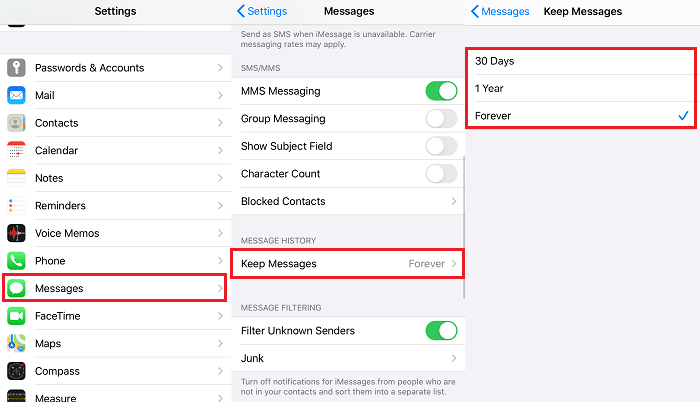
To avoid losing messages, change the Messages setting to "Keep Messages Forever" instead of 30 days or 1 year.
Step 1. Open the Settings app on your iPhone.
Step 2. Scroll download to find "Message" and tap it.
Step 3. Under Messages History, tap "Kepp Messages."
Step 4. Then, you'll see three options: 30 Days, 1 Year, and Forever. Just choose the last one.
Solution 4. Reactive iMessage
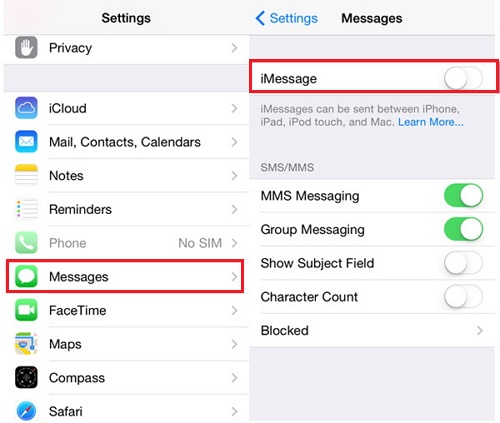
To fix iPhone messages deleted, you can try turning off and then turning back on iMessages, which refreshes your Message data.
Step 1. Go to the Settings on your iPhone.
Step 2. Tap "Messages."
Step 3. To turn off iMessage, tap the slider next to it to turn it off, then tap it again to turn it on.
Solution 5. Recover Lost Messages with the Help of a Third-party Software
If the above methods don't work for you, just put the issue aside and go find your lost important messages. Then, perform a factory reset on your device to resolve the issue.
To recover deleted iPhone messages, a reliable iMessage recovery tool is needed. Qiling MobiSaver is a suitable tool that can help recover lost messages, along with other iOS files, in three ways: from iTunes, from iCloud, or directly from the iPhone without a backup.
Qiling MobiSaver allows you to preview data before restoring, unlike other methods such as retrieving messages from iTunes or iCloud. Not only can you recover messages, but also other data like photos, contacts, notes, and more.
You can download Qiling MobiSaver on your computer to recover your lost messages.
Step 1. Choose the Recovery Mode
Connect your iPhone to your PC, launch Qiling MobiSaver, and click "Recover from iOS Device" followed by "Start".
Step 2. Scan iPhone for Lost Messages
Qiling MobiSaver will automatically scan your iPhone and find lost messages and message attachments for you, regardless of the model, including iPhone 13/12/11/X/XR/XS/8/7/6/5/4.
Step 3. Preview and Restore Lost Messages
To recover deleted messages and attachments, select the "Messages" and "Message Attachments" options, choose the desired items, and then choose whether to recover them to your PC or device.
Solution 6. Reset your iPhone to Factory Settings
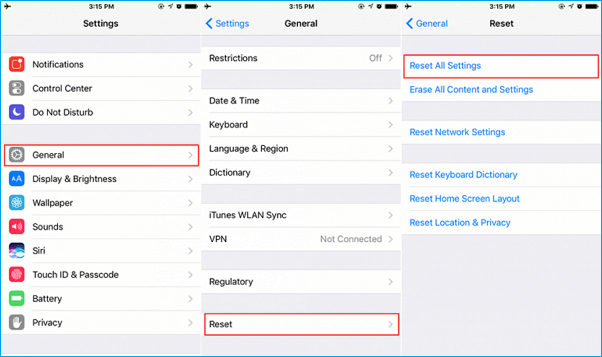
If none of the solutions in this guide work, it's time to reset all settings on the iPhone, which will take the device to factory default settings.
Step 1. Go to the Settings on your iPhone.
Step 2. Tap "General."
Step 3. Tap "Reset," then tap "Reset All Settings."
The Bottom Line
The issue of messages disappearing on iPhone can be easily solved with the solutions offered in this guide. These tips can also be applied to solve other iOS issues such as iPhone contacts disappearing, AirDrop not working on iPhone, Bluetooth not working on iPhone, etc.
To prevent data loss when incidents like accidental deletion or device damage occur, consider installing Qiling MobiMover on your computer, allowing you to recover deleted files at any time and from any location.
Related Articles
- How to Restore Old & Deleted Voice Memos on iPhone
- iPhone Files App | How to Use Files App and How to Recover Files on iPhone and iPad
- How to Recover Data from Bricked iPhone
- LINE Notifications Not Working iOS 15? [Fixed]
- How to Recover Deleted Files from External Hard Drive Free
You will learn 6 effective methods and how to recover deleted files from external hard drive step by step. Besides, this article also include the possible reasons, disk problem signs and protection tips. - How to Recover Deleted Files from Voice Recorders & Voice Recorder Apps?
How to recover deleted files from voice recorders? Get corresponding ways to recover deleted voice recordings from Olympus/Song voice recorders or apps on this page.
Products
Articles & Tutorials
- Data Recovery
- Data Backup
- File Recovery
- File Backup
- System Backup and Restore
- Disk and Partition Clone
- Technical articles
- Mobile articles
- Disk Master Help
- Windows Data Recovery Tutorials
- Windows Secure Delete Tutorials
- Windows Partition Management Tutorials
- Windows File Backup and Restore Tutorials
- Windows System Backup and Restore Tutorials
- Windows Disk Backup and Restore Tutorials
- Windows Clone Tutorials