Recover Deleted Files on iPhone With or Without Backup
Valuable files can be lost due to various scenarios, such as losing or damaging your iPhone, experiencing data loss after a factory reset, or encountering issues with login attempts, among other situations.
Signing with another iCloud account can lead to the deletion of the old data, and other precarious situations include a device being frozen in recovery mode, displaying a white screen, not turning on, or being stuck in headphone mode.
Don't panic if you've accidentally deleted an important file from your iPhone, as there are ways to recover it, even if it has no backup.
This article will explore the different methods for retrieving files, both with and without a backup.
How Can I Recover Deleted Files on iPhone with Backup
If you've deleted files from your iPhone, even if you have a backup, you can still recover the deleted data using various methods.
Here, we will discuss three ways to restore deleted files that have a backup. You must choose the method depending on your needs.
- Fix 1. Recover Recently Deleted File/Document Individually in Files App
- Fix 2. Recover Deleted iPhone Files from iCloud Backup
- Fix 3. Recover Deleted iPhone Files from iTunes Backup
Fix 1. Recover Recently Deleted File/Document Individually in Files App
If you've accidentally deleted files or documents from your iPhone, the Files app can help you recover them. You can use the app to organize and manage your documents, and even add tags to keep them efficiently organized. However, if you've deleted something important, don't worry, you can try using the Files app to recover it. Just navigate to the "Recently Deleted" folder within the app, and you may be able to find and restore your deleted files.
Fortunately, you can easily retrieve deleted files or documents. You have the option to recover all deleted files at once or restore individual files one at a time, depending on your specific needs.
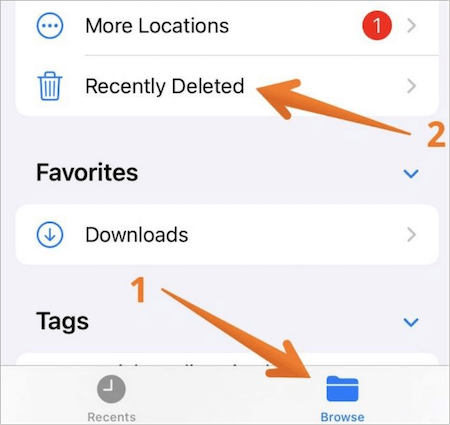
Step 1.To access the recently deleted files on an iPhone, go to the Files app, click on "Browse", and select the "Recently Deleted" option.
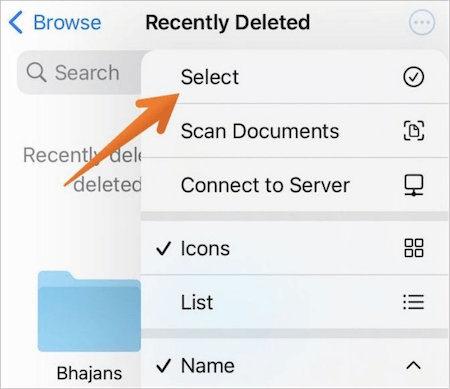
Step 2.To access the "Select" option, go to the top-right corner of the screen and tap on it.
Step 3. Here, you will get the files that you have recently deleted. Click on the file you want to restore, then press the "Recover" and "Done" buttons.
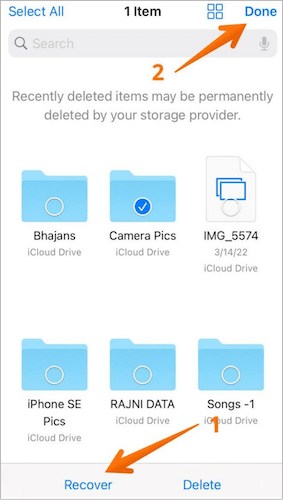
Note:Deleted files and documents on an iPhone remain on the device for 30 days before being permanently deleted.
Fix 2. Recover Deleted iPhone Files from iCloud Backup
If you don't find the files you need in the Recently Deleted folder, you can try using an iCloud backup to recover the deleted iPhone files.
Step 1.Open Settings and go to "General".

Step 2.Tap on "Transfer or Reset iPhone".
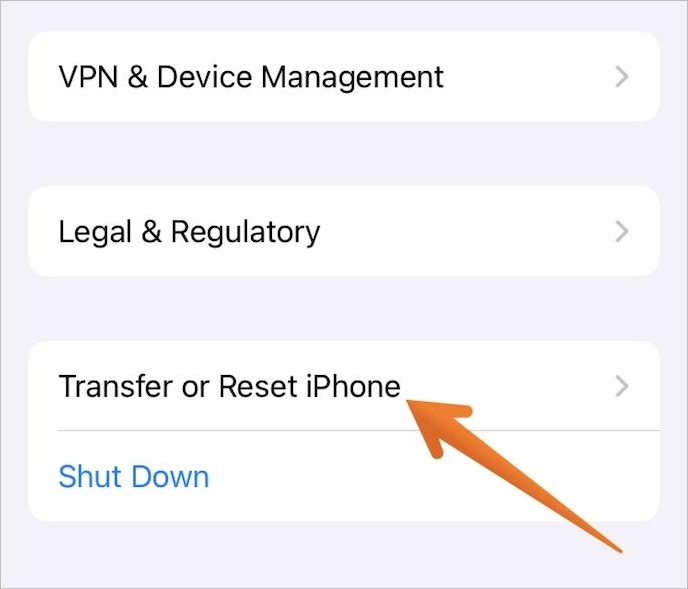
Step 3.Press on the "Erase all Content and Settings".
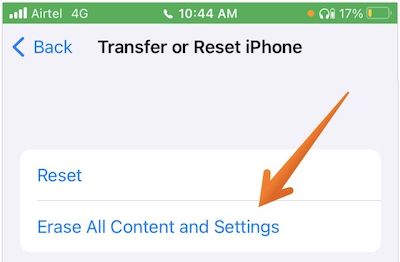
Step 4.When you reach the "Apps & Data" screen, click on the "Restore from iCloud Backup" option.
Step 5.Sign in to iCloud using your Apple ID, then select the desired backup from the list, considering the size and date of each backup before making your choice.
Step 6.The transfer will start, and you'll see a progress bar. Please wait until the process is complete.
Note:The time to restore files from a backup depends on the size of the backup and the network speed. If the Wi-Fi connection becomes unstable and disconnects, the progress bar will pause, but it will resume once the Wi-Fi is reconnected.
Fix 3. Recover Deleted iPhone Files from iTunes Backup
You can use iTunes to back up crucial data, aside from iCloud, to prevent devastating losses in case of accidental file deletion or irreparable iPhone damage. iTunes backups can be used to recover deleted iPhone files.
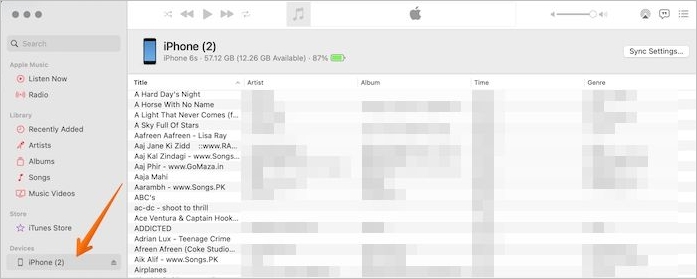
Step 1.To restore your iPhone from a backup, connect your computer to your iPhone and open iTunes. Select the iOS device from the left sidebar and click on the "Sync Settings" button in the top right-hand corner. Then, click on "Restore from Backup" to begin the restore process.
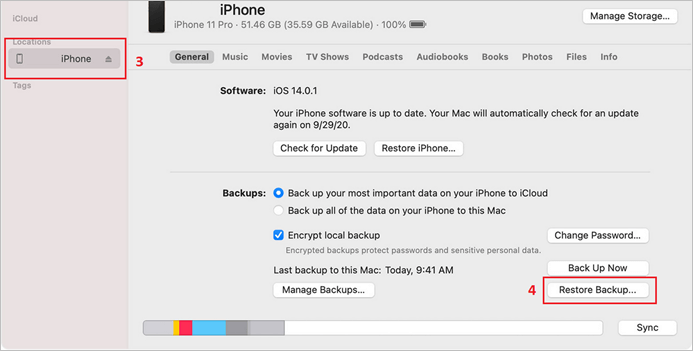
Step 2. To restore your iPhone, click on the most recent iTunes backup. Wait for the process to be completed.
Note:After the iOS device has been restored to its factory settings, you should remove it from the computer only after the restoration process is completed. This ensures that the device is properly erased and its data is securely deleted.
How Can I Recover Deleted iPhone Files Without Backup
If you've deleted files from your iPhone that don't have a backup, they can be permanently deleted from the device. In this case, you would need to use data recovery software to retrieve them.
Qiling MobiSaver for iPhone is a top-notch data recovery software that allows users to recover files with or without a backup, making it a reliable option for users who need to retrieve their important files.
The iOS data recovery software helps recover lost data from iPhones, iPods, and iPads, which can be lost due to various situations such as accidental deletion, device damage, upgrading, water damage, or virus threats.
It has three recovery modes:
- Recover from iOS Device
- Recover from iTunes Backup
- Recover from Backup
Qiling MobiSaver allows you to recover various types of data, including photos, contacts, videos, messages, and Safari bookmarks.
The software is easy to use and requires minimal time. Simply download it and follow the steps listed below to get started.
Step 1. Connect iPhone to Your PC
Download and launch Qiling MobiSaver. Click "Recover from iOS device" and click "Start".
Step 2.Scan for Lost iPhone/iPad/iPod Data
Qiling MobiSaver will automatically scan your devices and find all the lost data, requiring just a wait for the scan to complete.
Step 3.Recover Lost iPhone/iPad/iPod Data
You can select the type of lost data you want to recover, such as photos, videos, contacts, SMS, notes, voice mails, and other files, and save them to a different location.
Conclusion
Deleting files from your iPhone accidentally, even with a backup, can be distressing. However, if the deleted files don't have a backup, it's essential to have a backup of all essential files and documents. Fortunately, there are three different ways to restore deleted files, but having a backup in place can prevent the need for these methods. This highlights the importance of regularly backing up your iPhone's contents to avoid losing important files.
Choosing excellent data recovery software is a must, and Qiling MobiSaver is a great option. This professional data recovery software is compatible with both Mac and Windows, making it easy to download and use to restore vital files right away.
Recover Deleted Files in iPhone FAQs
Recovering deleted files on an iPhone can be done with or without a backup. However, it's essential to have some knowledge beforehand to complete the process smoothly. If you have a backup, you can restore your deleted files from the backup. If not, you can try using third-party recovery software or check the Recently Deleted album on your iPhone to recover deleted files.
We recommend taking a look at the below-listed questions and answers.
1. Where do deleted files go on iPhone?
On an iPhone, deleted files are moved to the Recently Deleted album, where they remain for 30 days before being permanently deleted.
2. Can you recover deleted photos from years ago on your iPhone?
You can recover deleted photos from years ago on your iPhone by going to iCloud or iTunes backup, where you can select the backup based on the date.
3. How to recover permanently deleted photos on iPhone?
You can recover permanently deleted photos on your iPhone by using your iTunes backup, iCloud backup, or data recovery software. Alternatively, you can also try using third-party sources like Google Photos or OneDrive to retrieve the deleted photos.
4. How to recover deleted files on an iPad without backup?
To recover deleted files on an iPad without a backup, you can use data recovery software like Qiling MobiSaver.
5. How to recover videos permanently on iPhone?
You can recover permanently deleted videos on your iPhone using iCloud or iTunes backup or reliable data recovery software like Qiling MobiSaver.
Related Articles
- How to Recover Photos from iPad Without Backup
- [Solved] iPhone Keeps Freezing After Update iOS 12/11.3/11
- Undelete Instagram: See and Restore Deleted Instagram Photos/Messages
- 4 Ways to Recover Deleted WhatsApp Attachments on iPhone/Android (with Pictures)
- 4 Ways to Recover Data from Damaged/Corrupted Hard Drive [2023]
If your hard drive is damaged or corrupted, it's essential to identify the issue first. - How to Fix Corrupted Database/Data on PS4
The 'Database is corrupted, PS4 will restart' issue can be a frustrating problem for many users. Fortunately, it's a relatively easy issue to resolve, and by following the provided details, you can quickly fix the corrupted database on your PS4 and get back to gaming in no time.
Products
Articles & Tutorials
- Data Recovery
- Data Backup
- File Recovery
- File Backup
- System Backup and Restore
- Disk and Partition Clone
- Technical articles
- Mobile articles
- Disk Master Help
- Windows Data Recovery Tutorials
- Windows Secure Delete Tutorials
- Windows Partition Management Tutorials
- Windows File Backup and Restore Tutorials
- Windows System Backup and Restore Tutorials
- Windows Disk Backup and Restore Tutorials
- Windows Clone Tutorials