Undelete Instagram: See and Restore Deleted Instagram Photos/Messages
Summary
If you've accidentally deleted Instagram photos or messages, there are easy ways to retrieve them. This article will guide you through three simple steps to help you see and restore deleted Instagram photos, messages, and even videos with ease.
Can You undelete Instagram post?
There is no guaranteed way to undelete a photo from Instagram since the platform doesn't offer any obvious recovery options like Recycle Bin. However, you can try to recover lost posts by following our post.
- Solution 1. Check Instagram Archive feature
- Solution 2. Undelete Instagram photos from Phone Gallery
- Solution 3. Undelete Instagram photos by Using an Instagram Photo Recovery Tool
Solution 1. Check Instagram Archive feature
Instagram's Archive Posts feature, introduced in 2017, allows users to hide posts from view while still retaining them. This feature works similarly to a Recycle Bin, storing deleted items temporarily until they are permanently removed. To retrieve deleted photos, users can follow a series of steps.
Step 1. Open Instagram on your iPhone, then tap your profile image or the silhouette in the bottom right corner.
Step 2. To access your archived stories on Instagram, tap the Settings icon in the top right corner, which shows you a list of your archived stories. From the drop-down menu, select either "Stories Archive" or "Post Archive".
Step 3. To view archived content, tap on the "Archived" tab in the app. You will see a list of all the content you've archived—tap one to open it with more details and options.
Step 4. To archive a post on your profile, tap the three dots in the upper right of the image, then tap "Show on Profile" from the result page.
Solution 2. Undelete Instagram photos from Phone Gallery
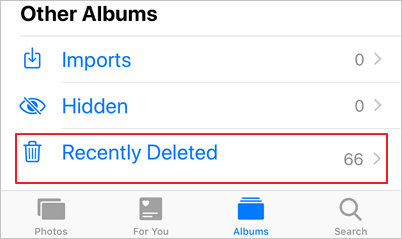
All deleted Instagram photos are stored in the Recently Deleted folder, where they remain for 30 days, giving you a chance to restore them if needed. To access this folder and potentially recover your deleted photos, follow these steps.
Step 1. Go to Photos on your iPhone or iDevice.
Step 2. Select the album called recently deleted folder.
Step 3. You can view all deleted photos from the previous month, select the one you want to recover, and tap "Recover" to restore it.
Solution 3. Undelete Instagram photos by Using an Instagram Photo Recovery Tool
If the above-If introduced solutions fail to help you undelete Instagram photos, you can try using a professional iOS data recovery software like Qiling MobiSaver, which is a powerful tool that can undelete lost or deleted photos, messages, videos, or other files on iPhone, iPad, or iPod touch with ease, offering more convenience than iTunes and iCloud.
- iMyFone D-Back provides the fastest photo recovery scan for iPhones or iPads, outpacing both iTunes and iCloud in speed.
- This tool enables the recovery and extraction of specific deleted data from iTunes and iCloud backup files, eliminating the need for a full backup restoration.
- This software allows you to preview the recovered data before saving it to your computer, giving you a chance to review and confirm the contents before extraction.
- This tool can help recover lost iOS data, including photos, contacts, calls, notes, videos, calendars, and WhatsApp messages, in addition to providing photo recovery capabilities.
To undelete Instagram photos, download Qiling MobiSaver on your computer and follow these steps:
Step 1. Select file types and click "Fast Scan" to start
Launch Qiling MobiSaver. Select file types and click "Fast Scan" to begin the recovery process.

Note: You can choose different search modes based on where and why the data was lost.
Step 2. Connect iPhone to Your PC
Choose "Recover from iOS Device" on the left, and click "Scan".

Step 3. Scan for Lost iPhone Photos
Qiling MobiSaver automatically scans iPhone models including iPhone 13, 12, 11, X, XR, XS, 8, 7, 6, 5, and 4, to find both present and lost photos.

Step 4. Preview and Restore Photos
To recover photos, select the "Photos" option on the left, view and choose the desired photos, then choose either "Recover to PC" or "Recover to Device" to initiate the recovery process.
The Bottom Line
You can recover lost Instagram photos and messages using the solutions mentioned above. If you're an Android user, you can also use an Android data recovery software like Qiling MobiSaver for Android to easily undelete Instagram photos and videos. With these solutions, you should be able to successfully recover your wanted posts.
Related Articles
- How to Recover Deleted Videos from iPhone
- 2022 Top iPhone Backup Extractor for Windows & Mac
- Factory Reset iPhone 7/7 Plus/8/8 Plus/X without Losing Data. No Password Is Needed!
- 4 Ways to Recover Deleted WhatsApp Attachments on iPhone/Android (with Pictures)
- How to Share Screen in Facetime on iPhone/iPad
If you're having trouble sharing your screen on FaceTime, try restarting your device, updating FaceTime to the latest version, or checking your internet connection. If these steps don't work, check the FaceTime settings on both devices to ensure they're set to allow screen sharing. - How to Unhide Chat in Viber on iPhone and Android
To unhide a chat in Viber, follow the steps outlined in this post, which also covers how to hide a chat on both iPhone and Android devices. If you've accidentally deleted a chat and its messages, you can use Qiling iOS data recovery software to efficiently restore the lost files.
Products
Articles & Tutorials
- Data Recovery
- Data Backup
- File Recovery
- File Backup
- System Backup and Restore
- Disk and Partition Clone
- Technical articles
- Mobile articles
- Disk Master Help
- Windows Data Recovery Tutorials
- Windows Secure Delete Tutorials
- Windows Partition Management Tutorials
- Windows File Backup and Restore Tutorials
- Windows System Backup and Restore Tutorials
- Windows Disk Backup and Restore Tutorials
- Windows Clone Tutorials