How to Share Screen in Facetime on iPhone/iPad
Summary
If you're unable to share your screen on FaceTime, don't worry, we've got you covered. Sometimes, the simplest solution is the most effective one. This article will help you troubleshoot the issue and find a solution. As a bonus, we'll also provide tips on how to recover lost FaceTime-related data.
3 Ways to Share Screen in FaceTime on iPhone/iPad
FaceTime is a popular feature on Apple phones, but have you ever wondered how to share your screen with someone while using it? The answer is that FaceTime allows users to video call their friends or family, but this feature is exclusive to Apple devices and not available on Android phones.
With FaceTime becoming increasingly popular, many users encounter issues when trying to share their screen, hindering their ability to share photos, videos, or collaborate in real-time. To resolve this, it's essential to understand the process of screen sharing on FaceTime.
| Workable Solutions | Step-by-step Troubleshooting |
|---|---|
| Share Screen on iPhone/iPad | Navigate the home screen and locate FaceTime. Tap & run FaceTime; Step 3. Start a call...Full steps |
| Share Screen in FaceTime on a Mac | Find FaceTime & run the app. Make a call to your desired contact; Step 3. Click on...Full steps |
| Restore Deleted FaceTime Data/Files | Connect iPhone to Your PC and Launch Qiling MobiSaver. Scan iPhone and Find...Full steps |
What Can FaceTime Do for You
Apple's FaceTime app has expanded its reach beyond iPhone users, allowing Android users to connect with them through the app since October 2021. Despite this, many iPhone users still rely on FaceTime to stay in touch with family, friends, and coworkers. One of the features that has gained popularity is the ability to share a screen on FaceTime, which enables users to share content with each other.
- Show images to another person
- Watch the same videos
- Watch movies
- Work and collaborate
FaceTime is a highly convenient application on Apple devices, but many users struggle with screen sharing due to the constant updates of iOS versions, making it difficult for them to find this feature.
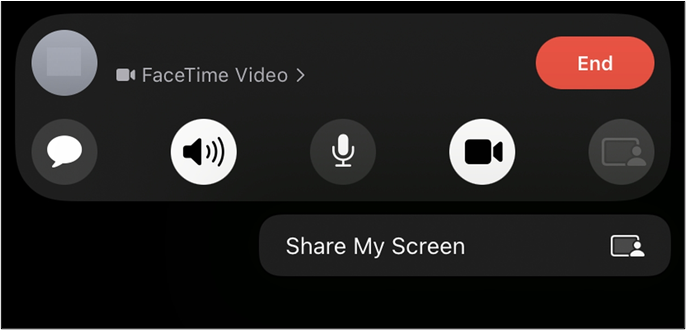
Full Guide to Share Screen in FaceTime on iPhone/iPad
To share your screen on FaceTime, first, make sure you're running iOS 15.4 or later. Then, open FaceTime and select the contact you want to call. Once the call is connected, tap the "Share My Screen" button. This will allow you to share your screen with the other person.
Step 1. Navigate the home screen and locate "FaceTime".
Step 2. Tap & run FaceTime.
Step 3. Start a call on FaceTime.
Step 4. Wait for the call to connect.
Step 5. Look for the sharing icon on the top-right corner.
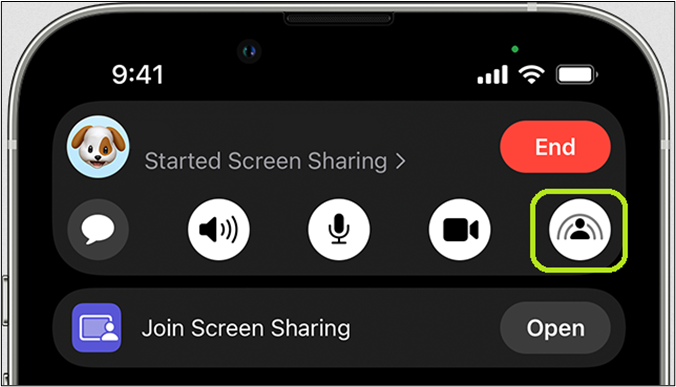
Step 6. Tap on the share icon.
Step 7. Let FaceTime share your screen with the other caller.
To screen share on FaceTime, start by opening the FaceTime app on your iPhone or iPad, then tap the "Share My Screen" button in the top right corner. Next, select the screen you want to share from the list of available screens. You can also share your entire screen or just a specific app or window. Once you've selected the screen you want to share, tap the "Share" button to start sharing your screen with the person you're on FaceTime with.
Step 1. Open iPhone's "Settings".
Step 2. Head to "General".
Step 3. Tap "iPhone Storage".
Step 4. Navigate and find FaceTime, then tap on it.
Step 5. Find the "Offload App" option.
Step 6. Tap it to clear FaceTime data.
To ensure a smooth application process, it's recommended to clear any residual data and restart the application. This can be done by signing out and then signing back in. By doing so, you'll be able to share your screen without any issues.
How to Screen Share With FaceTime on a Mac
If you're using a Mac, you can access FaceTime, but connecting your device through FaceTime and sharing your screen are two different things. If you're looking for a way to screen share with FaceTime on a Mac, follow these steps.
Step 1. Find FaceTime & run the app.
Step 2. Make a call to your desired contact.
Step 3. Click on New FaceTime and pick the contact.
Step 4. Let the call connect.
Step 5. Navigate the options and find the SharePlay button.
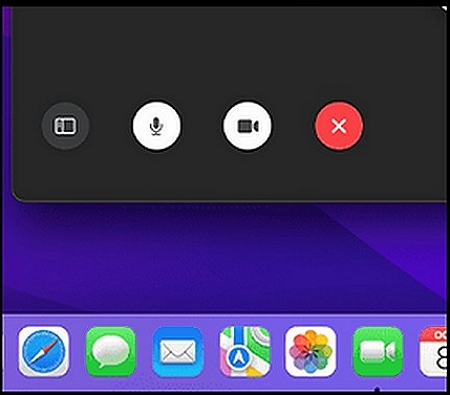
Step 6. Pick the Window you wish to share on your screen.
Step 7. You can pick the entire Screen, too, if you wish.
To share your app or screen, follow these steps. If you want to share a specific app, select it from the list. If you want to share your entire screen, you can do so by choosing that option.
Before you start, ensure your internet is connected. Sharing the entire screen will also share the Mac OS X Dock and other features, so be mindful of that.
How to Restore Deleted FaceTime Data/Files on iPhone
If you've cleared the cache to make your FaceTime work properly, you can still recover the data you might have lost with the help of Qiling MobiSaver, a tool that can help with many factors of your iPhone.
When clearing FaceTime files, you may have inadvertently deleted saved video or audio calls, including previous screen-sharing sessions. To recover lost data, download and install Qiling MobiSaver on your PC and connect your iPhone to it. This will allow you to recover lost data from the FaceTime application.
You will also gain an array of other benefits, including the following benefits.
- Thorough iOS data recovery.
- Data recovery can be crucial in various scenarios, including a virus attack, accidental deletion, a broken screen, jailbreak failure, or a phone that's stuck or has been factory reset. In such cases, specialized tools and techniques can help retrieve lost data, even if the device is no longer functional.
- Preview iTunes or iCloud backup
- Pick only the data you wish to recover
- Recover within minutes, instead of extended periods
You can download this software to recover iPhone FaceTime data without any backup.
Step 1. Choose the Recovery Mode
Connect your iPhone to your PC, launch Qiling MobiSaver, select the recovery mode as "Recover from iOS Device", and click "Start".
Step 2. Scan iPhone and Find Lost Data
Qiling MobiSaver will automatically scan your iPhone (models 13, 12, 11, X, XR, XS, 8, 7, 6, 5, 4) and find both existing and previously lost data for you.
Step 3. Preview and Restore iPhone Data
You can recover lost data from your iPhone, including photos, videos, contacts, SMS, notes, voice mails, and other files, regardless of the model (iPhone 13/12/11/X/XR/XS/8/7/6/5/4). After selecting the data you want to recover, click "Recover" and save it to a new location.
This iPhone photo recovery tool allows you to recover FaceTime-related files and set restore points to prevent future data losses, making it a convenient and efficient solution for recovering your data.
Final Words
If you're wondering how to share a screen in FaceTime on your iPhone or iPad, this article should provide the answer. Additionally, if you need to delete cache files to ensure the app works properly, you can recover data with the help of Qiling MobiSaver.
Related Articles
- [9 Solutions] Fix Kik not Working on iPhone
- How to Recover Photos from Disabled iPhone
- 2 Solutions to Wipe iPhone Data Permanently
- How to Unlock A Disabled iPhone Without iTunes
- How to Disable AutoSave in Word and Excel
Learn how to disable AutoSave in Microsoft Word and Excel to prevent unwanted automatic saves. Step-by-step guide for Office 365, 2019, 2016 and earlier versions. Take control of your document saving with these quick methods. - 2022 Fix: Discord Not Opening, Stuck or Not Responding on Startup
If you're experiencing issues with Discord not opening on startup in Windows 10, there are 11 potential solutions to help resolve the problem.
Products
Articles & Tutorials
- Data Recovery
- Data Backup
- File Recovery
- File Backup
- System Backup and Restore
- Disk and Partition Clone
- Technical articles
- Mobile articles
- Disk Master Help
- Windows Data Recovery Tutorials
- Windows Secure Delete Tutorials
- Windows Partition Management Tutorials
- Windows File Backup and Restore Tutorials
- Windows System Backup and Restore Tutorials
- Windows Disk Backup and Restore Tutorials
- Windows Clone Tutorials