How to Recover Deleted Videos from iPhone
To retrieve deleted videos from your iPhone, you can try using the Recently Deleted folder, but this only works if the videos were deleted recently. If the videos were permanently deleted, you'll need to use other methods, such as iPhone data recovery software, iTunes, iCloud, or a cloud-based backup service.
How to Recover Deleted Videos from iPhone via Recently Deleted
Supports: Photos and videos
As long as you meet the requirements below:
- The videos are deleted within 40 days
- You haven't emptied the Recently Deleted folder in Photos
To recover deleted videos from an iPhone, the quickest method is to use the Recently Deleted folder within the Photos app. This approach requires no third-party software or USB connection, allowing you to retrieve deleted videos directly from your iPhone.
To recover deleted photos/videos from iPhone:
Step 1. Open the Photos app on the iPhone.
Step 2. Tap "Albums" and select "Recently Deleted."
Step 3. To restore your selected items, click on "Restore" and then select "Restore Photos/Videos" from the dropdown menu.
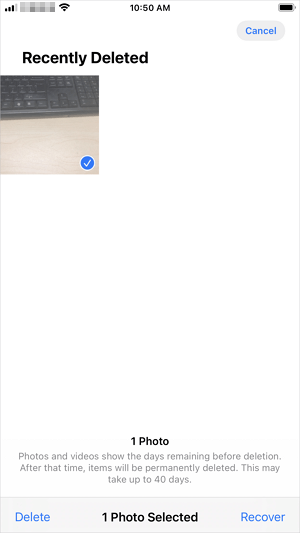
You can recover deleted photos from iPhone using the same method. If you can't find your videos, follow one of the tips below to retrieve lost videos on your iPhone.
How to Recover Deleted Videos from iPhone with Qiling MobiSaver
An iPhone data recovery software tool like Qiling MobiSaver can help in three ways: recovering lost data from the device, from an iTunes backup, or from an iCloud backup.
When videos are permanently deleted from your device and you don't have a backup, using iPhone data recovery software is your best option. Even if you have a backup available, this tool is still a better choice because it won't erase existing data on your iPhone, unlike using iTunes or iCloud.
To recover deleted videos on iPhone via an iTunes backup:
Step 1. Connect iPhone to Your PC
Open Qiling MobiSaver and choose "Recover from iOS Device" on the left. Click "Start" to initiate the recovery process.
Step 2. Scan for Lost iPhone Videos
Qiling MobiSaver will automatically scan your iPhone to find lost videos for you.
Step 3. Preview and Restore Videos
To recover lost videos, select the "Videos" option, and then choose either "Recover to PC" or "Recover to Device" to specify where you want to save the recovered videos.
If you don't have an iTunes backup, you can recover permanently deleted videos on your iPhone from its internal storage or an iCloud backup. Alternatively, you can use a data recovery tool to save the videos on your computer, and then transfer them to your iPhone if needed.
How to Retrieve Deleted Videos from iPhone via iTunes/iCloud
If you have an iTunes or iCloud backup, you can restore deleted videos on your iPhone by using iTunes or iCloud, but be aware that this will replace existing files on your iPhone. This may result in data loss again.
If you still want to use iTunes/iCloud, follow Apple's guide on how to restore an iPhone, iPad, or iPod touch from a backup for more details.
How to Recover Deleted Videos from iPhone via Cloud Services
If you've backed up your iPhone photos and videos to cloud storage, you can use that backup to recover deleted videos. For example, if you've saved your iPhone backups to Dropbox, you can use that backup to retrieve your deleted videos.
If you have a backup of your iPhone video on a cloud service, such as iCloud or Google Drive, you can recover the video by following the service's official guide. The steps may vary depending on the service you use, so it's best to search online for the specific instructions for your cloud service. If you don't have a backup, you can also try using a third-party data recovery app to scan your iPhone for deleted videos.
The Bottom Line
You can recover your iPhone video using these methods, which are also applicable to other types of content. By following these tips, you can help yourself in case of another data loss situation. However, the best way to avoid complete data loss is to back up your data regularly, making it a good habit to grow.
Related Articles
- Where Do the Deleted Files Go on iPhone, How to Recover Deleted Files on iPhone 13/SE/12/11
- Factory Reset iPhone 7/7 Plus/8/8 Plus/X without Losing Data. No Password Is Needed!
- Top 3 Ways to Recover Permanently Deleted Voicemail iPhone
- How to Unhide Chat in Viber on iPhone and Android
- How to Recover Files from Corrupted Micro SD Card
Micro SD card corruption can occur due to various reasons, but with the right tool, you can recover files from a corrupted micro SD card. Whenever you're in this situation, using a micro SD card corrupted recovery tool can help you retrieve your important files. - 5 Best Micro SD Card Recovery Software Free Download
The best Micro SD card recovery software for Windows/Mac enables users to recover deleted or lost photos, videos, documents, and more from a Micro SD card, and selecting the right Windows or Mac micro SD data recovery among the top 5 options is key.
Products
Articles & Tutorials
- Data Recovery
- Data Backup
- File Recovery
- File Backup
- System Backup and Restore
- Disk and Partition Clone
- Technical articles
- Mobile articles
- Disk Master Help
- Windows Data Recovery Tutorials
- Windows Secure Delete Tutorials
- Windows Partition Management Tutorials
- Windows File Backup and Restore Tutorials
- Windows System Backup and Restore Tutorials
- Windows Disk Backup and Restore Tutorials
- Windows Clone Tutorials