How to Recover (Permanently) Deleted Photos from iPhone
Also applies to: The latest iPhone 12 series
Overview of iPhone Photo Recovery
Data loss on your iPhone can happen due to various reasons such as accidental deletion, physical damage, iOS update, jailbreak, factory reset, and human error, leading to the loss of precious photos.
If you've accidentally deleted photos from your iPhone, you can recover them from the Recently Deleted folder or from a backup, or use third-party software to retrieve them.
If you've accidentally deleted photos from your iPhone, there are several ways to recover them. Depending on your situation, you can try using the Photos app, iCloud Photo Library, iTunes, a third-party recovery app, or a professional data recovery service to get back your lost pictures. Simply identify which method is most suitable for your case and follow the steps to retrieve your deleted photos.
Part 1. Recover Deleted Photos from iPhone from the Recently Deleted Folder
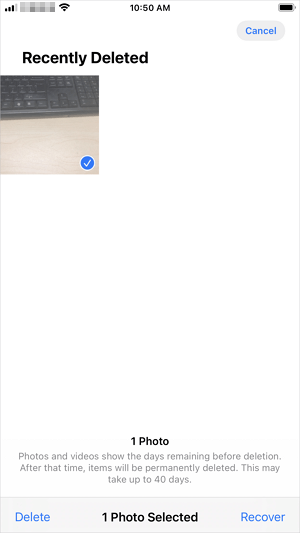
The easiest way to recover deleted photos from an iPhone is to restore them from the "Recently Deleted" folder, which keeps deleted items for up to 40 days. During this time, you can freely recover the deleted files to your photo library.
If photos are deleted from an iPhone within 40 days, they can be recovered by following these steps. To retrieve deleted photos, you can use the Photos app on your iPhone, which automatically saves deleted photos to the Recently Deleted album for 40 days.
To recover deleted photos from Recently Deleted:
Step 1. Open the Photos app and tap "Albums".
Step 2. Scroll down to choose "Recently Deleted".
Step 3. Tap "Select" and click the photos you want to recover.
Step 4. After the selection, tap "Recover" > "Recover Photos" to get deleted photos back.
Part 2. Recover Permanently Deleted Photos from iPhone in 4 Ways
Photos that are in the Recently Deleted folder for more than 40 days are permanently deleted.
You can recover permanently deleted photos from your iPhone using a data recovery software like Deep Data Recovery or PhoneRescue. These tools can scan your iPhone's storage for deleted files, including photos, and recover them in their original format. Make sure to download and install the software on your computer, then connect your iPhone to the computer and follow the software's instructions to scan and recover the deleted photos.
If you need to recover permanently deleted photos from your iPhone, you're in luck if you had made an iTunes or iCloud backup beforehand. However, this is often not the case, and you'll need to rely on a third-party iOS data recovery tool to help you retrieve your lost photos.
Method 1. Recover Permanently Deleted Photos from iPhone with iPhone Recovery Software
Losing your iOS data without a proper recovery plan can result in permanent loss, which is why it's essential to download a reliable data recovery tool on your computer to ensure your important files are safe in case of data loss.
Qiling MobiSaver, a safe and iPhone data recovery tool, can recover various types of data, including photos, contacts, videos, messages, and chat history, from iPhone or iPad, with or without a backup, allowing for selective restoration of desired data without a full restore.
Step 1. Select file types and click "Fast Scan" to start
Launch Deep Data Recovery, select the file types you want to recover, and click "Fast Scan" to initiate the recovery process.

Note: You can choose different search modes based on where and why the data was lost.
Step 2. Connect iPhone to Your PC
Choose "Recover from iOS Device" on the left, and click "Scan".

Step 3. Scan for Lost iPhone Photos
Qiling MobiSaver will automatically scan your iPhone and find present and lost photos for you.

Step 4. Preview and Restore Photos
To recover photos, start by ticking the "Photos" option on the left-hand side. This will allow you to view and select the photos you want to recover. Once you've chosen the desired photos, select either "Recover to PC" or "Recover to Device" to initiate the recovery process.
If you have made a backup, be it an iTunes backup or iCloud backup, you can recover your deleted photos by restoring the backup to your iPhone or using the Photos app to restore from the backup.
Method 2. Retrieve Deleted Photos on iPhone Using iTunes
If you have an iTunes backup, you can recover deleted photos on your iPhone in two ways. You can either restore your entire iPhone from the backup using iTunes, or you can use a tool like Qiling MobiSaver to selectively restore just your photos.
The main difference between restoring an iPhone using iTunes and using an iPhone recovery tool is that the former can result in data loss, as all data and settings on the device will be replaced by the content from the backup, whereas the latter allows you to selectively restore only certain data, such as photos, without affecting the device's settings.
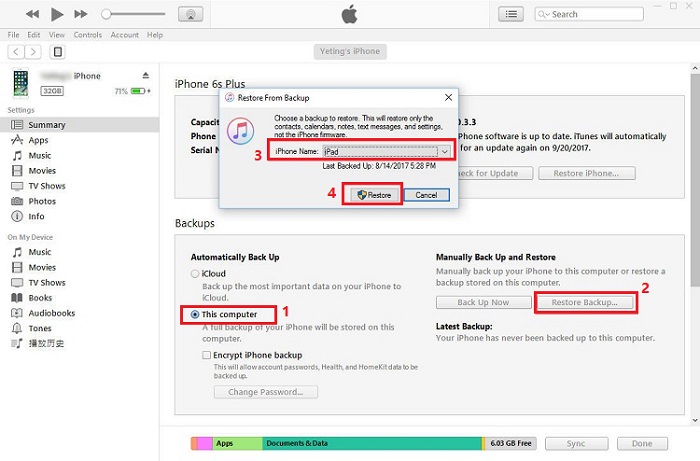
To restore all iPhone data from an iTunes backup:
Step 1. To connect your iPhone to your computer, plug a USB cable into the iPhone's charging port and the other end into the computer's USB port. Once connected, go to the computer and select the option to trust the computer, which will allow the computer to access your iPhone's data.
Step 2. In iTunes, click the "Device" icon and ensure that you have selected "Summary" from the menu.
Step 3. Click "Restore Backup" and select a backup.
Step 4. Select "Restore" to begin recovering photos and other types of content to your iPhone.
If your iPhone is not recognized by iTunes, you will need to fix it first. The issue is likely caused by a problem with the USB connection between your iPhone and computer, or a software issue with your iPhone or iTunes.
To recover deleted photos on iPhone from an iTunes backup (no data loss):
Step 1. Run Qiling MobiSaver
To recover data from an iPhone or iPad using Qiling MobiSaver, start by downloading the software, then connect your device to your computer. Next, launch Qiling MobiSaver and select the "Recover from iTunes Backup" option, followed by choosing an iTunes backup to recover data from.
Step 2. Unlock iTunes
If the iTunes backup is encrypted, you'll need to enter the password to unlock it. After entering the password, click "Continue". Qiling MobiSaver will then automatically scan the backup file to find the lost data.
Step 3. Preview and Recover Data from iTunes
After scanning, preview the contents of your lost photos/videos, contacts/messages, notes, and SNS data. Choose the desired file and click "Recover" to save it on your computer.
Method 3. Get Permanently Deleted Photos Back on iPhone via iCloud
An iCloud backup, made with iCloud Photos turned off, can also help recover permanently deleted photos from an iPhone. Similar to using an iTunes backup, you can restore everything from the iCloud backup via iPhone settings or selectively retrieve photos using iPhone recovery software like Qiling MobiSaver.
To recover all iPhone data from an iCloud backup, you can use the iPhone data recovery tool that supports iCloud backup recovery. First, log in to your iCloud account and select the backup you want to recover from.
To restore deleted photos on iPhone from an iCloud backup, you need to erase all content and settings on your iOS device first, then you can choose to restore the device from the backup. This method is straightforward and doesn't require any additional software. Alternatively, you can use a third-party tool to access and recover data from the backup, but this method may be more complicated.
To recover permanently deleted photos from an iPhone using an iCloud backup, you can restore your device from a recent backup. If you have enabled iCloud backup on your iPhone, you can restore your device to a previous backup that contains the deleted photos.
Step 1. Go to "Settings" > "General" > "Reset".
Step 2. Tap "Erase All Content and Settings" to reset your iPhone.
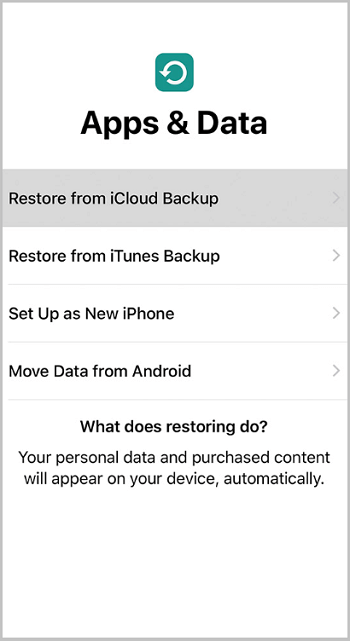
Step 3. To set up your iPhone, follow these steps: Choose the language and country or region you're in, then tap "Continue." Tap "Restore from iCloud Backup" on the Apps & Data screen.
Step 4. Sign in with your Apple ID and tap "Choose backup".
Step 5. Select the most recent iCloud backup to restore your iPhone from.
Method 4. Recover Permanently Deleted Photos on iPhone from Third-Party Services
If you've backed up your iPhone photos with services like OneDrive, Google Photos, or Dropbox, you can easily recover deleted photos from your iPhone.
If you've enabled Back up and Sync on your iPhone, deleted photos and videos remain in the trash in Google Photos for 60 days before being permanently deleted, giving you a chance to recover them.
To recover permanently deleted photos from iPhone via Google Photos:
Step 1. On your iPhone, open Google Photos.
Step 2. Tap "Library" and click "Trash".
Step 3. Select the photos you want to recover and tap "Restore".
Once you're done with the items, you can see them again in your Photos app and Google Photos.
Part 3. Back Up Photos on iPhone
When you delete photos from your iPhone, they are not always recoverable, and physical damage to the device can make it impossible to recover them. This highlights the importance of regularly backing up your data to prevent loss in case of an accident or device failure.
Backing up your files, especially photos, is crucial to minimize the chance of data loss.
To back up your iPhone photos, simply transfer them to your computer, which is the easiest way to do so.
Step 1. Connect your iPhone to the computer with a USB cable.
Step 2. Unlock the device and click "Trust" to trust the computer.
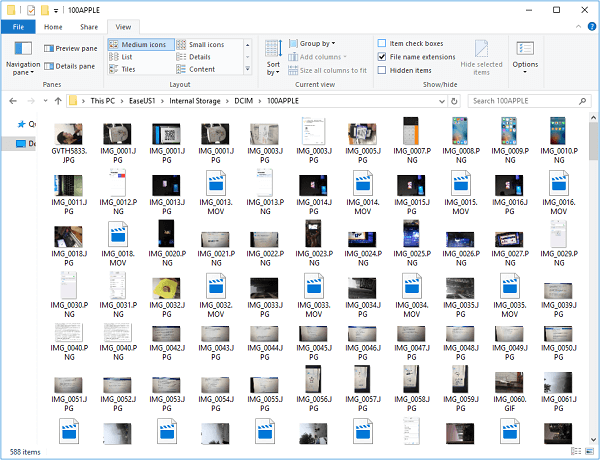
Step 3. To access your iPhone's photos on your computer, go to "This PC" and click on your iPhone's name, then navigate to "Internal Storage", followed by "DCIM", and finally "100APPLE".
Step 4. Now you can see all the photos and videos from your iPhone, select and copy the items you want to transfer to a folder on your computer.
For more proven ways to back up photos on iPhone, you can refer to the guide on how to transfer photos from iPhone to PC.
The Bottom Line
iPhone photo recovery can be straightforward if you follow the right steps. To avoid losing your precious memories, it's essential to develop the habit of regularly backing up your device. By doing so, you'll be able to recover your photos and other important data with ease, even if you accidentally delete them or experience a device failure.
Related Articles
- Recover Deleted WhatsApp Photos and Videos on iPhone/iPad/iPod
- Undelete Instagram: See and Restore Deleted Instagram Photos/Messages
- How to Download iMessages from iCloud [2 Options]
- How to Recover Missed Calls iPhone
- Audacity Recovery: Recover Deleted and Unsaved Audacity Recordings
If you've accidentally deleted or lost Audacity recordings due to a program crash, this article provides a practical solution to help you recover your lost audio files. Follow the guide to restore your unsaved recordings and get back to work. - Avast Deleted My Files, How to Recover?
Does Avast delete your important files, and you're clueless on how to recover them? This guide is for you. You can recover Avast deleted files with Qiling data recovery software easily. Download and run this software to restore lost data now.
Products
Articles & Tutorials
- Data Recovery
- Data Backup
- File Recovery
- File Backup
- System Backup and Restore
- Disk and Partition Clone
- Technical articles
- Mobile articles
- Disk Master Help
- Windows Data Recovery Tutorials
- Windows Secure Delete Tutorials
- Windows Partition Management Tutorials
- Windows File Backup and Restore Tutorials
- Windows System Backup and Restore Tutorials
- Windows Disk Backup and Restore Tutorials
- Windows Clone Tutorials