Full Guide to Restore LINE Chat from Google Drive (iPhone & Android)
Summary
To recover your LINE chat history from Google Drive, you can follow the steps outlined in this post, or try using Qiling MobiSaver, a user-friendly tool that can help you recover your chat history on both iPhone and Android devices.
Google Drive is a popular cloud storage service that works seamlessly with Android, making it a top choice for many users. Its ease of use and ability to automatically back up data from apps like WhatsApp and LINE make it a convenient option for transferring conversation history between devices.
Many people are uncertain about LINE Backup, a feature that mirrors the concerns previously discussed about WhatsApp Backup.
You'll learn how to back up LINE on your Android device using Google Drive and on your computer using Google Drive, and also how to retrieve your LINE conversation history from Google Drive using the Qiling MobiSaver.
LINE not Receiving/Sending Messages on iPhone/Android
To resolve the issue with the LINE app on your device, you can try various techniques such as clearing the app cache and data, restarting the app, checking for software updates, and reinstalling the app. Additionally, you can also try checking the internet connection, closing other apps running in the background, and checking for any conflicts with other apps.

How to Recover LINE Chat from Google Drive on iPhone/Android
Switching from Android to iPhone can be a challenge, especially when it comes to preserving conversation history on apps like LINE. Unlike Android, iPhone has a different operating system, and LINE doesn't make it easy to transfer conversations between different platforms. As a result, you may need to choose a cloud storage option like Google Drive over Dropbox, and get used to a new way of managing your digital life on an iPhone.
Step 1.Launch the "LINE"app on your mobile device.
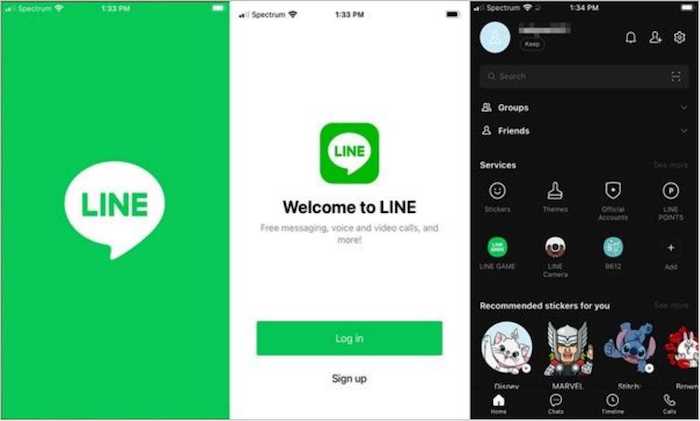
Step 2.The "Friends"option may be found in the "Settings"menu.
Step 3.Make your selection under "Chats"on the drop-down menu.
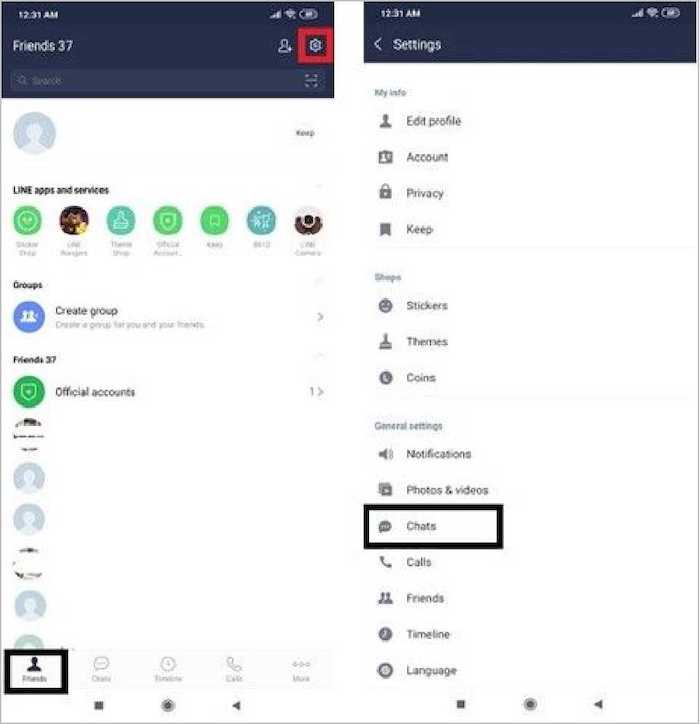
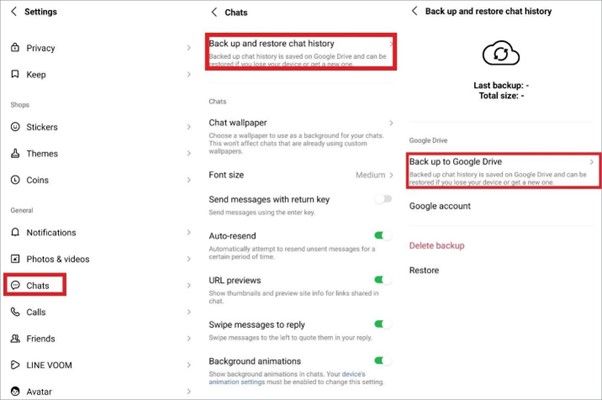
Step 4.Choose "Backup and Restore Chat History"from the menu.
Step 5.To back up your LINE data to Google Drive, select "Backup to Google Drive" from the available options in the drop-down menu, and the LINE software will automatically create a backup of all your data.
Step 6.Connect your Android device to your computer, then move the LINE backup folder to the computer after it's connected.
Step 7.To view your LINE conversation data saved on Google Drive, open the Google Drive app on your iPhone, log in with your Google account, and then browse through the folders to find the specific conversation data you're looking for. It should be stored in a folder named after the conversation or the date it was saved.
Note: If you don't have a backup of your data, you can proceed to Part 3 to use Qiling MobiSaver to restore the LINE conversation history on your iPhone or Android smartphone. The procedure is the same for both.
Bonus Tip: Recover LINE Chat Without Google Backup
If you don't want to use Google Drive to recover LINE chats on your iPhone, you can download Qiling MobiSaver to transfer your LINE conversations from one device to another. This program is compatible with the latest hardware releases and can create backup files quickly.
Qiling iOS data recovery software is a unique app that can help recover data from various iOS versions, including 15/14/13/12/11/10/9/8/7. It can also create any file type you need, as long as you have the correct extension, making it a versatile tool. Additionally, the software is compatible with both Windows 11/10/8/7 and macOS operating systems.
Main Features of the Qiling MobiSaver:
- Recovers all types of data from an iPhone/iPad/iPod.
- Support for recovering datafrom iTunes/iCloud backups.
- Compatible with the most recent iterations of the Apple iPhone.
- With a single click, your LINE chats can be restored in seconds, ensuring you never miss a conversation or important message again.
Follow these steps to recover LINE chat using Qiling MobiSaver:
Step 1. Connect iPhone to Your PC
Launch Qiling MobiSaver, choose the "LINE" button, and select "Device Storage" to access and manage LINE-related data on your device.
Step 2. Analyze iPhone/iPad/iPod
The software will analyze your device to perform LINE data recovery.
Step 3. Scan iPhone and Find LINE Data
Qiling MobiSaver will automatically scan iPhone devices, including iPhone 13/12/11/X/XR/XS/8/7/6/5/4, and recover present and lost LINE data.
Step 4. Preview and Restore LINE Chats or Attachments
To recover your LINE data, select the desired option (Recover to PC or Recover to Device) to save your data to your computer or mobile device.
How to Back Up LINE Chat from Google Drive
The LINE backup is stored on Google Drive, and only your personal Google Drive account can access the files.
The built-To build a backup of your LINE chat messages, follow these steps: First, activate your Google Drive account and connect it to your Android smartphone. This will allow you to proceed with the activity. Once connected, you can then create a backup of your LINE chat messages. By following these steps, you'll have a record of your conversations with loved ones and professional connections.
Step 1.To access the Friends icon on your Android smartphone, launch the LINE app and select it from the menu.
Step 2.To access the chat options, click the gear icon, then navigate to the "General settings" section and select "Chats".
Step 3.To backup your chat history, go to the available list and select "Backup and restore chat history", then press on "Backup to Google Drive".
Step 4.When you reach this step, the LINE app will automatically start creating a backup of all your conversation histories and storing them on your Google Drive account.
Final Verdict
If you lose your phone or it gets stolen, you can easily restore your chat history and message history. This feature is useful even if you plan to switch to a different phone.
Keeping a backup of your data is crucial, as losing your communication history can have severe consequences on both your business and social life. To avoid this, it's always best to err on the side of caution and take precautions. Fortunately, with Qiling MobiSaver, you can easily recover deleted texts by retracing the steps outlined above in the correct order, ensuring all your data is safely restored on your device.
Related Articles
- How to Recover iPhone Data After Restore Without Backup
- How to View and Retrieve Call History from iCloud [iOS 15 Available]
- How Do I Recover Deleted Text Messages on My iPhone for Free
- [Real Fixes] Photos Disappeared from iPhone After Update
- 7-Zip Data Error Fix (4 Methods)
If you're experiencing a 'data error' when trying to open extracted files with 7-zip, we've got solutions. The issue is likely due to a corrupted archive, but you can recover your data using Qiling data recovery software. - ADATA Flash Drive Recovery Tool Free Download for 2021
If the ADATA flash drive is damaged or inaccessible, the best thing you must do is to retrieve the data trapped there. This article tells you how to retrieve the data.
Products
Articles & Tutorials
- Data Recovery
- Data Backup
- File Recovery
- File Backup
- System Backup and Restore
- Disk and Partition Clone
- Technical articles
- Mobile articles
- Disk Master Help
- Windows Data Recovery Tutorials
- Windows Secure Delete Tutorials
- Windows Partition Management Tutorials
- Windows File Backup and Restore Tutorials
- Windows System Backup and Restore Tutorials
- Windows Disk Backup and Restore Tutorials
- Windows Clone Tutorials