Safely Reset Seagate External Hard Drive to Factory Settings
Resetting a Seagate external hard drive usually means removing old partitions, formatting the drive, or securely wiping data. Choose the method based on whether you want to reuse the drive or give it to someone else.
Before You Reset the Drive
- Copy important files to another disk.
- Check the USB cable, enclosure, and power if the drive disconnects often.
- Use Disk Management to confirm the correct Seagate drive by capacity.
- Use secure wipe instead of quick format if privacy matters.
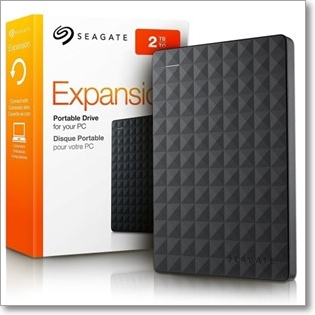
Wipe the Seagate Drive with Qiling Disk Master
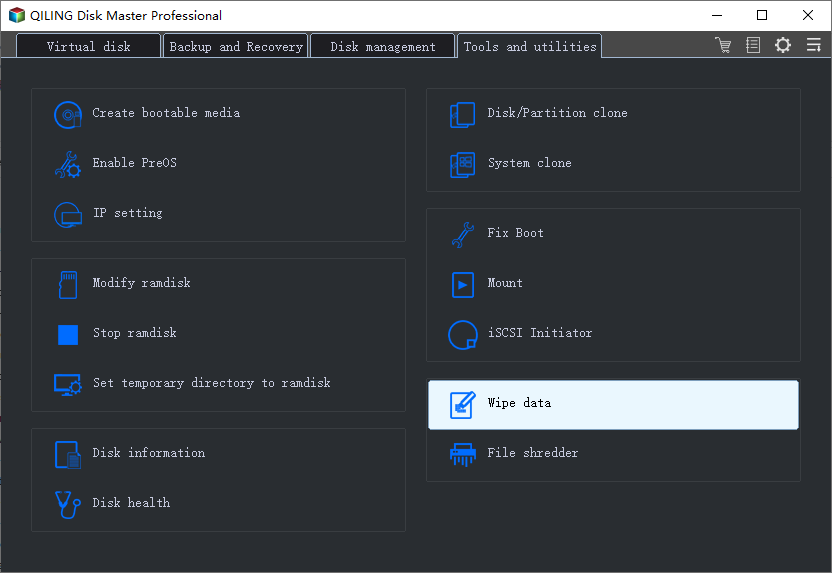
Step 1. Open Qiling Disk Master and choose the wipe tool.
Step 2. Select the Seagate external hard drive. Confirm its drive letter and capacity.
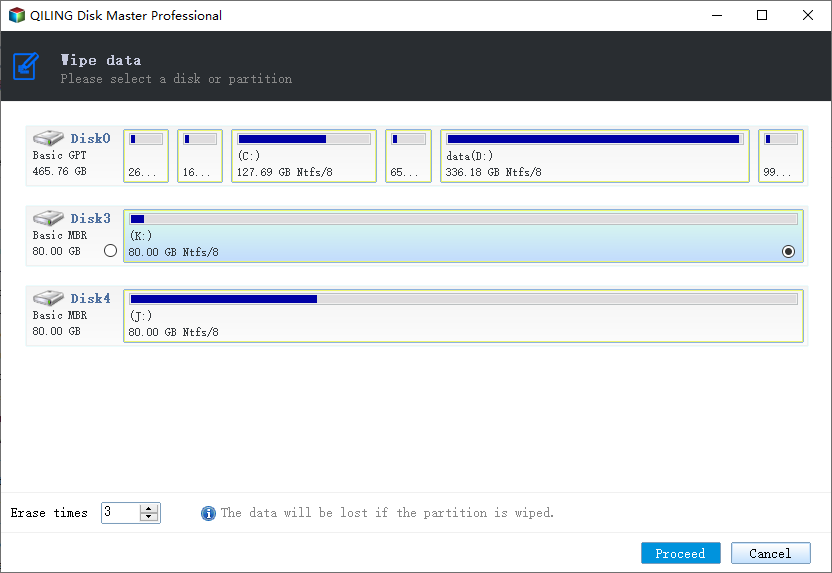
Step 3. Choose a wiping method and click Proceed.
Format for Reuse
After wiping, create a new partition and format it as NTFS for Windows-only use or exFAT if you need compatibility with more devices.
Choose the Right Reset Method
| Goal | Recommended method | Notes |
|---|---|---|
| Reuse the drive yourself | Quick format or full format | Back up files first; quick format is faster. |
| Give away or sell the drive | Secure wipe | Overwrites old data so recovery is harder. |
| Fix file system errors | Check disk, then format if needed | Recover data first if files matter. |
| Remove all partitions | Wipe disk or delete partitions | Confirm the Seagate drive by capacity. |
Windows Disk Management Steps
- Right-click Start and open Disk Management.
- Find the Seagate external drive by brand, capacity, and drive letter.
- Right-click the partition and choose Format if you only want a clean file system.
- Choose NTFS for Windows-only storage or exFAT for use across more devices.
- If the drive is for resale, use secure wipe instead of only formatting.
Conclusion
For reuse, formatting may be enough. For sale or giveaway, securely wipe the Seagate external drive so old files are not easily recoverable.
Related Articles
Products
Articles & Tutorials
- Data Recovery
- Data Backup
- File Recovery
- File Backup
- System Backup and Restore
- Disk and Partition Clone
- Technical articles
- Mobile articles
- Disk Master Help
- Windows Data Recovery Tutorials
- Windows Secure Delete Tutorials
- Windows Partition Management Tutorials
- Windows File Backup and Restore Tutorials
- Windows System Backup and Restore Tutorials
- Windows Disk Backup and Restore Tutorials
- Windows Clone Tutorials