SSD Not Detected After Windows Update: Fix It Without Losing Data
An SSD may disappear after a Windows update because of a driver change, BIOS setting, loose connection, drive letter conflict, or file system error. If Windows asks you to initialize or format the SSD, stop and recover data first.
First, Find Where the SSD Is Missing
- If the SSD is missing in BIOS, check cables, slots, enclosure, or firmware.
- If it appears in BIOS but not File Explorer, check Disk Management.
- If it appears as RAW, unallocated, or not initialized, avoid formatting before recovery.
- If it has no drive letter, assign a letter only after confirming the partition is healthy.
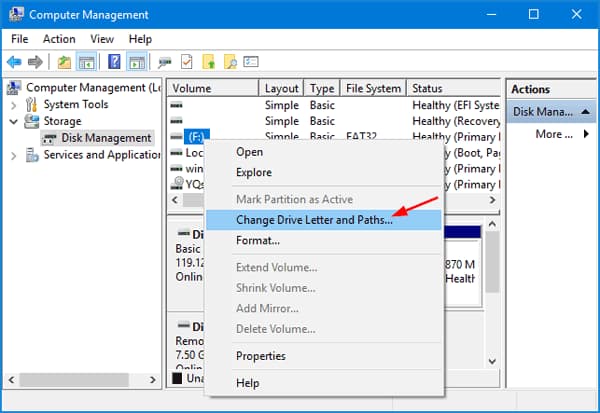
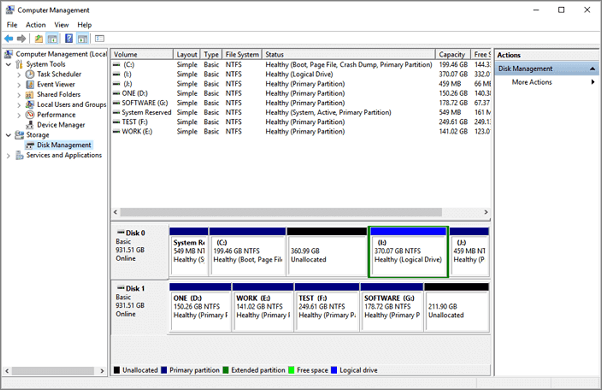
Fix 1. Check Disk Management and Drive Letter
Right-click Start and open Disk Management. If the SSD has a healthy partition without a drive letter, assign a new letter. If it shows RAW or unallocated, recover files before repair.
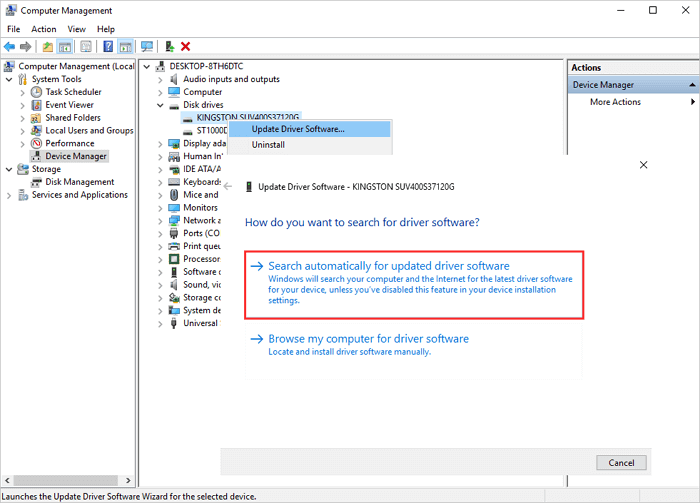
Fix 2. Update Storage Controller and SSD Driver
Open Device Manager and check disk drives, storage controllers, and IDE/ATA controllers. Update the driver or roll back a recent driver if the SSD disappeared right after the update.
Recover Data Before Formatting the SSD
If the SSD is visible to Windows but files are missing or the partition is inaccessible, scan it with Qiling Data Recovery before trying format, initialize, or clean commands.
Step 1. Open Qiling Data Recovery and choose the lost file recovery mode.

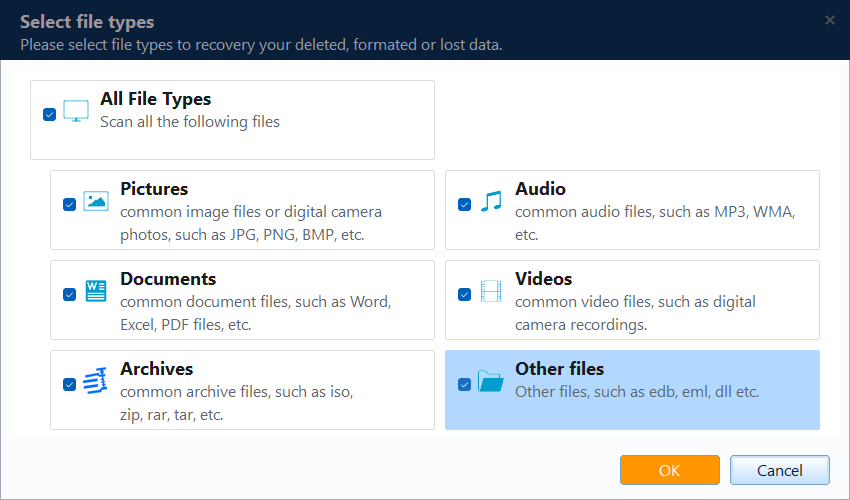
Step 2. Scan and filter the results by file type.
Step 3. Select the SSD or its lost partition from the location list.

Step 4. Preview and recover files to another drive.

Conclusion
When an SSD is not detected after a Windows update, locate the problem before changing the disk. Recover files first if Windows shows RAW, unallocated, not initialized, or access denied.
Related Articles
Products
Articles & Tutorials
- Data Recovery
- Data Backup
- File Recovery
- File Backup
- System Backup and Restore
- Disk and Partition Clone
- Technical articles
- Mobile articles
- Disk Master Help
- Windows Data Recovery Tutorials
- Windows Secure Delete Tutorials
- Windows Partition Management Tutorials
- Windows File Backup and Restore Tutorials
- Windows System Backup and Restore Tutorials
- Windows Disk Backup and Restore Tutorials
- Windows Clone Tutorials