Crucial X9 Pro Not Detected in Windows
Quick Navigation:
- Confirm the Drive Is Powered
- Check Device Manager and the Disk Map
- Inspect the Partition Table
- Copy Data Before You Repair
- Frequently Asked Questions
The Crucial X9 Pro is a bus-powered portable SSD, so a drive that lights up proves only that power reaches the bridge board. When Windows never shows a letter, the fault usually sits before the file system: a charge-only cable, a hub that cannot carry the link, a port that falls back to a slower rate, or a partition table the system can no longer read. Work through the checks below in order, because each one removes a layer of doubt and keeps you from formatting a drive whose data is still intact.
1 Confirm the Drive Is Powered
Start with the indicator light. A steady light means the enclosure has power; a blinking light, or no light at all, points to the cable or the port rather than to the memory inside the drive. Move the drive to a port on the back of a desktop, directly on the motherboard, and take every hub, dock, and extension cable out of the path.
Use the short cable that shipped with the drive, or another cable explicitly rated for 10 Gbps USB. Many USB-C cables are wired for charging only and carry no data pairs, which produces exactly this symptom: the drive is powered, but the system never sees a device.
Test on a second computer before you conclude that the drive has failed. A drive that appears on another machine is a port or cable problem on the first one, and no repair inside Windows will change that.
2 Check Device Manager and the Disk Map
Open Device Manager and switch on Show Hidden Devices. Look under Disk drives for the X9 Pro, and under Universal Serial Bus controllers for an unknown device, a device with a warning badge, or an entry that appears and disappears as the drive is plugged in. A warning badge with error code 43 or 10 means the link was established and then dropped, which is a power or cable fault far more often than a firmware fault.
Then open Disk Management. If the disk is listed, note three things: the capacity, the partition style, and whether the volumes carry drive letters. A 1 TB or 2 TB disk with the correct capacity and no letter only needs a letter assigned.
If Disk Management shows the disk as Not Initialized, or reports a capacity far below the real one, the partition table is damaged or unreadable. If the disk appears in neither tool, stop here: a disk the system cannot enumerate cannot be repaired from inside Windows, and the remaining options are a different cable, a different port, or a warranty claim.
3 Inspect the Partition Table
A retail portable SSD leaves the factory with one partition and an exFAT or NTFS file system. When the partition table is intact, the volume appears with a letter, a recognisable file system, and a size that matches the drive.
A RAW volume keeps its size but loses the file system label. The data is normally still on the drive, so do not format it and do not accept a prompt to initialize the disk; both actions write new structures over the old ones.
If the layout is unusual, for example several small partitions left behind by a console or a Linux install, Windows may hide the volumes instead of mounting them. Read the partition list with a tool that can display the layout without writing to the disk, and only then decide whether the drive needs a new partition or only a letter.
4 Copy Data Before You Repair
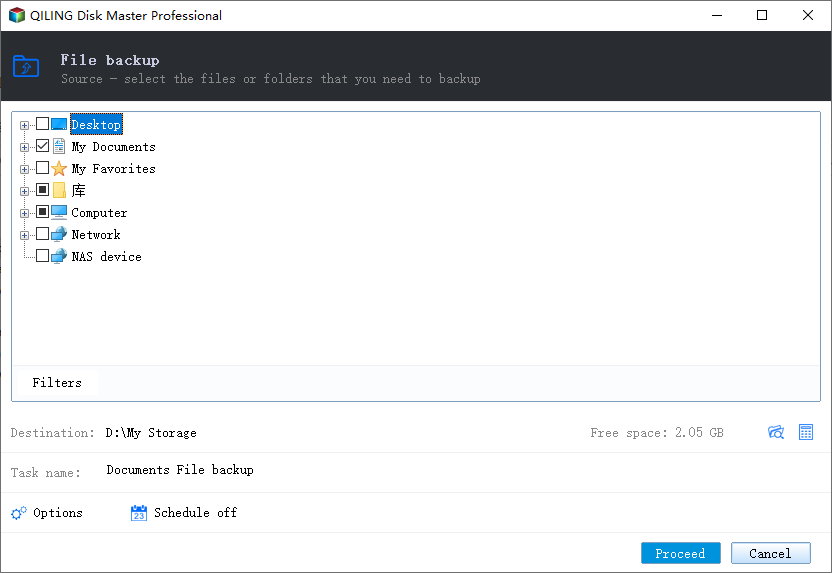
Qiling Disk Master includes a File Backup module that copies folders from the portable SSD to an internal disk while the SSD is still readable, which is the step to take before any conversion, initialization, or format. If the volume has already turned RAW, recover the files first and return here once the folders open again, because a copy taken now is what makes every later operation reversible.
Step 1. Select the Files to Copy
Open the program, go to Backup and Recovery, and choose File Backup. Expand the X9 Pro in the source tree and tick the folders you need, leaving unticked anything you can rebuild from elsewhere so the copy stays small and quick.
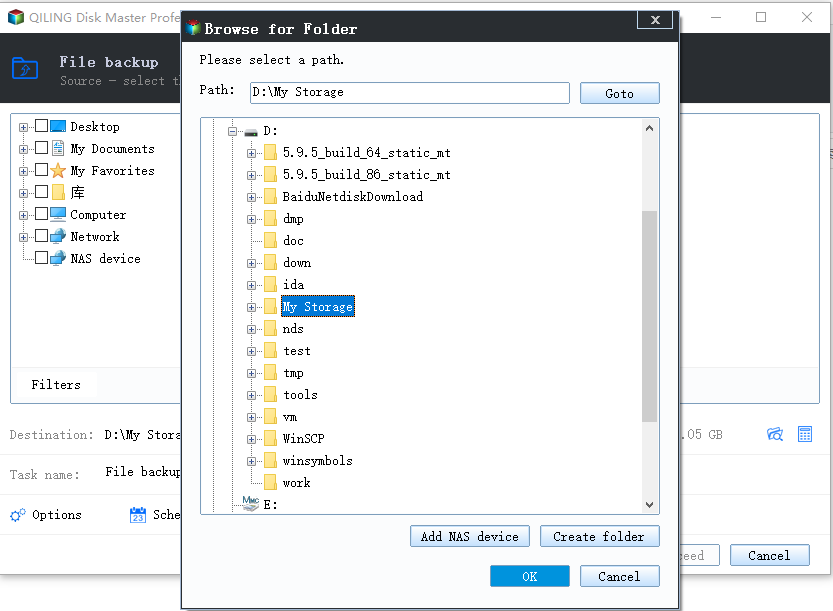
Step 2. Choose a Destination and Start
Set the destination to a folder on the internal disk, confirm that the free space there is larger than the selection, and start the task. When it finishes, open the destination and check a few files before you touch the partition table on the portable drive.
After the copy is verified, the rest is routine: assign a letter, initialize the disk, or create a new partition, with no risk left to the only copy of the data.
5 Frequently Asked Questions
Why does the X9 Pro appear in Device Manager but not in File Explorer?
A disk with no drive letter, or a volume that has turned RAW, is enumerated normally but never mounts. Assign a letter in Disk Management, and if the file system is missing, copy the data out before you format.
Does the Crucial X9 Pro need a driver?
No. It runs on the in-box USB mass storage driver. A vendor utility adds health monitoring and firmware updates only, and it cannot make a charge-only cable carry data.
Will formatting make an undetected drive appear?
No. Formatting needs a disk that Windows can already see. If the drive is absent from Disk Management, correct the cable, port, or power path first.
Related Articles
- USB4 or Thunderbolt 5 SSD Not Detected in Windows 11
- USB4 SSD Enclosure Randomly Disconnects
- NVMe SSD Disappears After a Windows 11 Update
- RAW External SSD: Recover Files Before Repair
- How to Check NVMe SSD for Health, Help
Products
Articles & Tutorials
- Data Recovery
- Data Backup
- File Recovery
- File Backup
- System Backup and Restore
- Disk and Partition Clone
- Technical articles
- Mobile articles
- Disk Master Help
- Windows Data Recovery Tutorials
- Windows Secure Delete Tutorials
- Windows Partition Management Tutorials
- Windows File Backup and Restore Tutorials
- Windows System Backup and Restore Tutorials
- Windows Disk Backup and Restore Tutorials
- Windows Clone Tutorials