NVMe SSD Disappears After a Windows 11 Update
Quick Navigation:
- Confirm Firmware Still Sees the Drive
- Rescan and Reinstall the Controller
- Rule Out the Slot and the Drive
- Clone or Back Up the Drive With Qiling Disk Master
- Frequently Asked Questions
NVMe drives are enumerated through a PCI Express bus and a storage driver rather than through the older SATA controller path. An update that changes the driver package, the power plan, or the PCIe link settings can leave the drive present in firmware but invisible to Windows.
Confirm Firmware Still Sees the Drive
Enter the firmware setup and open the storage or NVMe page. If the drive is listed there with its model and capacity, the hardware is fine and the fault is in Windows.
If it is missing in firmware as well, stop troubleshooting the driver. Reseat the drive, try another slot, and check whether the slot shares lanes with a SATA port.
Write down what firmware reports, including the link width. A drive that trained at a lower width may be throttled by a slot or by the drive itself.
Rescan and Reinstall the Controller
Open Device Manager, choose Action, and select Scan for hardware changes. A drive that returns after a rescan is usually a detection timing issue rather than a hardware failure.
Look for a storage controller with a warning. Uninstall it, restart, and let Windows reinstall the driver from its store, then run Windows Update again so any missing package is fetched.
In the power plan, set the PCI Express link state power management to off. An aggressive setting can drop the link during idle and fail to restore it.
Rule Out the Slot and the Drive
Move the drive to a second M.2 slot, or to another machine. A drive that works elsewhere is being lost by the board or the slot.
Check the drive health before you trust it again. A drive that disappears under load and returns with a warning has a controller problem, and a clone is the correct next step.
Avoid reinitialising the disk. If Windows offers to initialise it, decline; that prompt appears when the partition table cannot be read, which is exactly what a recovery needs to see.
Clone or Back Up the Drive With Qiling Disk Master
Qiling Disk Master can copy the drive while it is visible, so a device that drops out intermittently does not take the data with it.
Step 1. Choose Disk Clone or File Backup
Use Disk Clone for an exact copy, or File Backup when you only need the folders. Clone needs a destination at least as large as the used space.
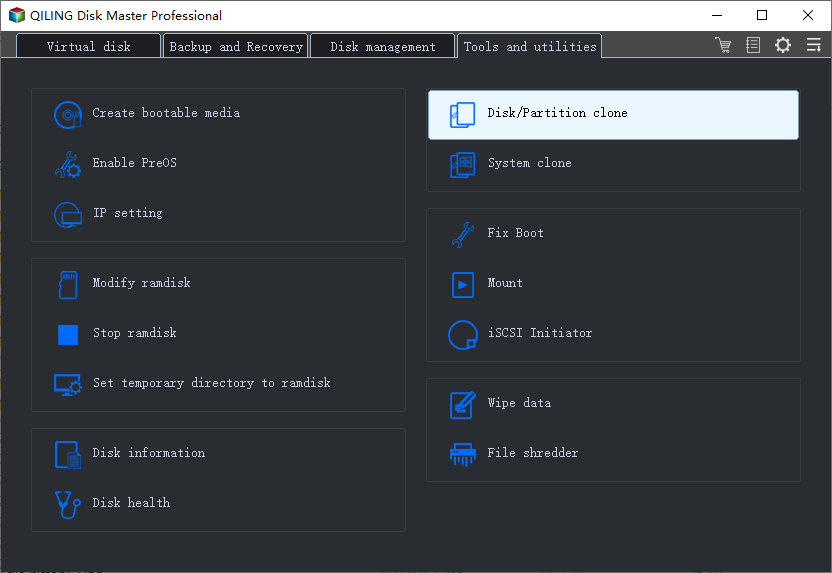
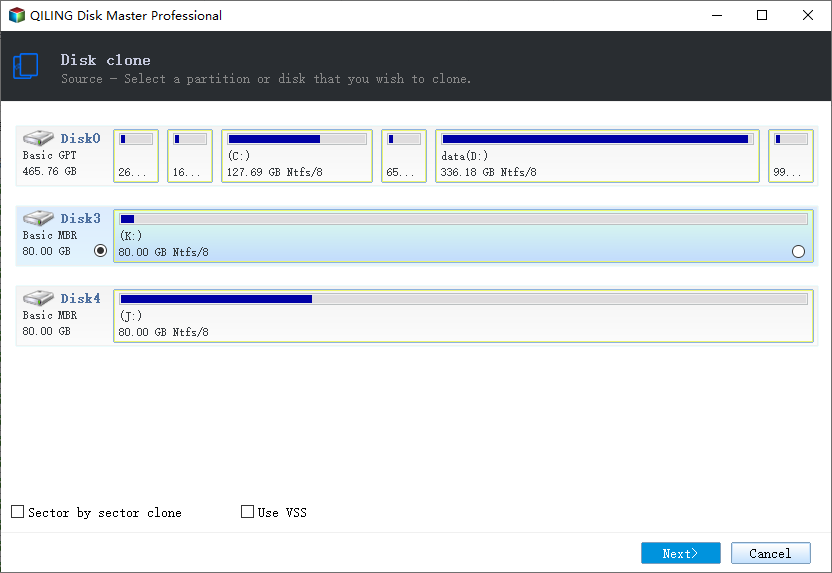
Step 2. Select the NVMe Drive
Pick the drive by capacity and model, and confirm it is the device that has been dropping out.
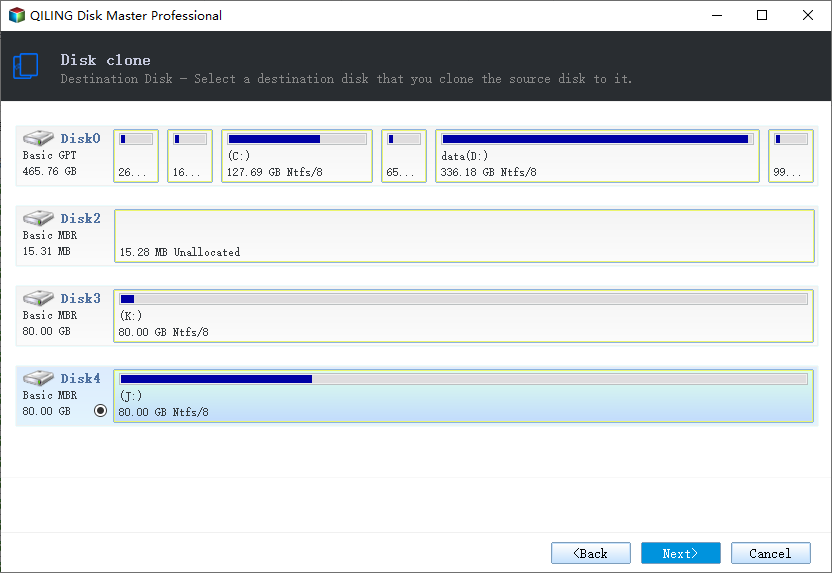
Step 3. Select the Destination
Choose another SSD or a disk with enough space. Any data on the destination will be replaced.
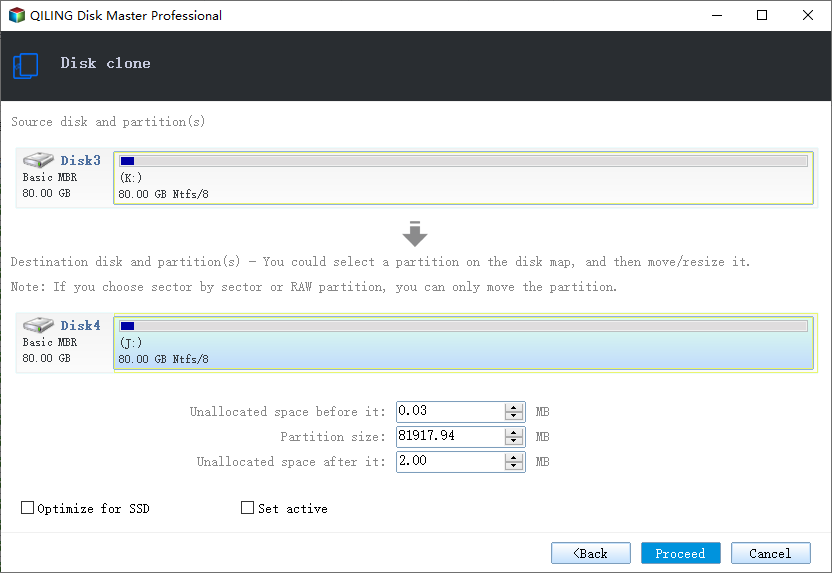
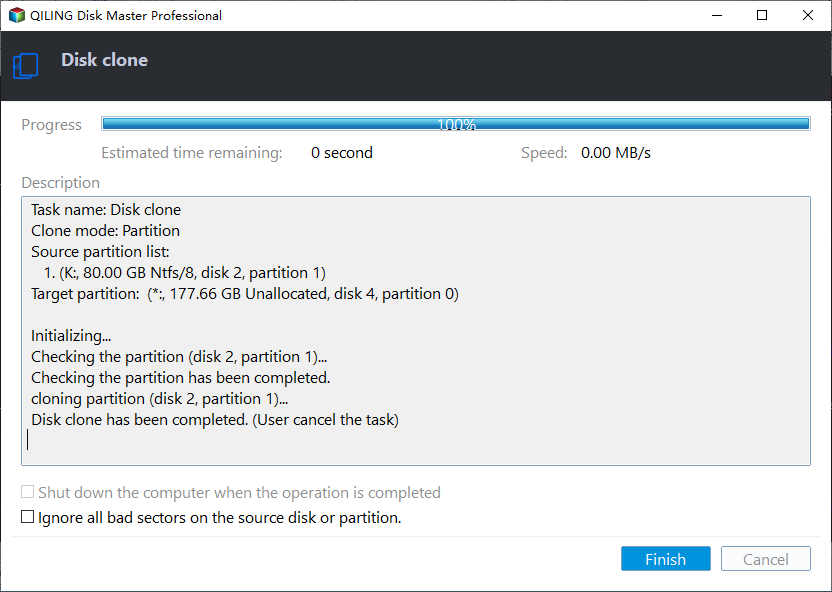
Step 4. Preview and Proceed
Review the layout and start the job. Keep the machine powered and do not sleep during the copy.
Step 5. Verify the Copy
Boot from the copy or browse it before you remove the original. A drive that has already vanished once should not be the only copy.
Frequently Asked Questions
Why does it show in the BIOS but not in Windows?
The firmware completed device enumeration and Windows did not. That points at the storage driver or at the PCIe link, not at the drive.
Can an update really hide an NVMe drive?
Yes. A changed driver package or an updated power policy can prevent the device from being attached after the next boot.
Is moving the drive to another slot safe?
It is safe and it is the quickest test. Keep the machine powered off while you move it, and check the board manual for shared lanes.
Should I initialise the disk when prompted?
No. Initialising destroys the existing partition information that recovery or repair needs.
For the slot-sharing case, see M.2 slots that disable SATA ports.
Related Articles
- M.2 Slot Disabled: SATA Port Lane Sharing
- How to Check an NVMe SSD for Health
- SSD Shows 0 MB: Controller Failure
- Failed to Format a Write Protected NVMe Drive
- Cannot Initialize Disk
Products
Articles & Tutorials
- Data Recovery
- Data Backup
- File Recovery
- File Backup
- System Backup and Restore
- Disk and Partition Clone
- Technical articles
- Mobile articles
- Disk Master Help
- Windows Data Recovery Tutorials
- Windows Secure Delete Tutorials
- Windows Partition Management Tutorials
- Windows File Backup and Restore Tutorials
- Windows System Backup and Restore Tutorials
- Windows Disk Backup and Restore Tutorials
- Windows Clone Tutorials