Disk Shows Offline in Disk Management: Causes and Fixes
In Disk Management, an offline disk is shown with a red arrow pointing down. The disk is detected by Windows, but its volumes are not mounted, so no drive letter appears and File Explorer cannot open it. In most cases the data is still there; Windows has simply decided not to use the disk.
The reason matters, because the correct next step differs for a cloned disk, a server disk that was intentionally taken offline, and a drive that is failing. Forcing every offline disk back online can make a recoverable situation worse.
What "Offline" Means
An offline disk is not the same as an unreadable disk. Windows sees the hardware, reads enough of the partition table to describe the disk, and then keeps it out of service. The volumes may still be intact, which is why the first attempt should always be a simple "Online" action rather than a format or an initialise.
Read-only is a different state: the disk is online, its volumes are visible, but writes fail. That has its own causes, usually a write-protect flag or a policy.
The Main Causes
1. Disk signature collision
Two MBR disks with the same four-byte signature cannot both be online. This is the classic result of cloning a disk and leaving both copies connected. Windows reports the collision and keeps the second disk offline. The fix is to assign a new signature, not to reformat the disk.
2. A policy or a manual offline command
Windows Server applies a SAN policy that can leave new disks offline until an administrator brings them online. A previous user may also have run diskpart and issued offline disk. In both cases the disk is healthy and the state is deliberate.
3. The disk belongs to another system
Cluster disks, Storage Spaces members and some RAID volumes are managed by their own layer. Windows keeps the physical disk offline because the volume is presented through a different device.
4. A connection or hardware problem
A marginal USB enclosure, a loose SATA cable or a drive that drops out under load can cause repeated offline states. The disk may alternate between online and offline, and the event log records the disconnects.
5. Partition table damage
If the partition table cannot be read, the disk may appear offline or unallocated. This is the case where forcing the disk online will not help, and where a backup and a repair come first.
How to Bring a Disk Online
- Open Disk Management and confirm which disk is offline. Check its capacity and model so you do not touch the wrong one.
- Right-click the disk label on the left and choose Online.
- If the option is greyed out, open an elevated Command Prompt and run
diskpart, thenlist disk,select disk Nandonline disk. - If the disk comes online but volumes are read-only, run
attributes disk clear readonlyin the same diskpart session. - Assign drive letters to the volumes if Windows does not do it automatically.
On a server, check the SAN policy with diskpart and the san command. A policy of Offline All or Offline Shared explains why every new disk arrives offline.
When It Goes Offline Again
If the disk returns to offline seconds after you bring it online, the cause is still present. Check Event Viewer under Windows Logs > System for disk events. A signature collision reports event ID 158. Repeated unexpected removals point at the cable, the enclosure or the drive itself.
Test the disk on another port, with another cable and, if possible, on another computer. A drive that works elsewhere has a host-side problem; one that fails everywhere has a hardware problem.
When Not to Force It Online
- The disk is a clone of the disk that is already online. Bring it online only after you decide which copy to keep, and change its signature first if both must stay connected.
- The disk is a cluster or pool member. Use the management tool for that layer, not Disk Management.
- The disk is failing. Bringing it online is fine for copying data, but do not run repairs or write new data to it.
Getting the Data Back
If the disk comes online but a volume is unreadable, check the file system before doing anything destructive. Qiling Disk Master can check a partition and report whether the file system is consistent.
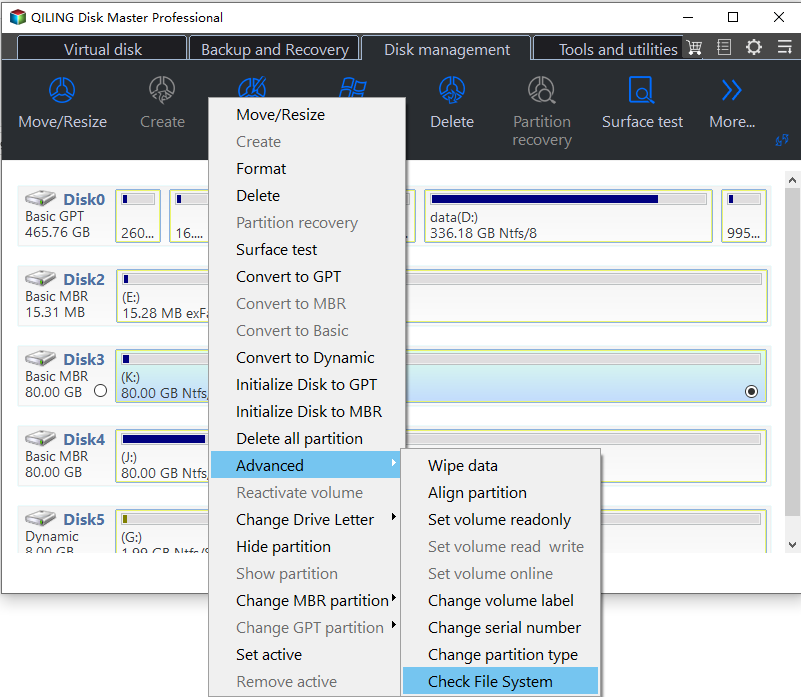
Step 1. Launch Qiling Disk Master, right-click the partition, open Advanced and choose Check File System.
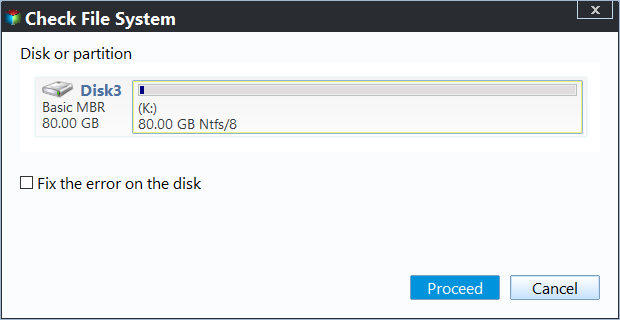
Step 2. Tick Fix the error on the disk if you want the tool to repair what it finds, then click Proceed. Back up the data first when the volume still mounts, because a repair can move or discard damaged records.
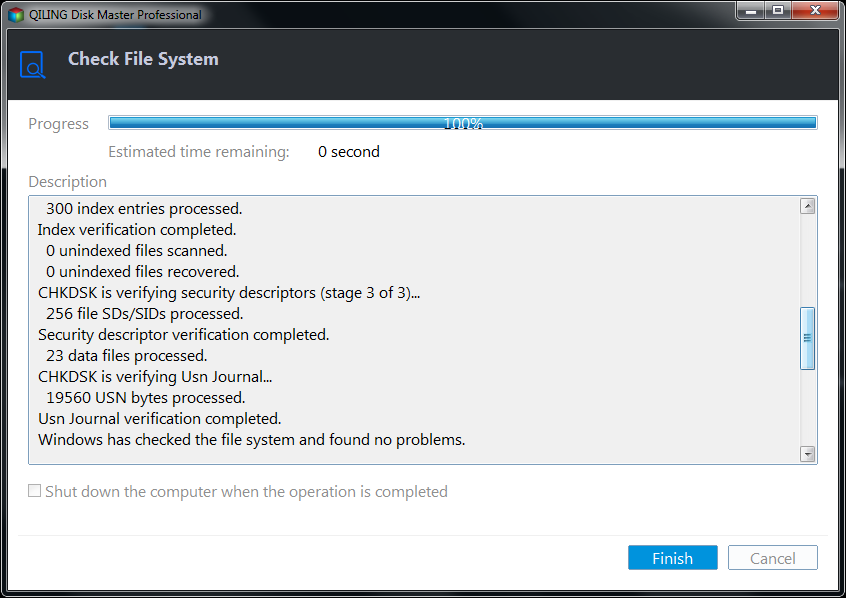
Step 3. Wait for the check to reach 100% and read the result before you decide on the next step.
If the volume cannot be mounted at all, image the disk and run data recovery on the image rather than on the original.
Will bringing a disk online delete data?
No. The Online command only changes the disk's service state. Formatting, initialising or cleaning are the operations that destroy data.
Why is the Online option greyed out?
The disk may be read-only, a pool member, or missing from the current policy. Check the disk's attributes in diskpart and the SAN policy on a server.
Can an offline disk be a failing disk?
Yes. A drive that drops out under load may be taken offline by Windows to protect the volume. Check SMART and the event log before you trust it again.
Related Articles
- Disk Signature Collision
The most common reason a cloned disk refuses to stay online. - 3 Simple Ways to Assign a Drive Letter
What to do when the disk is online but no letter appears. - Storage Pool Will Not Claim a Replacement Drive
When the disk is healthy but the storage layer refuses to use it.
Products
Articles & Tutorials
- Data Recovery
- Data Backup
- File Recovery
- File Backup
- System Backup and Restore
- Disk and Partition Clone
- Technical articles
- Mobile articles
- Disk Master Help
- Windows Data Recovery Tutorials
- Windows Secure Delete Tutorials
- Windows Partition Management Tutorials
- Windows File Backup and Restore Tutorials
- Windows System Backup and Restore Tutorials
- Windows Disk Backup and Restore Tutorials
- Windows Clone Tutorials