Disk Signature Collision: Why the Second Cloned Disk Stays Offline
You clone a drive, connect the copy while the original is still attached, and Windows shows one of the two disks as Offline in Disk Management. Clicking "Online" does not help, and the disk drops offline again a second later. In most cases the cause is a disk signature collision: both disks carry the same four-byte identifier, and Windows refuses to mount two disks that claim to be the same disk.
This guide explains what the signature is, how a collision happens, how to confirm it, and how to give the copy a new signature without breaking the boot process.
What a Disk Signature Is
On an MBR disk, the first sector (LBA 0) is the master boot record. Bytes 440 to 443 of that sector hold a four-byte disk signature, displayed as a hexadecimal value such as 1A2B3C4D. Windows uses this value, not the drive letter and not the serial number printed on the label, to identify the disk. On older MBR-based systems, the boot entry in the BCD store also references the signature, which is why changing it on the wrong disk can stop a PC from starting.
GPT disks do not use this field. A GPT disk carries a 16-byte disk GUID in its header, so a duplicate is far less likely. Everything below applies to MBR disks, including the compatibility layer used by some dual-boot setups and virtual machines.
Why Two Disks Get the Same Signature
Disk manufacturers do not ship drives with a meaningful signature. Windows or the imaging tool writes one when the disk is initialized. A duplicate therefore appears when a disk is copied, not when it is manufactured:
- A whole-disk clone. Cloning copies LBA 0 sector by sector, so the new disk inherits the old signature along with the partition table.
- An image restored to a second disk. The image contains the original MBR, and restoring it to another drive reproduces the same signature.
- A duplicated virtual disk. Copying a VHD or VHDX file at the file level produces two virtual disks with identical identifiers.
- Both disks left connected. The collision only becomes visible when the original and the copy are attached at the same time. Used one at a time, each disk works normally, which is why the problem often appears right after an upgrade.
Two drives bought in the same batch are not the cause. If both show the same value, one of them was copied from the other.
How to Confirm a Signature Collision
Start with Disk Management: the affected disk shows Offline with a red arrow icon, and the disk description may read "The disk is offline because of a signature collision". Event Viewer offers a second confirmation. Open Windows Logs > System and look for an event from the disk source with ID 158, which reports that two disks have the same identifiers.
For a definitive check, open Command Prompt as administrator and compare the two values:
- Type
diskpart, thenlist disk. An offline disk is marked with an asterisk in the Status column. - Type
select disk 0and thenuniqueid disk. Note the ID. - Type
select disk 1and rununiqueid diskagain.
If the two IDs are identical, the collision is confirmed. PowerShell users can see the same information in the Signature column of Get-Disk.
How to Fix It Without Breaking Boot
There are two ways out: change the signature of the copy, or keep only one disk connected. Changing the signature is the correct long-term fix for a data disk, because the partition table and all files stay untouched.
Method 1: let Windows write a new signature. In Disk Management, right-click the offline disk and choose Online. Recent versions of Windows detect the collision and write a new signature automatically. If the disk goes straight back to offline, use Method 2.
Method 2: assign the value yourself. In an elevated Command Prompt, run diskpart, list disk, select disk N, uniqueid disk ID=5A6B7C8D, then online disk. Choose any eight-digit hexadecimal value you have not used on another disk.
Caution for boot disks. On an MBR system disk, the BCD entry stores the disk signature. Changing it can produce error 0xc000000e at startup. If the disk you are fixing is the one Windows boots from, disconnect the other disk instead of editing the signature. If you must change it, keep a Windows recovery USB nearby and run bootrec /fixmbr, bootrec /fixboot and bootrec /rebuildbcd from the recovery environment afterwards. Never use clean to "reset" a disk with this problem, because it erases the partition table.
A Safer Clone Workflow
Most collisions are created during a disk upgrade. The order of operations matters more than the tool you use:
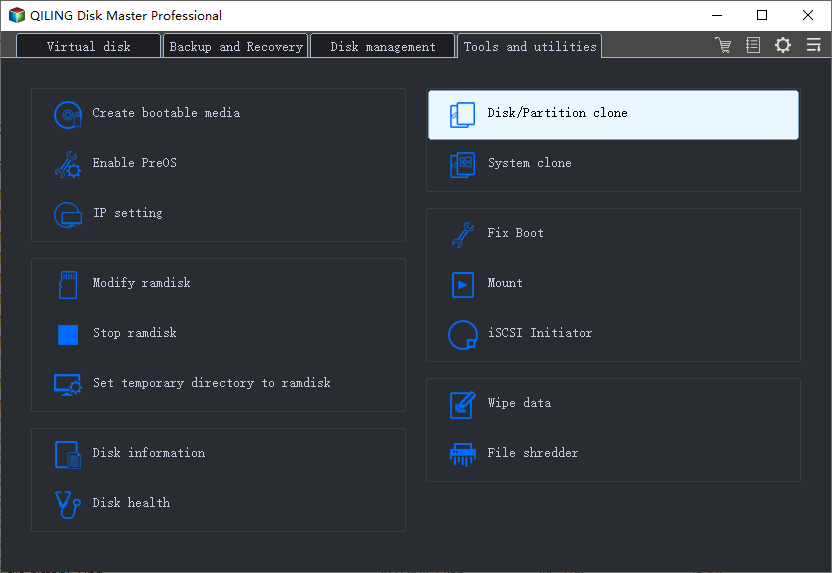
Step 1. Connect the new disk and launch Qiling Disk Master. Open the Tools and utilities tab and click Disk/Partition clone.
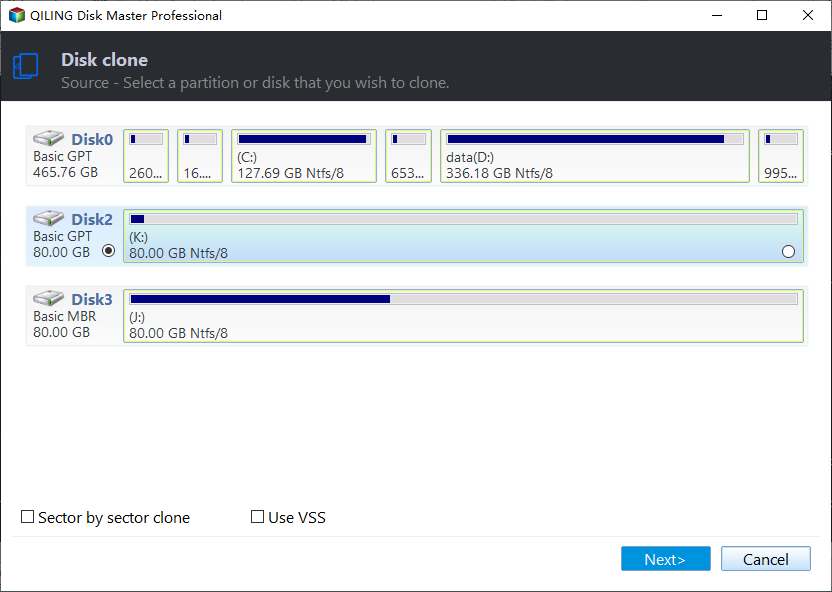
Step 2. Select the old disk as the source and click Next.
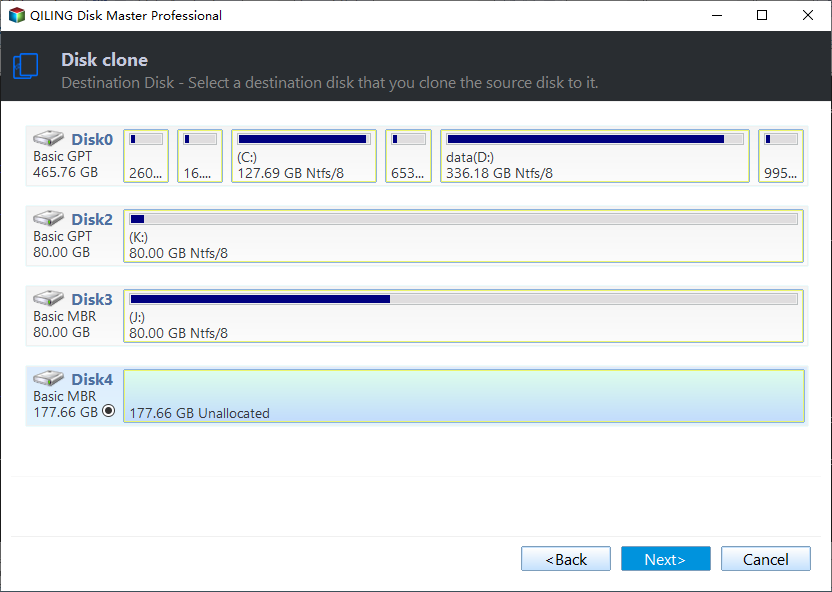
Step 3. Select the new disk as the destination and click Next. Confirm that it is the empty disk and not the disk that holds your data.
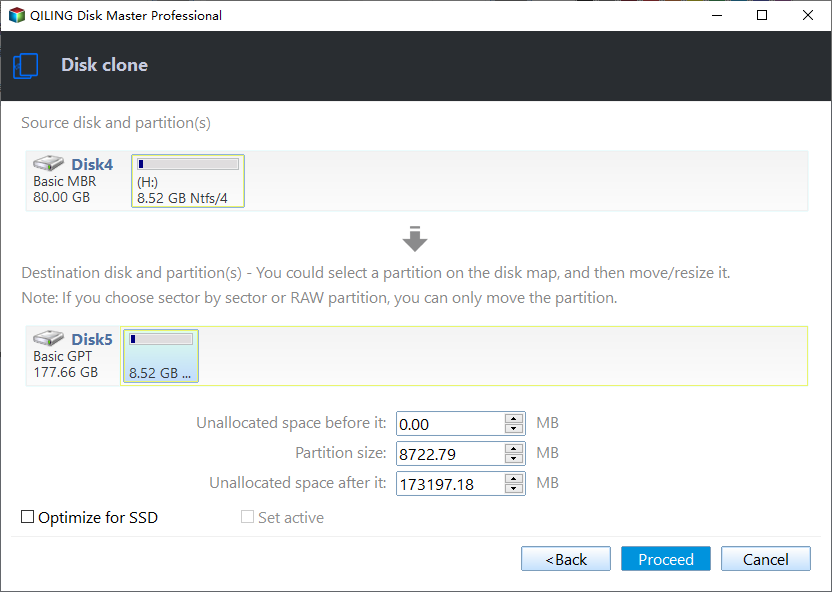
Step 4. Review the partition layout in the preview window, then click Proceed to start the clone.
Step 5. When the progress reaches 100%, click Finish and shut the computer down before the first boot from the new disk.
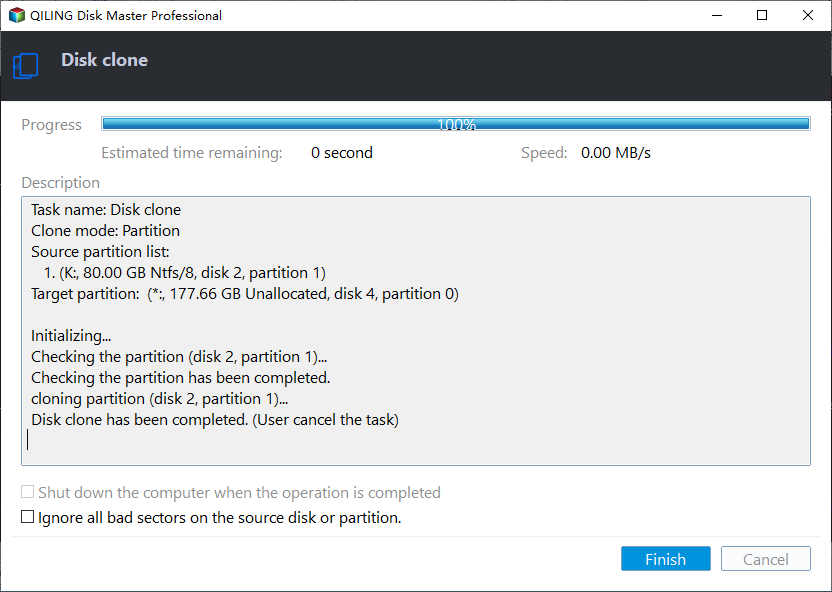
Disconnect the old disk, then boot from the new one. Reconnect the old drive only after the new system has started successfully, and decide which copy you want to keep. If both must stay inside the machine, change the signature of the old disk rather than the new system disk.
How to Prevent It Next Time
- Clone with only the source and destination disks connected, and remove the source before the first boot.
- Do not boot a cloned system with both disks attached, even for a quick check.
- When duplicating a virtual machine, use the platform's copy or clone command so a new disk identifier is generated.
- After moving a disk between computers, run
diskpartand compareuniqueid diskbefore you start copying files to it.
The symptom looks alarming, but the data is intact. A signature is only a name tag, and giving the copy a new name is enough to make both disks usable at the same time. See Drive Letter Changed After a Clone if the disk mounts correctly but appears under a different letter.
Is it safe to change the disk signature?
For a data disk, yes. The signature lives in the MBR and does not describe file locations, so partition contents are unaffected. For an MBR system disk, it can break the boot entry, so disconnect the duplicate instead.
Do GPT disks suffer from signature collisions?
Rarely. GPT identifies a disk by a 128-bit GUID, so an accidental duplicate is practically impossible. If a GPT disk shows offline, look for a cable, enclosure or partition-table problem instead.
Can I fix the collision by formatting the new disk?
Formatting the volume does not change the disk signature, so the collision returns. Assign a new signature first, then format if you need an empty volume.
Related Articles
- Drive Letter Changed After a Clone
Why a cloned disk can mount under a different letter and how to put the letters back in the expected order. - Fix Drive Letter After Cloning
Restore the C drive letter and the boot entry when a clone starts with the wrong letters. - NVMe SSD Not Detected in a USB Enclosure for Cloning
What to check when the destination SSD never appears in the clone wizard.
Products
Articles & Tutorials
- Data Recovery
- Data Backup
- File Recovery
- File Backup
- System Backup and Restore
- Disk and Partition Clone
- Technical articles
- Mobile articles
- Disk Master Help
- Windows Data Recovery Tutorials
- Windows Secure Delete Tutorials
- Windows Partition Management Tutorials
- Windows File Backup and Restore Tutorials
- Windows System Backup and Restore Tutorials
- Windows Disk Backup and Restore Tutorials
- Windows Clone Tutorials