Fix Drive Letter After Cloning - Restore C Drive & Boot
After cloning a system disk, the new SSD sometimes shows up with the wrong drive letter. Windows may boot from the SSD but label it D or E, or it may refuse to boot at all because the boot record still points to the old letter. This happens because drive letters are stored in the registry, not on the disk itself.
This guide explains why the letter changes, how to restore C to the cloned SSD, and how to repair the boot so Windows starts from the right drive.
PAGE CONTENT
- Why the Drive Letter Changes
- Fix the Letter in Disk Management
- Repair the Boot Configuration
- Re-clone with the Right Layout
- Confirm Windows Boots from C
- FAQs About Drive Letters
- Back Up Before You Change Letters
Why the Drive Letter Changes
- Letters live in the registry. Windows assigns letters from the MountedDevices key, not from the disk.
- Both disks share an ID. A clone copies the disk signature, so Windows sees two identical drives.
- The original keeps C. If the old drive is still connected, it keeps the C letter.
- Boot records point to C. The BCD expects the system volume to be C.
- The clone copies the signature. Two identical disk signatures confuse Windows letter assignment.
The fix is to give the SSD the C letter while the old drive is disconnected, or to change the letter in Windows Recovery if the system will not boot.
Fix the Letter in Disk Management
- Disconnect the old drive. Boot with only the cloned SSD connected.
- Open Disk Management. Press Win+X and choose Disk Management.
- Right-click the SSD volume. Choose Change Drive Letter and Paths.
- Assign C. Select C from the list and confirm.
- Free the letter if taken. Change the other volume to a different letter first.
If C is already taken by another volume, change that volume to another letter first, then assign C to the SSD. Restart after the change.
Repair the Boot Configuration
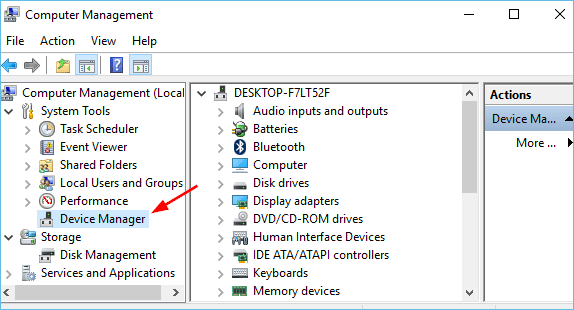
- Boot from a Windows install USB. Choose Repair your computer.
- Open Command Prompt. Use the Troubleshoot menu to reach it.
- Run bootrec commands. bootrec /fixmbr, /fixboot, /rebuildbcd repair the boot records.
- Run bcdedit. Set the device and osdevice to partition=C:.
- Use automatic repair. Startup Repair can fix the BCD without commands.
If Windows still will not boot after the letter fix, the BCD still points to the wrong volume. Rebuilding it from Recovery fixes the path without reinstalling.
Re-clone with the Right Layout
If the letter problem keeps coming back, the clone tool may have copied a broken layout. Re-clone with a tool that rebuilds the boot records for the target drive.
Watch the video tutorial below to clone the drive step by step with Qiling Disk Master.
Step 1. Open Qiling Disk Master, choose Clone, and then select Disk Clone.

Step 2. Select the source disk and click Next.

Step 3. Select the destination SSD and confirm that its data will be replaced.

Step 4. Choose the clone mode and confirm the system partition gets the C letter on the target.

Step 5. Click Proceed, wait for the copy to finish, then shut the machine down before you remove any cable.

Confirm Windows Boots from C
- Disconnect the old drive. Boot with only the SSD to test it alone.
- Check This PC. The system drive should be labeled C.
- Verify with diskpart. Run list volume and confirm the boot volume is C.
- Restart twice. The second boot confirms the letter is stable.
- Reconnect the old drive last. Add it back only after the SSD boots reliably.
If the letter reverts after a restart, the registry MountedDevices key is stale. Boot into Safe Mode and reassign the letter there.
FAQs About Drive Letters
Why does my cloned SSD show as D instead of C?
The old drive was still connected and kept the C letter. Disconnect the old drive and assign C to the SSD in Disk Management.
Can I change the system drive letter while Windows is running?
Not safely. Change it from Recovery or by booting with the old drive disconnected.
Will changing the drive letter break my programs?
Most programs break if they were installed on a letter that changes. Assign the original letter to avoid this.
Why does the cloned drive not get a letter at all?
The partition may not be marked active or the file system is not recognized. Check Disk Management and assign a letter manually.
How do I fix a cloned SSD that will not boot because of a letter?
Boot from a Windows USB, open Command Prompt, and run bootrec /rebuildbcd to rebuild the boot records.
Back Up Before You Change Letters
Changing drive letters and rebuilding the BCD can make the system unbootable. Back up first so you can restore if the repair fails.
Watch the video tutorial below to back up Windows and restore it if the clone fails.
Step 1. Open Qiling Disk Master and select System Backup to include the boot partitions.

Step 2. Save the image to a drive other than the target disk and start the backup.

Step 3. Click Proceed to start the system backup and wait patiently until it finishes. You can also tick Shut down the computer when the operation is completed to power off automatically.

Step 4. If the SSD still shows the wrong letter, restore the image and reassign the letter or rebuild the BCD from Windows Recovery.

Conclusion
A wrong drive letter after cloning comes from the registry, not from the disk. Disconnect the old drive, assign C to the SSD in Disk Management, and rebuild the BCD if Windows will not boot. If the problem repeats, re-clone with a tool that rebuilds the boot records for the target drive.
For more on boot issues after cloning, see Cloned Drive Won't Boot? Fix It, How to Clone the Windows 11 System Reserved Partition, Clone an MBR Disk to a GPT SSD, and Clone a GPT Disk to an MBR Disk.
Related Articles
- Cloned Drive Won't Boot? Fix It
Repair the boot after a failed clone. - How to Clone the Windows 11 System Reserved Partition
Keep the boot partition intact. - Clone an MBR Disk to a GPT SSD
Convert the boot style during the clone. - Clone a GPT Disk to an MBR Disk
Move Windows from GPT to MBR. - Windows Not Activated After Cloning
Reactivate Windows after the clone.
Products
Articles & Tutorials
- Data Recovery
- Data Backup
- File Recovery
- File Backup
- System Backup and Restore
- Disk and Partition Clone
- Technical articles
- Mobile articles
- Disk Master Help
- Windows Data Recovery Tutorials
- Windows Secure Delete Tutorials
- Windows Partition Management Tutorials
- Windows File Backup and Restore Tutorials
- Windows System Backup and Restore Tutorials
- Windows Disk Backup and Restore Tutorials
- Windows Clone Tutorials