Fix 0x80070052: The Directory or File Cannot Be Created
Quick Navigation:
- What the Message Describes
- Check the Volume Before You Retry
- Clear the Blockers You Can Clear
- Create the Partition or Rebuild the File System with Qiling Disk Master
- Frequently Asked Questions
0x80070052 arrives with the line "The directory or file cannot be created", usually in the middle of a copy, a format, or an attempt to make a folder on a USB drive, an SD card, or a partition that was formatted only yesterday. The file system is saying that it cannot add one more entry to the directory it was handed. Behind that single sentence sit three quite different causes: no room left in the directory table, no room left on the volume, or a volume that refuses writes altogether.
What the Message Describes
Every file system keeps an entry for each file and folder in the directory that contains it. When a new object is created, an entry must be reserved before any data is written, and the operation fails cleanly with 0x80070052 when no entry can be obtained. That is why the error can appear on a drive with gigabytes free, and why it can vanish as soon as the same folder is recreated somewhere else.
FAT16 and FAT32 allocate a fixed root directory at format time, and the classic limit is 512 entries. Because a long file name occupies several entries at once, a folder or drive with a few hundred richly named files can fill that table. These volumes return the error for the root directory only, while subfolders keep working, which is the clearest diagnostic signature for this cause.
NTFS rarely runs out of entries, since its index grows on demand, so the same code there points at free space, at a quota, or at a damaged index. A read-only attribute, the write-protect switch on an SD adapter, a BitLocker volume that is still locked, or a disk left offline after an update each produce the message from a different layer. Narrowing the layer is the whole job.
Check the Volume Before You Retry
Open Disk Management, a Microsoft built-in tool used here only to read the state of the disks, and check three things for the target volume: its file system, its free space, and its status. A volume marked RAW, or one shown without a letter, cannot accept entries no matter how much space it holds, and a volume marked read-only in the status column explains the refusal before any other test.
Run chkdsk on the volume in read-only mode first, without any switch that writes. Chkdsk ships with Windows, is used here only to diagnose errors in the file system, and is not part of Qiling Disk Master. A report of unreadable index entries, cross-linked files, or bad clusters on the target is enough to justify a fresh format rather than another copy attempt.
Then run the folder test that separates the causes in a minute. Create a new folder inside an existing subfolder on the same volume. If that succeeds while the root refuses, the root entry table or a per-directory limit is the problem. If both refuse, the volume itself is full, read-only, or damaged.
Clear the Blockers You Can Clear
Free space is the simplest fix: empty the recycle bin on that volume, remove temporary files, and move some of the existing items into a subfolder to release root entries. If the volume belongs to a network share with NTFS quotas, check the quota entry for the account performing the copy, because a hit quota produces the same refusal as a full disk.
Check the physical write protection next. Full-size SD cards have a small lock switch on the side, and microSD cards have one on the adapter; a card in the locked position accepts reads and rejects every new entry. For a USB drive reported as write protected, the attribute can be cleared from Windows, but that step writes to the device, so confirm the drive letter and take a copy of anything important before changing it.
BitLocker is the quiet one. A volume whose protection is suspended but not unlocked appears in Explorer and refuses writes, and the error text gives no hint about encryption. Unlock it with the password or recovery key, then retry the copy. Disk Management and diskpart are Microsoft built-in tools that can display these states; neither is a component of Qiling software.
Create the Partition or Rebuild the File System with Qiling Disk Master
When the volume cannot be saved, the answer is a new file system on a clean partition. Qiling Disk Master works on the partition table directly, so it can create a volume in unallocated space or reformat one whose index is beyond repair. Move whatever can still be read to another disk first, and keep the external copy until the new volume has been checked.
Operation 1: Create a Partition in Unallocated Space
This operation applies when the space is free and no partition exists yet. It builds a new volume and a new file system in one task.
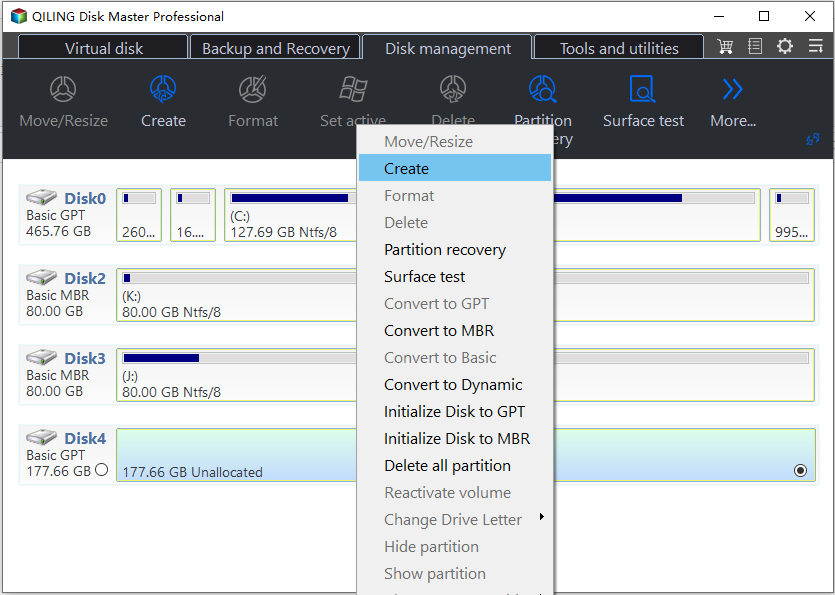
Step 1. Right-click the unallocated space and choose Create. With the disk selected, the unallocated area carries its own context menu, and Create opens a dialog for the new volume. Nothing is written at this stage; the size, the label, and the file system are only being prepared.
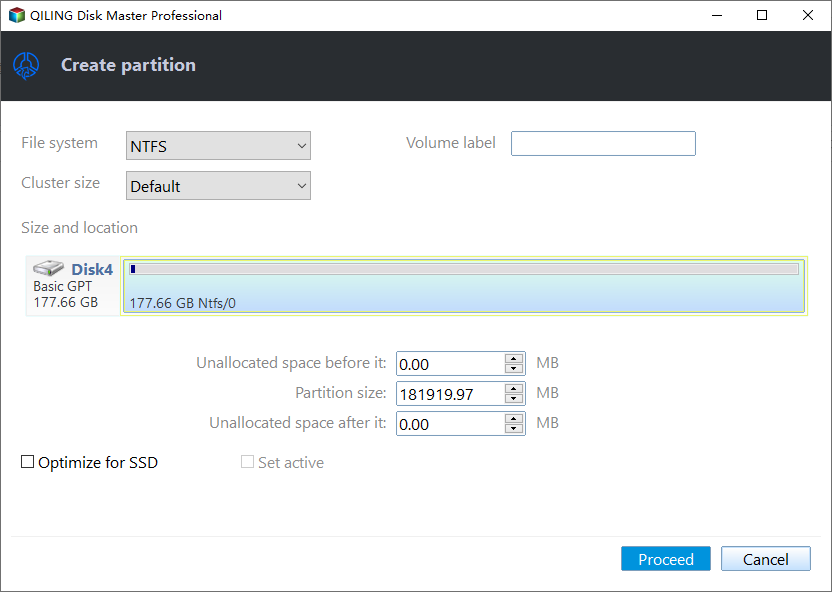
Step 2. Set the size, label, and file system. Choose NTFS for a drive that will stay on Windows, or exFAT when the same device has to be read by cameras and televisions. Take the whole unallocated area unless another partition is planned behind it, and keep the label short and unique.
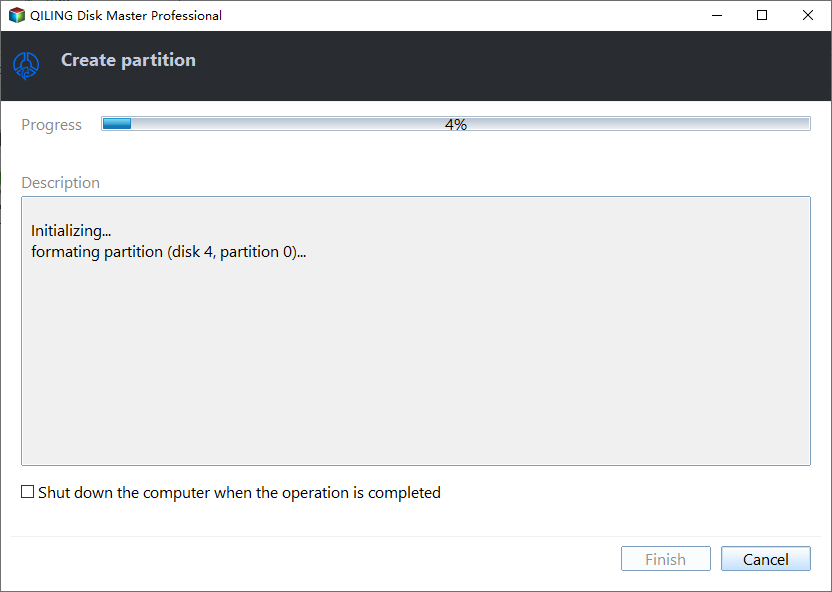
Step 3. Review the preview and click Proceed. The preview page confirms the pending creation with the disk number, the size, and the file system, and the task runs only after Proceed. The new volume is formatted as part of the same job, so it is ready to accept folders when the progress window reports completion.
Operation 2: Format an Existing Volume
This operation applies when the partition already exists and only its file system has to be rebuilt. It erases the volume, so copy anything that can still be read to another disk first.
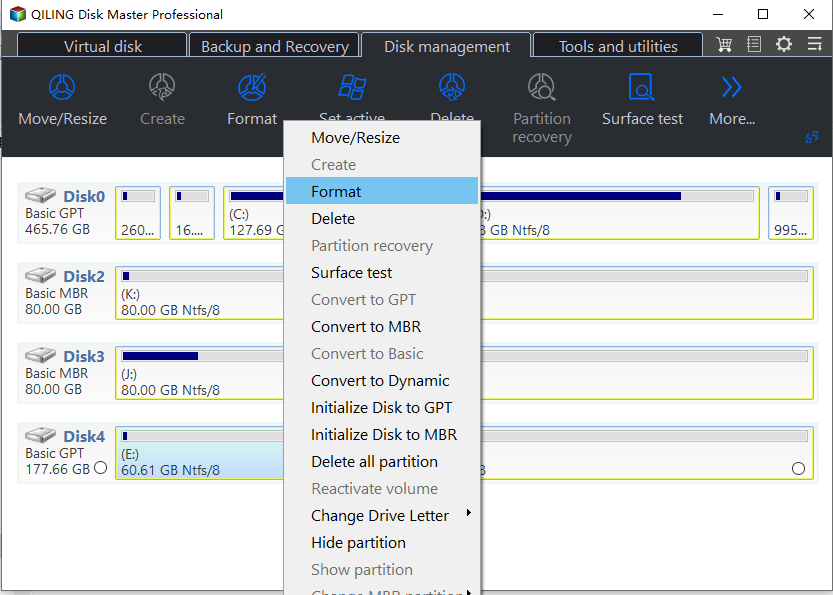
Step 1. Right-click the volume and choose Format. Select the partition that refuses new entries, not the disk, and make sure its letter and size match the volume you diagnosed. The dialog opens with the current file system already filled in, and no data is touched until the task is started.
Step 2. Set the file system, label, and cluster size. Keep NTFS for a Windows volume, or pick exFAT for a card used by cameras, and leave the cluster size on Default unless a specific workload needs another value. A new label is optional, but a short unique one makes the rebuilt volume easy to tell apart in Explorer.
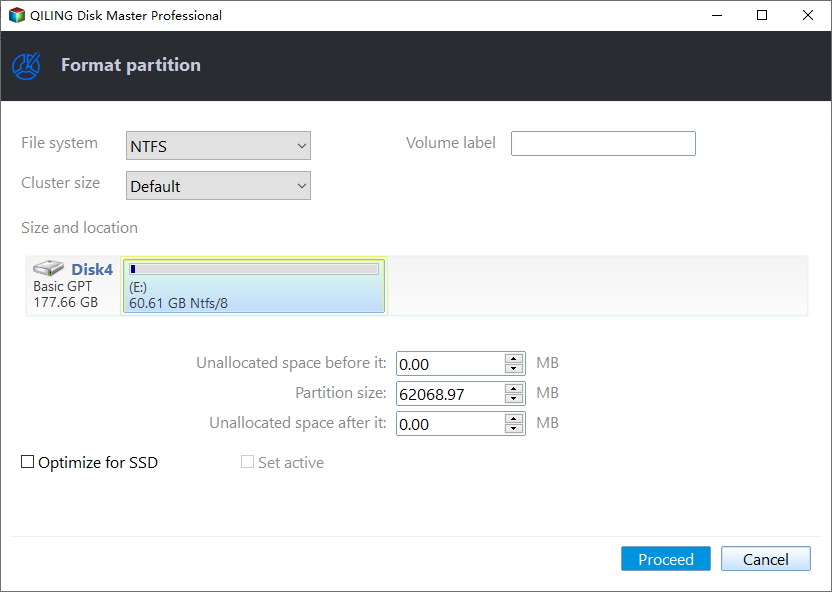
Step 3. Review the preview, click Proceed, and confirm the warning. The preview page lists the volume and the new file system before anything runs. Proceed starts the task, and the message about the data on that volume is the final confirmation; accept it only after the backup copy has been checked.
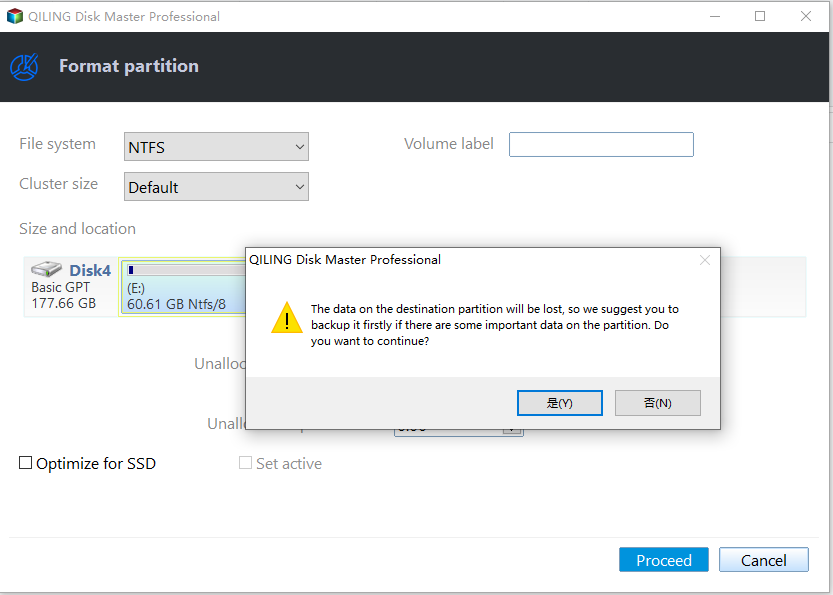
A freshly formatted NTFS volume rebuilds its index from scratch, which removes both the exhausted entry table and any damage chkdsk reported. If the device still refuses entries on an empty NTFS volume, the fault has moved to the hardware or the write-protect layer, and no format will change it.
Frequently Asked Questions
Is 0x80070052 always caused by a full disk?
No. Free space is only one of the causes. A fixed-size root directory, a read-only or write-protected device, a quota, and a damaged index all produce the same code on volumes with plenty of room.
Why can I create a folder in a subfolder but not in the root of a USB drive?
Because FAT16 and FAT32 reserve a fixed table for the root directory, traditionally 512 entries, and long names consume several of them. Subfolders grow on demand, so they keep accepting new items after the root is full.
Does formatting really fix the error?
When the entry table is exhausted or the index is damaged, yes, because a format builds a new file system. Copy the files you can still read to another disk first, since a format removes everything on the volume.
Related Articles
- Fix 0x8004240F: Cannot Create Partition or New Simple Volume
- How to Fix USB Is Write Protected or Read Only
- SD Card Shows 0 Bytes in Windows: Fix and Recover
- SD Card, USB Drive, or Pen Drive Shows 0 Bytes
- Can't Shrink the 3 TB USB Drive, How to Fix
Products
Articles & Tutorials
- Data Recovery
- Data Backup
- File Recovery
- File Backup
- System Backup and Restore
- Disk and Partition Clone
- Technical articles
- Mobile articles
- Disk Master Help
- Windows Data Recovery Tutorials
- Windows Secure Delete Tutorials
- Windows Partition Management Tutorials
- Windows File Backup and Restore Tutorials
- Windows System Backup and Restore Tutorials
- Windows Disk Backup and Restore Tutorials
- Windows Clone Tutorials