Fix 0x8004240F: Cannot Create Partition or New Simple Volume
Quick Navigation:
- What 0x8004240F Really Reports
- Protect the Disk Before You Retry
- Read the Disk State With Built-in Tools
- Create the Volume With Qiling Disk Master
- Frequently Asked Questions
You finish the New Simple Volume wizard, click Finish, and Windows answers with 0x8004240F and a message that the Virtual Disk Service cannot complete the disk configuration operation. The wizard did nothing, nothing was formatted, and the space is still unallocated. This code is a refusal rather than a crash: the service looked at the disk and decided the layout you asked for cannot be applied in its current state. The causes are few and each one has a clear check. This guide walks through them and shows how to finish the job with Qiling Disk Master.
What 0x8004240F Really Reports
Disk Management does not write to a disk by itself. It asks the Virtual Disk Service, or VDS, to apply a layout, and VDS either accepts the request or returns a status code. 0x8004240F is one of those refusals. The disk may be perfectly healthy, the driver may be fine, and the request may still be impossible because of how the disk is already organized. That is why retrying the same wizard usually returns the same code.
Five conditions produce it most often. The disk is MBR and already holds four primary partitions, so no fifth entry fits. There is no unallocated space, or the free space is not where the new volume needs it. The disk is marked read-only, offline, or is a removable device with a write-protect switch. The disk is dynamic or belongs to a storage pool, where a simple volume means something different. And the disk is GPT with leftover metadata that no longer matches the protective MBR. A stalled VDS service or another partition tool holding a lock can also cause it, but those cases usually clear after a restart.
The code does not tell you which of these applies. That is the useful part of the diagnosis: read the disk state first, match it to one condition, and fix that condition. Deleting partitions or converting the disk to dynamic as a guess is how a small layout problem turns into a data loss case.
Protect the Disk Before You Retry
Nothing has been written yet, so this is the safest moment to take a copy. Image the disk or at least back up the volumes that already exist, because the fixes below change the layout and some of them change it for every partition on the disk, not only for the new one. A backup taken now is also the only way to compare before and after if the result is not what you expected.
Note the current layout before you touch it: the partition style, how many primary partitions the disk holds, where the unallocated space sits, and which volumes carry which letters. A photo of the Disk Management window is enough, and it settles arguments later about what moved. If the disk is an external enclosure, confirm that the bridge does not hide the real sector size, because that alone can make a valid layout look impossible to the service.
Then avoid the shortcuts that make things worse. Converting a basic disk to dynamic to "unlock" the space makes the volumes harder to read on another machine and is not reversible in Disk Management. Deleting a partition to free an entry destroys the volume that used it. Formatting the unallocated space is pointless, because the space is already empty. When a step feels like it removes something, stop and check whether the step is actually needed.
Read the Disk State With Built-in Tools
Disk Management, DiskPart, and chkdsk are Microsoft's built-in tools that ship with Windows. They are not part of Qiling Disk Master, and this section uses them only to read the state of the disk. Disk Management shows the partition style, the number of primary partitions, the location of unallocated space, and whether the disk is offline or read-only. That view alone explains most 0x8004240F cases. DiskPart reports the same facts from a command line, and chkdsk confirms whether an existing volume is healthy before you rearrange the disk around it.
Read the numbers, not just the labels. An MBR disk with four primary partitions cannot take a fifth, no matter how much unallocated space it has. A disk whose free space sits after a partition you do not want to move cannot be extended into that space. A disk marked read-only will refuse every write until the flag is cleared at the source, which may be a switch on the enclosure rather than anything in Windows.
Keep in mind that these tools can also write. Creating a volume, cleaning a disk, and converting a layout all change the structure. Use them to look, write down what you see, and leave the actual change to a tool that shows you the result before it starts, especially on a disk that holds data you have not copied yet.
Create the Volume With Qiling Disk Master
Qiling Disk Master creates partitions from the same unallocated space but shows the pending change before it runs, which makes the refusal in 0x8004240F easy to avoid. The three operations below cover the three states you are likely to meet: free space waiting to be used, a full disk that needs room made for it, and an MBR disk that has run out of partition entries.
Operation 1: Create the Volume on Unallocated Space
This operation applies when the disk is online and unallocated space is already available. It is the direct replacement for the wizard that returned the error.
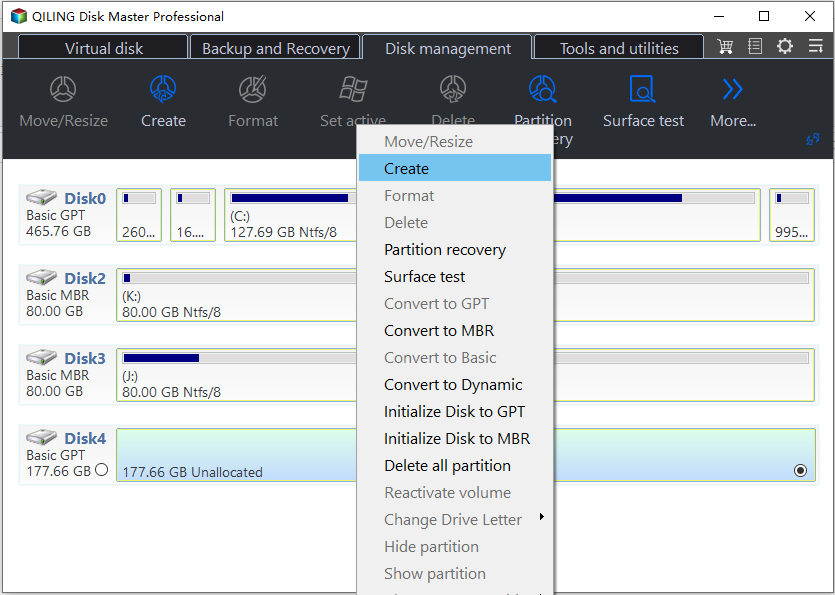
Step 1. Right-click the unallocated block and choose Create. The block is drawn to scale on the disk map, so confirm that its size matches the space you expected. Choosing Create on a partition instead of on the free space is the most common reason the option looks greyed out.
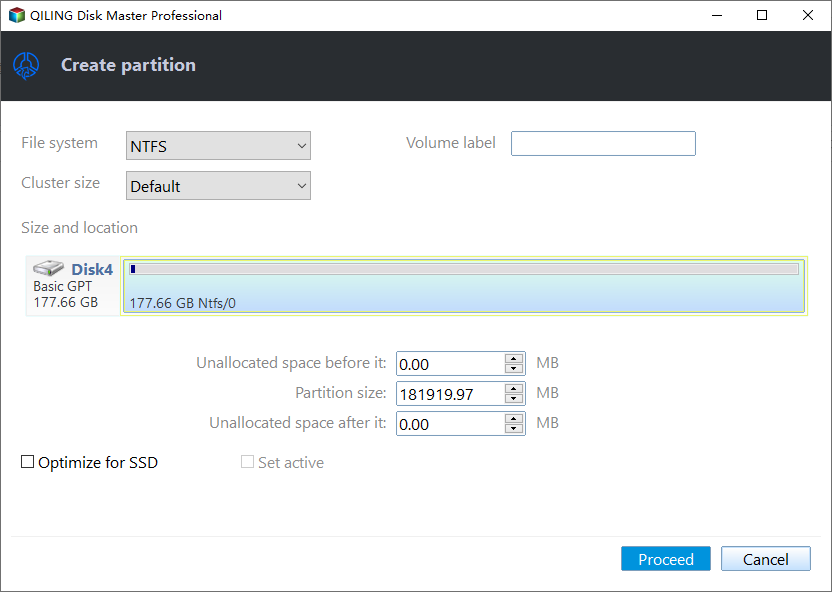
Step 2. Set the file system, label, and size. Keep the cluster size on Default unless a specific workload needs another value. Leave a little unallocated space after the new volume if you may want to extend it later, because extending needs free space directly behind the partition.
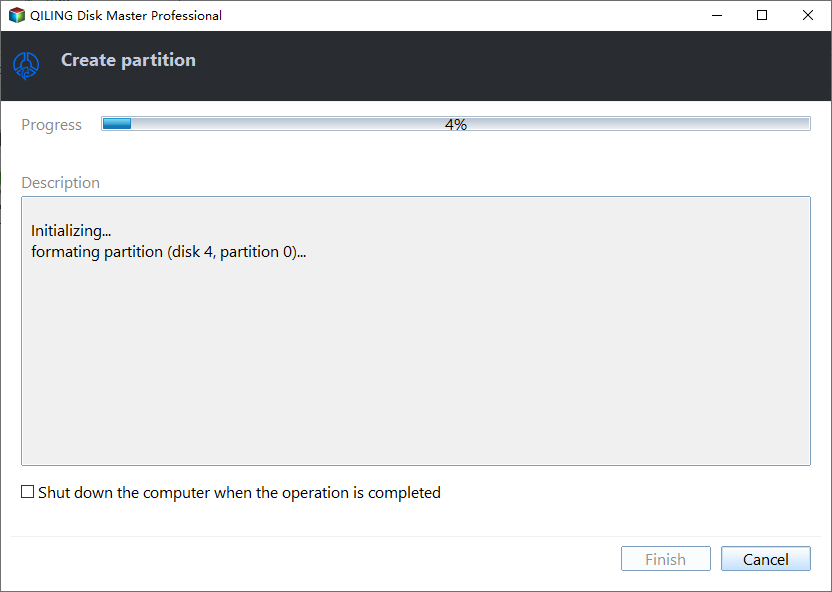
Step 3. Preview the task and click Proceed. Check the summary for the disk number, the size, and the file system, then start the task. The volume is formatted as part of the same job, so a letter appears in File Explorer as soon as the progress window reports that it has finished.
Operation 2: Make Room When the Disk Has No Free Space
This operation applies when the disk is full and the unallocated space you need does not exist. It changes an existing volume, so finish the backup from the previous section first.
Step 1. Shrink a neighbouring volume with Resize/Move. Right-click the volume next to the space you want, choose Resize/Move, and drag its edge inward. The freed space always appears on the side you shrank from, which decides whether the new volume ends up where you need it.
Step 2. Preview the resize and click Proceed. Confirm that the pending change shrinks only the volume you selected, then let it finish. When the disk map shows the new unallocated block, repeat Operation 1 on it. A partition that must be moved as well as shrunk takes longer, so keep the machine powered and leave external drives connected until the task ends.
Operation 3: Convert the Disk When the Entry Limit Blocks It
This operation applies when the disk is MBR, already holds four primary partitions, and the machine boots in UEFI mode. Converting gives the disk room for far more partitions, but a 32-bit system or a board that only boots in Legacy mode should stay on MBR.
Step 1. Right-click the disk and choose Convert to GPT. The command sits in the disk menu and converts the selected disk only. Confirm the disk number before you continue, because the conversion rewrites the partition style of everything on that disk.
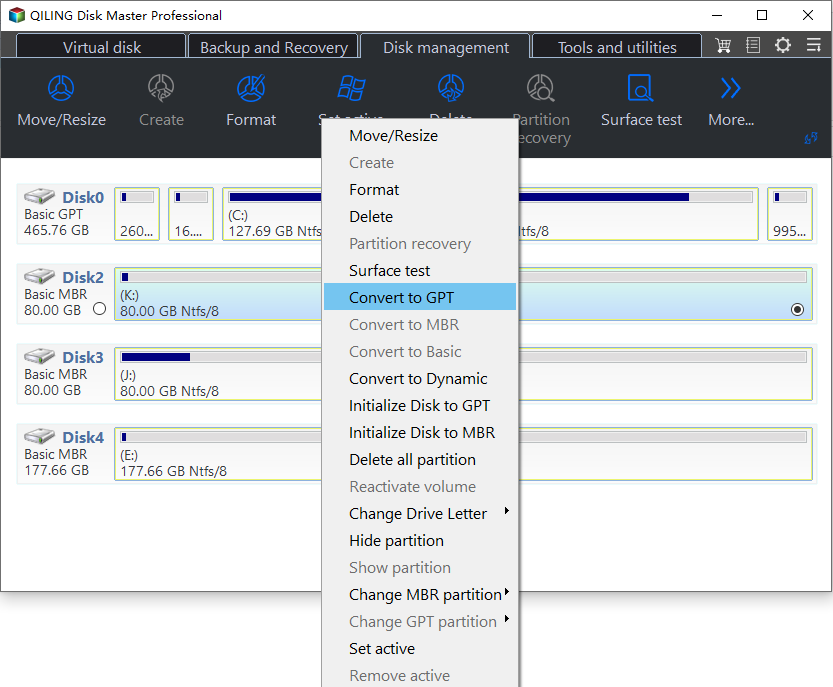
Step 2. Wait for the conversion to finish. The conversion starts as soon as the command is chosen: there is no preview page and no Proceed button, so do not interrupt the machine or cut power while the disk is being rewritten. When the task reports that it has finished, create the new volume with Operation 1. The existing volumes keep their data, but verify that the firmware still boots the system before you rely on the change.
Frequently Asked Questions
Does 0x8004240F mean the disk is failing?
No. The code reports that the requested layout cannot be applied, not that the hardware is bad. A disk with four primary partitions, no free space in the right place, or a read-only flag returns the same error while working perfectly.
Can I create a fifth partition on an MBR disk?
Not as a primary partition. MBR allows four entries, and a fifth volume has to live inside an extended partition as a logical drive. Converting the disk to GPT removes that limit, provided the machine boots in UEFI mode.
Why does the error come back after I retry?
Because nothing has changed between attempts. The wizard asks for the same layout and the service refuses it for the same reason. Identify which of the conditions in the first section matches your disk, change that condition, and the request will be accepted.
Related Articles
- How to Create a Partition in Windows 11
- Create a Partition Larger Than 2TB
- Cannot Extend the C Drive in Windows 11
- Disk Partitioner for Windows
- Best Free Partition Manager Software
Products
Articles & Tutorials
- Data Recovery
- Data Backup
- File Recovery
- File Backup
- System Backup and Restore
- Disk and Partition Clone
- Technical articles
- Mobile articles
- Disk Master Help
- Windows Data Recovery Tutorials
- Windows Secure Delete Tutorials
- Windows Partition Management Tutorials
- Windows File Backup and Restore Tutorials
- Windows System Backup and Restore Tutorials
- Windows Disk Backup and Restore Tutorials
- Windows Clone Tutorials