Host Memory Buffer (HMB) in SSDs: What It Is and Whether It Matters
Host Memory Buffer (HMB) is an NVMe feature that lets a solid-state drive borrow a small slice of system RAM to hold its mapping table. It exists because the table is large, the drive's own cache is small, and a few dozen megabytes of host memory cost the manufacturer nothing. Cheaper NVMe drives use it to close part of the performance gap with drives that have their own DRAM.
It is not a setting you enable, and it is not a substitute for DRAM. Understanding what it does explains why two drives with similar capacity and similar sequential speeds can feel very different under real workloads.
What HMB Is
HMB is part of the NVMe specification, introduced with NVMe 1.2. The host operating system reserves a contiguous buffer in system memory and tells the SSD where it is. The drive then uses that buffer as a cache for the logical-to-physical mapping table, which records where each block of data actually lives in the NAND.
Typical buffer sizes are 32 to 64 MB. The drive requests a size, the operating system grants what it can, and the two agree on the layout during initialisation.
Why an SSD Wants DRAM
Every read and write needs an address translation. A 1 TB drive with 4 KB pages has about 268 million mapping entries. Storing that table in the controller's small SRAM is impossible, so drives either add a DRAM chip or keep only a cached subset in SRAM and fetch the rest from NAND.
When the needed entry is not cached, the controller performs an extra NAND read before it can serve the request. That added latency is the main reason DRAM-less drives feel slower in random workloads even when their sequential benchmark numbers look respectable.
How HMB Works
- Support depends on the host. Windows 10 version 1709 and later, Windows 11, and Linux kernel 4.13 and later support HMB for NVMe drives.
- It is NVMe only. SATA drives use AHCI, which has no equivalent mechanism. A DRAM-less SATA SSD has to rely on its SRAM and internal caching alone.
- The drive must ask for it. If either side does not support the feature, the drive simply runs without HMB. Nothing breaks; performance drops back to the DRAM-less baseline.
- The memory belongs to the system. It is reserved and unavailable to applications while the drive is in use, which is why the requested size stays modest.
What It Helps and What It Does Not
HMB improves the cases where the mapping table is the bottleneck:
- Random reads of small files, which is what an operating system does at startup and during normal use.
- Mixed read and write workloads where translations are requested constantly.
- Sustained random IOPS on a drive that would otherwise fetch entries from NAND.
It does not fix the other weaknesses of a budget drive:
- Sequential speed is limited by the NAND interface and the number of channels, not by HMB.
- Sustained write speed depends on the SLC cache and how the drive behaves after the cache fills. HMB does not change that.
- Endurance is a property of the NAND and the controller, not of the buffer.
- Power loss protection comes from capacitors and firmware design, and HMB provides neither.
How to Check Whether It Is Active
The feature is negotiated at the hardware level, so there is no Windows toggle to inspect. Use HWiNFO or the vendor's SSD toolbox and look for the NVMe drive's feature list. Some tools label the drive as "HMB supported" and report the granted size; others show nothing even when the feature is working.
In Linux, nvme id-ctrl /dev/nvme0 reports the HMB preferences the drive advertises. If the value is zero, the drive does not request a buffer.
The practical test is a benchmark you can repeat: run a random 4K read test on the same drive in two machines, one with an older operating system and one with a current one. A large difference in IOPS, with identical hardware, usually points at host-side features such as HMB.
What to Buy
For a general-purpose laptop or desktop, an HMB drive is a sensible choice. The price difference is real, and the performance gap in everyday use is smaller than the spec sheet suggests. Pay for DRAM when the workload is sustained and random:
- Virtual machines and containers running from the same disk.
- Databases and development environments with many small synchronous writes.
- Video editing with large scratch files and constant seeking.
- Any role where the drive will stay more than 80% full.
If you are replacing a drive, cloning keeps the installation and avoids a reinstall. Qiling Disk Master can copy the old disk to the new NVMe drive, and the destination is selected explicitly so the source is never at risk.
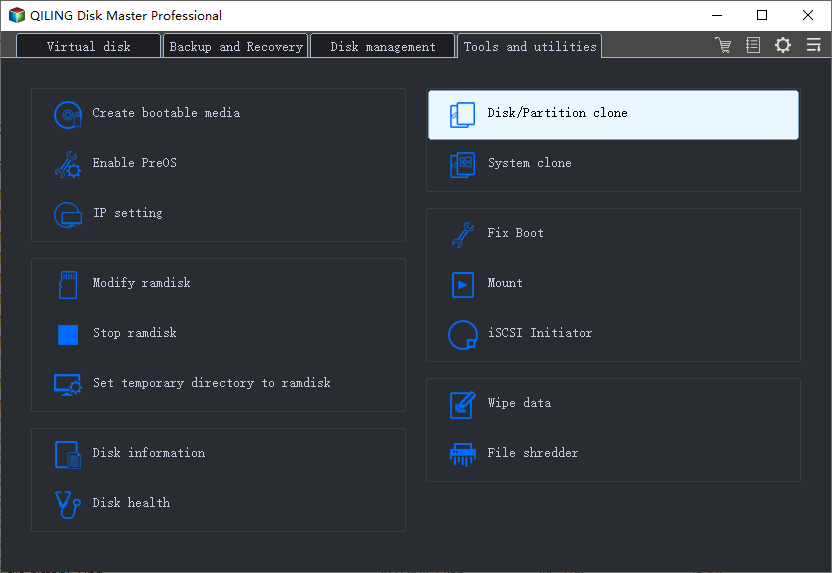
Step 1. Install the new NVMe drive in a compatible slot or enclosure, then launch Qiling Disk Master, open Tools and utilities and click Disk/Partition clone.
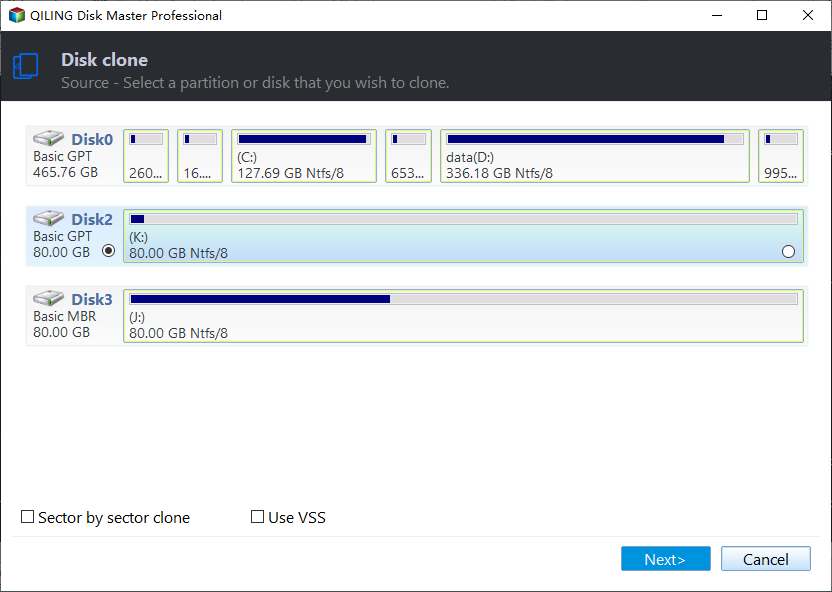
Step 2. Select the current system disk as the source and click Next.
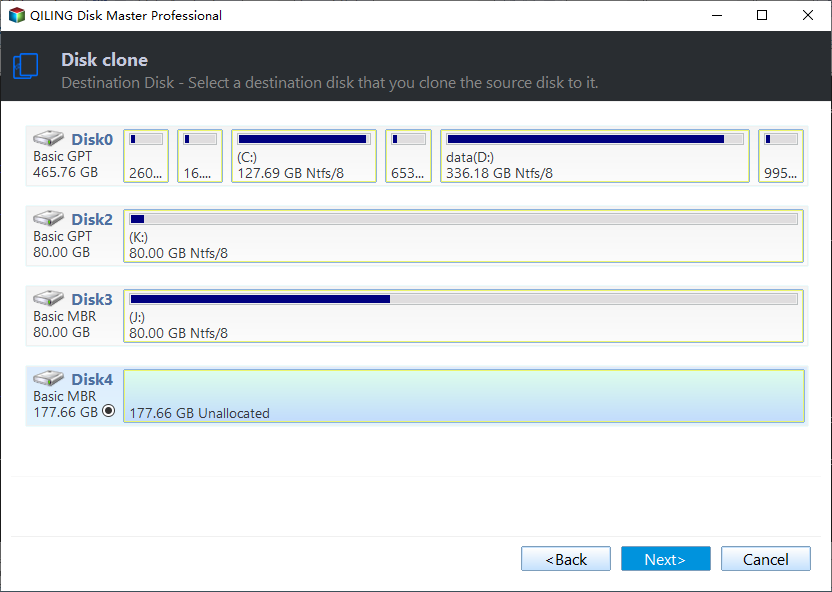
Step 3. Select the new drive as the destination and click Next.
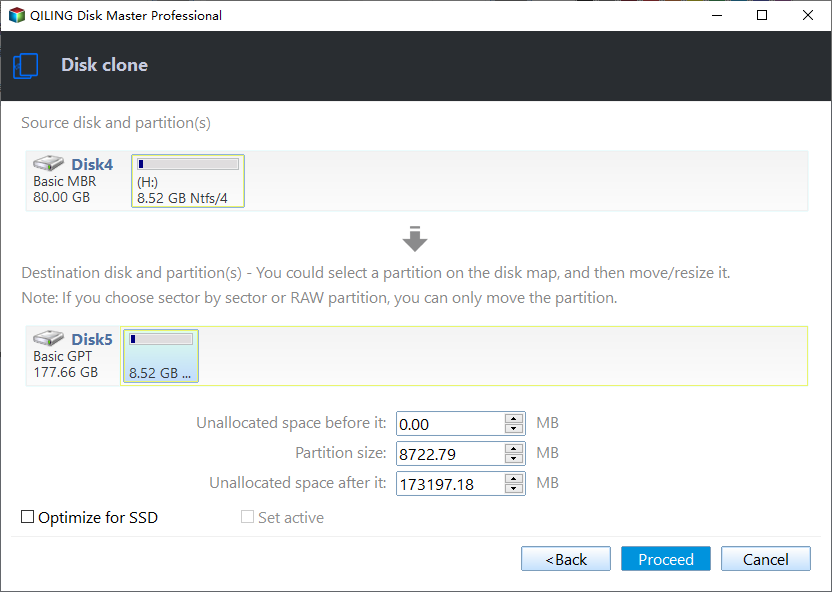
Step 4. Review the layout, click Proceed, then shut down and boot from the new disk before you reuse the old one.
Can I turn HMB on or off?
No. It is negotiated automatically between the drive and the operating system. There is no supported user setting in Windows.
Does HMB make a DRAM-less SSD as fast as a DRAM SSD?
It narrows the gap in random reads, but it does not close it. A good DRAM-based drive still wins in sustained mixed workloads.
Do all NVMe drives support HMB?
No. Drives with their own DRAM do not need it, and some DRAM-less controllers do not request it. Check the model's specification or a review that inspects the controller.
Related Articles
- Write Amplification on SSDs
How extra NAND writes shorten drive life, and how much free space keeps it low. - Clone a Drive with an NVMe Enclosure
Moving an installation to an NVMe disk when only a USB enclosure is available. - Turn an Old Laptop Hard Drive Into an External USB Drive
What to do with the drive you remove after an SSD upgrade.
Products
Articles & Tutorials
- Data Recovery
- Data Backup
- File Recovery
- File Backup
- System Backup and Restore
- Disk and Partition Clone
- Technical articles
- Mobile articles
- Disk Master Help
- Windows Data Recovery Tutorials
- Windows Secure Delete Tutorials
- Windows Partition Management Tutorials
- Windows File Backup and Restore Tutorials
- Windows System Backup and Restore Tutorials
- Windows Disk Backup and Restore Tutorials
- Windows Clone Tutorials