Clone a Drive with an NVMe Enclosure: Full Guide
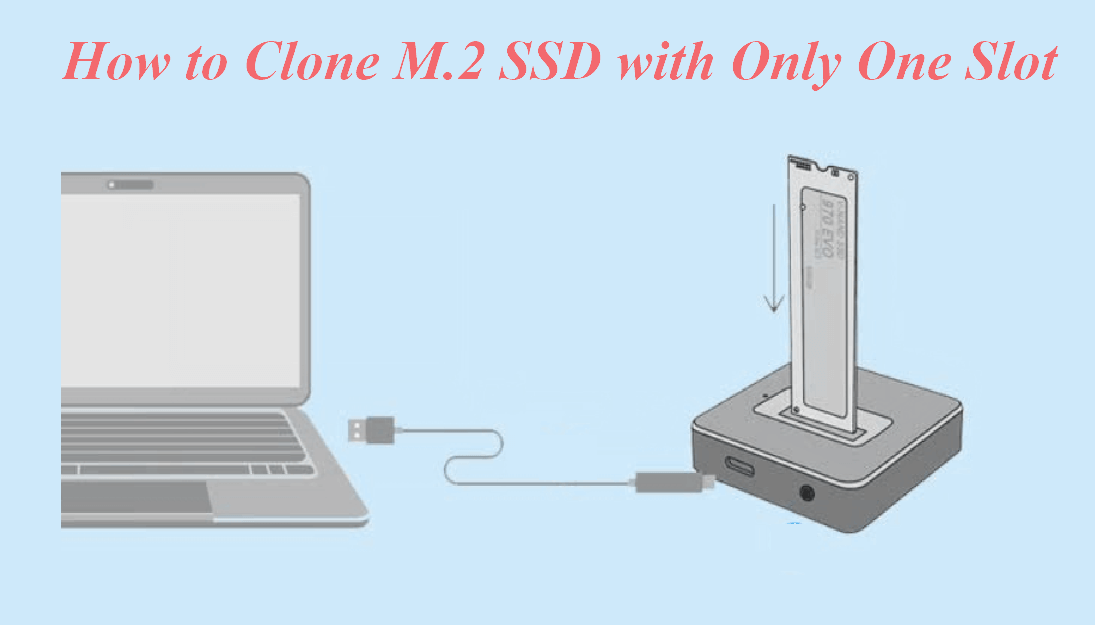
A USB NVMe enclosure turns an internal M.2 drive into an external USB drive. That is the standard way to clone a laptop or handheld with only one M.2 slot, because the target cannot sit inside the machine during the copy.
This guide covers choosing the enclosure, running the clone from Windows, and the removal steps that prevent a corrupted copy.
PAGE CONTENT
- Choose the Right Enclosure
- Clone Through the Enclosure
- Speed and Connection Limits
- Clone with Qiling Disk Master
- Swap and Verify the Drive
- FAQs About NVMe Enclosures
- Back Up Before You Clone
Choose the Right Enclosure
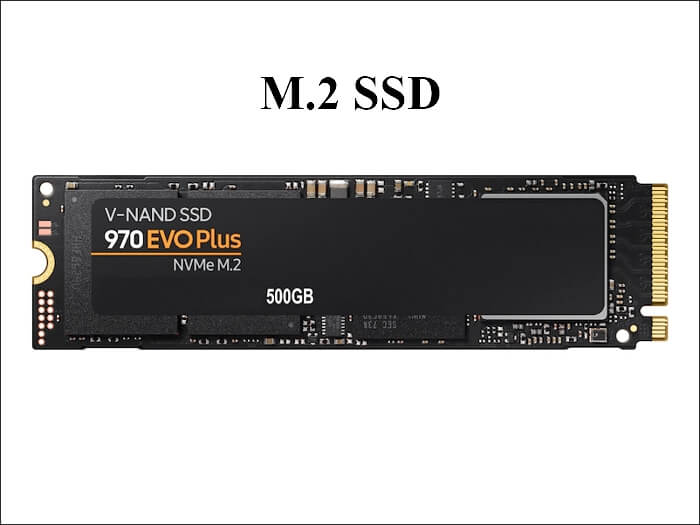
- Match the drive length. Enclosures support 2230, 2242, and 2280 M.2 drives, but not every model fits every length.
- Match the protocol. An NVMe enclosure takes NVMe drives; SATA M.2 drives need a different bridge.
- Check the USB link. USB 3.2 10 Gbps is common, while USB4 and Thunderbolt enclosures cost more.
- Look for a heatsink. Long clones heat the controller, and a metal case helps it stay stable.
- Prefer a screw or latch. A loose drive inside the enclosure drops offline mid-copy.
The enclosure is only a bridge. The clone speed is limited by the slowest link in the chain, so a fast SSD in a slow enclosure still copies at the enclosure speed.
Clone Through the Enclosure
- Install the target drive. Seat the SSD in the enclosure and secure it before you plug in the cable.
- Connect to a stable port. Use a rear USB port on a desktop and avoid unpowered hubs.
- Initialize the drive. If Windows shows a new disk prompt, initialize it as GPT before cloning.
- Start the clone. Choose the internal disk as the source and the enclosure drive as the destination.
- Wait for the finish. Do not unplug the enclosure until the tool reports success and the drive is idle.
If the enclosure drive is not visible, check Disk Management first. An uninitialized disk does not appear in File Explorer, but it can still be selected as a clone destination.
Speed and Connection Limits
- USB 10 Gbps tops out near 1 GB/s. The copy is slower than an internal NVMe transfer.
- Thermal throttling is real. A small enclosure can slow down during a long clone.
- Power draw matters. Bus-powered enclosures may drop offline on weak laptop ports.
- Cable quality counts. A charge-only cable will not carry the drive at all.
- Removal must be safe. Eject the drive in Windows before you unplug it after the clone.
A clone that stops near the end is often a USB dropout, not a bad SSD. Move the enclosure to another port, use the cable that came with it, and retry before you replace the drive.
Clone with Qiling Disk Master
Qiling Disk Master detects the enclosure drive as a normal disk, so you can clone the internal drive and resize the target in one pass.
Watch the video tutorial below to clone the drive step by step with Qiling Disk Master.
Step 1. Open Qiling Disk Master, choose Clone, and then select Disk Clone.

Step 2. Select the source disk and click Next.

Step 3. Select the destination SSD and confirm that its data will be replaced.

Step 4. Choose the clone mode and adjust the partition size for the new drive.

Step 5. Click Proceed, wait for the copy to finish, then eject the enclosure before you unplug it.

Swap and Verify the Drive
- Power off completely. Shut down the machine and remove the power cable or battery.
- Remove the enclosure drive. Take the SSD out of the enclosure and install it internally.
- Boot with the new drive only. Leave the old drive disconnected for the first boot.
- Confirm the capacity. Check Disk Management for unallocated space on the new SSD.
- Restart twice. A stable second boot confirms the clone is complete.
If the machine does not see the new drive internally, reseat it and check the M.2 slot. A drive that worked in the enclosure can still fail to seat properly in the slot.
FAQs About NVMe Enclosures
Can I clone a SATA M.2 SSD with an NVMe enclosure?
No. NVMe and SATA M.2 drives use different protocols and need different enclosures.
How fast is a clone through a USB enclosure?
A 10 Gbps enclosure usually settles near 1 GB/s, so a full 1 TB disk takes roughly 20 to 30 minutes.
Can I boot Windows from an NVMe enclosure?
It is possible over USB4 or Thunderbolt, but boot support varies by firmware and is not reliable.
Why does the enclosure disconnect during the clone?
Usually a weak port, a charge-only cable, or thermal throttling. Try a rear port and the cable supplied with the enclosure.
Do I need to format the enclosure drive first?
No. Initializing it as GPT is enough, and the clone will overwrite the layout anyway.
Back Up Before You Clone
USB copies can drop offline, and a dropped copy can leave the target half-written. Save a system image first so you can restart from a known state.
Watch the video tutorial below to back up Windows and restore it if the clone fails.
Step 1. Open Qiling Disk Master and select System Backup to include the boot partitions.

Step 2. Save the image to a drive other than the target disk and start the backup.

Step 3. Click Proceed to start the system backup and wait patiently until it finishes. You can also tick Shut down the computer when the operation is completed to power off automatically.

Step 4. If the enclosure copy fails, restore the image to the original drive and retry with another USB port.

Conclusion
An NVMe enclosure is the practical answer for single-slot machines, but the USB link sets the speed and the failure modes. Use a matched enclosure, a stable port, and safe ejection before you swap the drive.
For related single-slot guides, see Clone an M.2 SSD with One Slot, Clone an NVMe SSD to a Larger NVMe, Clone a SATA SSD to an NVMe SSD, and Cloned Drive Won't Boot? Fix It.
Related Articles
- Clone an M.2 SSD with One Slot
The original single-slot method. - Clone an NVMe SSD to a Larger NVMe
Upgrade capacity on NVMe. - Clone a SATA SSD to an NVMe SSD
Move to a faster interface. - Clone a USB Drive to an ISO or Image
Work with external drives. - Cloned Drive Won't Boot? Fix It
Repair the boot after cloning.
Products
Articles & Tutorials
- Data Recovery
- Data Backup
- File Recovery
- File Backup
- System Backup and Restore
- Disk and Partition Clone
- Technical articles
- Mobile articles
- Disk Master Help
- Windows Data Recovery Tutorials
- Windows Secure Delete Tutorials
- Windows Partition Management Tutorials
- Windows File Backup and Restore Tutorials
- Windows System Backup and Restore Tutorials
- Windows Disk Backup and Restore Tutorials
- Windows Clone Tutorials