USB4 80 Gbps SSD Falls Back to USB 3 Speed
Quick Navigation:
- What the Negotiated Link Rate Tells You
- Check the Cable and Port
- Update the Enclosure Firmware
- Test the Drive Directly
- Frequently Asked Questions
A USB4 enclosure that runs at 5 or 10 Gbps is not necessarily broken: it has negotiated the fastest link that both ends would accept. That negotiated rate is reported by the system, and reading it first tells you whether the limit is the cable, the port, the enclosure firmware, or the drive inside.
1 What the Negotiated Link Rate Tells You
USB4 builds a tunnel between the host and the device, and every tunnel starts with a link negotiation. Rates step down through 80, 40, 20, 10, and 5 Gbps, and the two ends agree on the highest value that the cable, the connector, and both controllers support.
If the drive reports 40 Gbps, the link is USB4 first generation. If it reports 10 or 5 Gbps, it has fallen back to USB 3.2, which usually means the cable or the port is not USB4 capable. If the enclosure is not recognised as a USB4 device at all, the port itself is the first thing to question.
Keep negotiation and throttling apart. A link that starts at 40 Gbps and loses throughput after a minute is held back by heat or by the drive's cache, not by the cable. Watch the reported rate rather than the benchmark number, because the two describe different faults.
2 Check the Cable and Port
Passive copper has a length limit that tightens as the rate rises. An 80 Gbps link over passive cable is short, and the longer certified 80 Gbps cables are active, with electronics in the connector. A 40 Gbps cable will hold the link at 40 Gbps no matter what the enclosure supports.
The port must be marked USB4 or Thunderbolt. A USB-C connector that only carries USB 3.2 data, or one wired for charging and DisplayPort, looks identical and negotiates far below the expectation set by the shape of the plug.
Remove hubs and docks from the path. A dock that splits the link between displays, network, and storage can drop the storage tunnel to 20 or 10 Gbps, and the result looks like a slow drive rather than a busy dock.
3 Update the Enclosure Firmware
Negotiation bugs are common in early USB4 firmware. Most enclosure vendors publish a firmware utility that updates the bridge chip, and the release notes usually name the link-rate fixes directly.
On the host side, the USB4 controller and its driver matter as much. A generic driver installed after a Windows update can leave the link at a fallback rate, so check the host controller entry in Device Manager and install the vendor driver for the platform if one is offered.
After any firmware change, power-cycle both ends: unplug the enclosure, restart the computer, then reconnect. The link is agreed when the device is attached, so a drive that was already connected keeps the old result.
4 Test the Drive Directly
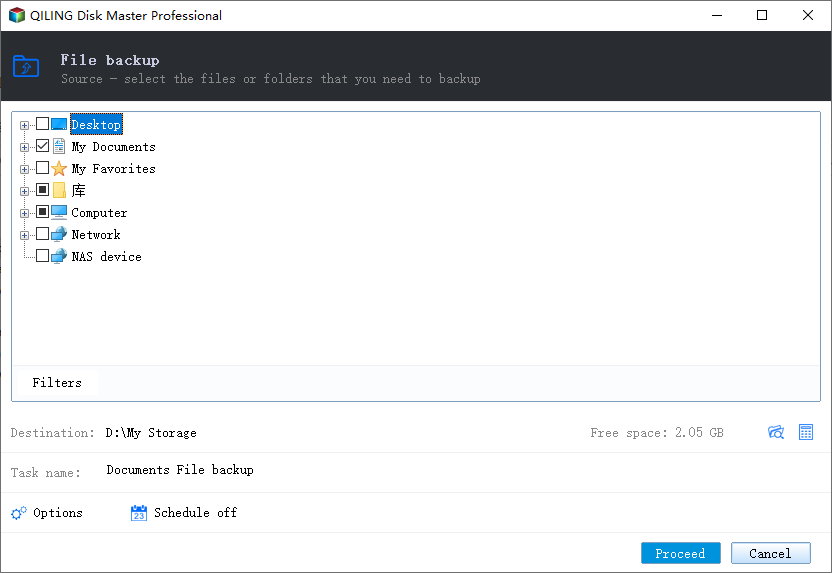
Copy the files you care about off the drive before you start swapping cables and reconnecting it. Qiling Disk Master can duplicate the folders to an internal disk in one pass, so a test that goes wrong costs nothing.
Step 1. Select the Files to Copy
Open the program, go to Backup and Recovery, and choose File Backup. Expand the USB4 drive in the source tree and tick the folders you need to keep, so the copy is a safeguard rather than a full duplicate of test data.
Step 2. Choose a Destination and Start
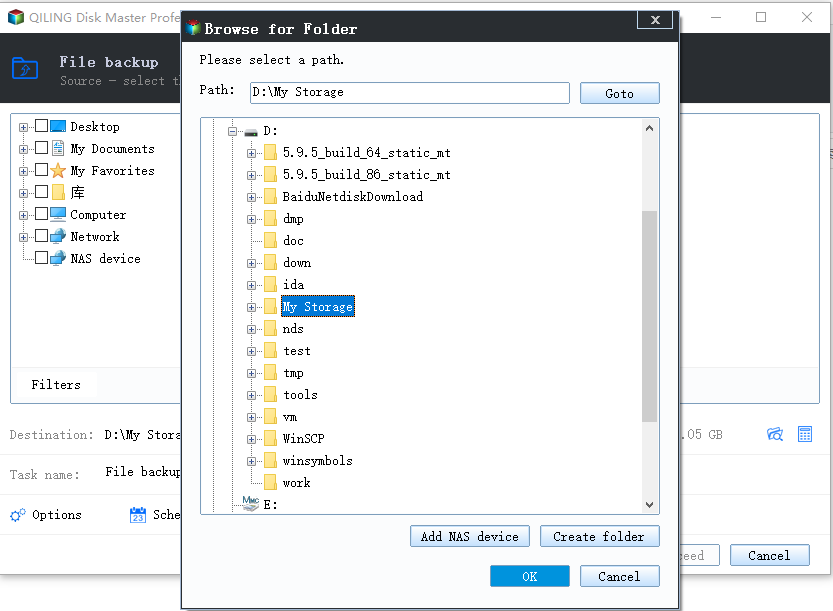
Set the destination to an internal disk with enough free space and start the task. Verify a few copied files afterwards, then reconnect the enclosure in the new configuration and read the link rate again.
With the copy verified, connect the enclosure straight to the host with the shortest certified cable you own, read the negotiated rate again, and measure sequential and sustained throughput separately. Compare the result with what the drive inside can deliver, because a two-lane SSD cannot use an 80 Gbps link even when the link is perfect.
5 Frequently Asked Questions
Can a USB4 SSD actually reach 80 Gbps?
Only with a USB4 version 2 host, an 80 Gbps rated cable, and an enclosure and drive that can sustain it. Most SSDs top out well below the link rate.
Will a Thunderbolt 3 or 4 cable work?
It will negotiate at 40 Gbps at best, not 80. A link is never faster than its slowest component.
Why is the first minute fast and the rest slow?
That is cache and heat inside the drive, not the link. The negotiated rate stays the same while throughput falls.
Related Articles
- USB4 or Thunderbolt 5 SSD Not Detected in Windows 11
- USB4 SSD Enclosure Randomly Disconnects
- How to Check NVMe SSD for Health, Help
- NVMe SSD Disappears After a Windows 11 Update
- RAW External SSD: Recover Files Before Repair
Products
Articles & Tutorials
- Data Recovery
- Data Backup
- File Recovery
- File Backup
- System Backup and Restore
- Disk and Partition Clone
- Technical articles
- Mobile articles
- Disk Master Help
- Windows Data Recovery Tutorials
- Windows Secure Delete Tutorials
- Windows Partition Management Tutorials
- Windows File Backup and Restore Tutorials
- Windows System Backup and Restore Tutorials
- Windows Disk Backup and Restore Tutorials
- Windows Clone Tutorials