Virtual Disk Service Error: The Disk Is Not Empty
Quick Navigation:
- What the Error Actually Means
- Back Up Before You Remove Anything
- Clear the Partitions in the Right Order
- Finish the Job With a Graphical Tool
- Frequently Asked Questions
The message is literal. Virtual Disk Service, the component that Disk Management and other partition tools talk to, will not clean or convert a disk while it still finds structures it cannot remove. A data partition, an EFI system partition, a Microsoft Reserved partition, an OEM recovery area, or a volume that is still in use all produce the same refusal. Nothing is wrong with the hardware; the disk is simply not empty yet.
What the Error Actually Means
Cleaning a disk means deleting its partition table and every entry in it. Virtual Disk Service checks those entries first, and when one of them is protected, in use, or of a type it will not delete on its own, it stops and returns the error instead of forcing the operation.
The usual causes are an EFI system partition or a Microsoft Reserved partition left over from a previous Windows installation, a recovery partition created by the vendor, a hidden OEM tools area, a page file or system protection store on the disk, BitLocker encryption that has not been suspended, and a disk that is currently the boot disk.
A disk can also be flagged read-only at the firmware level, in which case every delete fails no matter how the partition is described. If the error appears together with a write-protection message, deal with the protection first, as described in fixing a disk that is write protected.
Back Up Before You Remove Anything
Deleting a partition removes the map to the files on it. Copy anything you still need to another physical disk before the first delete, and verify that the copy opens. A backup that has never been read is only a hope.
If the disk is failing or the volume will not mount, image the whole disk rather than copying folders. An image keeps the partition layout, the boot records, and the files that refuse to open, and it can be explored later when a file turns out to be missing.
On a system disk, create bootable media or a full system image first. Removing the EFI partition leaves the machine unable to start until the boot configuration is rebuilt, and a recovery partition that is deleted before its contents are captured cannot be recreated from memory.
Clear the Partitions in the Right Order
Work from the outside in: data volumes first, then the recovery partition, then the Microsoft Reserved partition, and the EFI system partition last. Deleting the EFI partition first can leave the remaining entries in a state that is harder to clear.
If a volume refuses to delete, find what is holding it. Move the page file to another disk, turn off system protection for that volume, suspend BitLocker, and close any program with an open handle on it, including backup agents and virtual machine services.
Windows Disk Management and the built-in command line tool both perform these deletes; they are Microsoft tools and are not part of Qiling Disk Master. Use them only to remove partitions after the backup is verified, never to repair a disk that still holds data you need.
A disk that has no partitions left but returns the same error is usually read-only or offline. Bringing it online and clearing the read-only flag is a separate problem, and a recovery partition that will not delete is covered in removing a recovery partition on Windows.
Finish the Job With a Graphical Tool
Qiling Disk Master handles this as two separate operations that are not interchangeable. Deleting the partitions is the fix for the error, and it needs the backup described in Part 3 to be finished and readable. Converting the disk rewrites the partition table to the other style and is only for a disk that will be used under a different firmware mode. Each operation below is complete on its own, so stop after the first one if the disk only has to be emptied.
Operation 1: Delete the Partitions
This is the operation that clears the error. A delete is not staged for later review: once you confirm the warning, the partition is gone, so the image from Part 3 has to exist before you start.
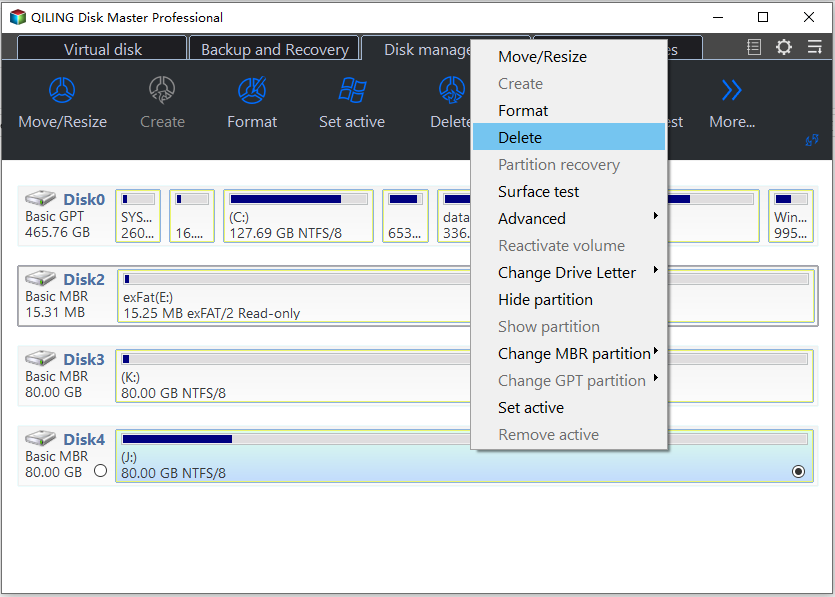
Step 1. Open Delete on the problem disk. Switch to the Disk Management tab, click the disk named in the error, right-click one of its partitions, and choose Delete. Only the selected disk is affected, so match its number and capacity with the one in the error message first.
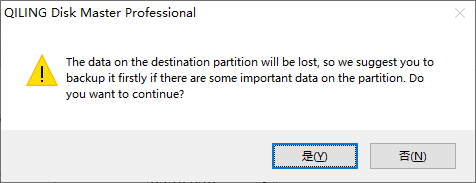
Step 2. Confirm the data-loss warning. Choosing Delete opens a single warning that the data on that partition will be lost and that it should be backed up first. Click Yes and the partition is deleted at once; the bar turns into Unallocated with no preview step and no second confirmation. Read the disk number and the partition size behind the dialog before you answer.
Step 3. Repeat in order, then check the map. Delete the data volumes first, then the recovery partition, then the Microsoft Reserved partition, and leave the EFI system partition for last. Each delete is written as soon as its warning is confirmed, so work one partition at a time and look at the map after every step. When the last one is gone, the whole bar must read Unallocated; a partition that refuses to delete is still holding the error in place.
Operation 2: Convert the Disk Only If You Need the Other Style
Conversion is not a repair step and cannot clear this error while partitions remain on the disk. Run it only when the empty disk has to be used on a machine that boots in the other mode.
1. Confirm the disk is empty. Finish Operation 1 and check the map: every bar on that disk must read unallocated. A conversion started with partitions present either fails or leaves a layout that has to be restored from the backup.
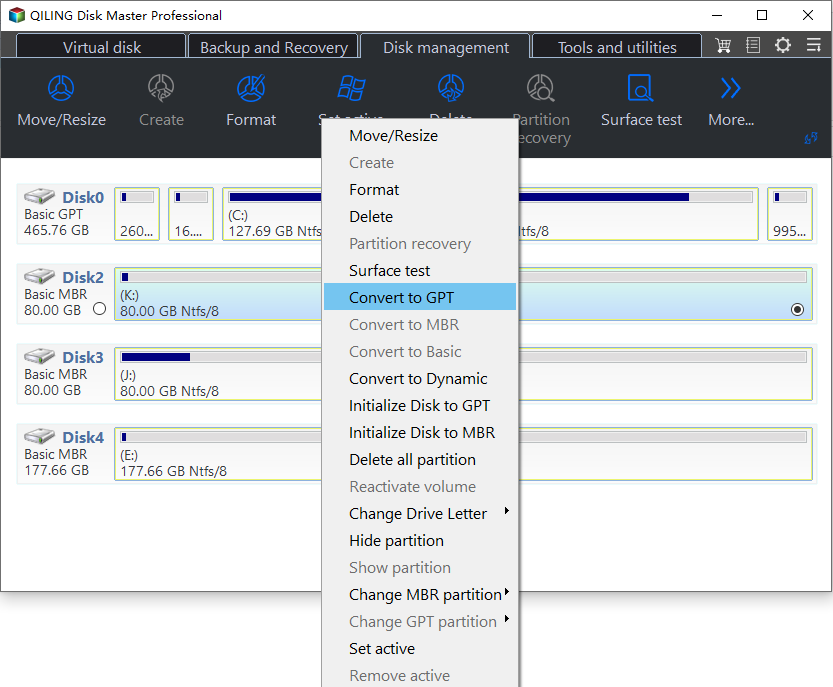
2. Choose the conversion and check the disk. Select the empty disk, open Convert MBR to GPT or Convert GPT to MBR, and verify that the highlighted target is that disk and not the system disk of the same machine.
3. Preview the task, click Proceed, and watch the progress. The preview states the current style and the style that will be written. After Proceed, the progress window reports the conversion, and a restart is needed only when the converted disk is the one the machine boots from.
Frequently Asked Questions
Does the clean all variant fail for the same reason?
Yes. It repeats the delete for every disk and stops at the same protected partition, so removing the partitions in order is still the reliable route.
Can I convert the disk without deleting the partitions?
Only when the layout allows it. An in-place conversion needs free space and a compatible partition table, and adjusting the layout is safer than deleting everything.
Why does the disk look empty but still report the error?
A hidden or protected partition can be invisible in Explorer. Check the full list in Disk Management before assuming the disk is clear.
If you are unsure whether the disk needs a clean or a full format, see cleaning versus formatting a hard drive.
Related Articles
- Need to Delete the Recovery Partition in Windows
- How to Resolve the Disk Is Write Protected Error
- Clean vs Formatting a Hard Drive
- Windows 10 Drive Converted to RAW Format
- Disk Management Keeps Refreshing
Products
Articles & Tutorials
- Data Recovery
- Data Backup
- File Recovery
- File Backup
- System Backup and Restore
- Disk and Partition Clone
- Technical articles
- Mobile articles
- Disk Master Help
- Windows Data Recovery Tutorials
- Windows Secure Delete Tutorials
- Windows Partition Management Tutorials
- Windows File Backup and Restore Tutorials
- Windows System Backup and Restore Tutorials
- Windows Disk Backup and Restore Tutorials
- Windows Clone Tutorials