Disk Management Keeps Refreshing and Shows No Disks
Quick Navigation:
- What the Refresh Loop Means
- Restart the Service and Clear Interference
- Read the Layout Without It
- Work With the Disks Anyway
- Frequently Asked Questions
When Disk Management stays on loading disk configuration or reloads its list in a loop, the console is waiting for an answer that never arrives. The disk layout is usually intact; the component that reports it is not. The message names no error because the snap-in is still waiting rather than failing.
What the Refresh Loop Means
Disk Management does not read the hardware itself. It asks the Virtual Disk Service for the list of disks, volumes, and their properties, and the window is populated from that reply.
If the service is stopped, hung on a device that does not respond, or blocked by another component, the call never returns and the console retries. Each retry restarts the loading message, which is the refresh people see.
Common blocks are a USB or network disk that answers slowly, a storage driver left behind by a removed partition tool, and a remote session where a redirected drive stalls the enumeration.
Restart the Service and Clear Interference
Open services.msc, find Virtual Disk Service, and check its state. This is a Windows built-in tool and is not part of Qiling Disk Master. Start the service if it is stopped, or restart it if it is running, then reopen Disk Management.
Unplug USB drives, card readers, and mapped network disks before the next attempt. A single device that does not answer the SCSI inquiry can hold the whole enumeration, and removing it often fixes the loop at once.
Look in Device Manager for storage filter drivers or unknown devices left by a third-party partition program that was uninstalled. A filter that is still loaded but no longer supported can block every disk from being reported.
If the console hangs only in a remote session, run it on the physical console or in a local session. Redirected drives and clipboard redirection are frequent culprits in that case.
Read the Layout Without It
A second path to the same information helps while the console is unusable. Windows built-in diskpart and PowerShell commands such as Get-Disk return the disk list through a different interface and are Microsoft tools, not part of Qiling Disk Master.
A partition manager reads the partition table directly and draws the layout of every disk, including the unallocated gaps that Disk Management would show. That view is enough to plan a resize or a copy while the service is being repaired.
Do not initialize, convert, or clean anything just because the console shows no disks. An empty list from a stalled service says nothing about the state of the hardware.
Work With the Disks Anyway
Qiling Disk Master loads the disk map at startup, so a copy or a resize can be planned even when the Windows console will not draw the list. The steps below copy a disk while the service is being sorted out.
Step 1. Confirm the Disk Layout
Open the program and check that every physical disk appears with its capacity and partition map. If a disk is missing here as well, the problem is the hardware or the driver, not Disk Management.

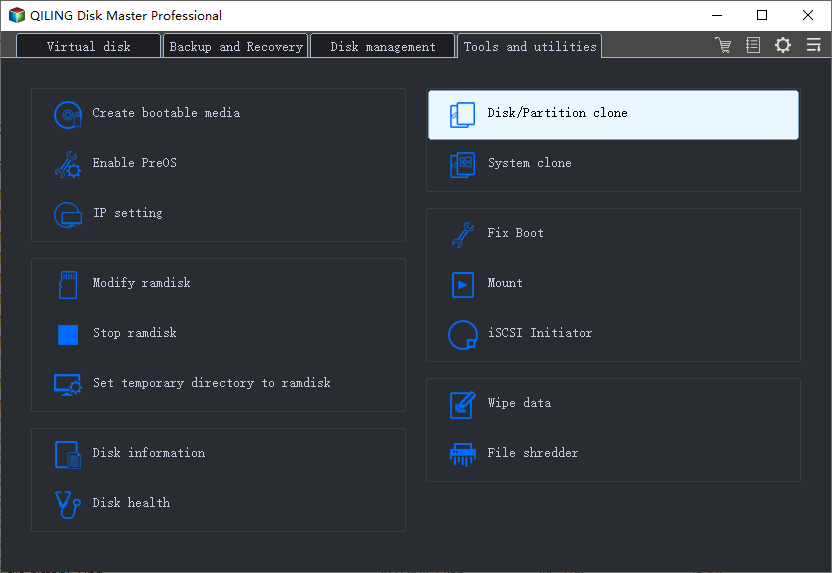
Step 2. Open Disk/Partition Clone
Go to the Tools and utilities tab and click Disk/Partition clone. Choose this entry when the whole disk is being copied, and System clone when only the Windows partition is involved.
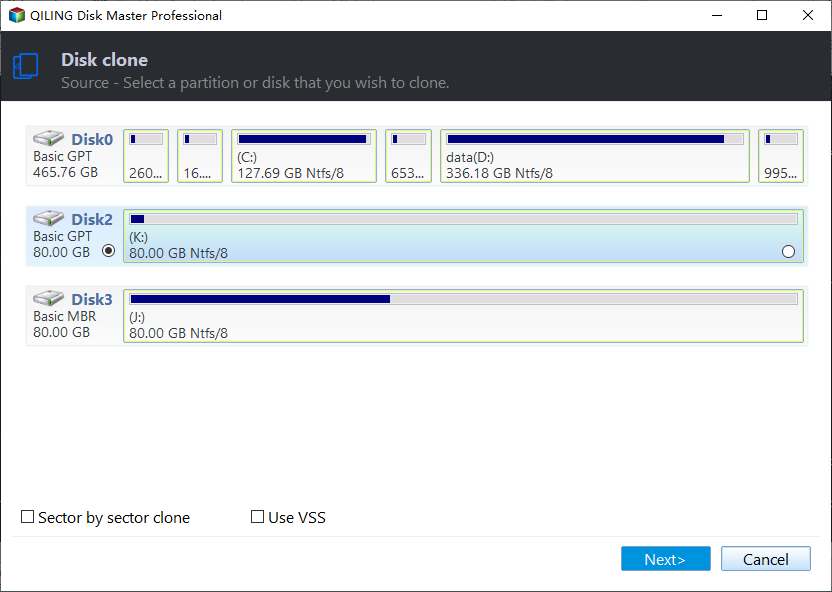
Step 3. Select the Source Disk
Pick the disk that holds the data and click Next. Leave Sector by sector clone clear unless the source is failing and you need the copy to tolerate read errors.
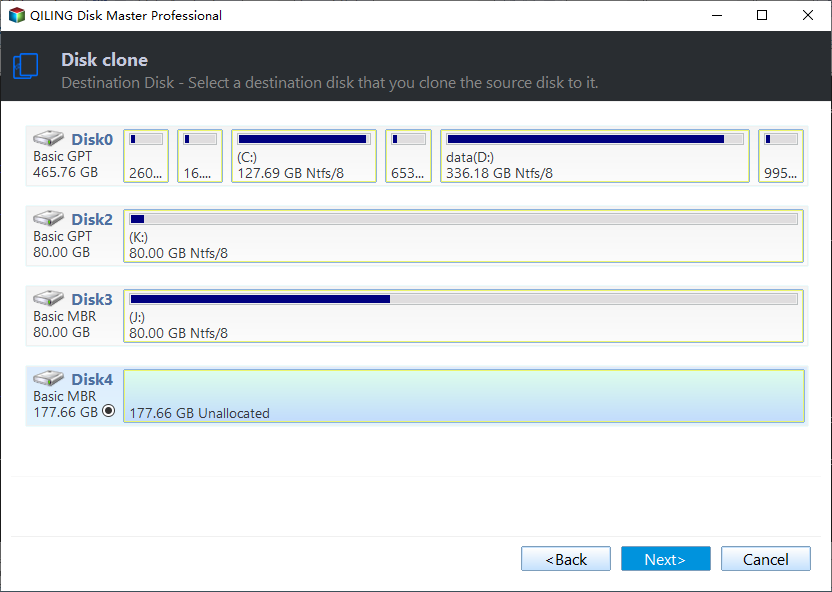
Step 4. Select the Destination Disk
On the destination page, tick the disk that will receive the copy and check its model and capacity, because a disk of the same size is easy to confuse. Read the note above the size fields, which explains that the target is overwritten from the first sector, and click Next.
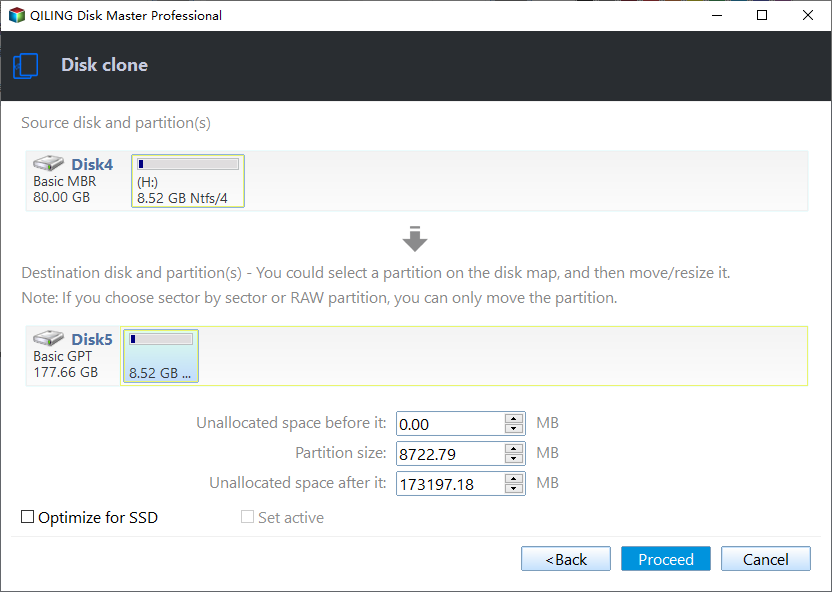
Step 5. Check the Preview and Proceed
The preview shows both disks and the layout that will be written. Confirm the destination side carries the partitions you expect, then click Proceed and accept the overwrite warning only after that check.
Frequently Asked Questions
Does restarting the Virtual Disk Service lose data?
No. The service reports the layout; it does not hold the file systems, so a restart only interrupts the console session.
Why did the loop start after uninstalling a partition tool?
Its storage filter driver can stay registered after the program is gone. Removing the leftover device or reinstalling and uninstalling it cleanly usually ends the loop.
Can I clone a disk while Disk Management will not load?
Yes, when another tool can read the partition table. The copy works on the disk itself, not on the console that displays it.
If the console lists a disk but marks it offline, see disk offline after a Windows update.
Related Articles
- My Laptop is Showing Only C Drive Not Other Drives
- Disk Offline After a Windows Update
- USB Drive Not Recognised After a Windows Update
- External Drive Missing After Sleep
- M.2 Slot Disabled: SATA Port Lane Sharing Fix
Products
Articles & Tutorials
- Data Recovery
- Data Backup
- File Recovery
- File Backup
- System Backup and Restore
- Disk and Partition Clone
- Technical articles
- Mobile articles
- Disk Master Help
- Windows Data Recovery Tutorials
- Windows Secure Delete Tutorials
- Windows Partition Management Tutorials
- Windows File Backup and Restore Tutorials
- Windows System Backup and Restore Tutorials
- Windows Disk Backup and Restore Tutorials
- Windows Clone Tutorials