Disk Offline After a Windows Update
Quick Navigation:
- Why the Disk Went Offline
- Bring It Online
- Check the Signature and Controller
- Copy the Data Before Repair
- Frequently Asked Questions
The update finishes, the machine restarts, and one disk is missing from Explorer. Disk Management shows it as offline, sometimes with a warning about a signature collision. The data is usually still there; Windows has simply stopped mounting the disk until the conflict is resolved.
Why the Disk Went Offline
Windows identifies a disk by the signature stored in its partition table. Two disks with the same signature, common after a clone or after an image is restored to a second disk, cannot both be mounted, so one of them is left offline.
An update can also change or remove a storage driver. If the controller driver no longer loads, the disk is still detected but not mounted, and the offline flag is the visible result.
A disk that belonged to a Storage Spaces pool or a dynamic disk group goes offline when the group metadata cannot be read. The volumes are intact but ownership is missing, and treating the disk as failed makes recovery harder.
Bring It Online
Open Disk Management and find the disk marked offline. Right-click the disk label rather than the volume and choose Online. If the disk returns with its letters, stop here and copy the data before you change anything else.
If the disk stays offline and the message mentions a signature collision, do not initialize it. Initializing writes a new partition table and can destroy the volumes that are still readable.
If the disk is read-only, check the policy on the disk properties and the write-protection state of the enclosure. A read-only disk cannot be brought online for writing, but its contents can still be copied.
Check the Signature and Controller
Compare the disk signature with the other disks in the machine. A duplicate is resolved by changing the signature of the offline disk, which Windows offers in the disk properties, but only after the data has been copied.
Open Device Manager and look for a warning on the storage controller. Roll back or reinstall the driver that the update replaced, then restart and check whether the disk is detected again.
For a disk that belongs to a pool or a dynamic group, confirm the group name before you touch the metadata. Importing or reactivating writes to the disk, so the copy still comes first.
Copy the Data Before Repair
Disk Master reads the disk once Windows has brought it online, and it copies the volumes to a disk that is not part of the problem. Copy first, then change the signature or the driver, so a failed repair never becomes a lost volume.
Step 1. Find the Disk in the Disk Map
Open Qiling Disk Master and locate the disk by number and capacity. The map shows whether it is basic or dynamic, its total size, and each partition with its letter and file system. A disk that shows partitions but no letters can still hold readable data.

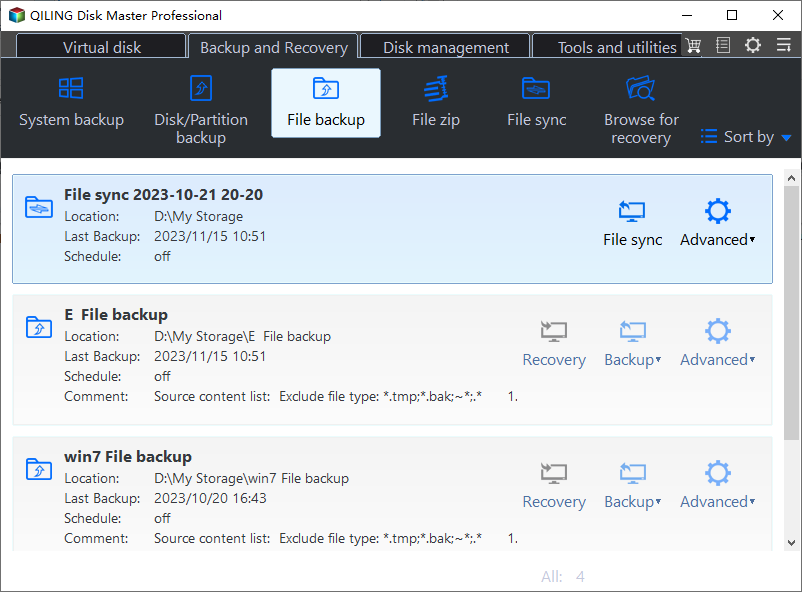
Step 2. Create a File Backup Task
Open the Backup and Recovery tab and click File Backup. The task list shows the location, last backup, and schedule of each task, with the Recovery, Backup, and Advanced buttons on the right. Start a new task for the affected volume instead of reusing one that writes back to the same disk.
Step 3. Set a Destination on a Healthy Disk
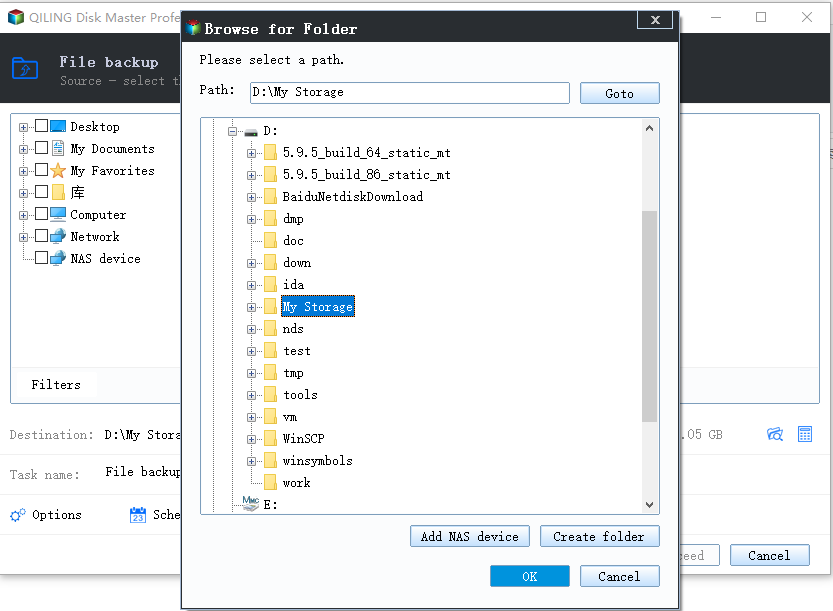
Click the destination path and pick a folder in Browse for Folder. Choose a disk that is online and has more free space than the used space of the volume, click OK, then click Proceed in the File backup window. Keep the task running until it finishes, and restore a sample file to confirm the copy.
Frequently Asked Questions
Can I initialize the offline disk to fix it?
No. Initializing replaces the partition table. Bring the disk online and copy the data first.
Does bringing a disk online change its data?
No. It changes the mount state only, which is why it is the safe first action after an update.
Why does the disk go offline after every update?
The update keeps replacing the controller driver, or the signature conflict was never resolved. Fix both instead of repeating the same step.
For a drive that disappears after an update without an offline flag, see NVMe SSD disappears after a Windows 11 update.
Related Articles
- NVMe SSD Disappears After a Windows 11 Update
- USB4 or Thunderbolt 5 SSD Not Detected in Windows 11
- Crucial X9 Pro Not Detected in Windows
- Recover Files From a RAW External SSD on Windows
- Storage Spaces Disk Missing and Cannot Be Removed
Products
Articles & Tutorials
- Data Recovery
- Data Backup
- File Recovery
- File Backup
- System Backup and Restore
- Disk and Partition Clone
- Technical articles
- Mobile articles
- Disk Master Help
- Windows Data Recovery Tutorials
- Windows Secure Delete Tutorials
- Windows Partition Management Tutorials
- Windows File Backup and Restore Tutorials
- Windows System Backup and Restore Tutorials
- Windows Disk Backup and Restore Tutorials
- Windows Clone Tutorials