How to Recover Deleted MP4 Files on Windows 10/11 [NEW]
In this article, you'll learn:
- Fix 1. Recover Deleted MP4 Files with MP4 Recovery Software
- Fix 2. Undo MP4 Deletion to Retrieve MP4 Videos
- Fix 3. Restore Deleted MP4 Files from Recycle Bin
- Fix 4. Perform MP4 File Recovery with Backup and Restore
- Fix 5. Recover Deleted MP4 Videos with File History
Can Deleted MP4 Files Be Recovered
MP4 files are the most commonly used video files on both Windows and macOS operating systems, and are often stored on computers, mobile phones, and websites. If you're wondering whether it's possible to recover deleted MP4 files, the answer is yes, and the following situations make it possible:
- 🗑️If you accidentally delete pictures/documents on your PC and also delete MP4 video files by mistake, you can easily recover them from the Recycle Bin on Windows 10 or 11.
- ❌If you accidentally format a storage device, all data on it may be lost, but you can still recover formatted MP4 files using data recovery software.
- 💽If your hard drive suddenly becomes corrupt, you can still recover or repair your MP4 files using professional programs. This is especially helpful if the corruption has deleted or damaged your videos.
- 👿Malware may delete or hide MP4 files, but you can recover them by showing hidden files on Windows 11.
Learn how to recover deleted MP4 files on Windows with these five detailed methods. Whether you've accidentally deleted a video, lost footage due to a system crash, or had your files corrupted, these steps can help you retrieve your valuable MP4 files.
Fix 1. Recover Deleted MP4 Files with MP4 Recovery Software
In most MP4 loss or deletion situations, you'll need professional data recovery software to improve the efficiency of MP4 file recovery. To choose a good MP4 video recovery program, look for one that is specifically designed for MP4 file recovery, has a user-friendly interface, and provides a high success rate in recovering deleted or corrupted MP4 files.
Additionally, consider a program that offers advanced features such as deep scan, preview, and filtering options to help you quickly locate and recover your desired MP4 files.
User interface:
Good recovery programs will have user-friendly operation interfaces.
Preview option:
Recovering MP4 files may result in damaged or corrupted files. To mitigate this, it's beneficial to have a preview feature that allows users to inspect the recovered file before saving it, reducing the risk of further damage.
File type:
Good recovery software should be able to support MP4 files and as many other file formats as possible.
Customer support:
A good recovery program should provide reliable customer service, addressing customer concerns and resolving issues efficiently.
Deep Data Recovery meets all the standards, and you can free download the trial version to try the Qiling recovery tool.
The Qiling recovery tool can help recover deleted files, photos, and other data from a variety of storage devices, including hard drives, solid-state drives, and USB drives. It can scan the device, identify deleted files, and recover them in their original format.
- Recover deleted videos, including MP4, MOV, AVI, M4V, 3GP, and MKV video files, using specialized software or tools that can scan the device's storage and retrieve lost data.
- You can recover deleted videos from various devices, including DJI, SD cards, internal hard drives, external hard drives, and more.
- The software supports multiple operating systems, including the latest versions of Windows and macOS.
Step 1. Run Deep Data Recovery, select the location or device where the videos were lost/deleted, and click "Scan" to find the missing videos.

Step 2. After the scan, go to the left panel and select "Videos". Then, navigate to "Lost" or "All" to locate the desired videos, select them, and click "Preview" to view.

Step 3. Select the video files you want to restore, and click "Recover" to save them to a secure location.

After recovering deleted MP4 videos using this method, you can share it with others to help them recover their own deleted MP4 files.
Fix 2. Undo MP4 Deletion to Retrieve MP4 Videos
If you've just deleted your MP4 video files, the Undo feature provides a quick way to retrieve them before any other changes are made to the system. This method works best when you act immediately after the deletion.
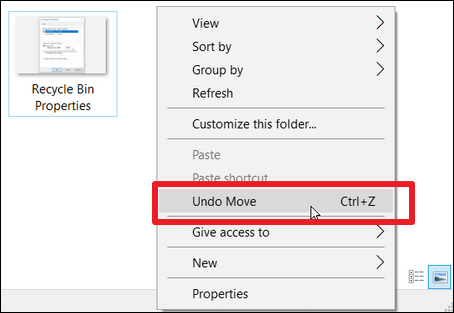
Step 1. After deleting MP4 files in File Explorer, click the dots to open more settings and choose "Undo" to restore the deleted MP4 videos.

Step 2. To quickly undo the deletion of MP4 files, press the Control + Z keys together to use the Undo shortcut. This will retrieve the deleted MP4 files.
If the Undo shortcut does not retrieve your deleted MP4 files, they may have been permanently removed. In this case, you can still perform MP4 file recovery using specialized data recovery software.
Need to recover MP4 files after using Ctrl+Z? This guide shows you how to restore accidentally deleted MP4 videos.
If you've accidentally deleted MP4 files by pressing Ctrl + Z, this tutorial explains how to recover them and restore your lost MP4 videos.
Fix 3. Restore Deleted MP4 Files from Recycle Bin
If the Undo option doesn't work, you can try to retrieve deleted MP4 files by checking the Recycle Bin, which stores deleted files for 30 days.
Learn how to recover deleted MP4 files from the Recycle Bin with our step-by-step guide. We'll show you the easiest ways to restore your deleted files, even if you've emptied the Recycle Bin.
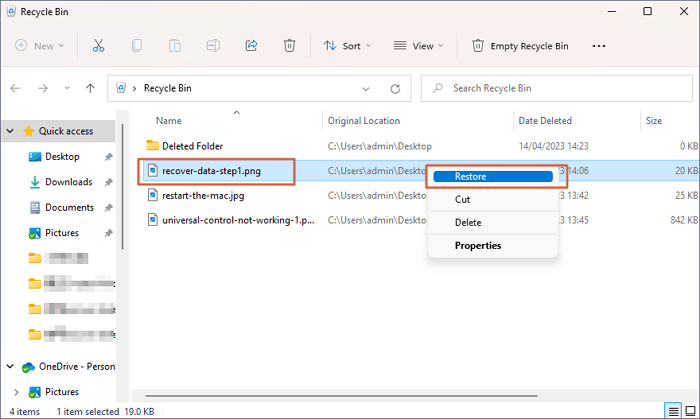
Step 1. The recycle bin icon can be found on the desktop, and you can right-click it and choose "Open" or double-click it to launch Recycle Bin.

Step 2. To recover deleted MP4 files, check the Recycle Bin folder, select the desired files, right-click on them, and choose the "Restore" option. This will move the files back to their original location, making them accessible again.
If you've accidentally emptied the Recycle Bin after deleting MP4 files, you can still recover them using data recovery software.
Fix 4. Perform MP4 File Recovery with Backup and Restore
If you forget to back up your MP4 files on an external hard drive, you can check Windows' built-in backup and restore utility. If you've enabled automatic backup, it will create backups for you.
To recover an MP4 file using Windows Backup and Restore, follow these steps: First, go to Control Panel, then System and Security, and finally File History. If you have a backup available, select it and click on 'Restore your files'.
Step 1. Open Windows Control Panel with the search box.

Step 2. To access the System and Security window, open the Control Panel and click on the "System and Security" option.
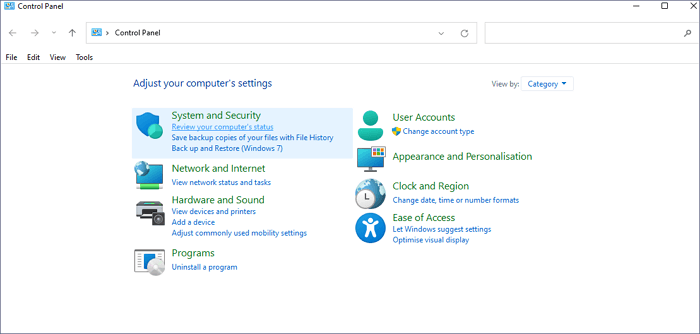
Step 3. To restore your files, select "Backup and Restore (Windows 7)" and choose "Restore my files" if you have backups. If not, it will prompt you to create a backup.
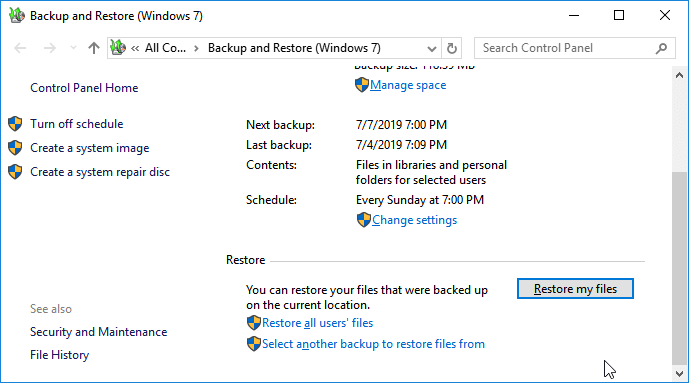
Step 4. To restore deleted MP4 folders, select the "Browse for folders" option.
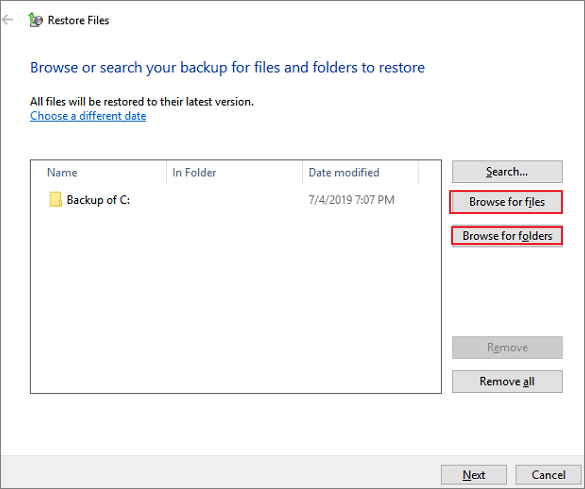
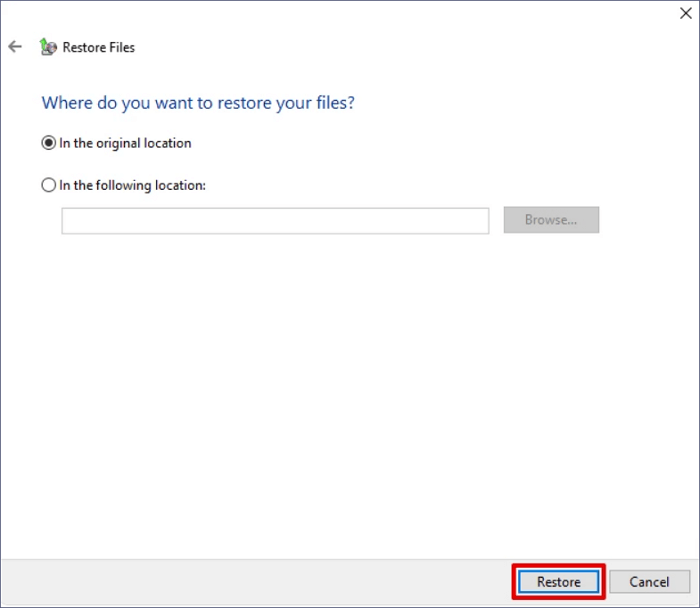
Step 5. Choose a new destination to keep the recovered MP4 files.
Fix 5. Recover Deleted MP4 Videos with File History
Windows File History can also help you restore deleted MP4 videos. When enabled, it will automatically back up documents, videos, photos, audio, and other content, allowing you to easily restore the MP4 files if they are deleted.
Step 1. You can also find the File History in Control Panel.
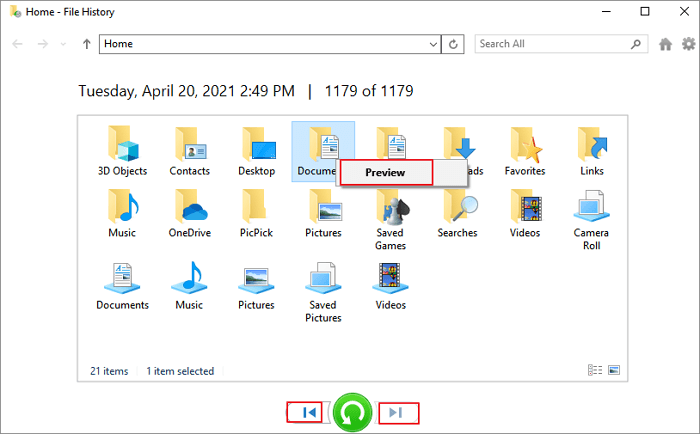
Step 2. To restore your files with File History, click the "Restore your files with File History" button in the File History window. This will display all the backups made at different times, allowing you to select a copy that includes the deleted MP4 files.
Step 3. Select the MP4 files you want to restore and click the green button to initiate the recovery process, which will retrieve the deleted MP4 videos.
Summary
After reading the five recommended methods, you may have successfully recovered deleted MP4 files from your Windows computer. The most recommended approach is the first method, which allows you to recover not only deleted MP4 videos but also photos, documents, emails, and audio using professional data recovery software.
If you've lost your MP4 videos, don't worry -- there are reliable ways to recover them. Data recovery software can scan your device and retrieve deleted or lost files, including videos of all common formats.
MP4 Video Recovery FAQs
Do you have more questions about MP4 video recovery? Here are four related questions and answers:
1. How to recover deleted movie files in MP4 format?
You can recover deleted movie files in MP4 format using various methods.
- Recover MP4 movies with data recovery software
- Recover deleted MP4 movies with Undo option
- Restore deleted MP4 movie files from Recycle Bin
- Perform MP4 movie recovery with Backup and Restore
- Recover deleted MP4 movies with File History
2. Why the deleted MP4 files are not in the Recycle Bin?
If you accidentally deleted the MP4 files, they may be in the Recycle Bin. If you hid them by mistake, you can unhide them in File Explorer. If you emptied the Recycle Bin, you may need to check if they were deleted permanently or if they were moved to a different location.
3. What is the best MP4 recovery tool?
The following MP4 recovery tools are recommended:
- Deep Data Recovery
- Stellar Photo Recovery
- Recuva
- Disk Drill Data Recovery
- Disk Doctor Photo Recovery
- Remo Recover Media
- DMDE Free Edition
- TestDisk
- Puran Data Recovery
- DiskDigger
4. Recovered MP4 files are damaged. How to fix it?
Deep Data Recovery can repair corrupted MP4 files, recover deleted MP4 files, and even automatically repair corrupted videos.
If the missing video was an MP4 stored on a Windows 11 drive, recovering deleted MP4 files in Windows 11 covers scanning and checking the full recording.
Related Articles
- Fix Exracted Files or Files Not Showing in Folder Windows 10
- 3 Ways to Fix Google Chrome Bookmarks Disappeared
- How to Restore IE Edge Favorites/Bookmarks? | IE Edge Recovery
- Microsoft Has Committed to Right to Repair, What Does It Mean?
- XML Repair| How to Repair/Recover Corrupted XML Files
This XML repair and recovery tutorial is offered to help you easily repair/recover deleted and corrupted XML files. Similarly, lost XML files can also be restored by referring to this guide. - 3 Ways to Recover LOST.DIR Files on Android SD Card
The LOST. DIR folder on Android devices is a temporary storage area for deleted files, and it can be safely deleted. However, if you accidentally delete files from your Android device and find them in the LOST.
Products
Articles & Tutorials
- Data Recovery
- Data Backup
- File Recovery
- File Backup
- System Backup and Restore
- Disk and Partition Clone
- Technical articles
- Mobile articles
- Disk Master Help
- Windows Data Recovery Tutorials
- Windows Secure Delete Tutorials
- Windows Partition Management Tutorials
- Windows File Backup and Restore Tutorials
- Windows System Backup and Restore Tutorials
- Windows Disk Backup and Restore Tutorials
- Windows Clone Tutorials