How to Back Up iPhone to External Hard Drive
Quick Navigation:
- Can You Back Up an iPhone to an External Hard Drive
- How to Back Up iPhone to External Hard Drive (for PC & Mac)
- How to Copy iPhone Backup to External Hard Drive on Windows 10
- How to Move iPhone Backup to External Hard Drive on Mac
- The Bottom Line
Can You Back Up an iPhone to an External Hard Drive
Backing up an iPhone regularly is a good habit to get into for data security, but it can take up a lot of space on your computer or in the cloud. To free up space, backing up an iPhone to an external hard drive can be a good option, offering advantages like saving computer space and making the backups more portable.
Yes, it is possible to back up an iPhone to an external hard drive. You can use a service like iTunes or iCloud to back up your iPhone, and then transfer the backup to an external hard drive.
To back up an iPhone to an external hard drive, consider using iTunes, which stores the backup on your computer's internal storage. However, be aware that changing the default iPhone backup location on your computer is not recommended by Apple, as it may corrupt the backup files.
You can use a third-party iPhone backup software to directly back up your iPhone to an external hard drive, which is a more flexible option than using the built-in iPhone backup feature.
How to Back Up iPhone to External Hard Drive (for PC & Mac)
Regardless of your computer's operating system, whether it's Windows 10 or macOS High Sierra, the Qiling MobiMover iPhone transfer software can backup your iPhone directly to an external hard drive. This software allows you to customize the destination folder before transferring files, making it easy to backup your iPhone to a computer or external storage device. As a result, backing up your iPhone to an external drive is a straightforward process.
In addition to device backup, Qiling MobiMover performs well to:
- Transfer files between an iPhone/iPad/iPod and a PC/Mac
- Transfer data from one iPhone/iPad/iPod to another
- Transfer, back up and restore WhatsApp data
- Convert HEIC to JPG in bulk
To make your iPhone content well-organized, try using the built-in features such as the "Files" app, which allows you to categorize and store your files in a structured manner. You can also utilize the "Notes" app to create separate folders for different topics and use tags to further categorize your notes.
To back up an iPhone to an external hard drive directly, connect the iPhone to the computer and the external hard drive to the computer via USB. Open iTunes on the computer, select the iPhone from the top left menu, and click on "Summary" or "Backup Now" to initiate the backup process.
Step 1.Connect your iPhone to your PC with a USB cable and go to the "Backup Manager" in Qiling MobiMover to initiate a backup.
Step 2.Check the content you need to backup and tap "Select" to change the iPhone backup location to the external hard drive, then click "One-Click Backup".
Step 3.Wait for the backup to complete. If you need to restore an iPhone from the backup in the future, go to "Backup Manager" > "Restore" to restore the backup from the external hard drive to your device.
How to Copy iPhone Backup to External Hard Drive on Windows 10
To move iPhone backups to an external hard drive, find the iPhone backup location on your Windows 10 computer and copy the backups to the external hard disk.
Before copying your iPhone backup to an external hard drive, there are some things you need to know clearly. You can use iTunes or iCloud to back up your iPhone, and you can also use a third-party app to transfer data from your iPhone to your computer.
- You should copy the entire backup since copying specific items may corrupt the backup files.
- If you need to restore a device from a backup, move those backups back to their original default folder.
- Don't edit, rename, or extract items from an iPhone backup, as this can lead to file corruption and prevent the backup from being used to restore a device.
You're not advised to move the iPhone backup file made with iTunes or Finder to an external hard drive, as it may cause issues with the backup process.
To copy iPhone backups to an external hard drive on Windows 10, follow these steps: Connect the external hard drive to your computer using a USB cable. Open iTunes on your computer and select the iPhone backup you want to copy.
Step 1. Click the Search bar and enter %appdata%.
Step 2. To access your iPhone backups, go to Apple > MobileSync > Backup. Your iPhone backups will be located here.
Step 3. Move your iPhone backups to the external hard drive.
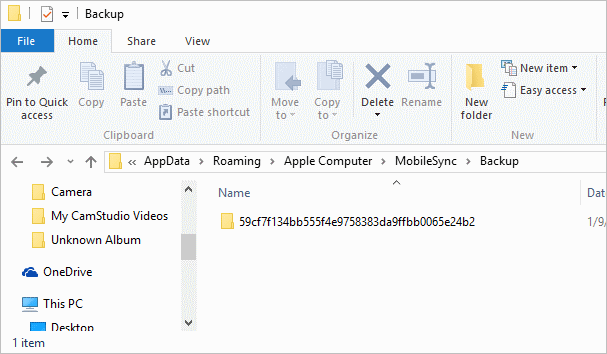
To access your iPhone backups on Windows 10, 8, or 7, you can go to the "Users" folder, then your username, followed by "AppData", then "Roaming", then "Apple Computer", then "MobileSync", and finally "Backup".
How to Move iPhone Backup to External Hard Drive on Mac
If you're a Mac user, the process to move your iPhone backup to an external hard drive depends on your macOS version. Follow the steps below based on your system.
On macOS Catalina and later:
Step 1. Open Finder and click the device icon.
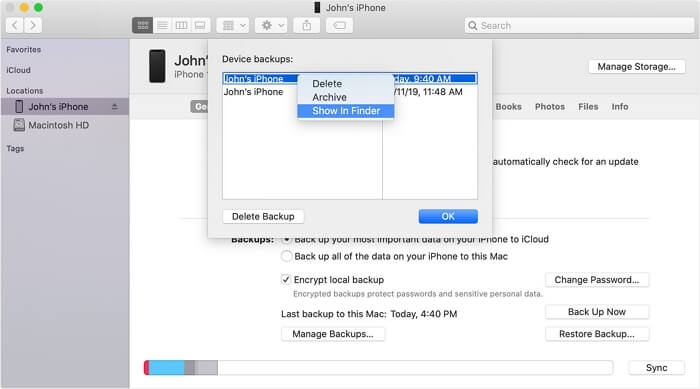
Step 2. To check the list of your backups, click on "Manage Backups" under the "General" tab.
Step 3. Right-click the backup you want to move and choose "Show in Finder".
Step 4. Copy the backup folder to the external hard drive.
On macOS Mojave and earlier:
Step 1. Launch iTunes and click the device icon.
Step 2. Go to "Preferences" > "Devices".
Step 3. Right-click the backup you need to move and select "Show in Finder".
Step 4. Copy the backup to your external hard drive.
The Bottom Line
You can use a third-party tool like Qiling MobiMover to back up your iPhone directly to an external hard drive, as iTunes and Finder don't have a straightforward solution for this. However, be cautious when moving the backup file to avoid damaging it.
Related Articles
- [FREE] How to Transfer Apps from iPhone to iPhone 8/8 Plus/X Without iTunes
- How to Download Twitch VODs
- How to Download YouTube Videos By URL
- How to Transfer Contacts from iPhone 6/7 to iPhone 8/8 Plus in 3 Ways
Products
Articles & Tutorials
- Data Recovery
- Data Backup
- File Recovery
- File Backup
- System Backup and Restore
- Disk and Partition Clone
- Technical articles
- Mobile articles
- Disk Master Help
- Windows Data Recovery Tutorials
- Windows Secure Delete Tutorials
- Windows Partition Management Tutorials
- Windows File Backup and Restore Tutorials
- Windows System Backup and Restore Tutorials
- Windows Disk Backup and Restore Tutorials
- Windows Clone Tutorials