How to Delete Multiple or All Photos from iCloud on PC
Quick Navigation:
- How to delete iCloud photos on PC with ease
- How to delete multiple or all iPhone photos on PC with Qiling MobiMover Free
iCloud allows you to automatically back up iPhone data, including photos, contacts, calendars, reminders, messages, and Safari bookmarks, as long as you've set up the service for these apps. You can also access iCloud on your PC through the website or iCloud for Windows. However, the free 5GB space can be a limitation, prompting users to consider deleting photos from their iCloud backup to free up space. This article will guide you on how to delete multiple or all photos from iCloud on PC permanently.
How to delete iCloud photos on PC with ease
To delete multiple or all photos from iCloud on your PC, access icloud.com, and remove the unwanted content from your account.
1.Open a browser on your computer, and enter www.icloud.com.
2. To log into your Apple ID account on your iPhone, enter your Apple ID username and password on the login screen. This will authenticate your identity and grant you access to your account's features and services.
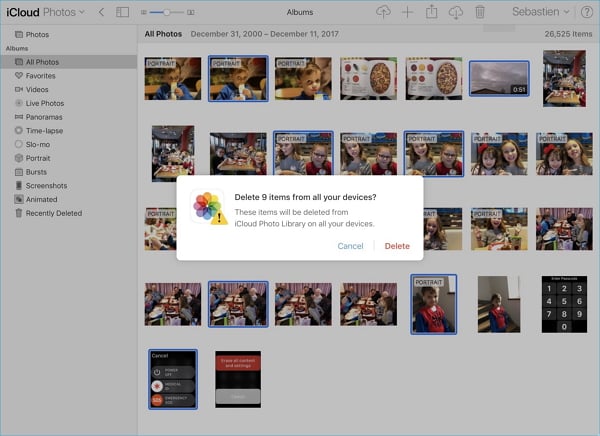
3. To view all photos, click on "Photos" in the main interface and select the "All Photos" album.
4. To select multiple or all photos in iCloud, press the "Ctrl" button on your keyboard and click one by one on the desired photos to choose them.
5. To delete pictures from iCloud Photo Library, click the "Delete" button at the top right and select "Delete" on the pop-up window to remove them from all devices.
How to delete multiple or all iPhone photos on PC with Qiling MobiMover Free
If you want to free up iPhone space by removing unwanted photos and backing up your iPhone photos to iCloud, you can do so efficiently with Qiling MobiMover Free, a comprehensive iPhone manager that allows you to delete all iPhone photos at once, add photos to iPhone contacts, and transfer music to iPhone without using iTunes, all for free.
Qiling MobiMover Free allows you to transfer data from iPhone to PC in an editable way, sync data between two iOS devices without iTunes, and import files from Windows PC to iPhone without affecting existing data.
The following steps show you how to delete iPhone photos from PC. You can apply similar steps to delete iPhone photos from Mac.
Step 1.Connect your iPhone to your computer with a USB cable, run Qiling MobiMover, and go to "Content Management > Pictures > Photos" or choose "Albums" if you prefer to remove photos by album.
Step 2.To delete all iPhone photos at once, click "Select All" and tap the trash icon. For selective deletion, select the photos you want to remove and tap "Delete".
Step 3.After tapping the "Delete" button, a new window will pop up asking for confirmation. Click "Yes" to delete photos on your iPhone from the computer.
Related Articles
- 4 Quick Fixes to Screenshot on Mac Not Working
- How to Download Music from iCloud to iPhone/iPad/iPod
- Perform Auto Backup with Batch File in Windows 10 (2 Ways)
This article introduces how to create backup batch file in Windows 10 and how to automate the task. If you have further backup needs, here's also a reliable program with GUI - The Best Free Backup Software That Only Copies Changes
Try to find a backup software that only copies changes? Qiling Disk Master, the best free backup software, will help you achieve this goal easily.
Products
Articles & Tutorials
- Data Recovery
- Data Backup
- File Recovery
- File Backup
- System Backup and Restore
- Disk and Partition Clone
- Technical articles
- Mobile articles
- Disk Master Help
- Windows Data Recovery Tutorials
- Windows Secure Delete Tutorials
- Windows Partition Management Tutorials
- Windows File Backup and Restore Tutorials
- Windows System Backup and Restore Tutorials
- Windows Disk Backup and Restore Tutorials
- Windows Clone Tutorials