How to Delete An Instagram Account on iPhone
Quick Navigation:
- Part 1: How to delete an Instagram account on iPhone permanently
- Part 2: How to disable an Instagram account temporarily
To deactivate your Instagram account on your iPhone, go to the Instagram app, tap your profile picture, tap Settings, tap Account, tap Temporarily disable my account or Delete my account, and follow the prompts. You can choose to temporarily disable your account or permanently delete it, depending on your preference.
Tips:
Instead of deleting your Instagram account, you can delete the Instagram App on your iPhone if you don't want to use it anymore. This option is available for iPhone users who want to know tips like how to screenshot iPhone 7 or add reminders on iPhone. For more iOS device usage tips, visit the iOS & Mac Topics section.
Part 1: How to delete an Instagram account on iPhone permanently
Step 1: Go to "Instagram" on your iPhone and tap on the Profile icon at the bottom of the screen.
Step 2: To access the help center, click the settings icon on the profile page and then scroll down to select the "help center" option.
Step 3: Tap on "Basics" and then choose "Getting Started".
Step 4: Select "Delete Your Account" among the options.
Step 5: To delete your account, select the option "How do I delete my account?" and click on the link that says "go to this page".
Step 6: To delete your Instagram account, enter your account information and select the reason for deletion.
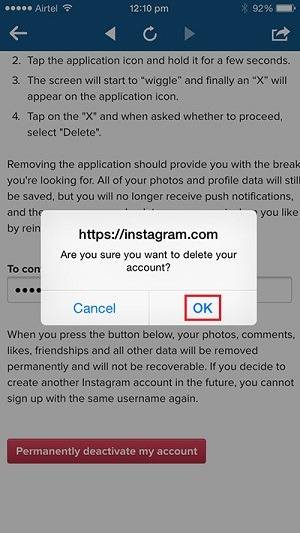
Step 7: To delete your Instagram account, go to your profile, tap the three horizontal lines, select "Settings", then "Account", and choose "Deactivate account". Then, type in your password again and click "Permanently deactivate my account". Finally, tap "OK" to confirm.
Part 2: How to disable an Instagram account temporarily
Step 1: Go to Instagram.com via a browser.
Step 2: Enter your Instagram account information to log in.
Step 3: Tap on your username and choose "Edit Profile".
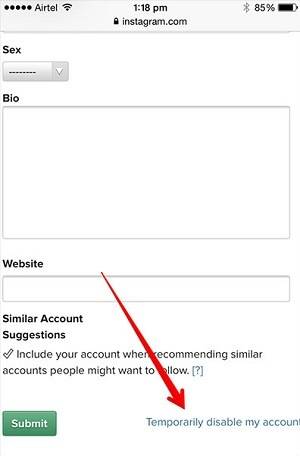
Step 4: Click "Temporarily disable my account" and select the reason.
Step 5: To temporarily disable your Instagram account, enter your password, select "Temporarily Disable Account," and confirm by clicking "OK."
Related Articles
- How to Lock Notes on iPhone 8/8 Plus/X in iOS 11 with Simple Steps
- [Solution] Easy Method to Delete Hundreds of Voice Memos
- Automatically Backup and Recover Word Documents in Windows 10
This article illustrates how to save, backup and recover (unsaved or deleted) word documents in Windows 10 automatically. Thus, you don't need to worry about data loss. - Bootrec Fixboot Element Not Found in Windows 7, 8, 10- Fixed
Windows start problem has not been solved and the bootrec fixboot element not found error has arisen. You must be very upset. Click on this article and learn to fix it.
Products
Articles & Tutorials
- Data Recovery
- Data Backup
- File Recovery
- File Backup
- System Backup and Restore
- Disk and Partition Clone
- Technical articles
- Mobile articles
- Disk Master Help
- Windows Data Recovery Tutorials
- Windows Secure Delete Tutorials
- Windows Partition Management Tutorials
- Windows File Backup and Restore Tutorials
- Windows System Backup and Restore Tutorials
- Windows Disk Backup and Restore Tutorials
- Windows Clone Tutorials