How to Delete Apps on iPhone 7/7 Plus in iOS 11/11.2
Quick Navigation:
- Method 1: Delete apps on iPhone 7/7 Plus by slight press with "X"
- Method 2: Delete apps on iPhone 7/7 Plus from Settings
Unfortunately, it seems like your iPhone 7 is experiencing a software glitch that's preventing you from moving or deleting apps and icons. Despite trying to reset settings and restore the phone as new, the issue persists. To troubleshoot this problem, you can try disabling the "Share" feature in Settings > General > Restrictions (if enabled). If that doesn't work, try restarting your iPhone in recovery mode by holding the Sleep/Wake button and the Home button simultaneously for 10 seconds, then release the Sleep/Wake button while continuing to hold the Home button for another 10 seconds. This may resolve the issue. If not, you may want to consider visiting an Apple Store or authorized service provider for further assistance.
The 3D Touch feature on iPhone, running iOS 10 or later, can make it difficult to delete apps on iPhone 7 or 7 Plus. When you press hard, you may inadvertently invoke app sharing instead of deletion. To delete apps on iPhone 7, you need to ensure that the apps you want to remove are not built-in and allowed to be deleted. Once confirmed, you can use one of the two methods to delete apps from your iPhone 7 or 7 Plus.
Method 1: Delete apps on iPhone 7/7 Plus by slight press with "X"
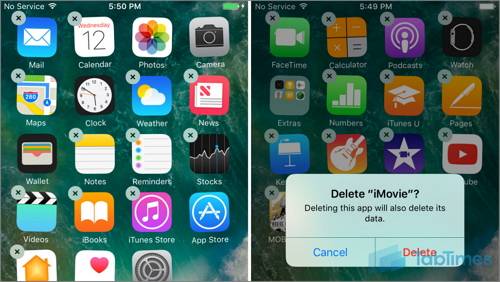
To remove apps on iPhone, simply touch and hold the app icon lightly, without pressing too hard. This will create a wiggling icon with an "X" to delete the app, making it easier and more intuitive than before. This method applies to iPhone 7, 8, and other iOS 10 devices.
1. To delete apps on an iPhone 7/7 Plus, go to the home screen where the apps you want to delete are located.
2. To delete an app on an iPhone, find the app you want to delete, press and hold the icon until it begins to wobble, and then tap the "X" symbol at the top left corner.
3. To delete an app on your iPhone 7, tap the X in the corner of the app icon, then tap Delete to confirm. If the app has data, you'll see a warning and need to tap Delete again. Repeat this process for each app you want to delete. If you can't delete an app, go to Settings > General > Restrictions, turn on Enable Restrictions, and turn on Deleting Apps. This should allow you to delete apps without the X icon.
Method 2: Delete apps on iPhone 7/7 Plus from Settings
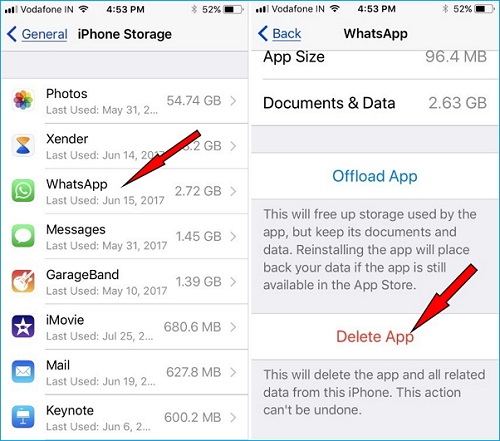
On an iPhone 7 or 7 Plus, you can delete apps by touching the icon, or by going to Settings, tapping on "General," and then selecting "iPhone Storage." From there, you can view and delete apps that are taking up space on your device.
1. To access the iPhone 7 or 7 Plus in iOS 11, go to "Settings" and tap on "General".
2. To delete an app on iPhone, go to Settings, tap "iPhone Storage", scroll down to find the app you want to delete, and tap it to select it. Then, tap the "Delete App" button that appears.
3. To access the app management interface, tap the app, and you can either "Offload App" or "Delete App".
4. To delete an app, tap on the app icon to open it, then tap on the "Delete App" button that appears. Alternatively, you can also go to the home screen, find the app you want to delete, long press on it until the icons start to jiggle, then tap on the "X" that appears on the app icon.
See More:To manage your iPhone space, consider deleting all photos after backing up your device, or downloading videos to your computer to free up memory. A useful tool for this is Qiling MobiMover Free, a free iOS data manager that allows you to add, delete, and transfer iPhone photos, contacts, music, videos, and other documents with ease.
Related Articles
- How to Add Reminders on iPhone/iPad
- How to Wipe an iPhone Completely
- Does System Restore Remove/Delete Files? Answered!
Does System Restore remove/delete files, programs? Some people still cannot figure out what Windows System Restore can and cannot do. Follow this article and make it clear. - What Is File Level Backup and How to Do It in Windows 10/8/7?
You will get the file-level backup meaning and how to backup your crucial data with this method in Windows 11, 10, 8, 7. Block-level file backup supported.
Products
Articles & Tutorials
- Data Recovery
- Data Backup
- File Recovery
- File Backup
- System Backup and Restore
- Disk and Partition Clone
- Technical articles
- Mobile articles
- Disk Master Help
- Windows Data Recovery Tutorials
- Windows Secure Delete Tutorials
- Windows Partition Management Tutorials
- Windows File Backup and Restore Tutorials
- Windows System Backup and Restore Tutorials
- Windows Disk Backup and Restore Tutorials
- Windows Clone Tutorials