How to Download Videos from iCloud Effectively
iCloud is a cloud storage service that helps you back up and sync your data across Apple devices. If you want to download videos from iCloud to your iPhone or computer, you can follow the steps outlined in this guide.
If you're unsure how to download videos from iCloud, this guide will walk you through several methods. Depending on your device model, you can choose the right approach to access and save your videos.
How to Download Videos from iCloud via iCloud.com
To access your iCloud content, simply visit iCloud.com on your iOS or macOS device, and you'll be able to download your desired items. This method is compatible with almost all devices.
Step 1. Open iCloud.com on your iPhone, iPad, Mac, or PC.
Step 2. Sign in with your Apple ID and password.
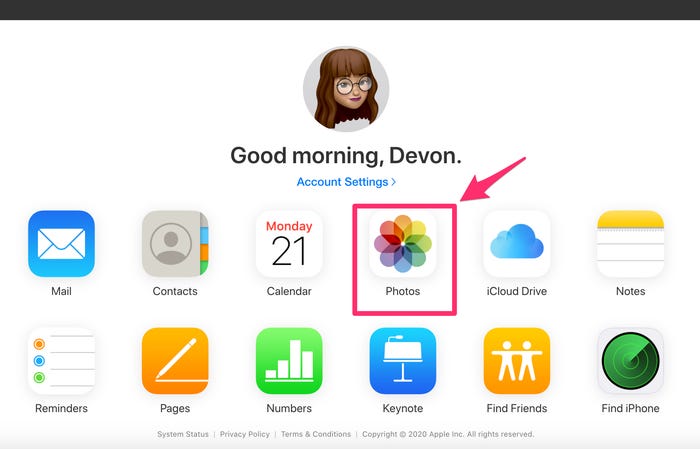
Step 3. To view all photos and videos stored in iCloud, choose "Photos."
Step 4.This step will vary depending on your device model.
- To download a video on an iPhone or iPad, select the video you want to download by clicking "Select" on the top, then tap the video. Next, tap the three dots and choose "Download" to save the video.
- To download a video on a Mac or PC, select the video you want to download by tapping it, or hold "Command/Ctrl" to select multiple videos. Then, click the "Download" button to save the video.
Pro tips: If your selected video is downloaded as a zip file on your device, you can head to the "Files" app to check it.
How to Download Videos from iCloud with Photos App
When downloading videos from iCloud.com, the quality may be compressed. To avoid this, use the Photos app to download a full-size copy of your videos, which is available on most devices, with the process varying depending on your device model.
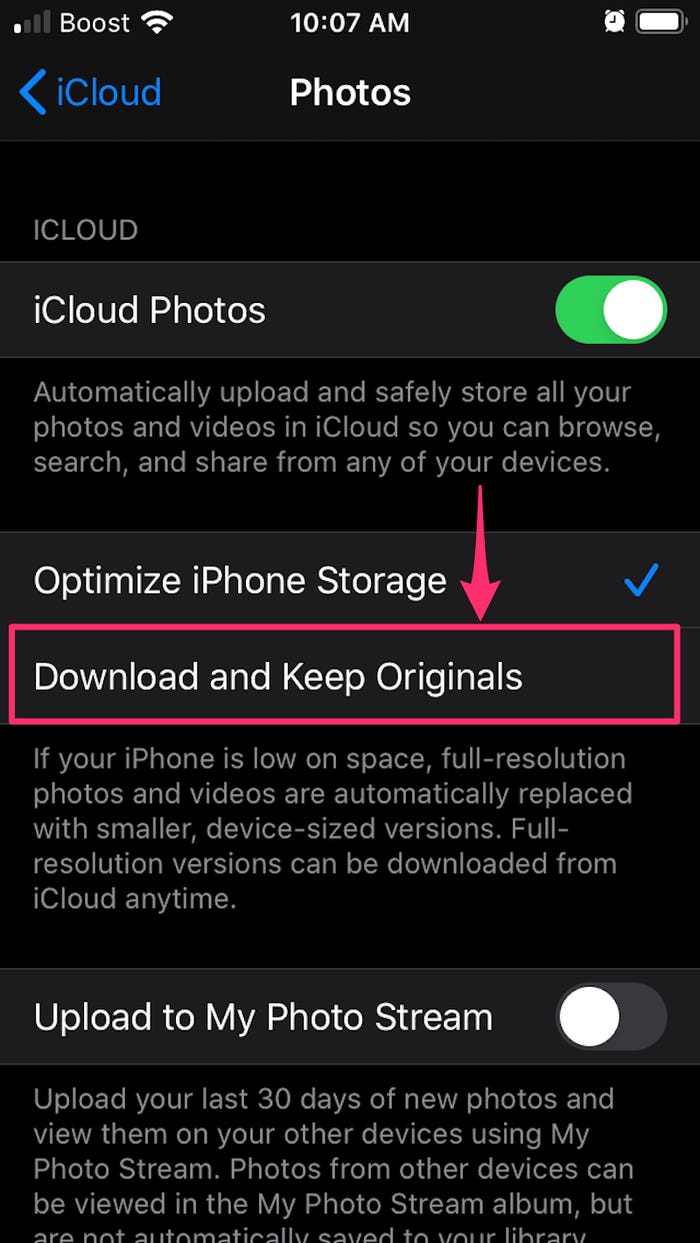
- To download and keep originals of your photos on your iPhone, iPad, or iPod touch, go to Settings, tap on your name, then tap on iCloud, and finally tap on Photos, and select the option "Download and Keep Originals".
- To download original photos from iCloud on a Mac, open the Photos app, go to Photos > Preferences, select the iCloud tab, and click "Download Originals to this Mac."
How to Add Videos from Computer to iPhone/iPad
You can use this free iPhone transfer software to easily transfer downloaded videos from your computer to your iPhone or iPad. With it, you can transfer files from a PC to an iPhone without syncing, and it can handle large files in minutes. The program supports a wide range of file types, including photos, contacts, music, messages, and more.
Step 1. To connect your iPhone to your computer, use a USB cable and start Qiling MobiMover. Next, unlock your iPhone and click "Trust" to authorize the connection. Finally, navigate to "PC to Phone" and select the files you want to transfer.
Step 2. Select the videos you want to transfer and click "Open".
Step 3. To transfer files from your computer to your iPhone, click the "Transfer" button after selecting the files you want to copy. If you need to add more files, click "Add Contents" first, then click "Transfer" again.
Qiling MobiMover allows for easy transfer of data between iOS devices and computers, including adding ringtones, transferring contacts, saving text messages, and putting music on iPhone without using iTunes.
The Final Words
Due to accidental operations, you may lose necessary data on your iDevices. However, if you've enabled iCloud on your iPhone or iPad, you can use it to restore the lost data, which supports files like photos, emails, contacts, and notes. To ensure this, remember to turn on the iCloud for the items in your device's "Settings."
FAQs
1. How to get videos to download from iCloud faster?
The download speed can be influenced by several factors, including file size and internet condition. To achieve a high download speed, it's essential to have a strong internet connection on your device.
2. How to download full-resolution video from iCloud to iMovie?
To download a video from iCloud to iMovie, open the iMovie app, select "Create a new project" or "Open an existing project," tap "Video," and then choose "iCloud Drive" to select the video to import.
Related Articles
- How to Read iBooks on PC
- 3 Tips | How to Download Videos from Dailymotion
- Best Free File Manager for iPhone and iPad on Windows
- How to Download Facebook Videos in Every Possible Way
Products
Articles & Tutorials
- Data Recovery
- Data Backup
- File Recovery
- File Backup
- System Backup and Restore
- Disk and Partition Clone
- Technical articles
- Mobile articles
- Disk Master Help
- Windows Data Recovery Tutorials
- Windows Secure Delete Tutorials
- Windows Partition Management Tutorials
- Windows File Backup and Restore Tutorials
- Windows System Backup and Restore Tutorials
- Windows Disk Backup and Restore Tutorials
- Windows Clone Tutorials