How to Fix iPhone 8/8 Plus/X Not Showing up on Windows 10
Quick Navigation:
- Method 1: Fully check hardware related problems
- Method 2: Check iPhone USB Driver is installed or not
- Method 3: Restart the Apple Mobile Device Service
iPhone users often complain about their device not being recognized by Windows 10. This issue is particularly common with the latest iPhone models, including the iPhone 8, 8 Plus, and X. As a result, users may experience problems such as their iPhone not showing up on their Windows 10 computer. To resolve this issue, it's essential to find effective and easy solutions to fix the problem.
This blog provides a comprehensive guide to resolving issues with iPhone 8/8 Plus or iPhone X not showing up on Windows 10. Try each of the possible fixes one by one until you successfully resolve the problem.
Method 1: Fully check hardware related problems
If Windows 10 can't recognize any iPhone device due to a hardware issue, you can troubleshoot the problem by trying the following tips.
1. Restart both your iPhone 8/8 Plus/X and computer, then reconnect the iPhone to the computer.
2. If your iPhone 8/8 Plus/X won't connect to your computer, try connecting it to another computer to see if it's a problem with your PC. If it connects successfully, it may indicate that the issue lies with your computer rather than the iPhone.
3. The original iPhone USB cable should be used and the USB wire should be checked to ensure it is not broken.
4. Connect your iPhone to different USB ports.
5. When setting up your iPhone, remember to tap "Trust This Computer" when prompted in a pop-up window. This step is crucial to complete the setup process and ensure your device is properly configured.
Method 2: Check iPhone USB Driver is installed or not
If your computer can't recognize your iPhone 8/8 Plus/X, it's likely because the iPhone USB Driver hasn't been installed. Normally, the PC would automatically install the Apple Mobile Device USB driver when you connect your iPhone, but if that doesn't happen, you'll need to manually install it.
1. Connect your iPhone 8/8 Plus/X to the computer.
2. To access the Device Manager on a Windows 10 computer, press the "Win + Pause" keys on your keyboard simultaneously. This will open the System Properties window, which includes the Device Manager as one of its components.
3. To check if the "Apple Mobile Device USB Driver" is installed, navigate to the Device Manager, then click on "Universal Serial Bus controllers" to see if the driver is listed. If not, check the "Other Devices" section to see if an "Unknown device" is present.
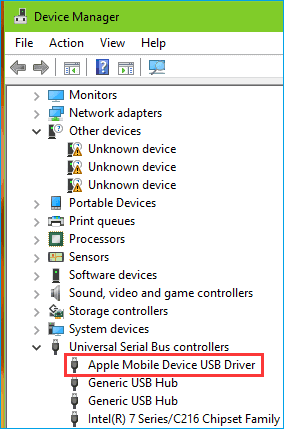
NOTE: If there's no Apple Mobile Device USB driver, you need to download and install the driver yourself. If you're unsure how to install it, you can search for instructions online.
Method 3: Restart the Apple Mobile Device Service
To resolve the issue of an iPhone 8/8 Plus/X not showing up on Windows 10, you can restart the Apple Mobile Device Service. This can be done by going to the Services control panel, finding the Apple Mobile Device Service, and restarting it. Alternatively, you can also try restarting the Windows 10 system itself.
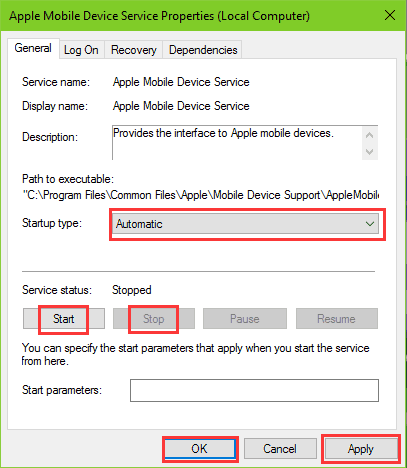
1. To access the Services window in Windows, open the Start Menu, click on "Windows Administrative Tools", and then select "Services" from the list of available tools.
2. To configure the "Apple Mobile Device Service/Apple Mobile Device", double-click on it and set the "Startup type" to "Automatic".
3. Click Stop to end the service and then click Start to reopen it again.
4. If you're having trouble getting your iPhone 8/8 Plus/X to show up on your computer, try clicking Apply and OK after updating your iTunes. Then, reboot and reconnect your iPhone to the computer. If the issue persists, try different fix tips if you're using a Mac.
If you've tried the previous methods, the iPhone 8/8 Plus/X should now be visible on Windows 10. You can then use a free iPhone data transfer software, Qiling MobiMover Free, to export or import data from your iPhone to your computer, transferring and managing contacts, notes, books, Safari bookmarks, photos, videos, and audios.
Related Articles
- How to Add A Device to Find My iPhone
- iCloud Photos Not Syncing to PC in Windows 10/8/7? Solutions Here!
- How to Pair Apple Watch to iPhone 8/iPhone X Automatically or Manually
- Great Windows 7 ISO to USB Bootable Software Free Download
Free download software to create bootable Windows 7 To Go USB drive by making Windows 7 ISO or installation CD to USB without ease.
Products
Articles & Tutorials
- Data Recovery
- Data Backup
- File Recovery
- File Backup
- System Backup and Restore
- Disk and Partition Clone
- Technical articles
- Mobile articles
- Disk Master Help
- Windows Data Recovery Tutorials
- Windows Secure Delete Tutorials
- Windows Partition Management Tutorials
- Windows File Backup and Restore Tutorials
- Windows System Backup and Restore Tutorials
- Windows Disk Backup and Restore Tutorials
- Windows Clone Tutorials