How to Add A Device to Find My iPhone
Quick Navigation:
- How to Add a device to Find My iPhone
- Tip 1: Add an iPhone/iPad/iPod Touch to Find My iPhone
- Tip 2: Add a Mac to Find My iPhone
- How to remove a device from Find My iPhone
Find My iPhone is a useful feature that allows you to locate your devices or others' devices associated with your account, making it easy to recover your iPhone or other devices. If you can't get them back, you can also protect your private information by remotely erasing the data on the lost device. To take advantage of this feature, you can add a device to Find My iPhone, which is a useful way to protect your device and information. The process of adding a device to Find My iPhone is shown below.
How to Add a device to Find My iPhone
Tip 1: Add an iPhone/iPad/iPod Touch to Find My iPhone
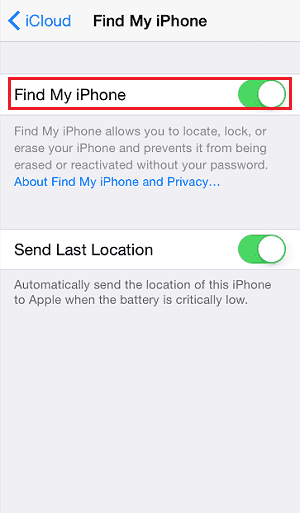
Step 1: Go to "Settings" on your device.
Step 2: In iOS 10.3 or later, tap on your name and choose "iCloud". In iOS 10.2 or earlier, tap "iCloud" directly.
Step 3: Turn on "Find My iPhone".
Tip 2: Add a Mac to Find My iPhone
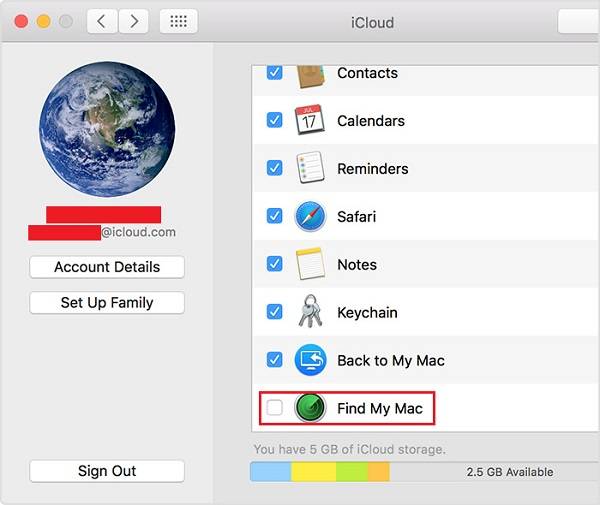
Step 1: Click Apple menu (the Apple logo) and select "System Preferences".
Step 2: Choose "iCloud".
Step 3: To enable Find My Mac, scroll down and click the checkbox next to the "Find My Mac" option. If prompted, enter your admin password.
How to remove a device from Find My iPhone
Step 1: Go to iCloud.com and sign in with your Apple ID.
Step 2: Select "Find iPhone" among the options.
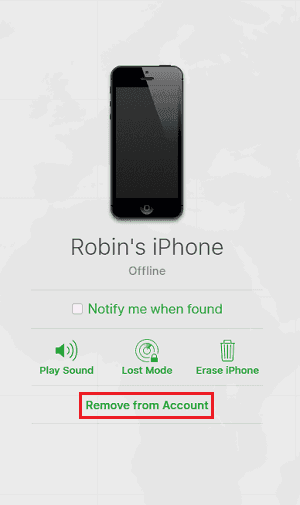
Step 3: To remove a device from your account, click on the three horizontal lines on the top right corner of the screen, then click on "All Devices" in the top middle of the screen and choose the device you want to remove.
Step 4: To remove a device from Find My iPhone, click the "Remove from Account" option.
Related Articles
- How to Block Text Messages on iPhone Easily
- iCloud Storage Full? Here is How to Manage iCloud Storage
- Set Emergency Contact on iPhone with An Easy Method
- How to Migrate Windows 7 to SSD with Excellent Software
Qiling Disk Master can help to migrate Windows 7 to SSD through two means: backup the system drive to an image file, and then restore it to the SSD, or directly clone the system drive to the new SSD.
Products
Articles & Tutorials
- Data Recovery
- Data Backup
- File Recovery
- File Backup
- System Backup and Restore
- Disk and Partition Clone
- Technical articles
- Mobile articles
- Disk Master Help
- Windows Data Recovery Tutorials
- Windows Secure Delete Tutorials
- Windows Partition Management Tutorials
- Windows File Backup and Restore Tutorials
- Windows System Backup and Restore Tutorials
- Windows Disk Backup and Restore Tutorials
- Windows Clone Tutorials