3 Fixes to iPhone/iPad Not Backing Up to iCloud
Quick Navigation:
- Why Is My iPhone Not Backing Up
- How to Fix iPhone or iPad Not Backing Up to iCloud
- Tip 1. Get More iCloud Storage
- Tip 2. Check Network Connection
- Tip 3. Update iOS
- Bonus Tip: How to Back Up iPhone to Computer
- The Bottom Line
Why Is My iPhone Not Backing Up
iCloud is a convenient solution for backing up your iPhone, iPad, and iPod touch, allowing you to wirelessly back up all data and settings to the cloud storage by connecting your device to a Wi-Fi network. However, some users may encounter the frustrating issue of "iPhone not backing up" that prevents them from successfully backing up their device to iCloud.
Your iPhone or iPad is not connected to Wi-Fi or the internet. Your iPhone or iPad is not configured to back up to iCloud. The backup process is paused or interrupted.
- To resolve the issue, you can try deleting some of the existing backups to free up space on your iCloud account. You can also consider upgrading your iCloud storage plan to a larger size, such as 50GB, 200GB, or 1TB, depending on your needs.
- The network connection is unstable or problematic
- The iOS version is outdated
How to Fix iPhone or iPad Not Backing Up to iCloud
Here are the fixes:
Tip 1. Get More iCloud Storage
First, check if the cause is insufficient iCloud storage by going to the Settings app.
Step 1. Go to the Settings app on your iPhone or iPad.
Step 2. Tap your name and click "iCloud." Here you can see how much iCloud storage is left.
Step 3. Click "Backups" and select the iPhone or iPad you need to back up.
Step 4. Now you can check the "Next Backup Size" here.
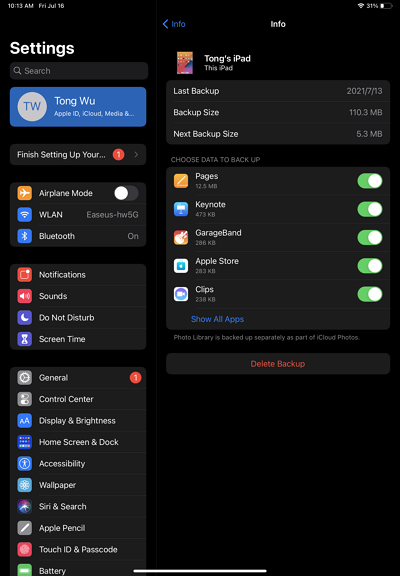
If your iPhone or iPad's next backup size is larger than the available free iCloud space, you won't be able to back up your device to iCloud. To resolve this, you need to free up more space in your iCloud account. This can be done by deleting unnecessary files, photos, and other data from your iCloud storage. You can also consider upgrading your iCloud storage plan to a larger size to accommodate your device's backup size.
- Delete past device backups
- Reduce the size of iCloud Photos
- Exclude some apps from the backup list
- Buy more iCloud storage
To free up your iCloud storage, consider deleting unused emails, photos, and other data, and also delete any unnecessary backups. For more workable tips, refer to the guide on how to manage your iCloud storage.
Tip 2. Check Network Connection
Make sure your iPhone or iPad is connected to a stable network connection. If not, switch to another Wi-Fi network instead.
Tip 3. Update iOS
To ensure a high success rate of making a backup, update your iPhone or iPad to the latest version of iOS or iPadOS.
Step 1. Go to the Settings app on your iDevice.
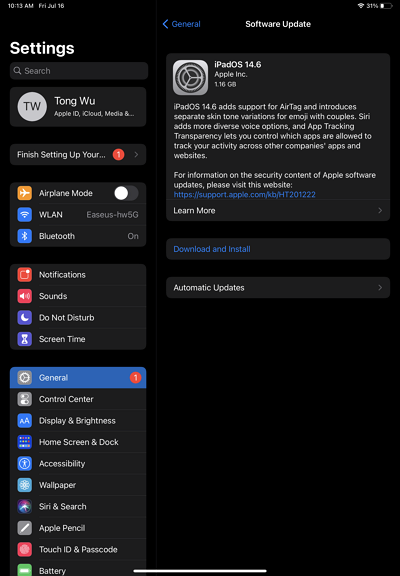
Step 2. Tap "General" > "Software Update."
Step 3. If there is a new version of iOS or iPadOS available, click "Download and install" to update your iOS.
If the above fixes don't work, you can contact Apple Support for further assistance.
Bonus Tip: How to Back Up iPhone to Computer
If your iPhone or iPad is not backing up to iCloud, you can choose to back up the device to computer with iPhone transfer software like Qiling MobiMover.
- Back up iPhone/iPad files selectively or all at once
- Transfer files between an iPhone/iPad/iPod and a computer
- Transfer data from one iDevice to another
- View and manage iDevice content from a computer
This software can be used to download online videos from websites and save them to your computer or iDevice, in addition to its primary function as a video converter.
To back up your iPhone or iPad to a computer:
Step 1. Connect your iPhone to your PC, trust the computer, and open Qiling MobiMover. Go to "Backup Manager" and select "Back up".
Step 2. Since all the supported files are selected by default, click "One-Click Backup" directly to start backing up your iPhone to computer.
Step 3. Wait patiently until the backup process completes. When you need to restore the backup, go to Backup Manager > Restore and follow the onscreen instructions to continue.
After making a backup, you can access and view it from your computer at any time. To restore data from the backup, simply select the "Restore" feature in the Backup & Restore section.
The Bottom Line
If your iPhone or iPad is not backed up to iCloud, don't worry, there are fixes to solve the problem. If the issue persists, you can try backing up your device without using iCloud.
Related Articles
- How to Back Up iPhone Without Wi-Fi
- Fast & Safe 4K Video Downloader | How to Download 4K Videos
- How to Permanently Delete Text Messages on iPhone 5/6/7/8/X/XR
- How to Transfer Data from One iPad to Another with/Without iCloud
Products
Articles & Tutorials
- Data Recovery
- Data Backup
- File Recovery
- File Backup
- System Backup and Restore
- Disk and Partition Clone
- Technical articles
- Mobile articles
- Disk Master Help
- Windows Data Recovery Tutorials
- Windows Secure Delete Tutorials
- Windows Partition Management Tutorials
- Windows File Backup and Restore Tutorials
- Windows System Backup and Restore Tutorials
- Windows Disk Backup and Restore Tutorials
- Windows Clone Tutorials