How to Back Up iPhone Without Wi-Fi
Quick Navigation:
- 4 Ways to Back Up iPhone Without Wi-Fi
- How to Back Up iPhone with iTunes
- How to Back Up iPhone with Finder
- How to Back Up iPhone with Qiling MobiMover
- How to Back Up iPhone with iCloud
- The Bottom Line
To back up your iPhone, you don't necessarily need Wi-Fi, as you can also use cellular data or back it up to a computer.
To back up your iPhone without Wi-Fi, you can use your computer to create a backup using iTunes or Finder on a Mac. This method allows you to manually select specific data to back up, such as contacts, photos, and messages.
4 Ways to Back Up iPhone Without Wi-Fi
There are four common ways to back up an iPhone without Wi-Fi: using a USB cable to connect the iPhone to a Windows or Mac computer, using a USB cable to connect the iPhone to an iPad or another iPhone, using iTunes to back up the iPhone to a Windows or Mac computer, or using iCloud to back up the iPhone to a computer or other device. The best method for you depends on the type of computer you use.
How to Back Up iPhone with iTunes
On Windows and macOS Mojave and earlier, iTunes backs up iPhones, iPads, and iPod touches using a USB cable, making Wi-Fi unnecessary for this process.
To back up your iPhone without Wi-Fi, you'll need an official Apple USB cable and an authorized computer. Simply connect your iPhone to the computer using the cable, and then follow the easy steps to complete the backup process.
Step 1. Connect your iPhone to your PC or Mac.
Step 2. To unlock your iPhone, enter your lock screen passcode, and trust the computer.
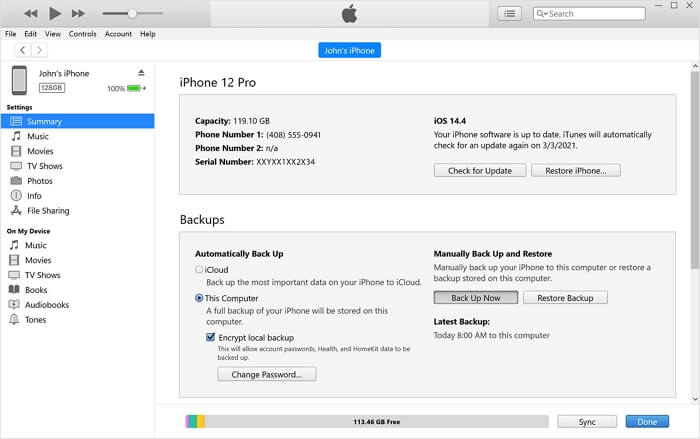
Step 3. Launch iTunes and click the device icon.
Step 4. To back up your iPhone without Wi-Fi, go to the "Summary" tab and click on "Back Up Now" to initiate the backup process.
How to Back Up iPhone with Finder
On macOS Catalina and later, you can use Finder to back up your iPhone, as iTunes has been discontinued. The process is similar to using iTunes, and you can follow the same steps to back up your device.
Finder allows you to transfer files between your iPhone and Mac, making it a practical solution for transferring videos from Mac to your iPhone or adding music from Mac to your iPod.
To back up your iPhone via Finder:
Step 1. Connect your iPhone to your Mac with a USB cable.
Step 2. Unlock your iPhone and follow the instructions to help the computer recognize your iOS device.
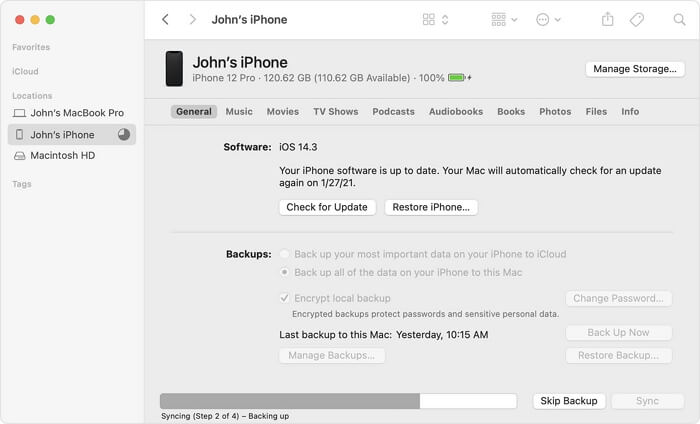
Step 3. Open "Finder" and click your iPhone under "Locations."
Step 4. Go to the "General" tab and select the option "Back up all of the data on your iPhone to this Mac."
Step 5. Click "Back Up Now" to start the backup process.
If you encrypt your iPhone backup, make sure you remember the password, or you won't be able to access the backup again. If you need help with removing the password, consider using a tool like Qiling MobiUnlock.
How to Back Up iPhone with Qiling MobiMover
Qiling MobiMover is an iPhone data transfer tool and backup manager that allows users to back up specific items or the entire device, providing a convenient way to manage and transfer iPhone data.
Unlike other methods, Qiling MobiMover allows you to freely change the backup location of your iPhone and access the backup files whenever needed.
Since it is also an iPhone data transfer tool, you can also transfer data from iPhone to computer, including contacts, messages, photos, and more, making it a convenient and all-in-one solution for your data management needs.
- Transfer files from a PC/Mac to an iPhone
- Transfer files from an iPhone to a PC/Mac
- Transfer data from one iPhone to another
With features like AirDrop, iMessage, iCloud Photo Library, and more, you can easily share content from your device to others, or receive content from them. This includes photos, videos, music, ringtones, books, and other media types, making it convenient to share and receive files across devices.
To back up your iPhone without Wi-Fi:
Step 1. Connect your iPhone to your computer with a USB cable, then select the "Backup Manager" from the left panel and choose "Backup" to proceed.
Step 2. To back up all files from iPhone to computer, select the "Select All" option, choose the destination on the computer, and click on "One-Click Backup" to initiate the backup process.
Step 3. MobiMover will start immediately to back up iPhone files to your computer without requiring iTunes. It will then finish the process.
How to Back Up iPhone with iCloud
iCloud doesn't necessarily use Wi-Fi to finish the device backup, and if you have enough cellular data left, you can back up your iPhone with iCloud over cellular, or pay for the extra data if needed.
To keep your iPhone backed up safely, consider using cloud-based services that offer enough storage space to save your device's backup. This way, your data will be securely stored online and can be easily restored in case your iPhone is lost, stolen, or damaged.
To back up your iPhone to iCloud without Wi-Fi:
Step 1. Go to the "Settings" app on your iPhone.
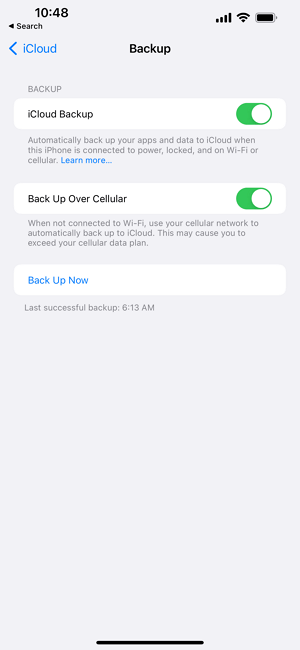
Step 2. Tap [your name] > "iCloud" > "iCloud Backup."
Step 3. Enable iCloud Backup and Back Up Over Cellular, which is only available on 5G-enabled models.
Step 4. To start backing up your iPhone without Wi-Fi, click "Back Up Now".
The Bottom Line
You can back up your iPhone to the cloud without Wi-Fi, but it's not recommended due to the large amount of data involved, which would require a significant amount of cellular data and potentially result in high costs. It's more cost-effective to back up your iPhone using iTunes, Finder, or a third-party backup tool.
Related Articles
- Free iPhone to PC File Transfer Software to Transfer Files Between iPhone and PC
- How to Put Videos on iPad With or Without iTunes
- How to Backup Contacts on iPhone in 4 Proven Ways
- Need to Find Setup Information File Location in Windows 7? Fixed!
Need to find Setup Information file location in Windows 7 before using the System Recovery Options? This article will walk you through the issue.
Products
Articles & Tutorials
- Data Recovery
- Data Backup
- File Recovery
- File Backup
- System Backup and Restore
- Disk and Partition Clone
- Technical articles
- Mobile articles
- Disk Master Help
- Windows Data Recovery Tutorials
- Windows Secure Delete Tutorials
- Windows Partition Management Tutorials
- Windows File Backup and Restore Tutorials
- Windows System Backup and Restore Tutorials
- Windows Disk Backup and Restore Tutorials
- Windows Clone Tutorials