How to Transfer Music from PC to iPhone
Quick Navigation:
- How to Transfer Music from Computer to iPhone Directly
- How to Transfer Music from PC to iPhone via iTunes
- How to Transfer Music to iPhone Wirelessly
- The Bottom Line
Transferring music from your computer to your iPhone is a common and essential task, especially for those who enjoy listening to music on their iOS device. To make this process easier, I've compiled various solutions to help you add songs to your iPhone. Whether you're looking for a straightforward method or a more detailed guide, I've got you covered - just check out the options and choose the one that suits you best.
How to Transfer Music from Computer to iPhone Directly
Also Supports: Photos, videos, ringtones, voice memos, contacts, book...
If you want to transfer music from your PC to your iPhone without syncing, you can use the iPhone data transfer software, Qiling MobiMover. Unlike iTunes, this tool allows you to transfer files to your iPhone without erasing the existing data, and it also supports transferring music from iPhone to iPhone or from iPhone to PC.
Qiling MobiMover can also be used as a free video/audio downloader, allowing users to download online video/audio files to their computer or iOS device, making it possible to add music to an iPhone by downloading online songs directly to the device.
To transfer music from PC to iPhone:
Step 1. Connect your iPhone to the PC and launch Qiling MobiMover. Tap "Trust" on your phone and click "Allow" on the program to grant access. Then click on the "PC to Phone" transfer mode and select the files you want to transfer by clicking "Select Files".
Step 2. Select the "Music" folder and choose music files to transfer from PC to iPhone by clicking "Open" to confirm.
Step 3. To begin the music transfer process, select the desired music items and click the "Transfer" button to initiate the transfer. You can also drag new files and drop them into the current window to add more files. After the process finishes, check the transferred files in the Music app on your iPhone.
How to Transfer Music from PC to iPhone via iTunes
Transferring files from PC to iPhone can be done through iTunes, but it may cause data loss on your iPhone as it syncs data, replacing existing files with new content. If you're okay with this, you can follow these steps to transfer music from iTunes to your iPhone.
To transfer music to iPhone via iTunes:
Step 1. Connect your iPhone to the computer with a USB cable.
Step 2. Unlock your iPhone and trust the computer. If asked, enter your iPhone password as required.
Step 3. Open iTunes, click the device icon, and choose "Music."
Step 4. To sync music, check the option "Sync Music" in the new iTunes window, then choose "Remove and Sync".
Step 5. You can choose to sync your entire music library or select specific playlists, artists, albums, and genres from iTunes to your iPhone. If you choose to select specific items, you can pick the ones you want to transfer.
Step 6. After selecting the music you want to transfer, click "Apply" > "Sync" to begin transferring the music from your computer to your iPhone.
Step 7. After syncing is complete, you can view synced songs on your iPhone by going to the "Music" app, then selecting "Library", followed by "Songs".
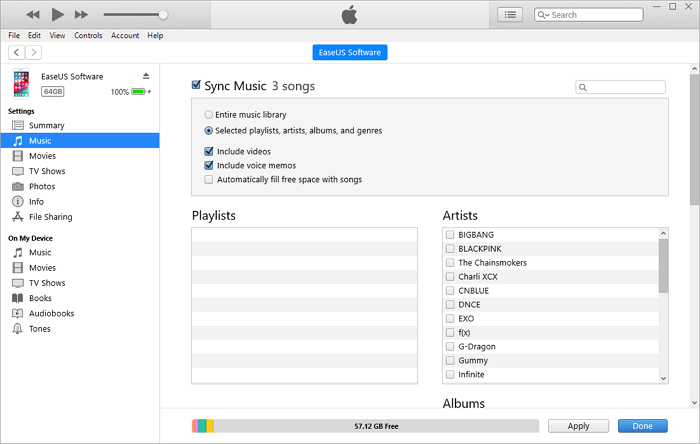
To sync music from PC to iPhone automatically, you can set up iTunes to sync your music library with your iPhone. This will allow your iPhone to automatically update with any new music you add to your iTunes library on your PC. To do this, open iTunes on your PC, select your iPhone from the top left menu, and click on the "Music" tab.
How to Transfer Music to iPhone Wirelessly
If you prefer a wireless solution, consider using a cloud-based service like Dropbox, which allows you to copy music from your computer to your iPhone via a network connection only. Before getting started, ensure that you have a stable internet connection and that your Dropbox account is set up properly to facilitate the music transfer. This wireless approach eliminates the need for cables and physical connections, making it a convenient option for those who value convenience and ease of use.
- There is enough Dropbox space available
- There is a stable network connection
- To merge the Dropbox accounts on your computer and iPhone, follow these steps:
To transfer songs from PC to iPhone via Dropbox:
Step 1. On the computer, visit Dropbox and sign in.
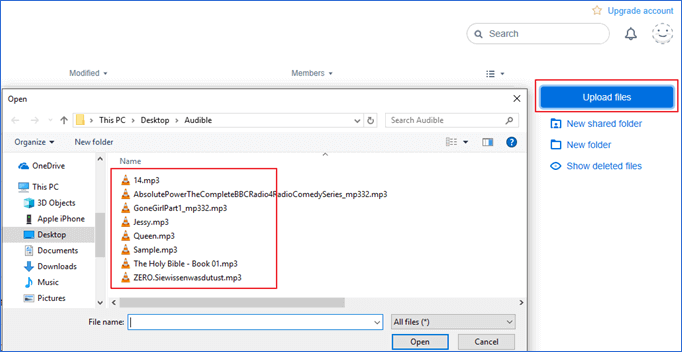
Step 2. Upload the music files from your PC to Dropbox.
Step 3. After syncing your music library with Dropbox, you can access your songs from your computer by opening the Dropbox app on your iPhone. This allows you to view and manage your music library across both devices.
The Bottom Line
With Qiling MobiMover, you can freely transfer your favorite songs from your PC to your iPhone and enjoy them on the go. This user-friendly tool allows you to transfer music without syncing or erasing existing data, and you can also use it to download online videos and audio files directly to your device.
Related Articles
- How to Copy Contacts from iPhone to SIM Card
- How to Convert WMV to MP3 in Simple Ways
- How to Transfer Windows 11 to New SSD Step by Step [2 Ways]
Want to transfer Windows 11 from one SSD or another? This article covers the preparations you need to do, and the steps to migrate OS or disk with secure boot. - Upgrade to Windows 11: What You Need to Know?
Can Windows 10 be updated to Windows 11? How to upgrade to Windows 11? Should I upgrade to Windows 11? Refer to the post for answers to those questions.
Products
Articles & Tutorials
- Data Recovery
- Data Backup
- File Recovery
- File Backup
- System Backup and Restore
- Disk and Partition Clone
- Technical articles
- Mobile articles
- Disk Master Help
- Windows Data Recovery Tutorials
- Windows Secure Delete Tutorials
- Windows Partition Management Tutorials
- Windows File Backup and Restore Tutorials
- Windows System Backup and Restore Tutorials
- Windows Disk Backup and Restore Tutorials
- Windows Clone Tutorials