How to Copy Contacts from iPhone to SIM Card
Quick Navigation:
- Can I Transfer Contacts from iPhone to SIM Card?
- Part 1. How to Copy Contacts from One iPhone to Another iPhone or Computer
- Part 2. How to Transfer Contacts from iPhone to iPhone via iCloud Sync
- Part 3. How to Copy Contacts from iPhone to SIM Card One by One Through Email
- Part 4. Import Contacts from a SIM Card to an iPhone
- The Bottom Line
When switching phones between Android and iPhone or changing network providers, transferring contacts from iPhone to SIM card is necessary. However, Apple doesn't support saving data to SIM cards directly, so you'll need to find an indirect solution. Fortunately, this guide will walk you through the process, highlighting the possibility of transferring iPhone contacts to SIM cards, even if it's not a straightforward process.
Can I Transfer Contacts from iPhone to SIM Card?
There is no direct way to transfer iPhone contacts to a SIM card, unless you jailbreak your device, which is not recommended due to its complexity and potential damage to the device.
If you're looking to transfer contacts from one iPhone to another or from an iPhone to an Android device, you can do so without having to back them up separately. Alternatively, if you need to back up your contacts, we have a guide on how to do so from an iPhone. Our solution allows you to directly transfer your contacts, making it a convenient option for those who don't want to sacrifice their iPhone's functionality.
Part 1. How to Copy Contacts from One iPhone to Another iPhone or Computer
You can use Qiling MobiMover, a powerful data transfer tool, to export contacts from one iPhone to another iPhone or to a computer. This tool allows you to transfer all or only selected contacts between two iOS devices or between an iPhone and a computer, whether it's a PC or Mac.
You can use the Contacts app on your iPhone to add, edit, and manage your contacts, as well as sync them with your computer using iCloud or iTunes. This allows you to access and update your contacts across all your Apple devices.
The iPhone data that can be transferred with this tool includes contacts, messages, call logs, photos, videos, music, ringtones, voice mails, notes, calendars, Safari bookmarks & history, books, and audiobooks.
To copy contacts from one iPhone to another, you can follow these steps. If you want to know how to export contacts from iPhone to the computer, check our previous guide. Otherwise, you can simply follow the steps to transfer contacts between iPhones.
Step 1. To transfer contacts from iPhone to PC, connect your iPhone to your PC, click "Trust" on the iPhone to confirm the connection, and then launch Qiling MobiMover. From the app, navigate to "Content Management" and select "Contacts" to manage and transfer your iPhone contacts to your PC.
Step 2. When transferring files from an iDevice to a computer, the default storage location is the desktop. To change the default location or format, go to "More" > "Settings" and select the desired output format (HTML, CSV, or vCard) and location.
Step 3. Select the contacts you want to transfer, then click on "Transfer to PC" and the contacts will be instantly transferred to your computer. Once the transfer is complete, you can find the transferred contacts in the selected folder.
Note: If you need to transfer contacts from your iPhone, you can also check the relevant guide for transferring contacts to Google Gmail or Outlook 2010/2013.
Part 2. How to Transfer Contacts from iPhone to iPhone via iCloud Sync
Apart from the above method, you can export iPhone contacts via iCloud by syncing them across different devices. To do this, go to Settings > [your name] > iCloud, then toggle on Contacts. This will sync your contacts with your iCloud account.
Step 1. On your iPhone or iPad, open the Settings app.
Step 2. To enable iCloud Contacts, tap your name at the top left of your screen, then select "iCloud" followed by "Contacts." Make sure the toggle switch next to Contacts is set to ON.
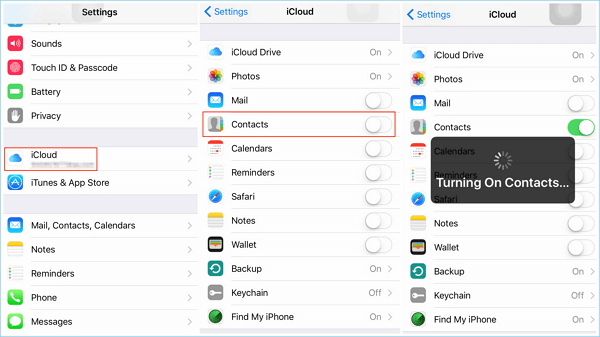
Step 3. You can access your synced contacts on other devices, but the steps to do so vary depending on the device you use. By syncing your contacts, you can view them on other devices, making it easy to stay connected with your contacts across different devices.
- On another iPhone, you can sign in with the same iCloud account and enable contacts in iCloud by going to Settings, tapping on your name, selecting "iCloud," and toggling the switch next to "Contacts" to the "On" position.
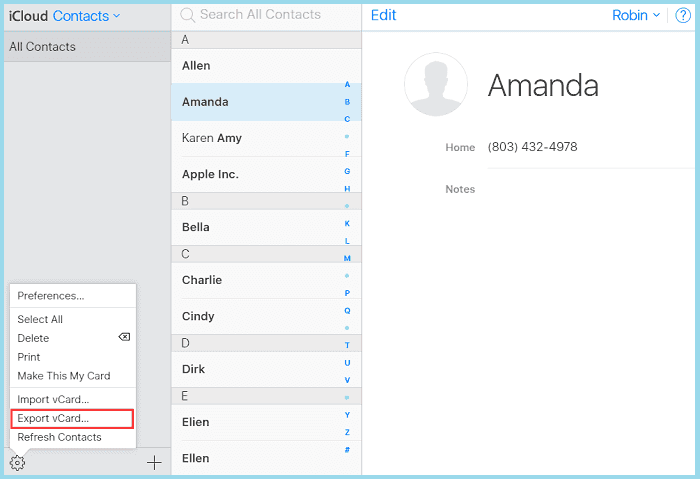
- To export contacts from iCloud, go to icloud.com, sign in with your Apple ID, select "Contacts", choose the contacts you want to export, and click "Export vCard" at the bottom left corner, which will download the selected contacts to your computer in vCard format.
Part 3. How to Copy Contacts from iPhone to SIM Card One by One Through Email
If you have a lot of contacts to move, using Email to export them one by one can be time-consuming. Instead, you can use Qiling MobiMover to transfer contacts, which is a more efficient option.
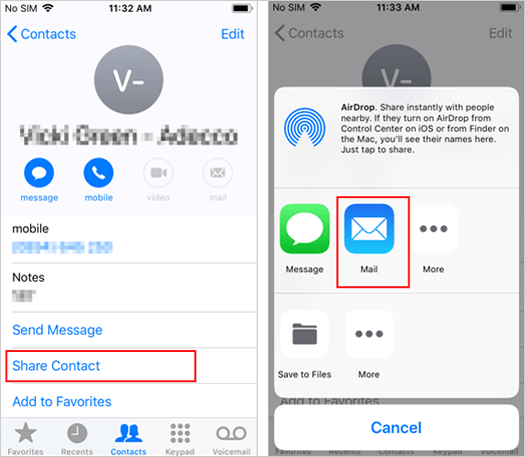
Step 1. Open your Contacts app and select the contacts you wish to share.
Step 2. To view a contact's detailed information and share it, tap on the contact in your contact list, then select "Share Contacts" from the menu.
Step 3. To send an email to yourself, go to the "Mail" app, fill in the recipient's email address as your own, add a subject and body, and then send the email. You can also use the "Quick Actions" menu to compose a new email and send it to yourself with a single tap. Additionally, you can also use the "Mail" app to forward an existing email to yourself if you need to reference it later.
Step 4. Download shared contacts to your computer.
Part 4. Import Contacts from a SIM Card to an iPhone
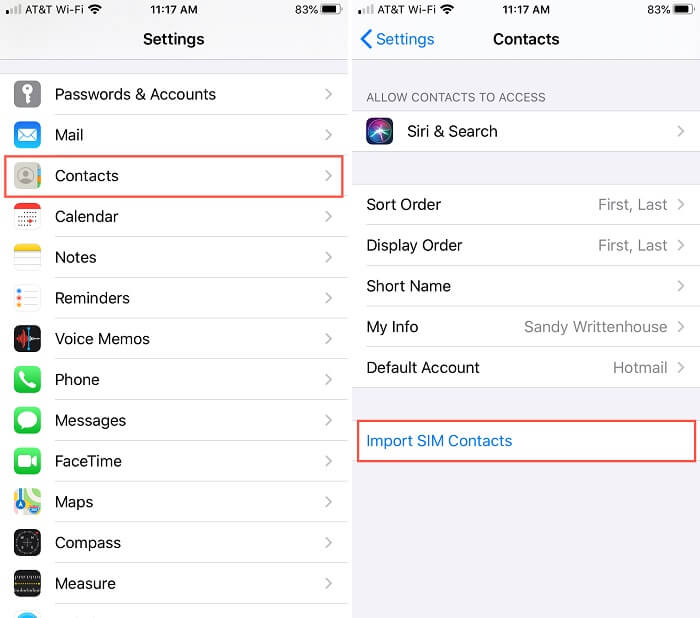
You can't export iPhone contacts to a SIM card directly, but you can import contacts from a SIM card to your iPhone by going to Settings, then [Your Name], then Contacts, then Import SIM Contacts. This will transfer the contacts from the SIM card to your iPhone.
Step 1. To import contacts from a SIM card to your iPhone, start by locating the SIM card that contains the contacts you want to import. This SIM card should have the contacts you want to transfer to your iPhone.
Step 2. Go to the Settings on your iPhone.
Step 3. On your iPhone, tap "Contacts" or "Mail, Contacts, Calendars" if you're running iOS 10 or earlier.
Step 4. Tap "Import SIM Contacts."
Step 5. Once you've completed the process, you can take out the new SIM card and replace it with your old one.
The Bottom Line
To copy contacts from iPhone to a SIM card, whether moving to an Android device or vice versa, it's always possible. By following our guide, you can easily transfer data to the SIM card, making the process hassle-free. With this information, you should be able to successfully move your contacts to the SIM card with ease.
Related Articles
- How to Transfer Photos from iPhone to Flash Drive on Mac
- Three Simple Ways to Print out Text Messages from iPhone
- How to Convert Large YouTube Files to MP3
- How to Transfer Videos from iPhone to PC in Windows 10/11
Products
Articles & Tutorials
- Data Recovery
- Data Backup
- File Recovery
- File Backup
- System Backup and Restore
- Disk and Partition Clone
- Technical articles
- Mobile articles
- Disk Master Help
- Windows Data Recovery Tutorials
- Windows Secure Delete Tutorials
- Windows Partition Management Tutorials
- Windows File Backup and Restore Tutorials
- Windows System Backup and Restore Tutorials
- Windows Disk Backup and Restore Tutorials
- Windows Clone Tutorials