[Guide] How to Fix iPhone iCloud Backup Slow
Quick Navigation:
iCloud Backup is a convenient way to back up an iOS device, especially with the wireless method. However, despite its ease, there are reasons why an iPhone iCloud backup might be slow.
Why is iPhone iCloud Backup slow?
Reason 1. Too many files and data to sync.
iCloud Backup will upload various types of files, including photos, contacts, and others, which can slow down the process significantly if you have a large amount of data.
Reason 2. Poor network connection.
iCloud Backup is an online backup service provided by Apple, where network connection plays a crucial role. Without a stable internet connection, it's impossible to sync and access iCloud data.
Reason 3. Too many programs are working on iPhone.
iPhone's RAM is limited, causing it to slow down when too many apps are running simultaneously.
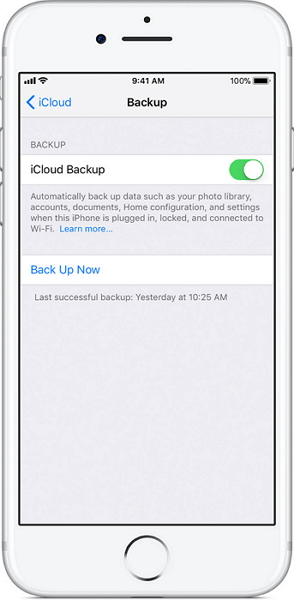
How to fix iPhone iCloud Backup slow?
Method 1. Delete the useless files on your iPhone.
You can delete files in categories that iCloud backs up, allowing it to skip over a large number of files during the backup process. Note: This is not a recommended approach as it may lead to data loss or inconsistencies.
To avoid losing your iPhone data, use an alternative to iCloud, such as Google Drive or Microsoft OneDrive, to back up your iPhone on your computer. This way, you can access your data even if you lose your iPhone or it's damaged. You can also use a USB cable to connect your iPhone to your computer and transfer your data directly.
For iPhone backup, there are various solutions available, with some third-party data transfer tools being more user-friendly and effective. One such tool is Qiling MobiMover, an iPhone backup software that allows users to back up their iPhone to a computer according to their specific needs, whether it's backing up all supported categories at once or a specific type of content.
Step 1. Connect your iPhone to your PC and trust the computer. Then, open Qiling MobiMover and navigate to the "Backup Manager" section, where you can select "Back up" to start the backup process.
Step 2. Since all the supported files are selected by default, click "One-Click Backup" directly to start backing up your iPhone to computer.
Step 3. Wait patiently until the backup process completes. To restore a backup, go to the "Backup Manager" and select "Restore", then follow the on-screen instructions to continue.
With MobiMover, you can transfer your iPhone content to your computer all at once or choose specific files to transfer, making it easy to backup your iPhone data, such as saving iPhone text messages to your computer.
Related Articles
- How to Fix iPhone Not Showing up on Mac Finder/Photos/iPhoto
- Change Apple ID Password Safely
- How to Block Text Messages on iPhone Easily
- iOS 11 iMessage Not Working on iPhone and iPad? Fixed Here!
Products
Articles & Tutorials
- Data Recovery
- Data Backup
- File Recovery
- File Backup
- System Backup and Restore
- Disk and Partition Clone
- Technical articles
- Mobile articles
- Disk Master Help
- Windows Data Recovery Tutorials
- Windows Secure Delete Tutorials
- Windows Partition Management Tutorials
- Windows File Backup and Restore Tutorials
- Windows System Backup and Restore Tutorials
- Windows Disk Backup and Restore Tutorials
- Windows Clone Tutorials