iOS 11 iMessage Not Working on iPhone and iPad? Fixed Here!
Quick Navigation:
- 10 tips to fix iOS 11 iMessage not working on iPhone and iPad
- 1. Check the Apple's iMessage server is down or not
- 2. Connect iPhone/iPad to a network
- 3. Reset iPhone/iPad network
- 4. Make sure iMessage is set up and on
- 5. Turn off/on iMessage and restart Messages
- 6. Delete some messages
- 7. Update iPhone to the latest iOS version
- 8. Set Time Zone to Automatically
- 9. Reset and restore your iPhone/iPad
- 10. Downgrade iOS 11 to iOS 10/10.3.3
"I have an iPhone 6 and just upgraded to iOS 11 but I can't send iMessage now and I keep getting this activation error message on my phone. How can I fix iMessage not working in iOS 11? This is one of the highly reported problems of iOS 11 just like the flashlight not working in iOS 11, alarm and AirDrop not working in iOS 11 troubling users seriously.
The reason for iOS 11 iMessage not working is likely due to a poor internet connection, carrier issues, or incorrect settings, and can be resolved by trying a series of simple troubleshooting steps.
10 tips to fix iOS 11 iMessage not working on iPhone and iPad
If iMessage isn't working on your iOS 11 device, you might experience issues with effects not working, bubble effects not appearing, screen effects not appearing, or the handwriting feature not working. To troubleshoot, try these simple tips.
1. Check the Apple's iMessage server is down or not
If the iMessage server is down, no one can use the iMessage feature, although this is a rare occurrence. You can check the Apple official site for more information.
2. Connect iPhone/iPad to a network
To activate iMessage, your iPhone needs to be connected to a Wi-Fi or cellular network. Go to Settings and turn on WLAN or Cellular.
3. Reset iPhone/iPad network
If the network has been already on but you can't connect to the internet, you can fix this by resetting network settings. To do this, go to Settings, then General, then Reset, and finally select Reset Network Settings. This should resolve the issue and allow you to connect to the internet.
4. Make sure iMessage is set up and on
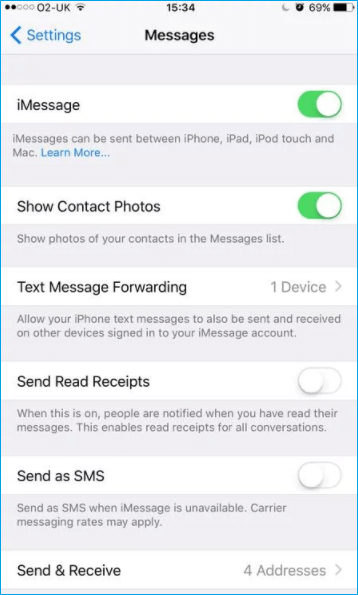
If you're unable to use iMessage, first, ensure it's turned on by going to Settings > Messages. Then, verify that your phone is set up to receive iMessages by going to Settings > Messages and checking the addresses and mobile number listed in Send & Receive.
5. Turn off/on iMessage and restart Messages
If the Message app is stuck, it may prevent iMessage from working. To resolve this, double-press the Home button, swipe up on the Message app, and shut it down. After a few seconds, relaunch the app to see if iMessage is functioning properly.
6. Delete some messages
Excessive messages can consume iPhone space, leading to system and application slowdowns, which may cause iMessage not working. To resolve this, you can either delete unnecessary messages or use a free iPhone data transfer software to transfer messages to a PC, thereby freeing up iPhone space.
To delete messages on your iPhone or iPad, open the Messages app, find the conversation you want to delete, swipe left on it, and select Delete. This will permanently remove the conversation from your Messages app.
7. Update iPhone to the latest iOS version
iOS 11, the first version of a new breakthrough, had some small bugs, including issues with iMessage. However, an update to iOS 11.0.3 is now available, which should provide effective fixes for these problems.
Check for a new iPhone software update by going to Settings > General > Software Update, then download and install it.
8. Set Time Zone to Automatically
Go to Settings > General > Date & Time, and turn on "Set Automatically".
9. Reset and restore your iPhone/iPad
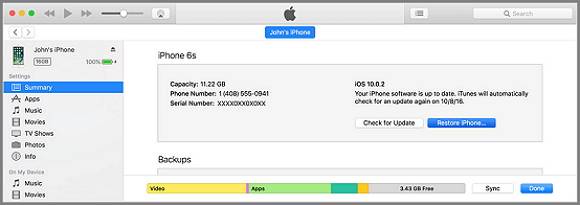
If the above solutions don't work, you can try resetting and restoring your iPhone to its factory settings, but be aware that this will erase all data, so it's recommended to back up your device first.
To reset your iPhone, go to Settings, then General, followed by Reset, and finally select Reset All Content and Settings.
10. Downgrade iOS 11 to iOS 10/10.3.3
Downgrading to iOS 10 is a viable option if your device is outdated and can't handle the latest iOS version, making iOS 11 the final resort.
Related Articles
- What is Apps & Data Screen and How to Get It
- How to Clear Cookies on iPhone
- Synology Cloud Sync Not Syncing All Files – Solved Now!
This page demonstrates how to fix Synology Cloud Sync not syncing all files efficiently and provides another free sync tool to help with Synology NAS sync. - Fixed: Synology Cloud Sync Not Working Even Up to Date
This article provides you with 5 practical ways and 2 workarouds for Synology Cloud Sync not working. Learn more about it now!
Products
Articles & Tutorials
- Data Recovery
- Data Backup
- File Recovery
- File Backup
- System Backup and Restore
- Disk and Partition Clone
- Technical articles
- Mobile articles
- Disk Master Help
- Windows Data Recovery Tutorials
- Windows Secure Delete Tutorials
- Windows Partition Management Tutorials
- Windows File Backup and Restore Tutorials
- Windows System Backup and Restore Tutorials
- Windows Disk Backup and Restore Tutorials
- Windows Clone Tutorials