What is Apps & Data Screen and How to Get It
Quick Navigation:
- How to get Apps and Data screen on a new iPhone
- For iCloud,
- For iTunes,
- How to get Apps and Data screen on an old iPhone
Restoring an iPhone, iPad, or other iOS device often involves the "Apps and Data" screen, which plays a crucial role for iPhone users. This screen not only allows users to restore their iPhone but also enables them to transfer ownership of the device.
How to get Apps and Data screen on a new iPhone
When you get a new iPhone, the first step is to set it up, and at step 4, you'll reach the Apps and Data screen, where you can choose to restore your iPhone from iCloud or iTunes.
Step 1. Turn on your new iPhone by pressing the sleep and wake buttons simultaneously for a few seconds, until the "Hello" screen appears.
Step 2. Follow the guide on the screen to choose your country, set up Wi-Fi network, and select your location. You can turn off location services later if needed.
Step 3. To set up the new iPhone, you'll need to follow the on-screen instructions to set up Touch ID and create a passcode. This will involve placing your finger on the Home button to register your fingerprint and entering a passcode to secure your device. The process should take a few minutes to complete.
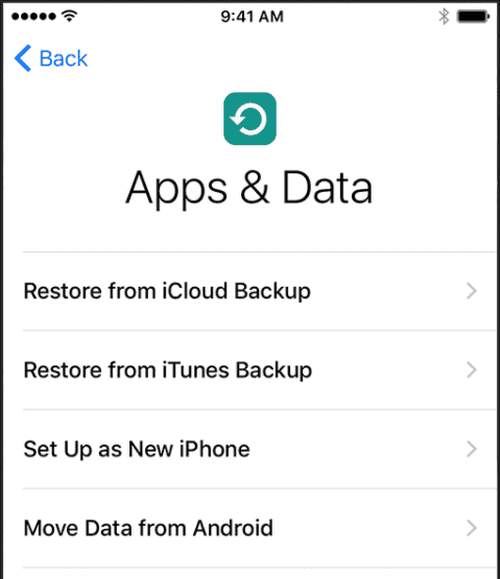
Step 4. After everything above, you will get the Apps & Data screen.
This article will guide you through the process of restoring your iPhone at the Apps & Data screen using either iCloud or iTunes. The steps will be outlined in the following sections.
For iCloud,
Step 5. You need to backup your iPhone with iCloud first, and select Restore from iCloud.
Step 6. Enter your Apple ID and password. It is necessary to add this device to your Apple account.
Step 7. Finish up.
For iTunes,
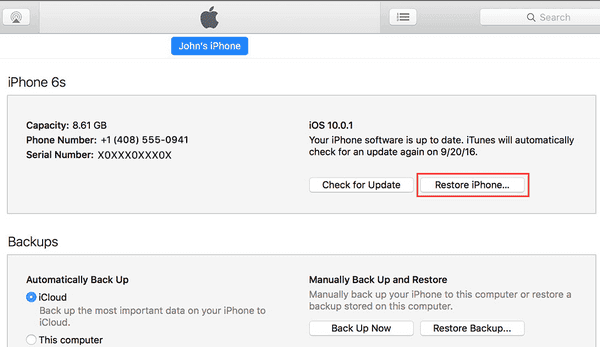
Step 5. Backup your old iPhone with iTunes first, now connect this new iPhone to the computer.
Step 6. Click the iPhone icon on the left top and click Restore iPhone at the right side.
Step 7. Enter your iTunes password and Apple ID and password, then select the backup file you created and wait for the backup process to complete.
How to get Apps and Data screen on an old iPhone
You may have already used this iPhone, or you want to transfer everything from another iPhone to this one, or even change the owner. In any case, the most convenient method is to restore the iPhone with the Apps and Data screen.
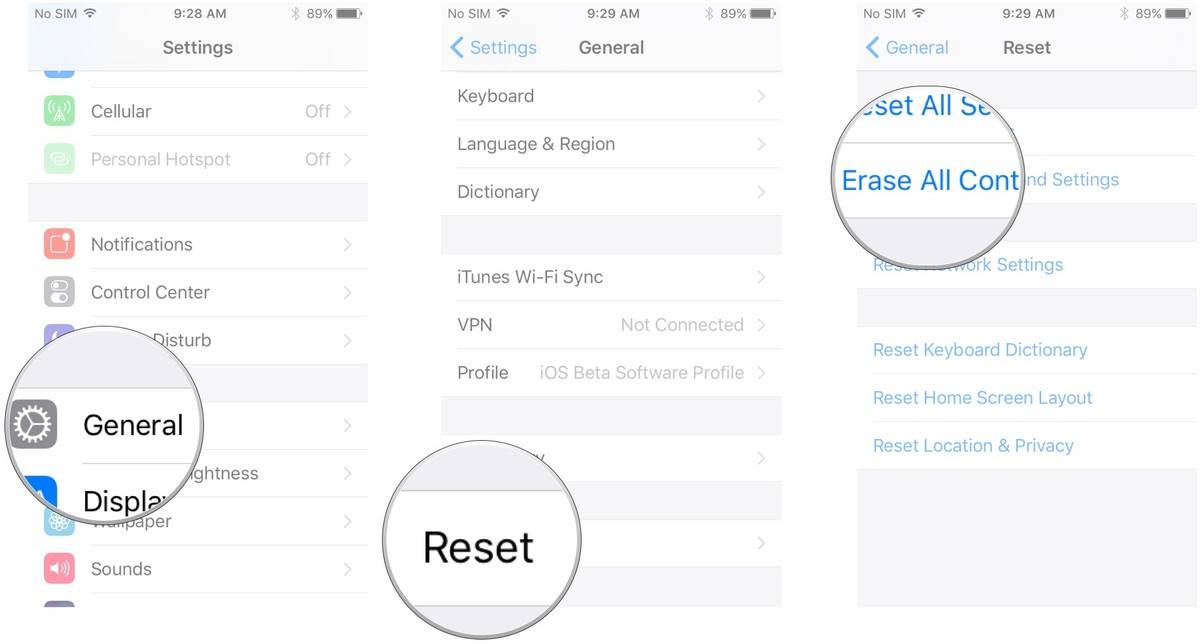
Step 1. Go to Settings>General>Reset. Then click the button Erase All content and Settings.
Step 2. Enter your passcode and give the authority. Now it will clean your iPhone data and documents completely.
Step 3. When your iPhone restarts, you will see the "Apps & Data" screen. This screen allows you to restore your data from a backup, set up your iPhone as a new device, or restore from iCloud.
Related Articles
- iPhone 8/8 Plus/X: How to Record iPhone Screen in iOS 11
- How to Turn on AirDrop on iPhone 8/8 Plus/X in iOS 11
- [Guide] How to Fix iPhone iCloud Backup Slow
- How to Close Apps on iPhone X and iPhone 8/8 Plus
Products
Articles & Tutorials
- Data Recovery
- Data Backup
- File Recovery
- File Backup
- System Backup and Restore
- Disk and Partition Clone
- Technical articles
- Mobile articles
- Disk Master Help
- Windows Data Recovery Tutorials
- Windows Secure Delete Tutorials
- Windows Partition Management Tutorials
- Windows File Backup and Restore Tutorials
- Windows System Backup and Restore Tutorials
- Windows Disk Backup and Restore Tutorials
- Windows Clone Tutorials