How to Add a Device to Apple Account
Quick Navigation:
Apple provides many functions For syncing and sharing data with the same account, it would be easy to use a single account to access and manage all your data across devices, making it convenient to keep everything up-to-date and in sync. transfer files from computer to iPhone or other devices If your devices are in the same Apple account, adding a new device is a straightforward process. To add a device to your Apple account, simply follow the steps to set up the new device, and it will automatically be added to your existing account. This makes it easy to manage all your devices from one place.
Part 1. Add an iPhone/iPad to your Apple account
To transfer files from one iPhone to another, simply add your new iPhone to your account, which will facilitate the transfer process.
Step 1. Start your new iPhone, and select your language, country, and region.
Step 2. Follow the guide to set up the Wi-Fi network and location service.
Step 3. Set up a new passcode, and then choose whether you want to restore your new iPhone or not.
Step 4. Sign in with your Apple account. This is the most important step to add a new iPhone to Apple account.
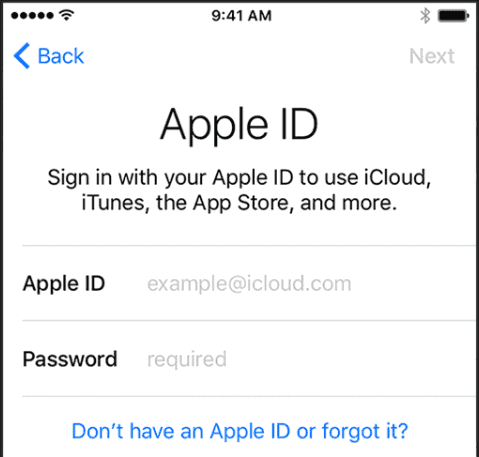
If you want to add an old iPhone to your Apple account, it will change the owner of this iPhone.
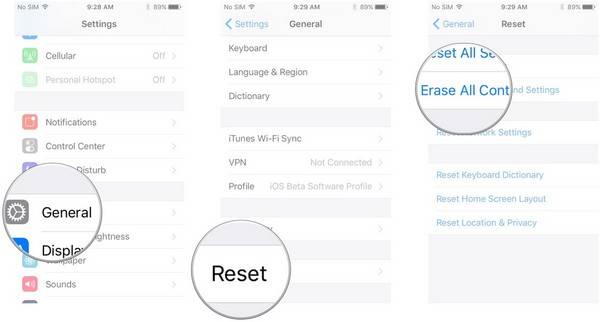
Step 1. Go to Settings > General, and find the option "Reset".
Step 2. Tap it, and then tap the option "Erase All Content and Settings".
Step 3. Enter the password of iPhone, and wait a few minutes, it will depend on how many data you have on this iPhone. This process will restore your iPhone to its factory settings, erasing all data, settings, and apps.
Step 4. Continue with the method for new iPhone. You can add this iPhone to your Apple account too.
Part 2. Add a computer to your Apple account
iTunes is a convenient tool for managing and sharing your files, making it a useful addition to your digital life. To fully utilize its features, it's also recommended to add your computer to your Apple account, enhancing your overall experience with the platform.
Step 1. Open iTunes on your computer and update it to the new version.
Step 2. Use lighting cable to connect your iPhone to this computer.
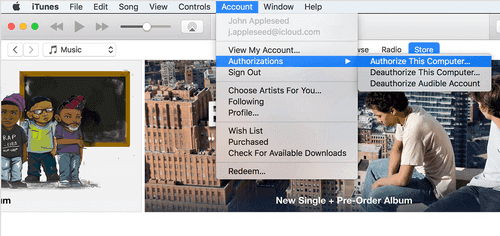
Step 3. Go to the Account>Authorize This Computer in the top menu.
Step 4. Log in with your Apple account. And wait for the authorization to finish adding this computer to Apple account.
Related Articles
- How to Share Calendars on iPhone
- How to Fix iOS 11 Flashlight Not Working on iPhone and iPad
- [Solved]Can't Transfer Photos from iPhone to PC in Windows 10/8/7? Solutions Here!
- How to Close Apps on iPhone X and iPhone 8/8 Plus
Products
Articles & Tutorials
- Data Recovery
- Data Backup
- File Recovery
- File Backup
- System Backup and Restore
- Disk and Partition Clone
- Technical articles
- Mobile articles
- Disk Master Help
- Windows Data Recovery Tutorials
- Windows Secure Delete Tutorials
- Windows Partition Management Tutorials
- Windows File Backup and Restore Tutorials
- Windows System Backup and Restore Tutorials
- Windows Disk Backup and Restore Tutorials
- Windows Clone Tutorials