iPhone 8/8 Plus/X: How to Record iPhone Screen in iOS 11
Screen recording is a convenient feature in iOS 11 that allows you to capture important information or share fun moments with friends. Similar to taking a screenshot, screen recording can be useful for keeping records or sharing entertaining content. To record your iPhone screen, whether it's an iPhone 8, 8 Plus, X, or other models running iOS 11, follow the steps below to apply this feature on your device.
How to record iPhone screen in iOS 11
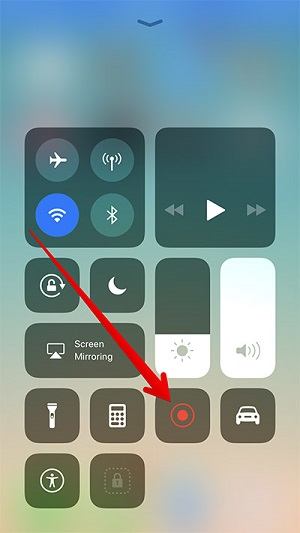
To record your iPhone 8/8 Plus/X screen, first, add the Screen Recording feature to the Control Center via Settings App. Then, swipe up from the bottom of the screen to access the Control Center, tap the Screen Recording icon, and tap the red record button to start recording. To stop recording, tap the red record button again.
Step 1: To customize the Control Center on your iPhone, go to Settings > Control Center > Customize Controls. This is where you can add or remove items from the Control Center, such as the flashlight, camera, or music controls.
Step 2: Scroll down to the MORE CONTROLS section and tap on the Plus Sign next to Screen Recording to add it to your controls. You can also adjust the order of the controls by tapping on the Hamburger icon next to each control.
Step 3: To record your iPhone screen, open the Control Center by swiping up from the bottom of your screen.
- To record your iPhone screen without sound, tap on the Screen Recording icon in Control Center, wait for 3 seconds, and the screen recording will start.
- Press deeply on the Screen Recording icon, click the Microphone Audio icon to turn it on, tap on Start Recording, then wait for 3 seconds for the screen recording to begin.
Step 4: To end a screen recording on an iPhone, open the Control Center, tap the Screen Recording icon, or tap the red bar at the top of the screen and choose Stop.
Step 5: To check the recorded videos, go to the Photos app, then select Albums, and finally Videos.
Notes:
As an iPhone user, you may need a completely free iOS data transfer tool to transfer data to or out of your iPhone, and the recommended tool is MobiMover Free. With MobiMover installed on your PC running Windows 7 or later, you can transfer files between an iOS device and computer or between two iOS devices without any cost or limitation, making it a free alternative to iTunes. You can transfer various file types, including photos, audios, videos, contacts, and messages, and even manage your iOS contents from the computer, making tasks like adding music to iPhone easy with MobiMover.
Step 1.Connect your iPhone to your computer with a USB cable, select the Backup Manager from the left panel, and then select Backup to proceed.
Step 2.To back up all files from an iPhone to a computer, select the "Select All" option, which will tick the box next to it, then choose the destination on the computer where the backup will be saved, and finally click on the "One-Click Backup" button to initiate the backup process.
Step 3.MobiMover will start immediately to back up iPhone files to your computer without requiring iTunes, and the process will complete once it's finished.
Related Articles
- How to Delete Apps on iPhone 7/7 Plus in iOS 11/11.2
- How to Fix iPhone Music Keeps Pausing and Skipping on iOS 11/12
- How to Sync Google Contacts to iPhone X/iPhone 8/iPhone 7 in iOS 11
- How to Delete Multiple or All Photos from iCloud on PC
Products
Articles & Tutorials
- Data Recovery
- Data Backup
- File Recovery
- File Backup
- System Backup and Restore
- Disk and Partition Clone
- Technical articles
- Mobile articles
- Disk Master Help
- Windows Data Recovery Tutorials
- Windows Secure Delete Tutorials
- Windows Partition Management Tutorials
- Windows File Backup and Restore Tutorials
- Windows System Backup and Restore Tutorials
- Windows Disk Backup and Restore Tutorials
- Windows Clone Tutorials