How to Access iPad Files from PC
Quick Navigation:
- Method 1. How to Access iPad Files on PC with Qiling MobiMover
- Method 2. How to Access iPad Files on PC with iTunes
- The Bottom Line
You can access your iPad files on a PC by using the iTunes syncing process, the iCloud syncing process, or by using a cloud storage service like Google Drive or Dropbox. To do this, you would first need to connect your iPad to your PC using a USB cable and open iTunes on your PC. Then, you would select your iPad from the list of devices on the left-hand side of the iTunes window and click on the "File Sharing" tab.
To access iPad files on a PC via a USB, you can't directly do so using the methods mentioned earlier. However, these methods allow you to transfer files from your iPad to your PC, and then you can access your iPad files on your computer.
Method 1. How to Access iPad Files on PC with Qiling MobiMover
Applies to photos, videos, contacts, messages, audio, notes, etc
There is no direct way to access iPad files on a PC, but you can transfer them to your computer using iTunes or a data transfer tool. However, since iTunes doesn't allow you to view data imported by it, we don't recommend using it. Therefore, using a data transfer tool is your best option to view iPad files on a PC.
Qiling MobiMover is a reliable iPhone data transfer tool that makes it easy to transfer files from iPhone to PC. It supports over 20+ types of iOS data, including notes, contacts, messages, videos, and photos. This program is a convenient option for users looking to transfer data between devices.
You can download it to try it out and see if it works as claimed.
Step 1. Connect your iPad to your PC with a USB cable, then tap "Trust This Computer" on your device's screen. Open Qiling MobiMover and select "Phone to PC" on the main screen, then click "Next" to start transferring data from your iPad to your computer.
Step 2. MobiMover will automatically read and load all compatible files on your iPad. You can then choose which types of files to transfer, such as contacts, messages, pictures, audio, or video. The transferred content is initially saved to your desktop, so you can change the default location before clicking "Transfer".
Step 3. MobiMover will immediately begin to transfer data from iPad to PC without iTunes. This process should not be interrupted during the USB connection. Once complete, the transferred content can be accessed and opened. Note that certain files, such as contacts and messages, may be saved as .html files, requiring a web browser to open.
Method 2. How to Access iPad Files on PC with iTunes
If you want to view and manage iPad files on a PC, you can also use iTunes, but first, take a few minutes to review the potential risks of using it and decide if it's still the best option for you.
- The data you transferred with iTunes isn't viewable.
- iTunes is prone to crashing, which can result in the loss of data if it happens suddenly.
- iTunes may slow down your system.
To access your iPad files with iTunes, open iTunes on your computer, select your iPad from the top left menu, click on "File Sharing" on the left side, and choose the app you want to access files from. You can then select the file you want to transfer and click "Add" to transfer it to your computer, or click "Save to" to save it to your computer.
Step 1. To connect your iPad to your PC, you can use a USB cable or establish a WiFi connection. This allows you to transfer files, share data, and access your iPad's content from your PC.
Step 2. Click the iPad button next to the top left of the iTunes panel.
Step 3. To access shared files, click the "File Sharing" option and select an app that contains the files you want to access.
Step 4. To initiate the file transfer process, select the files you wish to transfer from your local storage. Then, choose the destination where you want to store the files, such as a cloud storage service, an external hard drive, or another device on the same network.
Step 5. Click "Save To."
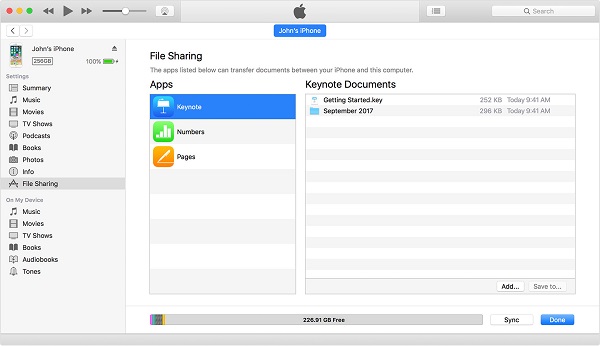
Tips: To transfer a file from your PC to your iPad, click "Add" and select the file you want to transfer, then click "Add." To delete a file from the iPad, select the file and press the Delete key, then click "Delete."
The Bottom Line
Accessing iPad files on a PC is a straightforward process. With the methods outlined in this guide, you can easily access and manage your iPad files on your computer. Method 1, which utilizes Qiling MobiMover, is particularly preferable as it offers a range of options to manage iPad files, including importing files from the iPad to the computer, deleting files with a single click, and downloading music directly to your iPad. This iOS data manager is a valuable tool that should not be overlooked.
Related Articles
- How to Transfer Files from iPhone to PC in 6 Ways
- How to Transfer Files Between iPhone and Mac in 7 Ways
- Free HEIC Converter for Windows 10 (Desktop & Online)
- How to Clone Windows 7 Partition to the Same Drive
You can easily clone Win 7 partition to the same drive and boot from the cloned partition sucessfully. The best disk clone software - Qiling Disk Master helps.
Products
Articles & Tutorials
- Data Recovery
- Data Backup
- File Recovery
- File Backup
- System Backup and Restore
- Disk and Partition Clone
- Technical articles
- Mobile articles
- Disk Master Help
- Windows Data Recovery Tutorials
- Windows Secure Delete Tutorials
- Windows Partition Management Tutorials
- Windows File Backup and Restore Tutorials
- Windows System Backup and Restore Tutorials
- Windows Disk Backup and Restore Tutorials
- Windows Clone Tutorials