How to Access and Manage iCloud Calendar on PC
iCloud allows you to share calendars among Apple devices or with family and friends. To keep your calendar up to date, you may need to access, view, and manage your iCloud calendar. This tutorial provides tips on how to manage your iCloud calendar, so it's a good idea to read the navigation first to quickly find your answer.
- Tip 1. How to Access iCloud Calendar on PC
- Tip 2. How to Sync iCloud Calendar with Outlook
- Tip 3. How to Share iCloud Calendar
- Bonus Tip. How to Fix "iCloud Calendar Not Syncing" Issue
Tip 1. How to Access iCloud Calendars on PC
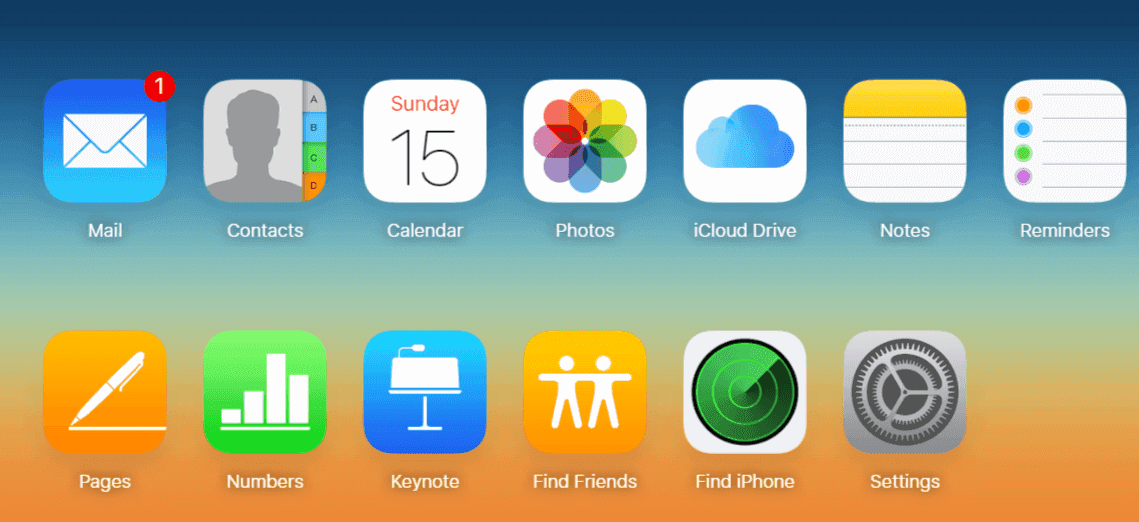
To access your iCloud calendar from your PC, simply enable iCloud Calendars on your iPhone and ensure you have an internet connection and a browser available. This allows you to view your iCloud calendar on your PC, and this tip also applies to exporting your iCloud calendar.
Step 1. Visit iCloud.com on your computer.
Step 2. Enter your Apple ID and Password to sign in iCloud.
Step 3. To view and manage your iCloud calendar on a PC, select "Calendar" from the available options.
How to access iPhone data on PC without iCloud
If you have large files to back up on iCloud, it can be costly and time-consuming. However, you can access your iPhone data on your PC without using iCloud by using Qiling MobiMover, a tool that allows you to transfer contacts, notes, photos, videos, music, and more from your iPhone to your PC, and view them from your computer. With MobiMover, you can also share files between iDevices, import data from your computer to your iDevice, and perform other tasks such as transferring music from your computer to your iPad. The steps to sync your iPhone data to your PC and view them from your computer are outlined below.
Step 1. Connect your iPhone to your PC running Windows 7/8/10 via USB cable, tap "Trust" on your iPhone screen if prompted, then run Qiling MobiMover and go to "Backup Manager" to initiate a backup.
Step 2. The supported categories are selected by default, and clicking "One-Click" backup initiates the iPhone backup process to PC.
Step 3. Wait patiently until the backup process completes.
If you have installed MobiMover on your PC, you can transfer photos and contacts between iPhones and use it again for future iPhone purchases.
Tip 2. How to Sync iCloud Calendar with Outlook
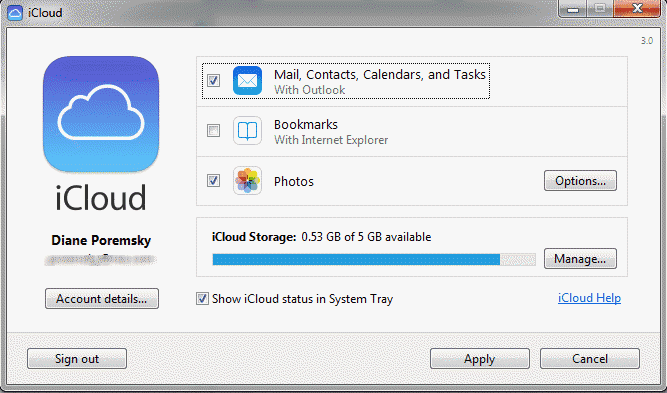
To sync your iCloud calendar to Outlook, ensure you have both the Outlook application and iCloud Control Panel installed on your PC. Follow the steps to easily sync your iCloud calendar with Outlook.
Step 1. Launch Outlook on your PC.
Step 2. Choose "File" in the menu bar and select "Options."
Step 3. In the Outlook Options window, tap on "Add-ins."
Step 4. Choose "iCloud Outlook Add-in."
Then:
Step 1. Download and install the iCloud Control Panel on your computer.
Step 2. Keep the "Mail, Contacts, Calendars & Tasks" option selected and choose "Apply" to continue.
Step 3. In the Outlook Setup for iCloud window, select one of the syncing options based on your needs, and your calendar will be synced to Outlook.
Step 4. Open Outlook and you can manage your iCloud calendar.
Fixes to "iCloud Calendar Not Syncing with Outlook" Issue
If you're experiencing issues with your iCloud calendar not syncing with Outlook, normally the steps listed above can help resolve the problem. However, sometimes errors can occur, and in such cases, there are additional solutions to fix the "iCloud calendar not syncing with outlook" issue.
1. To troubleshoot iCloud issues, check the system status page to see if there are any known problems with Apple services, stores, or apps. This can help identify if the issue is due to a larger problem rather than a personal account error.
2. To ensure the time and date on your iPhone are accurate, go to Settings > General > Date & Time, and toggle the "Set Automatically" switch to the On position. This will sync your device's time and date with the correct information from your carrier.
3. To resolve the issue, go to the iCloud control panel, deselect Calendar and Contact sync, then re-enable them. This should resolve the sync issue.
4. To resolve the issue, sign out of iCloud in the iCloud control panel, then sign back in.
Tip 3. How to Share an iCloud Calendar on an iPhone
Sometimes, you may need to share your iCloud calendar with a friend, colleague, or family member. Whoever you want to share with, here are steps to do it. Bear in mind that calendar sharing only works with iCloud calendars that mean both you and your receiver must use iCloud.
Step 1. Launch the Calendar app on your iPhone.
Step 2. To share a calendar, tap on the "Calendars" button at the bottom center of the screen and then select the calendar you'd like to share by tapping on the "Info" button next to it.
Step 3. To share a document with someone, tap on the "Add Person..." tab under the "Shared With" section and enter the name of the person you'd like to share with.
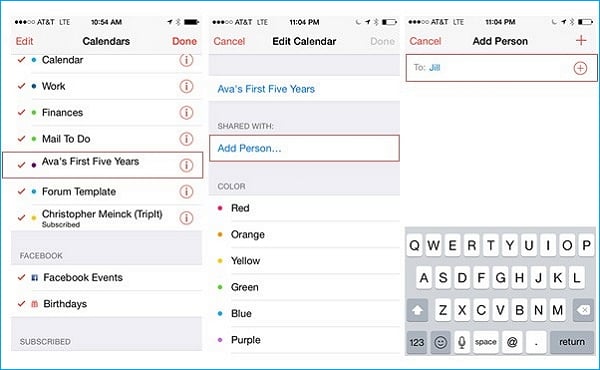
Step 4. Enter the person's name or email address in the box, then tap "Add" in the top right corner of your screen, followed by tapping "Done" in the upper right corner.
Step 5. After sending the invite, your receiver will receive a notification asking them to accept your invitation. Once they accept, they'll be able to view and edit events, making it easy for them to stay up-to-date and make changes as needed.
Note: Apart from the method mentioned above, there is a more convenient way to share the calendar between iPhones.
Bonus Tip. How to Fix "iCloud Calendar Not Syncing" Issue
The "iCloud calendar not syncing" issue can be caused by various factors, but there are solutions to fix it. If you're experiencing this problem, you can try resolving it with the help of the solutions provided, which can also be useful for fixing other common iPhone issues like being unable to download apps.
1. Check your Apple ID
To sync your iOS devices, ensure you're logged in with the same Apple ID on all devices you want to sync. Check this by going to your iPhone's Settings, tapping on your name, and verifying that your Apple ID is consistent across all devices.
2. Switch on Calendars option
If your Calendar option is disabled in iCloud, you won't be able to sync your iCloud calendar. To fix this, go to Settings > [your name] > iCloud and turn on the Calendars option. This also applies to issues like iPhone contacts not syncing.
3. Refresh the Calendars App
To fix the "iCloud calendar not syncing" issue, you can refresh the calendar on your iPhone by opening the Calendar app, clicking Calendars at the bottom of the screen, and performing a pull-to-refresh on your device.
4. Check the calendar settings
Setting the calendar incorrectly may be a factor in the "iCloud calendar not syncing" issue. To resolve this, go to Settings > Calendar > Sync and select "All Events" to sync with your iPhone.
Note: If you're experiencing syncing issues between your iPhone/iCloud calendar and your Mac, try the following solution: On your Mac, go to System Preferences > iCloud > Options > Calendar, then select the calendar you want to sync and click 'Sync'. This should resolve the issue.
Conclusion
By reading our post, you should now have a comprehensive understanding of how to access and manage your iCloud calendar. This guide covers a wide range of tips, making it easy to manage your calendars. If you'd like to manage them in one tool, Qiling MobiMover is a great option. With it installed on your PC or Mac, you can easily transfer calendars from iPhone to Mac or vice versa, or delete calendars with just one click, making it a valuable tool to have.
Related Articles
- How to Batch Convert HEIC to JPG in 4 Ways
- How to Transfer Contacts from iPhone to Huawei in 2 Simple Ways
- How to Extract Music from iPhone to PC with Ease
- How to Import Videos from iPhone to PC
Products
Articles & Tutorials
- Data Recovery
- Data Backup
- File Recovery
- File Backup
- System Backup and Restore
- Disk and Partition Clone
- Technical articles
- Mobile articles
- Disk Master Help
- Windows Data Recovery Tutorials
- Windows Secure Delete Tutorials
- Windows Partition Management Tutorials
- Windows File Backup and Restore Tutorials
- Windows System Backup and Restore Tutorials
- Windows Disk Backup and Restore Tutorials
- Windows Clone Tutorials