How to Import Videos from iPhone to PC
Five easy and proven ways on how to transfer videos from iPhone to PC. You can also apply them to transfer photos from iPhone to computer.
Transferring videos from your iPhone to your PC or laptop is a great way to free up space on your device, especially if you take a lot of videos using your iPhone. This can help you declutter your iPhone's storage and keep it running smoothly. To do this, you can use a cable to connect your iPhone to your PC or laptop and transfer the videos using the built-in Photos app, or you can use cloud services like iCloud or Google Drive to upload your videos and then access them on your PC or laptop.
If you've saved videos on your iPhone that you don't want to lose, it's a good idea to transfer them to your computer to create a backup. This will ensure that your videos are safe in case something happens to your iPhone.
To edit your video, you can transfer it from your iPhone to a computer, and then use video editing software to make changes before sharing.
Whether you're looking to transfer videos from your iPhone to your PC for storage, editing, or sharing, this guide will walk you through the process, regardless of your specific reason for doing so.
How to Transfer Videos from iPhone to PC Directly
This software can recover various types of data including photos, videos, music, ringtones, contacts, messages, books, and more.
With the help of Qiling MobiMover, a versatile iPhone transfer software, you can easily transfer videos from your iPhone to a PC running Windows 10/8.1/8/7.
Qiling MobiMover not only helps with transferring data from iPhone to computer, but also works as an iOS content manager and video downloader, making it a convenient tool for various tasks.
- Transfer files from iPhone/iPad/iPod to PC and vice versa
- Sync data from one iPhone/iPad/iPod to another
- Access, view and manage iDevice content from the computer
- Download online videos using URL
To import movies, TV shows, and music videos from your iPhone to computer, follow these steps. If you want to transfer recorded videos, go to Picture > Album > Videos instead.
To import videos from iPhone to PC:
Step 1. To transfer videos from your iPhone to your PC, connect your iPhone to your PC, launch Qiling MobiMover, and select "Content Management" from the menu. Then, choose "Videos" from the list of categories and select your desired video type, such as "Movies", "TV Shows", or "Music Videos".
Step 2. To transfer all videos from your iPhone to your PC at once, select the videos you want to transfer and click the "Transfer to PC" button. If you want to transfer the videos to a specific location, click the "Custom Path" button and choose the desired location.
Step 3. Once the transfer is complete, navigate to the selected folder on your computer to verify the transferred items.
Unlike other methods, Qiling MobiMover allows you to import all your iPhone videos, including recorded videos, TV shows, movies, and music videos, to your computer, not just recorded videos.
Method 2: Easiest Way to Transfer Videos from iPhone to PC via Photos App
[Top 10] Best Twitch Clip Downloaders of 2021
In addition to transferring videos from iPhone to computer, you can also directly download videos from Twitch to your computer using some of the best Twitch clip downloaders listed in our guide.
How to Get Videos from iPhone to Computer Using iCloud Photos
iCloud helps transfer photos, videos, and other content between devices like iPhone, iPad, iPod Touch, Mac, and PC.
If you want to access your iPhone videos on your PC, using iCloud Photo Library is a good option, allowing you to download all your photos and videos to your computer wirelessly. However, this method syncs all items at once, so you can't selectively choose which videos to transfer. If you prefer to choose specific videos to transfer, using a third-party tool like Qiling MobiMover is a better choice.
To transfer videos from your iPhone to a PC, ensure that you're using the same Apple ID on all devices, they're connected to Wi-Fi, and you have sufficient iCloud space to save the videos. Then, follow one of the options: either use the Photos app on your iPhone to sync videos to your iCloud account and then access them on your PC, or use a third-party transfer app or software that supports iPhone-to-PC video transfer.
To get videos from iPhone to PC using iCloud Photos:
Step 1. To enable iCloud Photo on your iPhone, go to Settings, select your name, then iCloud, and finally Photos, turning the toggle switch next to iCloud Photo to the right. This will allow your iPhone to upload your photos to iCloud.
Step 2. To access your iPhone's contents on your PC, download and install iCloud for Windows on your computer, then sign in with the Apple ID used on the iPhone.
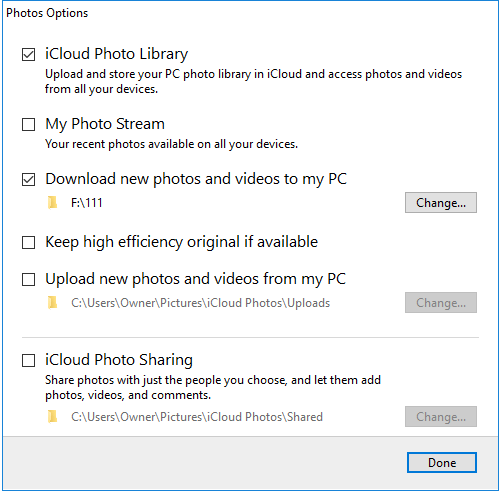
Step 3. To enable iCloud Photo Library, go to Settings > Photos, tap on Options next to Photos, and select iCloud Photo Library. This will automatically select the other two options, "Download new photos and videos to my PC" and "Upload new photos and videos from my PC".
Step 4. After downloading the video, tap "Done" and then click "Apply" to save the changes. You can also access all the new photos from the video by going to "This PC" > "iCloud Photos" > "Downloads".
If you don't want to install iCloud on your PC, you can also get your iPhone videos to computer via iCloud.com, by turning on iCloud Photo Library on your mobile device and visiting iCloud.com from your PC to download your videos.
There are other cloud-based storage services like Dropbox, OneDrive, and Google Drive that can be used to transfer a video from iPhone to PC, in addition to iCloud.
How to Get Videos Off iPhone Onto Computer via iCloud Drive
Videos stored in iCloud Photos can be up to 15 minutes long, but if you need to transfer larger videos from an iPhone to a PC, use iCloud Drive instead, as it allows files up to 50GB and doesn't exceed your iCloud storage limit.
To import videos from iPhone to PC via iCloud Drive:
Step 1. To enable iCloud Drive on your iOS device, go to Settings, select your Apple ID, then tap on iCloud, and scroll down to toggle on iCloud Drive.
Step 2. To share a file from your mobile device to your PC, find the file you'd like to send and tap the share icon. This will open up a list of available sharing options, including the option to share the file to your PC via the Your Phone app.
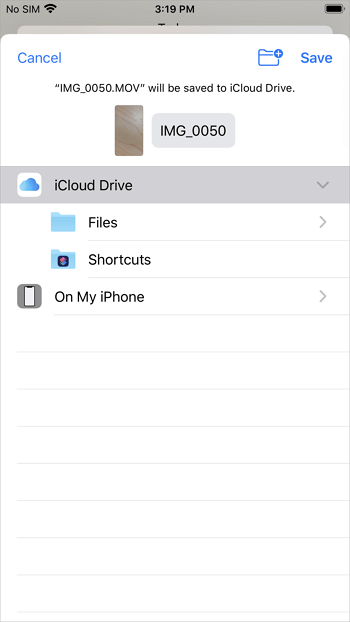
Step 3. To save the item, select "Save to Files" and then choose "iCloud Drive" from the dropdown menu. From there, select or create a folder in iCloud Drive to save the item.
Step 4. To access iCloud.com on your PC, navigate to the website and sign in with the Apple ID used on the iPhone.
Step 5. To access the large videos, go to "iCloud Drive" and select the folder where you saved the videos.
Step 6. To select and download large videos from your iPhone to your PC, you can use a cable and the Photos app on your PC. First, connect your iPhone to your PC using a USB cable.
How to Transfer Photos and Videos from an iPhone to PC via Photos
On Windows 8, 8.1, and 10, the Photos app allows you to manage and import photos and videos from an external device, such as an iPhone, using a USB cable, making it easy to transfer photos and videos from iPhone to PC.
There is a Photo app on Mac that can also be used to transfer photos from iPhone to Mac.
To import videos from iPhone to PC with the Photos app:
Step 1. To get your PC to recognize your phone, first turn your phone on and unlock it. This will enable your PC to detect your device.
Step 2. To fix the issue, turn your phone on and unlock it. Your PC can't find the device if the device is locked.
Step 3. To open the Photos app on your PC, select the "Start" button and then select Photos.
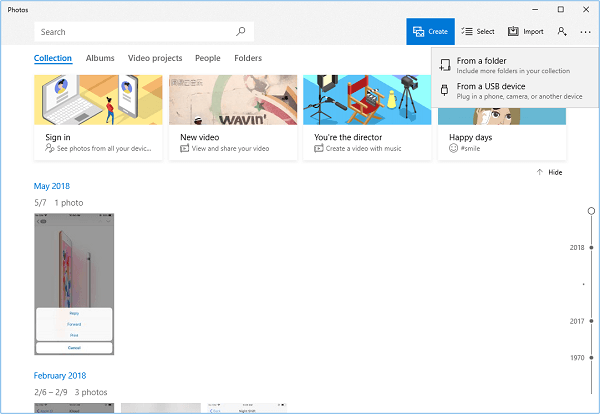
Step 4. To import items from a USB device, select the "Import" option and choose "From a USB device" from the dropdown menu. Follow the on-screen instructions to pick the items you want to import and select where to save them, allowing a few moments for detection and transfer.
How to Import Videos from iPhone to PC via File Explorer
The File Explorer in Windows 10 allows you to import videos from your iPhone to your computer by recognizing your iOS device via a USB connection, enabling you to transfer videos from your iPhone onto your computer.
To copy iPhone videos to PC without iTunes:
Step 1. Connect your iPhone to your PC.
Step 2. To unlock your iPhone, enter your password and tap on "Trust" on your iPhone to trust the computer.
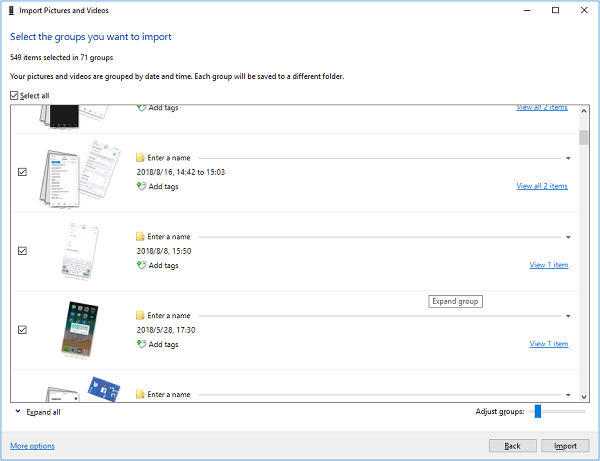
Step 3. To import pictures and videos from your iPhone to your computer, open "This PC", find your iPhone listed, right-click on your device name, and select "Import pictures and videos".
Step 4. When using an app for the first time, select "Review, organize, and group items to import" to organize your data. Otherwise, choose "Import all new items now" to import everything at once. Tap "Next" to proceed.
Step 5. To transfer videos from your iPhone to your computer, select the desired videos and click "Import" to start the process. Alternatively, navigate to "This PC" > [your iPhone name] > "Internal Storage" > "DCIM" > "100APPLE" on your computer, and copy the videos directly from your iPhone to your computer.
Transferring videos from iPhone to PC is a straightforward process, with several methods available. You can use Qiling MobiMover to transfer videos, or simply use iCloud to upload and download them. If you're a Windows user, you can also use iTunes to transfer videos. Additionally, if you're a Mac user, you can use AirDrop to transfer videos between devices.
The Bottom Line
Let's briefly compare these methods here.
Method 1 gives you more freedom in selecting the type of video you'd like to transfer, including videos taken by your iPhone camera, TV shows, movies, and music videos, making it more convenient to choose specific items to copy.
Methods 2 and 3 are suitable for syncing iPhone videos to a computer wirelessly, but require monitoring of iCloud storage.
If you prefer to import all your iPhone photos and videos to your PC, the other two methods are a better choice.
Carry out the method best suited to your needs.
Related Articles
- How to Delete Videos and Movies from iPad
- How to Delete Recent Contacts on iPhone and Manage iPhone Contacts Better?
- How to Back Up Text Messages on iPhone in 3 Proven Ways
- How to Convert YouTube Playlist to MP3
Products
Articles & Tutorials
- Data Recovery
- Data Backup
- File Recovery
- File Backup
- System Backup and Restore
- Disk and Partition Clone
- Technical articles
- Mobile articles
- Disk Master Help
- Windows Data Recovery Tutorials
- Windows Secure Delete Tutorials
- Windows Partition Management Tutorials
- Windows File Backup and Restore Tutorials
- Windows System Backup and Restore Tutorials
- Windows Disk Backup and Restore Tutorials
- Windows Clone Tutorials