How to Delete Recent Contacts on iPhone and Manage iPhone Contacts Better
Quick Navigation:
- Part 1. How to Delete Contacts from iPhone
- Part 2. How to Remove Recents from iPhone
- Tip 1. Remove Recents from the Phone app
- Tip 2. Remove Recents from the Message app
- Part 3. How to Delete Multiple Contacts from iPhone
Managing your iPhone contacts is crucial for social interaction with family, friends, colleagues, partners, classmates, or others. To handle them more carefully, you can utilize the "Recents" feature in the Phone and Messages apps, which logs incoming calls, missed calls, and calls you made, as well as recently texted contacts. However, if you want to remove Recents from your iPhone, we'll discuss how to do that in this article.
Part 1. How to Delete Contacts from iPhone
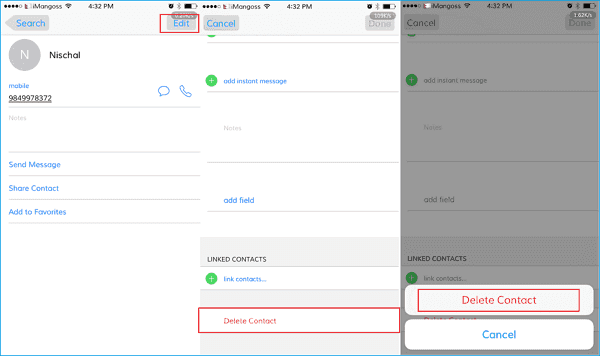
Deleting contacts from an iPhone is a straightforward process using the Contact app, but unfortunately, iPhone doesn't allow mass deletions. If you need to delete multiple contacts, you'll have to follow a guide to achieve this.
Step 1. Unlock your iPhone and enter the Contact app.
Step 2. To delete a contact on an iPhone, find the contact you want to delete and tap on it, then tap on the "Edit" button in the top right corner.
Step 3. To delete a contact on an iPhone, scroll down to the bottom of the contact's information to find the "Delete Contact" option.
Part 2. How to Remove Recents from iPhone
To remove Recents from your iPhone, go to Settings > Messages > and toggle off "Show in Recents" and "Show in Messages Suggestions". This will prevent your call log from appearing in the "Recents" tab and suggested contacts from appearing when typing in the Messages app.
Tip 1. Remove Recents from the Phone app
Step 1. Open the "Phone" app on your iPhone and find the Recents tab.
Step 2. To delete a record from Recents, find the record you want to delete, swipe left over it, and then tap "Delete" to remove it from your Recents.
Tip 2. Remove Recents from the Message app
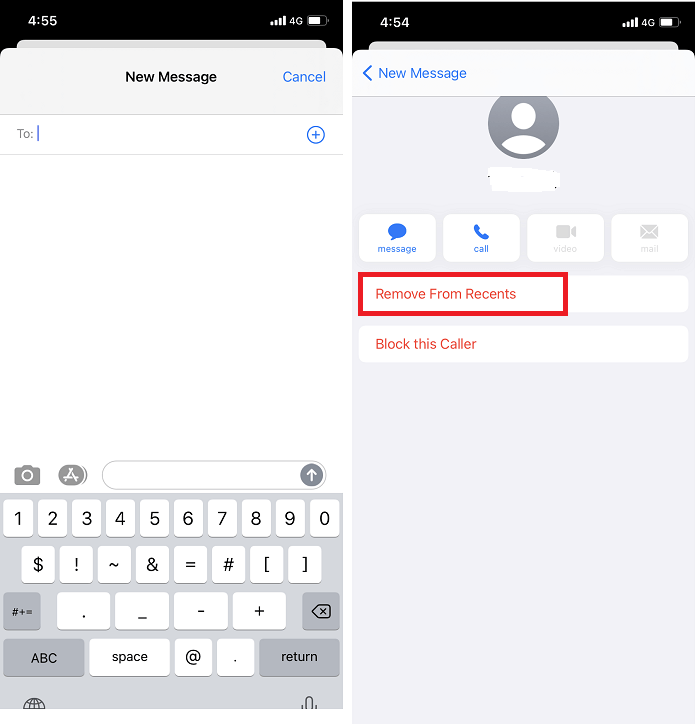
Step 1. Open the "Message" app on your iPhone.
Step 2. Click "All Message" and the edit icon on the top right corner.
Step 3. To remove a contact from recent contacts, enter the phone number or name of the contact, and if a suggested contact appears, tap the "Information" icon and then tap "Remove from Recents".
Part 3. How to Delete Multiple Contacts from iPhone
Unfortunately, there is no batch deletion option in the Contacts app on iPhone, so you can't delete multiple contacts at once. However, you can use a third-party tool like Qiling MobiMover to delete multiple contacts from your iPhone from your PC. This tool allows you to edit and delete contacts efficiently and quickly, although you'll need to operate it on your computer.
Step 1. Connect your iPhone to your computer with a USB cable, then launch Qiling MobiMover and click on "Content Management" > "Contacts" to access your iPhone's contacts.
Step 2. Select all contacts by clicking "Select All" or choose specific contacts by checking the box next to them. Then, click "Delete" to remove the selected contacts. Before deleting, it's recommended to back up the contacts by clicking "Transfer to PC".
Step 3. A confirmation window will appear asking if you want to delete the selected items. Click "Yes" to confirm the deletion.
You can select all or multiple contacts and transfer them to your PC for backup. The contacts can be saved in Html, CSV, or vCard. This allows you to import the backup later if you lose your contacts or change phones, getting all your contacts back.
This guide shows you how to delete contacts on iPhone, remove recent contacts, and delete multiple contacts using Qiling MobiMover, a tool that helps you manage and transfer iPhone/iPad data. With its features, you can keep your iOS data organized and have a try if you need help with managing your iPhone data.
Related Articles
- How to Strip Audio from Video on Windows/Mac/iPhone/Android
- How to Back Up WhatsApp on iPhone Without iCloud
- How to Transfer Data from iPhone 4/5/6 to iPhone 8 in 4 Ways
- 3 Tips to Transfer Music from iPod to Mac in Detail
Products
Articles & Tutorials
- Data Recovery
- Data Backup
- File Recovery
- File Backup
- System Backup and Restore
- Disk and Partition Clone
- Technical articles
- Mobile articles
- Disk Master Help
- Windows Data Recovery Tutorials
- Windows Secure Delete Tutorials
- Windows Partition Management Tutorials
- Windows File Backup and Restore Tutorials
- Windows System Backup and Restore Tutorials
- Windows Disk Backup and Restore Tutorials
- Windows Clone Tutorials