How to Bypass Apple ID in 4 Ways - Detailed Tutorial
Quick Navigation:
- Part 1. Bypass Apple ID with an Apple ID Removal Tool Qiling MobiUnlock
- Part 2. Remove Apple ID from iCloud.com
- Part 3. Ask Apple Support to Remove the Activation Lock with the Original Purchase Receipt
- Part 4. Bypass Apple ID using iCloud DNS
- Conclusion
When setting up an iPhone, you may be prompted to enter the Apple ID and password if the iCloud Activation Lock is enabled. However, if you've forgotten your Apple ID password or are unsure of the Apple ID password for a second-hand iPhone, you'll need to bypass the Apple ID. Fortunately, there are 4 possible ways to resolve this issue, which will be discussed in this article.
Part 1. Bypass Apple ID with an Apple ID Removal Tool Qiling MobiUnlock
The Activation Lock can be a frustrating security feature, especially when you've forgotten your Apple ID or purchased a second-hand iPhone with the previous owner's ID still signed in. In these situations, you need to bypass the Apple ID password to use the device, which can be inconvenient and time-consuming. However, it's worth noting that the Activation Lock was created by Apple to improve the security of iOS devices and prevent theft, making it a worthwhile trade-off for many users.
Qiling MobiUnlock is a tool that can unlock an iPhone without a password, remove the current Apple ID, and sign in with a new one, all within a few simple steps.
Key Features of Qiling MobiUnlock:
- Unlock screen to regain access to your iOS device
- Bypass iCloud Activation Lock without Apple ID
- If you want to sign out of your Apple ID without a password and log in with a new Apple ID, you can follow these steps: Go to Settings > [your name] > Sign Out. Tap on "Sign Out" again to confirm.
- Turn of Screen Time on iPhone without password
- Remove iTunes backup encryption
- View Wi-Fi password on iPhone
- Find saved website and app passwords on iPhone
Note: Before proceeding with these steps, make sure you can unlock your device to trust this computer.
Step 1. Qiling MobiUnlock allows iPhone users to unlock their Apple ID, allowing them to access and use their device without any restrictions. To do this, start the app on your PC, connect your iPhone to the PC using a USB cable, and then select the "Unlock Apple ID" option to proceed.
Step 2. Qiling MobiUnlock will recognize your iPhone. Click "Start" to proceed.
Step 3. To unlock your device, you will see a popup with important information. Please read and understand it to avoid any unwanted data loss. Then, enter the code "777777" in the box and click "Unlock" to proceed.
Step 4. Qiling MobiUnlock will download the firmware for your iPhone. Once the firmware is ready, you can click "Unlock Now" to remove the Apple ID from your iPhone.
Step 5. After the process is complete, you can access your iPhone and sign in with your new Apple ID.
Part 2. Remove Apple ID from iCloud.com
If you got a used iPhone and are unable to bypass the previous Apple ID when setting it up, a possible solution is to ask the previous owner to erase the iPhone and remove it from their iCloud account. This will disable the Activation Lock, allowing you to set up the iPhone with a new Apple ID.
Erasing an iPhone from iCloud will remotely wipe the device and lock it with the original Apple ID, while "Remove from Account" only temporarily removes the device. To completely bypass the Apple ID, the previous owner must erase the device and remove it from their account. To avoid data loss, users can transfer files from the iPhone to a PC using Qiling MobiMover before taking these steps.
Below is what the previous owner should do.
Step 1. To access iCloud.com, go to the website and sign in with the Apple ID that was used on your device, allowing you to view and manage your iCloud data from a web browser.
Step 2. Click "Find iPhone" and sign in with your iCloud account again. A two-factor code will be requested to complete the sign-in.
Step 3. To erase an iPhone, click "All Devices" and select the iPhone. Then, click the phone icon and select "Erase iPhone" from the options. Follow the on-screen instructions to complete the process, without entering a phone number or message.
Step 4. After erasing the iPhone, it will go offline, and when you refresh the Find My page, you'll see a "Remove from Account" option, which you can click to complete the erasure process.
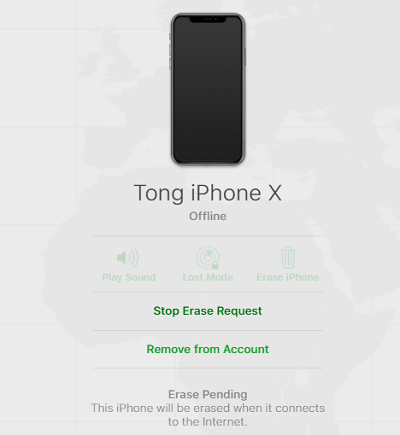
After the iPhone is connected to the computer, its content will be erased and the Activation Lock will be removed, allowing you to sign in with your Apple ID. However, if the method doesn't work due to a server error, you can consider using Qiling MobiUnlock.
Part 3. Ask Apple Support to Remove the Activation Lock with the Original Purchase Receipt
If you bought a used iPhone from a seller, they may ask for the purchase receipt, which should include the iPhone's serial number, to verify the device's ownership. This is a precautionary measure to ensure the buyer can get support from Apple if something goes wrong with the iPhone. If you have the receipt, you can schedule an appointment and visit an Apple Support store, where they will help you remove the Activation Lock from the device.

Part 4. Bypass Apple ID using iCloud DNS
Some articles and YouTube videos claim that it's possible to bypass Apple ID using the iCloud Bypass DNS Server, with a detailed tutorial available online.
If you're interested in this method, you can check it out. However, please note that we can't guarantee its effectiveness as we've only just come across it and haven't tested it yet. It's essential to think carefully and consider the potential limitations before trying this approach.
Conclusion
After you read the article, you've known the 4 possible methods you can use to bypass Apple ID. You can choose the proper method based on the specific condition. Below is a summary of preconditions for you.
If you can contact the previous owner of the device, you can ask them to sign out of the Apple ID or unlock the device remotely via iCloud.com. This will allow you to regain control of the device and use it as intended.
If you have a purchase receipt with the serial number from an authorized seller, you can visit an Apple Store to resolve the issue of a forgotten Apple ID. They may be able to help you recover your account using this information.
If you know the device password, you can use Qiling MobiUnlock to bypass the Apple ID, allowing you to access your device without entering the Apple ID credentials.
If you're feeling adventurous and tech-savvy, you can try using iCloud DNS to bypass some of its restrictions, but be aware that this is not recommended as it may void your warranty and potentially cause issues with your device. However, if you're still interested, you can use a third-party DNS service like Google's or Cloudflare's, and enter the following iCloud DNS addresses: 176.
Hope you can get this problem solved with any of the solution provided in this article.
Related Articles
- How to Hack Screen Time to Get around Screen Time Limits
- How to Unlock iPhone with/without Siri
- How to Factory Reset iPhone Without Passcode or iTunes
- Top 4 Practices for NTBackup in Windows Server 2003
What is NTBackup in Windows Server 2003? Read this article patiently to learn more and the top 5 practices for it. And you can also do these backup and restore tasks easily with another software.
Products
Articles & Tutorials
- Data Recovery
- Data Backup
- File Recovery
- File Backup
- System Backup and Restore
- Disk and Partition Clone
- Technical articles
- Mobile articles
- Disk Master Help
- Windows Data Recovery Tutorials
- Windows Secure Delete Tutorials
- Windows Partition Management Tutorials
- Windows File Backup and Restore Tutorials
- Windows System Backup and Restore Tutorials
- Windows Disk Backup and Restore Tutorials
- Windows Clone Tutorials