How to Download Music to iPhone in 7 Ways
After reading this article, you will learn seven ways on how to download music to iPhone. You can transfer music from your computer to your iPhone using iTunes, or download music directly to your iPhone using the Music app.
Music streaming services like Apple Music, Spotify, Google Play Music, and Amazon Music offer the convenience of listening to music online without taking up device storage. However, this convenience comes with drawbacks, such as being unable to listen to music when there's no internet connection, or experiencing buffering issues when the network connection is poor.
To download music to your iPhone, you can use the Music app, which comes pre-installed on your device. Simply open the Music app, search for the song or album you want to download, and tap the "Download" button. You can also download music from the iTunes Store, which offers a wide selection of songs, albums, and playlists. Additionally, if you have a subscription to Apple Music, you can download music for offline listening, and it will be available in the Music app.
- Part 1. How to download music to iPhone from computer (4 ways)
- Part 2. How to download music on iPhone directly (3 ways)
Part 1. How to download music to iPhone from Computer
There are four different ways for you to enrich your iPhone music library by transferring or downloading songs to iPhone from computer. You can use iTunes to sync and transfer music from computer to iPhone, download songs from the iTunes Store, use the Music app to download songs from iCloud Music Library, or use a third-party app to transfer music from computer to iPhone.
Method 1. How to download music to iPhone without iTunes for free
With Qiling MobiMover, you can add music to your iPhone from computer without using iTunes, and also transfer music between iOS devices. This software allows you to transfer various types of files, including music, photos, videos, contacts, and messages, making it a convenient tool for managing your iOS device's content.
To download music from computer to iPhone without iTunes:
Step 1. Connect your iPhone to your computer, launch Qiling MobiMover, and go to "PC to Phone" > "Select Files" in the app.
Step 2. Select the music files you want to transfer to iPhone and click "Open" to continue.
Step 3. Check the box and click "Transfer" to start transferring music from your PC to your iPhone. Once done, open the Music app on your iPhone to verify the transferred songs.
You can add various files like photos, videos, books, and more to your iPhone alongside songs using Qiling MobiMover. This tool also allows you to download videos from websites like YouTube, Vimeo, Facebook, and others to your computer or iPhone/iPad, enabling you to save and watch videos offline.
Method 2. How to save music to iPhone from a website
You can download online songs to your iPhone using the video download feature in Qiling MobiMover, a tool that not only allows you to save online videos to your computer or iDevice but also enables you to directly save online music to your iPhone.
The video download feature is completely free to use, allowing you to download songs from various music sites to your iPhone and enjoy them offline without any cost.
To download songs to your iPhone from websites, you can use a third-party app or a browser extension. Some popular options include Soundi, SoundCloud Downloader, and TubeMate.
Method 3. How to download music to iPhone from iTunes
If you have a large collection of songs in your iTunes library, you can download them to your iPhone using iTunes. However, be aware that syncing your iTunes library with your iPhone will replace any existing songs, movies, and media files currently on your device, potentially leading to data loss. If you want to avoid this, consider exploring alternative methods instead.
To download music to iPhone with iTunes:
Step 1. To update iTunes, go to the official website of iTunes, click on the "Download iTunes" button, and follow the instructions to install the latest version. Once you have the latest version, you can proceed with the steps to remove the old version and then install the new one.
Step 2. If the music you want to download to your iPhone isn't in the iTunes library, you can add it by going to "File" > "Add File to Library".
Step 3. Connect your iPhone to the computer using a USB cable and run iTunes if it doesn't launch automatically.
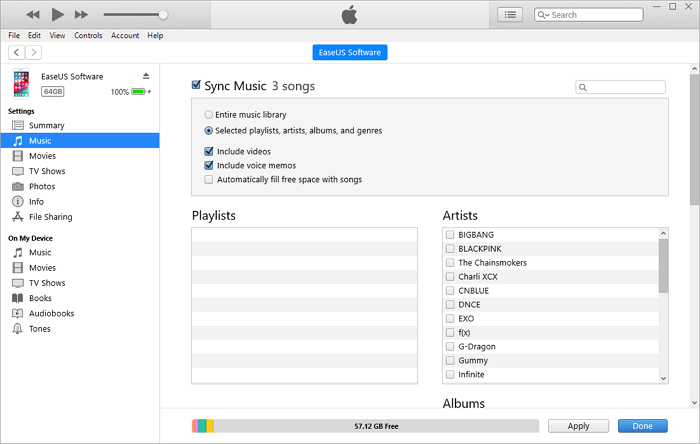
Step 4. Click the device icon and click the "Music" option.
Step 3. Select "Sync Music" and confirm by clicking "Remove and Sync" in the warning window.
Step 4. To add the entire music library or specific playlists, artists, albums, and genres to your iPhone, you can select either "Entire music library" or "Selected playlists, artists, albums, and genres". If you choose the latter, you will need to manually pick the specific playlists, artists, and albums you want to transfer.
Step 5. To start downloading music to your iPhone using iTunes, click "Apply" and then "Sync".
Step 6. Once it has finished, go to the "Music" section on your iOS device, then tap on "Library", followed by "Songs" to verify the music.
You can also download music to your iPhone from iTunes via Wi-Fi.
Step 1. Set up Wi-Fi syncing on your computer.
- Connect the iPhone to the computer and launch iTunes.
- Click the device icon and choose "Summary".
- To sync your iPhone with your computer, go to the "Options" section, select "Sync with this iPhone over Wi-Fi", and click "Apply".
Step 2. Make sure iTunes is still running and your iPhone is plugged in to power.
Step 3. Turn on iTunes Wi-Fi sync on iPhone.
- Go to "Settings" > "General" > "iTunes Wi-Fi Sync".
- Click "Sync Now" to start adding music to your iPhone.
When you sync your iPhone or iPad with iTunes, it will also sync other files from your iTunes library to your device, in addition to syncing your music. This means that other types of files, such as movies, TV shows, and podcasts, will be transferred to your iOS device during the syncing process.
Method 4. How to download music from YouTube to iPhone
You can download music from YouTube to your computer using certain services or tools, and then transfer the downloaded songs to your iPhone using software like Qiling MobiMover.
You can download music to your iPhone by using the Music app, which comes pre-installed on the device. To do this, open the Music app and navigate to the "Library" tab.
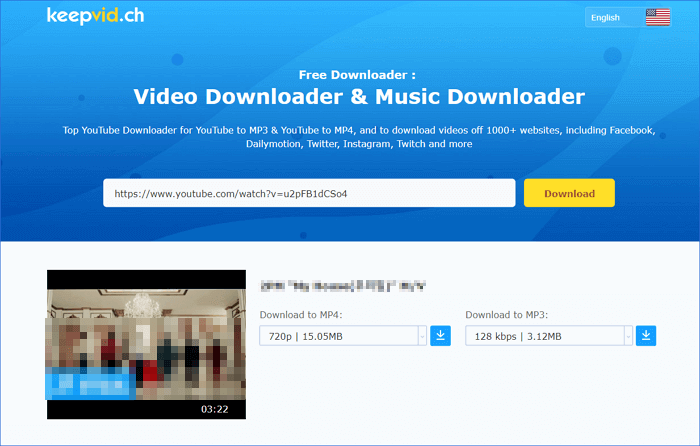
You can download music from YouTube using online tools like Keepvid. To use it, simply copy the YouTube video URL, go to Keepvid, paste the URL, select the desired format and quality, and click "Download" to start the download process.
Step 1. To find a playlist with your favorite tracks, go to YouTube and copy the URL of the video that contains the tracks you like. This will allow you to create a playlist with those specific songs.
Step 2. To download videos from the internet, go to Keepvid (https://keepvid.ch/) and paste the URL of the video you want to download into the address bar.
Step 3. To download music from YouTube, click on the "Download" button under "Download to MP3" option.
Step 4. After using the method to transfer data from your old phone to your new iPhone, you can then follow method 1 to put music on your iPhone using the iOS data transfer tool.
Part 2. How to download music on iPhone directly
All the methods mentioned above are free to use but require a computer to help. Alternatively, if you prefer wireless solutions and want to download music directly to your iPhone, you can opt for the paid options.
Method 1. How to download music on iPhone via Apple Music
To download songs directly on an iPhone without a computer, you can simply download music from Apple Music to your device. With an Apple Music subscription, you can freely access and download music to your iPhone.
To download music on iPhone:
Step 1. Make sure you are an Apple Music subscriber.
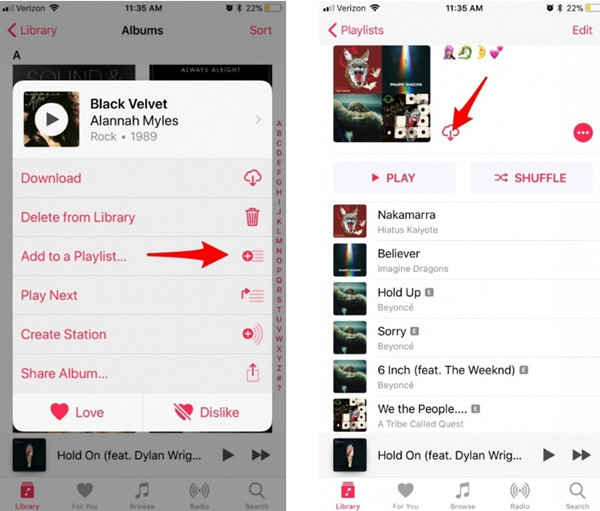
Step 2. Open the "Music" app on your iPhone.
Step 3. Search and find the song you want to add to your iPhone.
Step 4. To add a song to your music library, click the "Add" button.
Step 5. To download the music to your iPhone, click the "Download" button. This will allow you to access and listen to the music offline.
Method 2. How to download music in iPhone via Spotify
Spotify is a leading music streaming service that allows you to browse and play music. However, Spotify Premium users can download Spotify songs for offline listening by toggling the "Download" icon on their phone.
To download music in iPhone from Spotify:
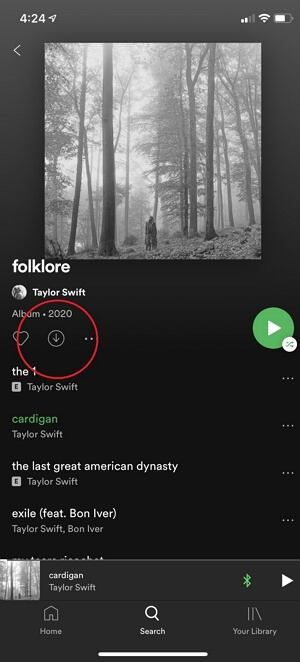
Step 1. Go to the playlist or album you want to download to your iPhone.
Step 2. Tap the download icon to starting downloading songs.
Step 3. When the icon becomes green, the download has been completed.
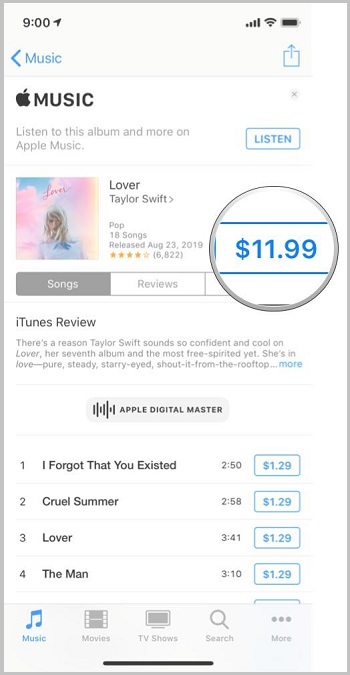
Method 3. How to add music to iPhone from iTunes Store
You can also download music directly to your iPhone by purchasing songs or albums from the iTunes Store, which allows you to own the music forever, unlike Apple Music where the music expires if you cancel the subscription.
To download music to iPhone from iTunes Store:
Step 1. Go to "iTunes Store" on your iPhone.
Step 2. Tap "Music" at the bottom of the screen.
Step 3. The music you like can be found on music streaming services such as Spotify, Apple Music, or Google Play Music. To purchase music, you can tap on the price of the song or album you're interested in, which will typically direct you to the music store's purchase page.
Step 4. To add music to your iPhone and listen offline, purchase items from the "Apple Music" app and they will appear in the app. You can then click the "Download" button to download the item to your iOS device. This allows you to listen to the music without an internet connection.
The bottom line
Downloading music to an iPhone can be done in several ways, including using the iTunes Store, Apple Music, and third-party apps like Spotify and Google Play Music. These tools allow users to browse and purchase music, as well as stream it directly to their device. Additionally, users can also apply these methods to download music to their iPad or iPod, making it easy to access their favorite tunes across various Apple devices.
I hope one of these tips will help you successfully.
Related Articles
- 7 Ways to Transfer MP3 to iPhone from PC or Mac
- How to Extract Music from iPhone to PC with Ease
- The Best Free Crucial SSD Data Transfer Software
The best free Crucial SSD data transfer software can transfer data to Crucial SSD and ensure the cloned disk boot securely. Please keep reading. - Step-by-Step Guide for Dell XPS 8910 SSD Upgrade
This tutorial presents how to perform Dell XPS 8910 SSD upgrade step by step and provides the best disk cloning software to help you.
Products
Articles & Tutorials
- Data Recovery
- Data Backup
- File Recovery
- File Backup
- System Backup and Restore
- Disk and Partition Clone
- Technical articles
- Mobile articles
- Disk Master Help
- Windows Data Recovery Tutorials
- Windows Secure Delete Tutorials
- Windows Partition Management Tutorials
- Windows File Backup and Restore Tutorials
- Windows System Backup and Restore Tutorials
- Windows Disk Backup and Restore Tutorials
- Windows Clone Tutorials