How to Download iCloud Photos to PC
Quick Navigation:
- Why Do You Need to Download iCloud Photos to PC
- How to Access iCloud Photos on PC
- How to Download Photos from iCloud to PC
- Option 1. Download iCloud Photos to PC via iCloud.com
- Option 2. Download Photos from iCloud to PC via iCloud for Windows
- How to Download Photos from iPhone/iPad to PC Directly
- The Bottom Line
Why Do You Need to Download iCloud Photos to PC
To avoid the "Not Enough Storage" notification when using iCloud Photos, download photos from iCloud to a PC, and then delete them from iCloud to free up space.
Some users may need to transfer photos between an iPhone and a PC by syncing photos from iPhone to iCloud first, and then downloading them from iCloud to PC.
Regardless of the reason, you can access and download your iCloud photos by following the steps outlined below.
How to Access iCloud Photos on PC
You can access your iCloud photos on a Windows computer in two ways: through the iCloud website at iCloud.com, which allows you to view your photos online as long as you have a network connection, or by using the iCloud control panel, which enables you to download files from iCloud to your PC automatically.
How to Download Photos from iCloud to PC
To access your iCloud photos on your computer, you can either use the iCloud for Windows app to download them to your computer, or you can use a third-party app to download them. The iCloud for Windows app allows you to access your iCloud photos on your computer, but you'll need to have the app installed and set up on your computer.
Option 1. Download iCloud Photos to PC via iCloud.com
If you don't want to use iCloud for Windows, you can go to iCloud.com to download photos from iCloud to your PC directly.
To get photos from iCloud to PC:
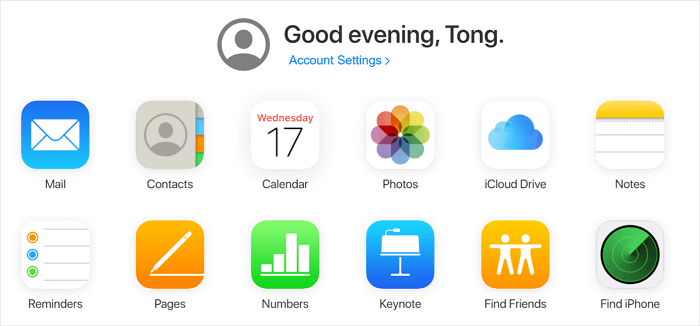
Step 1. Go to iCloud.comand sign in.
Step 2. Choose "Photos" and then you will see all your iCloud pictures.
Step 3. Select the photos you'd like to download and click the "Download" button to transfer them to your computer.
Step 4. Once the ZIP file has been downloaded, you can extract the contents by right-clicking on the file and selecting "Extract" from the context menu. This will create a new folder containing the contents of the ZIP file.
Option 2. Download Photos from iCloud to PC via iCloud for Windows
If you have installed iCloud for Windows, also known as the iCloud control panel, on your PC, you can set up your computer to automatically download photos from iCloud to your PC.
To download photos from iCloud to PC:
Step 1. Download and install iCloud for Windows on your PC.
Step 2. Right-click the iCloud icon on your taskbar and choose "Open iCloud Settings."
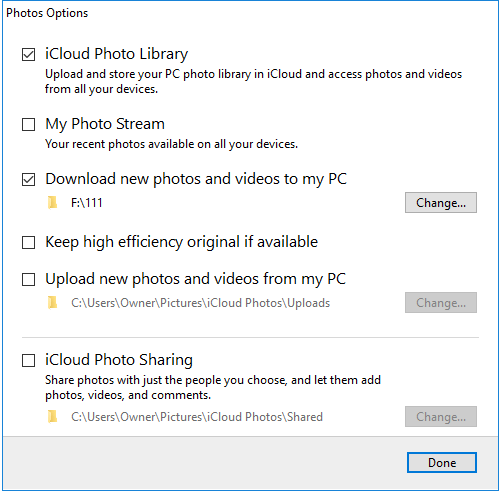
Step 3. Check the "Photos" option and click "Options" next to it.
Step 4. To enable iCloud Photo Library and download new photos and videos to your PC, go to Settings > [your name] > iCloud > iCloud Photos, and toggle the switch to the right. Then, on your PC, go to Settings > Account > iCloud > Photos, and toggle the switch to the right. This will allow your PC to access and download new photos and videos from your iCloud account.
You can download iCloud photos to your PC automatically. To access them, go to "This PC" > "iCloud Photos" > "Downloads" and view all your iCloud photos and videos. Alternatively, right-click iCloud and choose "Download Photos" to move them to your PC.
To clear up your iCloud storage, go to iCloud.com, select photos in iCloud, and click the "Delete" icon after downloading photos from iCloud to your PC. This will remove the selected pictures from iCloud.
How to Download Photos from iPhone/iPad to PC Directly
Transferring photos between an iPhone/iPad and a PC can be done more easily than using iCloud. A straightforward solution is to use iPhone data transfer software like Qiling MobiMover, which combines an iOS content manager and video downloader.
As an iOS content manager, it helps to:
- Transfer files between an iPhone/iPad/iPod and a computer
- Transfer files from one iPhone/iPad/iPod to another
- Back up and restore iPhone data
- Back up and restore WhatsApp chat history and attachments
Therefore, Qiling MobiMover can be a helpful tool for backing up or transferring iPhone files.
This video downloader allows you to save online videos to your computer or iPhone, enabling offline viewing. You can use it to download YouTube videos to your iPhone or save Facebook videos to your computer.
To transfer photos from iPhone/iPad to PC directly:
Step 1. Connect your iPhone to your PC with a USB cable, unlock your iPhone, and click "Trust" on the prompt. Then, launch Qiling MobiMover on your computer, select "Phone to PC" in the main interface, and click "Next" to start the backup.
Step 2. Select the "Pictures" category, then click the default path to set a custom storage path if needed. Then, click "Transfer" to start the backup process.
Step 3. When the transfer process is complete, you can view the backed-up photos on your computer and transfer them back to your iDevice as needed.
The Bottom Line
You can easily download iCloud photos to your PC, but it's even simpler to download photos from iCloud to your iPhone. While iCloud is great for syncing data across devices, it's not the best choice for transferring data to or from your iPhone. For frequent transfers, consider using a tool like Qiling MobiMover, which can help you transfer data between your iPhone, iPad, or iPod touch.
Related Articles
- How to Transfer Photos from iCloud to PC
- How to Transfer Data from iPhone to iPhone After Setup
- How to Backup Contacts on iPhone in 4 Proven Ways
- How to AirDrop Notes from iPhone to iPhone 8/iPhone X
Products
Articles & Tutorials
- Data Recovery
- Data Backup
- File Recovery
- File Backup
- System Backup and Restore
- Disk and Partition Clone
- Technical articles
- Mobile articles
- Disk Master Help
- Windows Data Recovery Tutorials
- Windows Secure Delete Tutorials
- Windows Partition Management Tutorials
- Windows File Backup and Restore Tutorials
- Windows System Backup and Restore Tutorials
- Windows Disk Backup and Restore Tutorials
- Windows Clone Tutorials