How to Lock Apps on iPhone X/iPhone 8/iPhone 7 in iOS 11
Quick Navigation:
- How to lock Apps on iPhone in iOS 11
- Part 1: How to lock Apps on iPhone X/8/7 with password
- Part 2: How to lock Apps on iPhone 8/8 Plus with Touch ID in iOS 11
- Part 3: How to lock Apps on iPhone X/iPhone 8/X with Restrictions
Locking Apps on your iPhone is a great way to protect your privacy, and it's essential to know how to lock a specific App to avoid others accessing it. This guide will help you learn how to lock Apps on your iPhone with a password or Touch ID, and the steps may vary depending on your iPhone model and iOS version. By following the tips in this article, you can keep your Apps secure and private, and for more information on using your iPhone, you can visit the iOS & Mac Topics section.
- Notice
- Looking for free software to transfer photos from iPhone to computer or vice versa? Read the article to find the solution.
How to lock Apps on iPhone in iOS 11
Part 1: How to lock Apps on iPhone X/8/7 with password
To lock Apps like Notes, you can easily make it with a password. To do this, you can go to the Settings app, then select the "Notes" app, and look for the "Passwords" or "Security" section. From there, you can set a password to protect the app, and also choose to require a password each time you open the app.
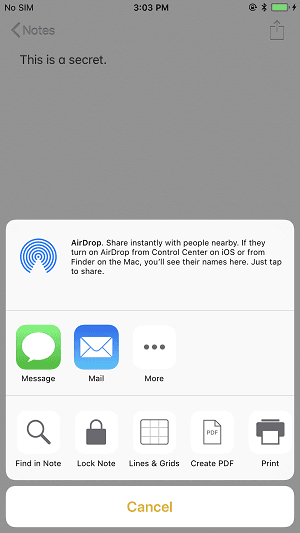
Step 1: Open Notes App on your iPhone 8/8 Plus/X.
Step 2: To lock a note, click on the note you want to lock and tap on the Share button.
Step 3: Tap on Lock Note and set the password for the note, then click Done.
Part 2: How to lock Apps on iPhone 8/8 Plus with Touch ID in iOS 11
To lock Apps on your iPhone using Touch ID, go to Settings, then Face ID & Touch ID & Passcode, select Touch ID & Passcode, enter your passcode, and then toggle the switch next to each App you want to lock. This will require your fingerprint to unlock each App.
Step 1: To use Touch ID on your iPhone 8/8 Plus, you need to set it up first. Go to Settings > Touch ID & Passcode and follow the prompts to enroll your fingerprint. This will allow you to use Touch ID to unlock your device and authenticate purchases.
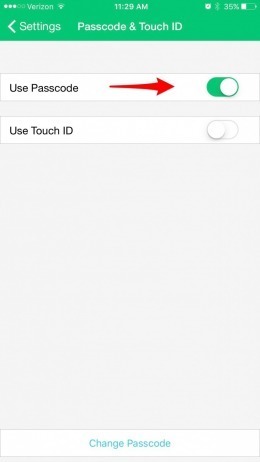
Step 2: To lock an App with Touch ID or fingerprint, go to the App's Settings, click on Passcode & Touch ID, and toggle on Use Touch ID. You can also choose to use a passcode to lock the App.
Part 3: How to lock Apps on iPhone X/iPhone 8/X with Restrictions
To completely hide an App on your iPhone X, iPhone 8 or iPhone 7 in iOS 11, you can lock Apps on iPhone via Restrictions. This feature allows you to block access to specific Apps, making them invisible on your device. To use this feature, go to Settings, select General, then Restrictions, and toggle on the switch next to "Don't Allow Apps" or "Allowed Apps Only". You can also set a passcode to protect the Restrictions settings.
Step 1: To turn off the iPhone, go to the Settings App on your iPhone X, iPhone 8 or iPhone 7. Tap on General, then Shut Down.
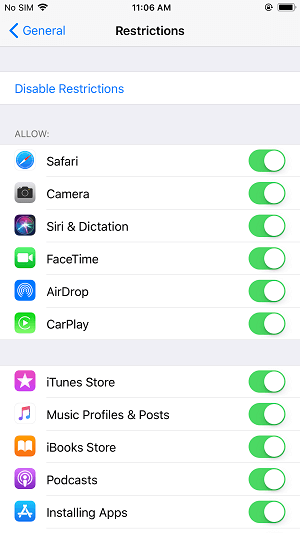
Step 2: Click General and then choose Restrictions.
Step 3: To enable restrictions, tap on the "Enable Restrictions" option, enter your restriction passcode, and confirm the password by entering it again.
Step 4: To hide apps on your iPhone X/8/8, toggle off the switch next to the app you'd like to hide, or to hide all downloaded apps, scroll down to the "Apps" section under "Allowed Content" and choose "Don't Allow Apps" or select a specific age group (4+, 9+, 12+, 17+) to hide apps selectively.
If you're experiencing issues with your iPhone Apps, you may encounter two common problems: Cannot Connect to App Store on iPhone in iOS 11 or Can't download Apps on iPhone/iPad. Fortunately, the solutions to both problems have been provided, and you can quickly learn how to fix them by reading the related article.
Related Articles
- How to Fix YouTube Videos Keep Buffering on Windows/Mac/iPhone
- What is Apps & Data Screen and How to Get It
- Set Emergency Contact on iPhone with An Easy Method
- How to Split Local Disk in Windows 11, 10, 8, 7?
Wanna split local disk in Windows 10? Here we introduce two ways to separate local disk into multiple partitions in Windows 11, 10, 8, 7.
Products
Articles & Tutorials
- Data Recovery
- Data Backup
- File Recovery
- File Backup
- System Backup and Restore
- Disk and Partition Clone
- Technical articles
- Mobile articles
- Disk Master Help
- Windows Data Recovery Tutorials
- Windows Secure Delete Tutorials
- Windows Partition Management Tutorials
- Windows File Backup and Restore Tutorials
- Windows System Backup and Restore Tutorials
- Windows Disk Backup and Restore Tutorials
- Windows Clone Tutorials