3 Simple Ways to Open HEIC File on Mac
Quick Navigation:
- Part 1. How to Convert HEIC to JPG on Mac
- Part 2. How to Open HEIC Files on Mac
- 1. Using the Preview App
- 2. Using the Photos App
- In Conclusion
HEIC is a photo format that allows for smaller, higher-quality photos on iOS devices, making it convenient for users to store and share photos on iOS devices running iOS 11 or later.
If you want to open HEIC images on different platforms like Mac, especially macOS versions before 2017's High Sierra that doesn't support HEIC format, you can convert them to JPEG or PNG format. This way, you can open them on any platform. You can also use online tools or software like Adobe Lightroom, Preview, or HEIC Converter to convert HEIC files to other formats.
If you're having trouble converting HEIC files to JPG on a Mac, you can use a converter to help with the process. Alternatively, if you just want to view HEIC files on a Mac, you can follow the steps outlined in Part 2 to do so.
Part 1. How to Convert HEIC to JPG on Mac
To open HEIC files on all Macs, including those before High Sierra, convert the file to a more common format like JPG using a HEIC to JPG converter, allowing it to be opened on any Mac or website that doesn't accept HEIC files.
With Qiling MobiMover, you can convert one or multiple HEIC files to JPG in two ways. Either transfer your HEIC pictures to your Mac and the program will automatically convert them to JPG, or simply use the converter tool if you've already saved the HEIC files on your Mac, eliminating the need for a second transfer.
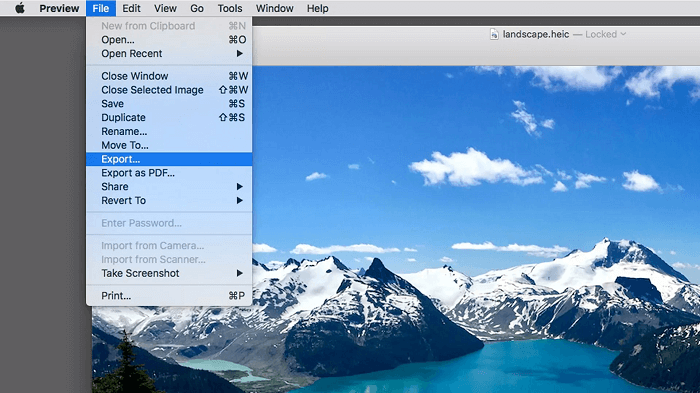
To convert HEIC to JPG on a Mac, you can use Preview, Photos, or a third-party app. In Preview, open the HEIC file, go to File, then Export, and choose JPEG from the format dropdown.
Step 1. Launch Qiling MobiMover on your Mac, go to "HEIC to JPG" and click "Browse" to convert HEIC files to JPG.
Step 2. Select the HEIC files you want to convert and click "Open."
Step 3. To convert HEIC to JPG, click "Convert" or "Start All" after selecting the desired files. Once the conversion is complete, click the "View" button to view the converted JPG images on your Mac.
Qiling MobiMover offers a range of features beyond converting HEIC images to JPG, such as:
- Transfer files from iPhone to a PC, or vice versa
- Move data between two iOS devices
- Manage WhatsApp data
- Download videos from popular sites like YouTube, Facebook, Instagram, etc
- Convert videos to MP3
Qiling MobiMover has a variety of iPhone data management tools, making it a good option to try.
Part 2. How to Open HEIC Files on Mac
If you're using a Mac running High Sierra version or later, you can directly open HEIC files with built-in apps like Preview, Photos, iMovie, or other apps like Adobe Photoshop and Dropbox also allow viewing or opening HEIC files.
1. Using the Preview App
Step 1. Locate the photo you wish to view on your Mac.
Step 2. Right-click the picture and choose "Open With," then select "Preview."
Step 3. Then, your picture will be displayed with the Preview app.
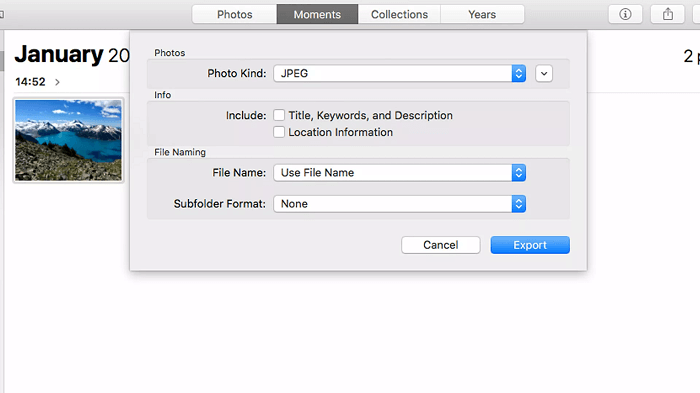
2. Using the Photos App
Step 1. Launch the Photos app on your Mac.
Step 2. Click the "File" menu from the top menu bar on your screen.
Step 3. Select the HEIC photos you want to open and click "Import" to import them.
Step 4. Once imported, you can view them like other images.
Tips: If you want to open HEIC files using Dropbox, you can do so by following these steps.
- Launch the Dropbox app on your iPhone, navigate to the "Camera" tab, and upload your HEIC images to Dropbox.
- To log into your Dropbox account on a Mac, start by launching the Dropbox application. Once it's open, click on the "Sign in" button located at the top right corner of the Dropbox window.
- Within the Dropbox app, HEIC photos are automatically converted to JPG, allowing you to easily access and view them.
In Conclusion
You can easily open HEIC photos on Mac, regardless of the system version. On macOS High Sierra and later, your device supports HEIC files, making them easy to open. However, if you're running an earlier version or need to open HEIC files on websites that don't accept them, you can use Qiling MobiMover to convert them to JPG and then open them directly.
Related Articles
- Top 7 Solutions to Fix the Shared Albums Not Working on the iPhone or iPad
- How to Transfer Camera Roll to PC | Newly Updated
- Best iPhone File Manager You Can't Miss
- Best Way to Increase C Drive Space in Windows 7/8/10
Increasing C drive space without hard drive formatting and OS reinstallation is a common issue. A utility gives good schemes to extend C partition securely.
Products
Articles & Tutorials
- Data Recovery
- Data Backup
- File Recovery
- File Backup
- System Backup and Restore
- Disk and Partition Clone
- Technical articles
- Mobile articles
- Disk Master Help
- Windows Data Recovery Tutorials
- Windows Secure Delete Tutorials
- Windows Partition Management Tutorials
- Windows File Backup and Restore Tutorials
- Windows System Backup and Restore Tutorials
- Windows Disk Backup and Restore Tutorials
- Windows Clone Tutorials